
You pick a clip on your Mac and nothing lands in your document. Almost every time, this comes down to one setting. Here is how to fix it, fastest cause first.
1. Turn on Accessibility access
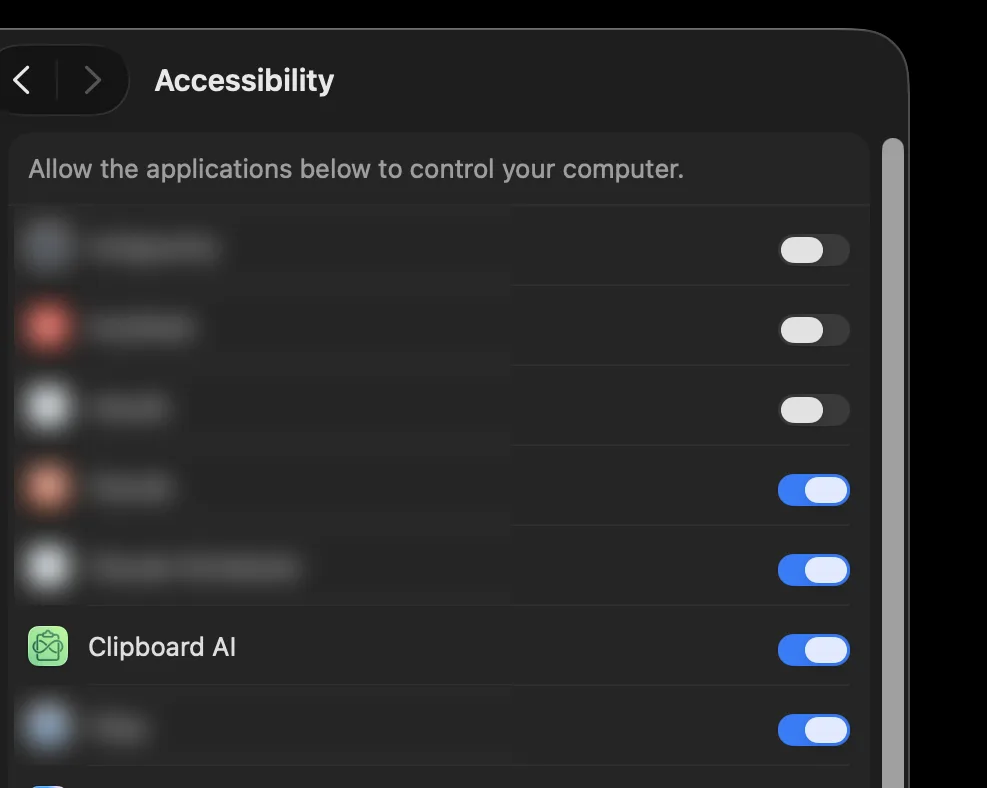
This is the cause more than nine times out of ten. Clipboard AI pastes by sending a Command V keystroke for you, and macOS blocks that until you grant Accessibility access. Without it, your clip is copied but it is never pressed into the app.
- Open System Settings, then Privacy & Security, then Accessibility.
- Turn the switch next to Clipboard AI on.
Full walkthrough, with a screenshot: Turn on Accessibility so paste works.
2. Clipboard AI is not in the list
If you do not see Clipboard AI under Accessibility at all, open the app once so macOS registers it, then check again. You can also click the small plus button below the list and add Clipboard AI from your Applications folder.
3. It worked before, then stopped
A macOS or Clipboard AI update can reset the permission. Go back to Accessibility and toggle Clipboard AI off and on again. That re-registers it without a restart.
4. Picking a clip only copies it
Open Settings and look under Behavior for Input "⌘ + V" after selection. When that switch is off, choosing a clip puts it on your clipboard and stops there, on purpose, so you press ⌘V yourself. Turn it on for Clipboard AI to paste for you.
5. Paste still goes to the wrong place
Clipboard AI pastes into whatever app was in front when you opened the floating menu. Click into the text field you want first, then bring up Clipboard AI and pick your clip.
Even without Accessibility, picking a clip puts it on your clipboard. So you can always press ⌘V yourself to paste while you sort the permission out.
Email us at [email protected] with your macOS version and what you are seeing. We read every message and will help you get it working.