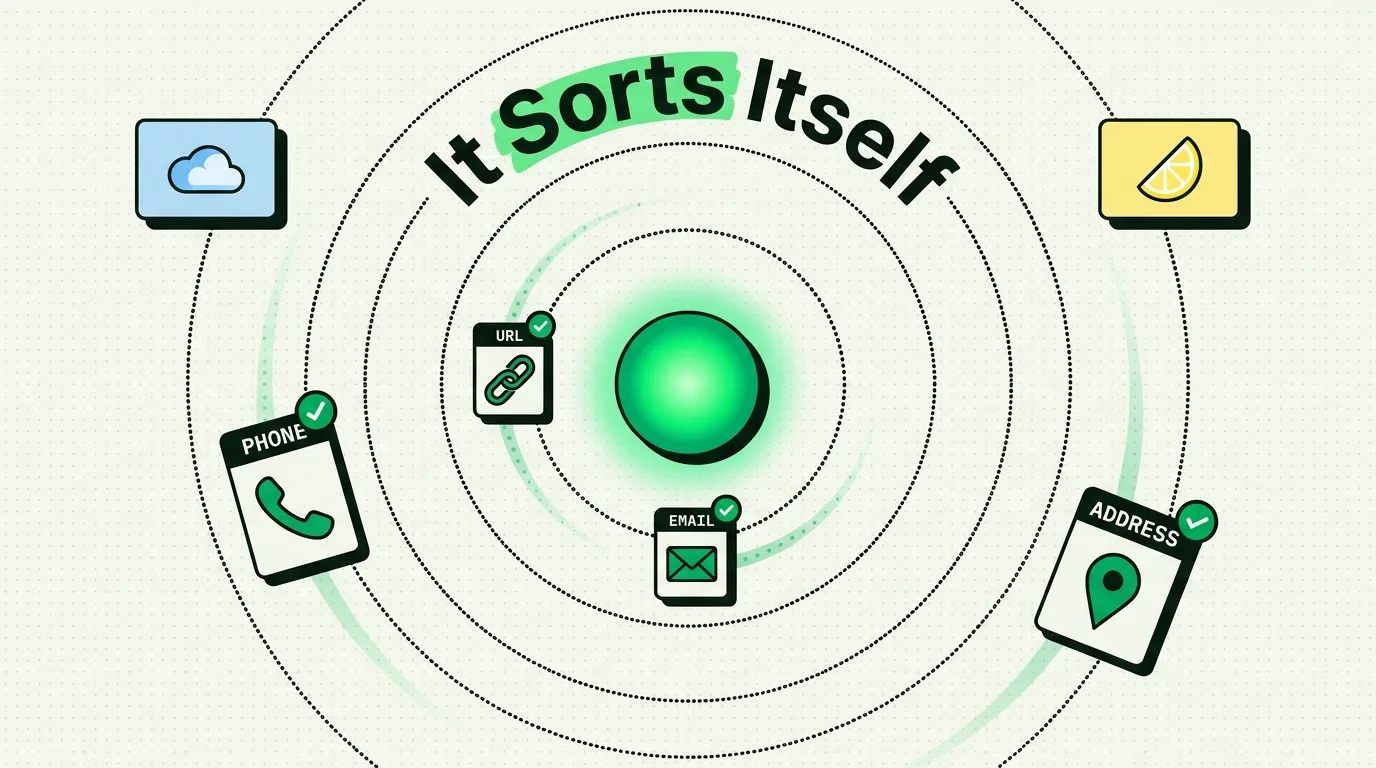
Smart clipboard categorization means your clipboard manager works out what each copy is and files it for you. Clipboard AI sorts every clip into one of seven categories (Links, Phone, Email, Address, Codes, Text or Images) the moment it is saved, then lets you filter by category with the chips under the search bar (tap the magnifying glass on the home screen). Detection runs on your device with pattern rules and Apple's built-in data detector, not a language model, so you never tag anything by hand.
The seven categories
Every clip gets exactly one category. This table shows what lands in each one and what the category adds.
| Category | What lands there | What it adds |
|---|---|---|
| Links | A web address that starts with http:// or https://, or a bare one that ends in a common domain, such as clipboardai.app/blog | The page title and icon are fetched, so a row of links reads like a list of pages |
| Phone | A number that looks like a real phone number somewhere in the world, with at least 10 digits | A Call action |
| One email address | A Mail action | |
| Address | A postal address that makes up most of the clip | A Maps action |
| Codes | A 4 to 8 digit number, or 6 to 10 letters and digits with at least one of each | A padlock in the keyboard until you tap it, and no place in Spotlight |
| Text | Everything else, from a note to a paragraph | Calculations such as 20% of 150 show their result, and text in another language gets a Translate button |
| Images | Pictures you copy or share in | The words inside are read on your device, so search can find them |
The Help Center's smart categories article lists the same seven.
How Clipboard AI decides
It checks each clip in a fixed order, and the first match wins: link, email, phone number, address, code, then Text. Links and emails are matched by their shape, and a clip counts as an email only when the whole clip is one address. Phone numbers and addresses go through NSDataDetector, the Apple class that finds dates, addresses, links and phone numbers in natural language text, and what it finds has to cover at least 60 percent of the clip. That is why a paragraph that mentions an address stays Text, while an address copied on its own lands in Address.
None of this is a language model reading your clips for meaning.
Phone numbers get one extra guard. Order numbers, card numbers and airline e-ticket numbers are kept out of Phone, because a number has to look like a real phone number somewhere in the world, not just have the right number of digits.
Where categories show up
Categories turn a long history into something you can scan. Say you copied a phone number three days ago and cannot remember which app it came from: tap the Phone chip and you are looking at a short list instead of scrolling a day-by-day feed. Combine a chip with a word to narrow further, such as Links plus part of a domain name.
| Where | How to filter by category |
|---|---|
| Search on iPhone | Tap the magnifying glass on the home screen, then a chip under the search bar: Links, Saved, Address, Email, Codes, Phone or Images |
| The keyboard | Switch with the globe key, then use the row above your clips: All, Images, Saved, your collections, then the categories that have clips |
| Saved tab | Pinned clips are already grouped by category |
| Home Screen | Add the Your Clipboard widget, which shows each clip type with a count, and tap a tile to open that category |
| Mac | Category icons can show beside each clip (a switch in Settings), and typing type: followed by link, phone, email, address, code, image or text in All Clips narrows the search. Select, Select all and Copy as one then stitches every result into a single clip, one per line |
The free plan keeps your last 10 copies and 5 saved clips, so that three-day-old number is still there only if you saved it or have Clipboard AI Pro, which makes history and saved clips unlimited. Searching your clipboard history covers the rest of the search tools.
Can you change a clip's category?
No. Clipboard AI has no control for moving a clip to another category, and you cannot add categories of your own.
Editing is the one lever. When you change a clip's text with Edit Text, Clipboard AI works out the category again from the new wording, so trimming the sentence around a phone number can move the clip from Text to Phone. If the category is wrong but the clip is fine, you can leave it where it is: search covers every category at once, and you can pin the clip, give it a short name, or add it to a Collection so it is easy to find later.
Categories, pins and Collections do different jobs
Categories sort by what a clip is, and nobody has to do anything. Pinning sorts by what matters: tap Save under the clip, or the bookmark icon on any row, and it moves to the Saved tab and stays through auto-delete. Good candidates are the things you retype, such as your email address, a standard reply or a meeting link, and how to pin important clips walks through it. Collections sort by what a clip is for, such as a trip or a client, each with its own icon and color, and they are part of Clipboard AI Pro; how Collections work shows the steps. With Pro's iCloud sync on, saved clips, names and Collections appear on your other devices too. None of this builds a folder tree like the one in Notes or Files, so if you want a category called Project Alpha, make a Collection with that name.
When a clip lands in the wrong category
Sorting looks at the shape of a clip, not its meaning, so a few cases go astray:
- A bare 10-digit number, such as an account number or an unhyphenated ISBN-10, has the same shape as a US phone number and can land in Phone.
- A clip that holds several things is filed as Text. Copy a whole email with a link, an address and a phone number inside it and you get one Text clip. Copy each piece on its own and you get a Link, an Address and a Phone clip.
- Codes cover short strings only. A 9-digit number, or a code with hyphens or spaces in it, is Text.
- An address in a layout Apple's detector does not recognize can end up in Text.
- The category follows structure, not intent. A phone number you copied as a reminder to call back is still a Phone clip.
In every case the clip is still saved, searchable and ready to paste.
Screenshots and other images
Image clips stay in Images, and the words inside them are read on your device with Apple's built-in text recognition, so a search for a word that only appears in a screenshot finds it. Phone numbers, addresses, links, email addresses, dates, amounts, tracking numbers and flight numbers inside a screenshot sit under the picture as chips: tap one to copy it, or press and hold for Call, Open in Maps or Track Shipment. On iOS 26 and later, a table in a screenshot comes out as a table, with a Copy Table button that pastes real cells into Numbers or Sheets. The chips and tables walkthrough shows each one.
Where Apple Intelligence comes in
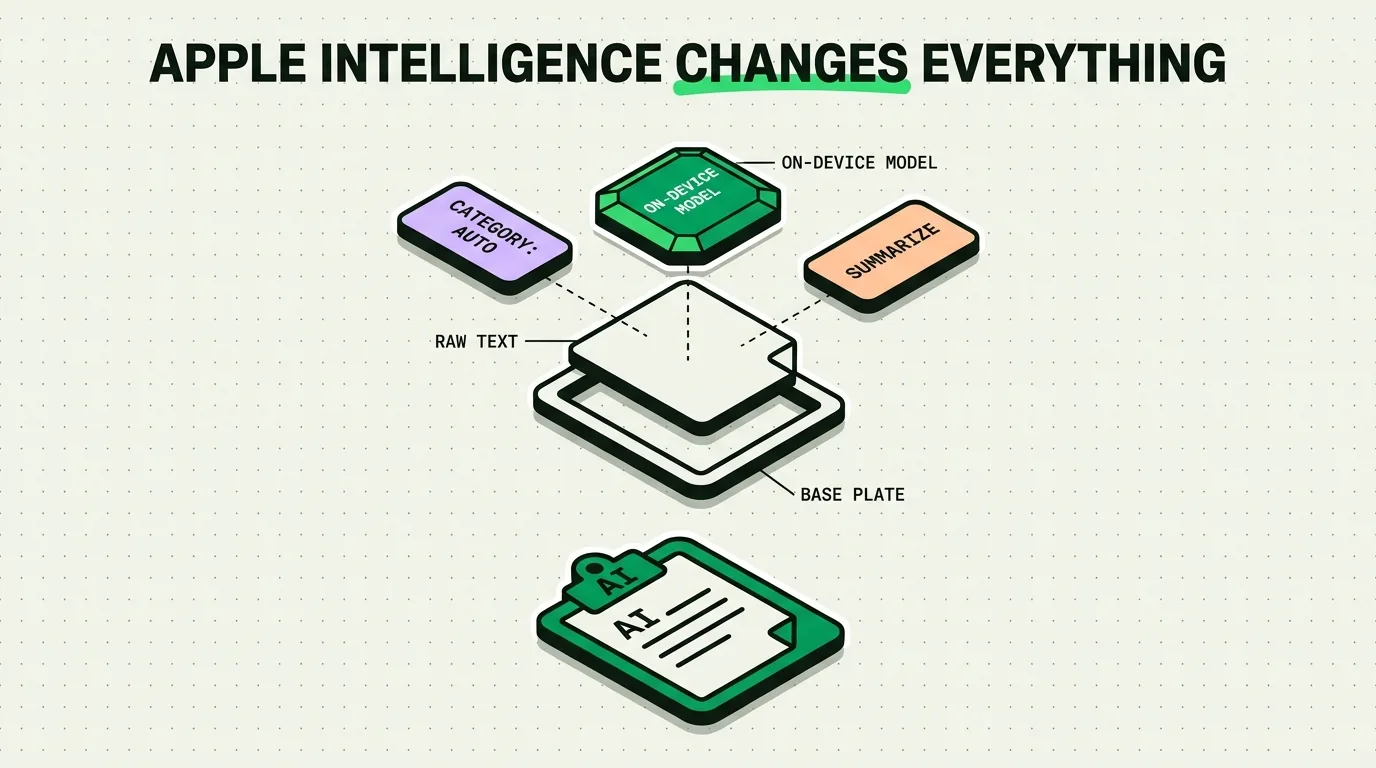
Apple Intelligence does not assign categories, but it uses them. Ask, the free plain-language search on an iPhone that supports Apple Intelligence, lands better when your question names the kind of clip, such as an address or a link. TL;DR lines for long clips and the six rewrites in Pro run on Apple Intelligence too, and the AI and the clipboard hub collects every piece.
Frequently Asked Questions
Does smart categorization need an internet connection?
No. Sorting runs on your device and sends nothing to Clipboard AI's servers. The one step that goes online is fetching a link's page title and icon, which is how a row of Links reads like a list of pages. Everything else, including which category a clip gets, is worked out locally.
Does it work the same way on a Mac?
Yes, with the same seven categories. Clips captured on a Mac also remember the app they were copied from, so one that synced to your iPhone can read Copied from Safari on its detail screen. Clips captured on an iPhone carry no source, because iOS does not tell apps where a copy came from.
Are codes and other sensitive clips hidden?
Yes, in the keyboard. A clip in Codes shows a padlock until you tap it, and tapping still pastes the real value. Codes and anything flagged sensitive are also left out of Spotlight, which stays off until you turn on Find Clips in Spotlight in Settings, and the delete prompt never quotes them.
Is smart categorization free?
Yes. Smart categories, search and the paste keyboard are free. The free plan keeps your last 10 copies and 5 saved clips. Clipboard AI Pro removes both limits and adds Collections and iCloud sync, at $19.99 a year with a 7-day free trial for new subscribers, or $34.99 once for Lifetime.
Can Ask find a clip by its category?
Yes, if your iPhone supports Apple Intelligence and runs iOS 26 or later. Tap the sparkles at the end of the search field and describe the clip, such as the address I copied yesterday. Naming the type, the app it came from or roughly when helps. Ask searches only your own clips, and it is free.
Sources
- Apple Developer Documentation, “NSDataDetector”, read October 5, 2026