
The Apple Intelligence features most worth turning on to save time are the ones that replace reading or retyping: Writing Tools, notification summaries, Mail and Messages summaries, Smart Reply and Live Translation. They work in iOS 26 and iOS 27 on an iPhone 15 Pro, iPhone 15 Pro Max or any iPhone 16 or later, and you switch Apple Intelligence on at Settings > Apple Intelligence & Siri. This page says where to find each feature and what it replaces, with no minutes-saved figures, because a number without a method would mean nothing.
What you need first
Apple's iOS 27 guide lists the iPhone 15 Pro, iPhone 15 Pro Max and every iPhone 16 or later for Apple Intelligence, so the iPhone 15 and 15 Plus are out. Siri and the device language must be set to a supported language, and some features are not available in every region. Features that rely on Apple's server-side models, Siri AI among them, are subject to daily usage limits.
Writing Tools: start here
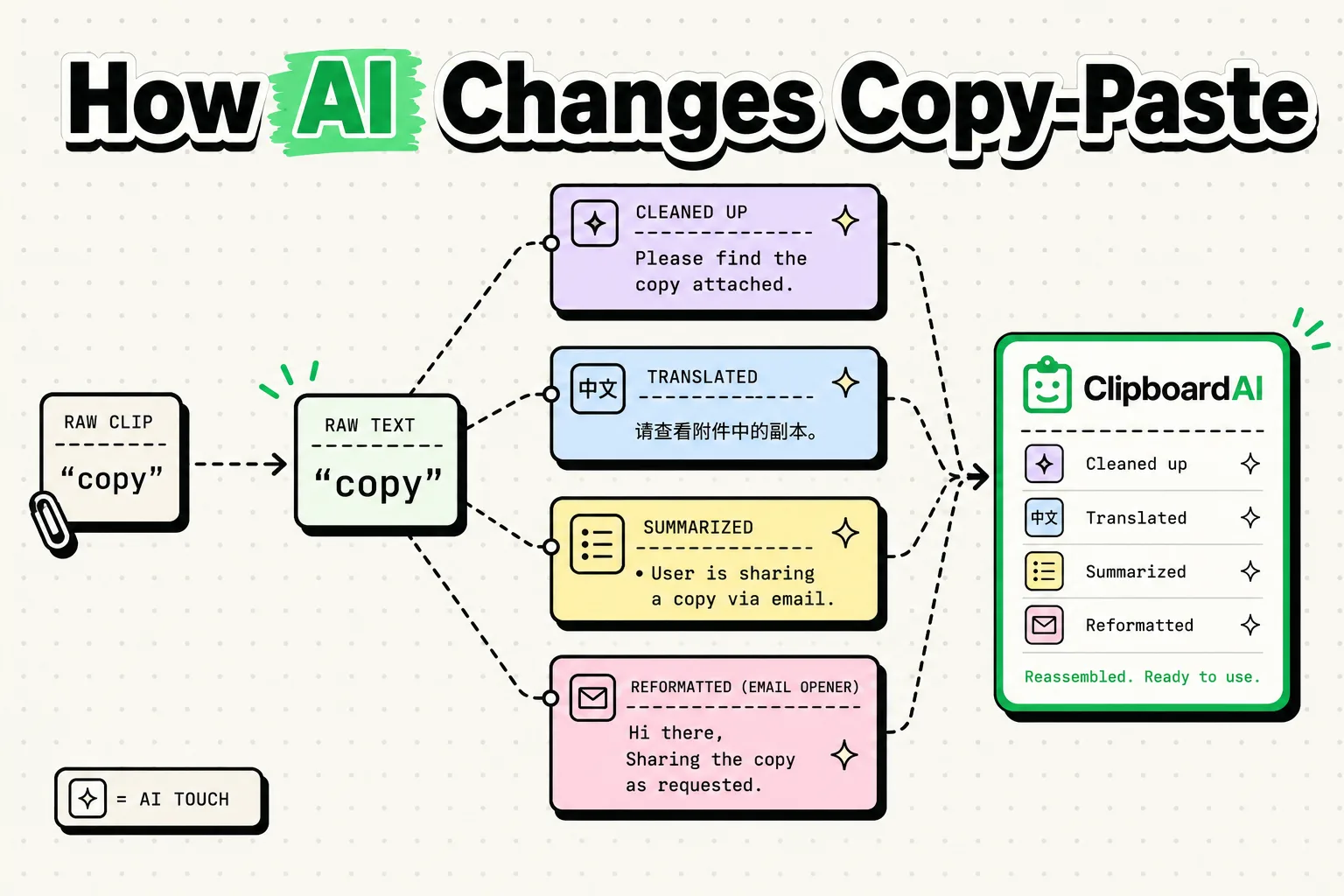
Writing Tools work in most places you can type, including third-party apps and websites. Select the text, tap the Writing Tools button, and pick Proofread, Rewrite, Summarize or Key Points. Apple's iOS 26 guide also shows a Writing Tools button at the top right of the keyboard, which the iOS 27 guide does not mention. Rewrite takes a tone (Friendly, Professional or Concise) or a description of the change you want. The result appears in place, and Original switches back to your own wording if you prefer it.
Proofread underlines each change and explains it. After a summary you can Copy it, Replace the original text with it when the text is editable, or Share it, and Apple's iOS 26 guide also lists List and Table, which reorganize the original text instead of shortening it. Writing Tools work on pasted text too, so a long reply copied from a chatbot can be cut down with Concise or Key Points before you send it. With the optional ChatGPT extension turned on, Writing Tools can also compose text from a description, and you choose what content goes to ChatGPT.
Smart Reply does the same job for replies: in Mail and Messages it suggests quick responses, so you can cover everything in a message with a tap.
Notification summaries and Reduce Interruptions
Notification summaries condense a stack of alerts, such as a busy group chat, into one line you can scan. Turn them on under Settings > Notifications > Summarize Notifications, then choose which apps to summarize. Prioritize Notifications, in the same Notifications settings, moves the urgent ones to the top of the stack. The Reduce Interruptions Focus (Settings > Focus, tap the add button at the top right, then Reduce Interruptions) goes further and shows only the notifications that might need immediate attention, such as a message about a change of plans.
Siri AI in iOS 27
Siri AI is a headline feature of iOS 27, which arrived in September 2026, and Apple labels it beta. It is a conversational assistant that draws on your personal context to find a specific photo, an email or a saved note, then acts across your apps, for example by drafting an email or editing and sharing photos. It understands what is on your screen, and your conversations are saved in a dedicated Siri app. It needs an iPhone 15 Pro, iPhone 15 Pro Max or any iPhone 16 or later, it starts in English, it is not initially available in the EU on iOS, and usage limits apply.
More features that earn a place
These are the other Apple Intelligence features in Apple's iOS 26 and iOS 27 guides that replace a chore. Genmoji, Image Playground and Image Wand are creative rather than time-saving, so they are left out. The table shows where each one lives and which guide documents it.
| Feature | Where to find it | Apple documents it in | What it replaces |
|---|---|---|---|
| Mail summaries and Priority Messages | iOS 26 and 27 | Opening long emails to find the point, and hunting for the urgent one | |
| Messages summaries | Messages | iOS 26 and 27 | Reading every message in a busy unread conversation |
| Photo and video search by description | Photos | iOS 26 and 27 | Scrolling the library for one picture or video moment |
| Safari page summaries | Safari | iOS 26 and 27 | Skimming a long article for the gist |
| Live Translation | Messages, FaceTime and Phone, with languages downloaded in the Translate app | iOS 26 and 27 | Copying text into a separate translator |
| Visual Intelligence on screen | Press the side button and volume up together, as for a screenshot | iOS 26 and 27 | Retyping details from a flyer, invite or page; in iOS 27 the tools search, ask, add to Calendar, summarize or read aloud |
| Visual Intelligence camera | Click and hold the Camera Control, or set the Action button, a Lock Screen control or Control Center to Visual Intelligence; with Siri AI on, open Camera and tap Siri | iOS 26 and 27 | Typing what you see into a search box, or retyping an event from a poster |
| Describe a shortcut, event or reminder | Shortcuts, Calendar and Reminders | iOS 27 | Building each one field by field |
| Organize Tabs and Notify Me | Safari | iOS 27 | Sorting tabs by hand and rechecking a page for a price change or restock |
| Call Context | Phone | iOS 27 | Digging through Mail for a confirmation code while you are on a call |
| Recorded audio, call and voicemail summaries | Notes and Phone | iOS 26 and 27 | Replaying a recording or a voicemail |
Where Clipboard AI fits
Apple Intelligence works inside each app, and your clipboard is the thread between them. Clipboard AI adds Apple Intelligence to that thread in three places. Ask turns a question like the address I copied yesterday into a search of your own clips and answers in a line, with the clips underneath, and it is free. Transform on a saved clip offers six Apple Intelligence rewrites: Summarize, Key Points, Proofread, Make Professional, Make Friendly and Shorten. Those are part of Clipboard AI Pro, and the original clip stays as it was, so you can compare versions. Long clips also get a TL;DR line when they are saved, which is free.
Ask and the rewrites need iOS 26 or later on an iPhone 15 Pro or newer, and TL;DR uses Apple Intelligence when the device supports it. On iOS 26 that work always runs on the device. On iOS 27, longer text can go to Apple's Private Cloud Compute, and a footnote under each result says which happened. The AI and the clipboard hub collects the rest, and Apple Intelligence and clipboard management goes deeper on how the two fit together.
What stays on your iPhone
Apple says many Apple Intelligence requests run entirely on the device, and that harder ones can use Private Cloud Compute, which processes only the data relevant to the request and does not store it or make it accessible to Apple. On-device AI vs cloud AI compares the trade-off.
Frequently Asked Questions
Is Apple Intelligence free?
Yes, with limits. There is no subscription, but Apple's iOS 27 guide says features that rely on server-side models, including Siri AI, Intelligent Photo Editing Tools and Image Playground, are subject to daily usage limits. It also says expanded access to those features will be available for a fee in the future.
Does Apple Intelligence always send my data to Apple's servers?
No. Many requests run entirely on the iPhone. Harder ones can use Private Cloud Compute, which Apple says processes only the relevant data and does not store it or make it accessible to Apple. To see what your iPhone sent, open Settings > Privacy & Security > Apple Intelligence Report and choose the last 15 minutes, the default, or 7 days.
Can I turn Apple Intelligence off?
Yes. Open Settings > Apple Intelligence & Siri and tap the switch next to Apple Intelligence. To keep it on but silence one feature, turn off notification summaries under Settings > Notifications > Summarize Notifications. Clipboard AI's nine text tools keep working either way, because they run on your iPhone without Apple Intelligence.
Does Writing Tools work in third-party apps?
Yes. Apple says Writing Tools are available in most places you write, including third-party apps and websites. In read-only text such as a PDF, the result opens in a Writing Tools dialog with a Copy button, because it cannot replace the original. Select text and tap the Writing Tools button to start.
Does Apple Intelligence support languages other than English?
Yes. Apple lists Chinese (Simplified and Traditional), Danish, Dutch, English, French, German, Italian, Japanese, Korean, Norwegian, Portuguese, Spanish, Swedish, Turkish and Vietnamese, with Siri and the device language set to one of them. Some features are not available in every region or language, and Siri AI (Beta) starts in English only.
Sources
- Apple Support, “What’s new in iOS 27”, read October 5, 2026
- Apple Support, “Get started with Apple Intelligence on your iPhone” (iOS 27), read October 5, 2026
- Apple Support, “Use Apple Intelligence on your iPhone” (iOS 26), read October 5, 2026
- Apple Support, “Use Writing Tools to write, improve, and summarize content on iPhone” (iOS 27), read October 5, 2026
- Apple Support, “Use Writing Tools with Apple Intelligence on iPhone” (iOS 26), read October 5, 2026
- Apple Support, “Summarize notifications and reduce interruptions with Apple Intelligence on iPhone”, read October 5, 2026
- Apple Support, “Use Apple Intelligence to stay organized and get things done on iPhone”, read October 5, 2026
- Apple Support, “Use Apple Intelligence to communicate with ease on iPhone”, read October 5, 2026
- Apple Support, “Learn about what’s on your iPhone screen with Visual Intelligence”, read October 5, 2026
- Apple Support, “Learn about what’s around you with Visual Intelligence on iPhone”, read October 5, 2026
- Apple Support, “Apple Intelligence and privacy on iPhone”, read October 5, 2026
- 9to5Mac, “iOS 27 adds convenient new iPhone feature you’ll use all the time”, September 22, 2026