
On this page
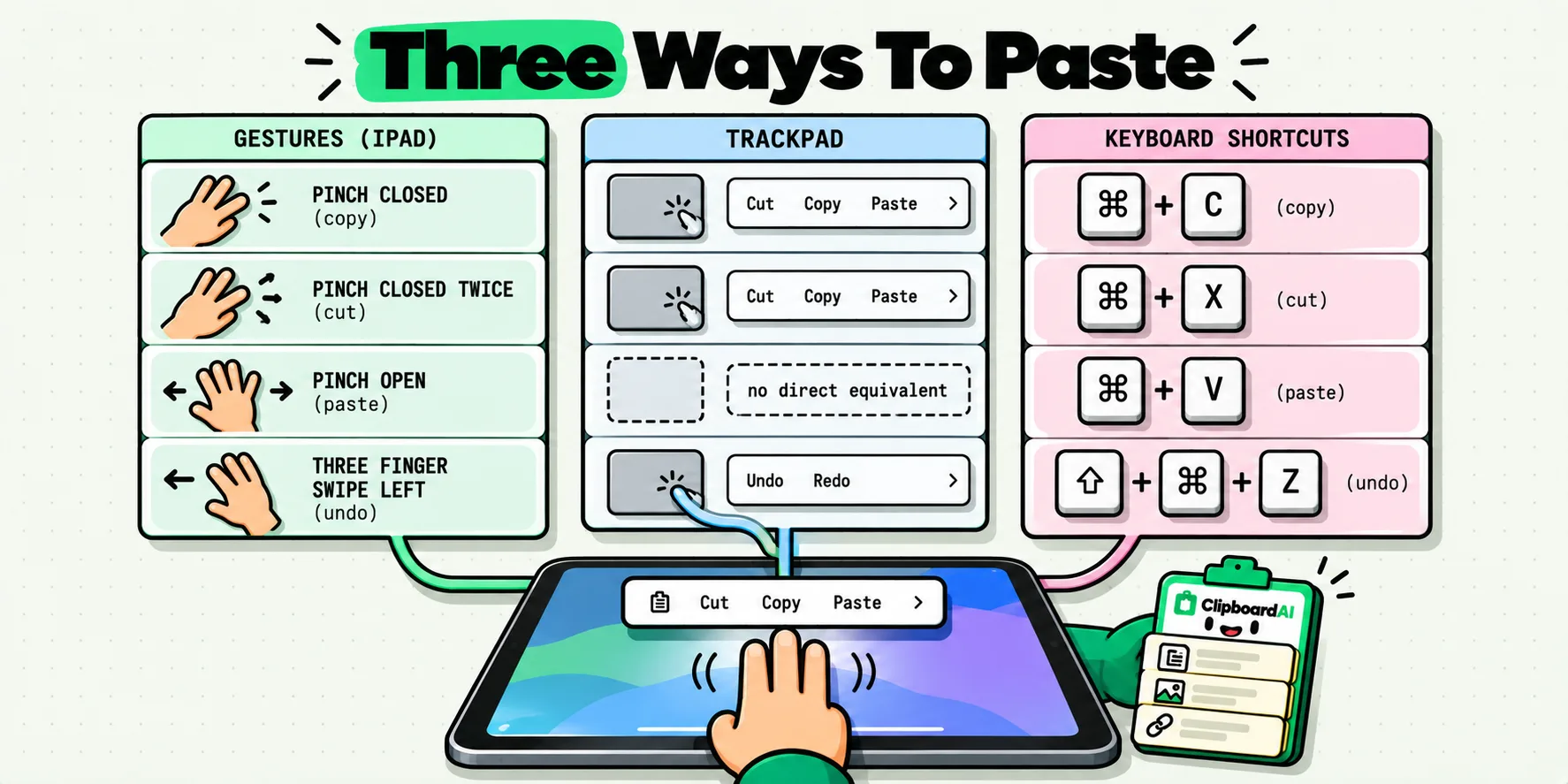
On iPad, copy is a three-finger pinch closed, cut is a three-finger pinch closed twice, and paste is a three-finger pinch open. Three fingers swiping left undoes, swiping right redoes, and a three-finger single tap opens a shortcut bar containing all of them. With a keyboard attached the same operations are the familiar Command-C, Command-X, Command-V, Command-Z and Shift-Command-Z.
Below is the full cross-reference, because the iPad is the only Apple device where the same action has three different correct answers.
One iPad, three input languages
Your fingers, a trackpad or mouse, and a hardware keyboard are three separate input systems, and Apple gave each of them its own vocabulary for the same handful of editing operations. Nearly every guide picks one system and stops. That is why you can use an iPad daily for years and still not know the trackpad answer for selecting a sentence, or that pressing and holding the Command key shows you every shortcut the current app supports.
Worth saying honestly, because it changes how you should read the older guides still ranking for this: the three-finger editing gestures have been stable since iPadOS 13. The 2019 and 2020 articles are not wrong about them. They are just partial, and they predate the arrangements where you routinely have several apps visible at once, which is when copy and paste actually gets used.
The cheat sheet
This is the complete cross-reference of editing actions against the three input methods. Cells marked "no direct equivalent" are genuinely missing rather than omitted.
| Action | Touch gesture | Trackpad or mouse | Keyboard |
|---|---|---|---|
| Copy | Pinch closed with three fingers | Select, then right-click and choose Copy | Command-C |
| Cut | Pinch closed twice with three fingers | Select, then right-click and choose Cut | Command-X |
| Paste | Pinch open with three fingers | Right-click and choose Paste | Command-V |
| Paste and match style | No direct equivalent | Right-click, where the app offers the option | Option-Shift-Command-V in apps that support it, such as Pages |
| Undo | Swipe left with three fingers, or double tap with three fingers | Command-Z on the keyboard, or the app's undo control | Command-Z |
| Redo | Swipe right with three fingers | Shift-Command-Z on the keyboard | Shift-Command-Z |
| Show the editing shortcut bar | Tap once with three fingers | Right-click | No direct equivalent |
| Select all | Tap once, then choose Select All from the menu | Command-A | Command-A |
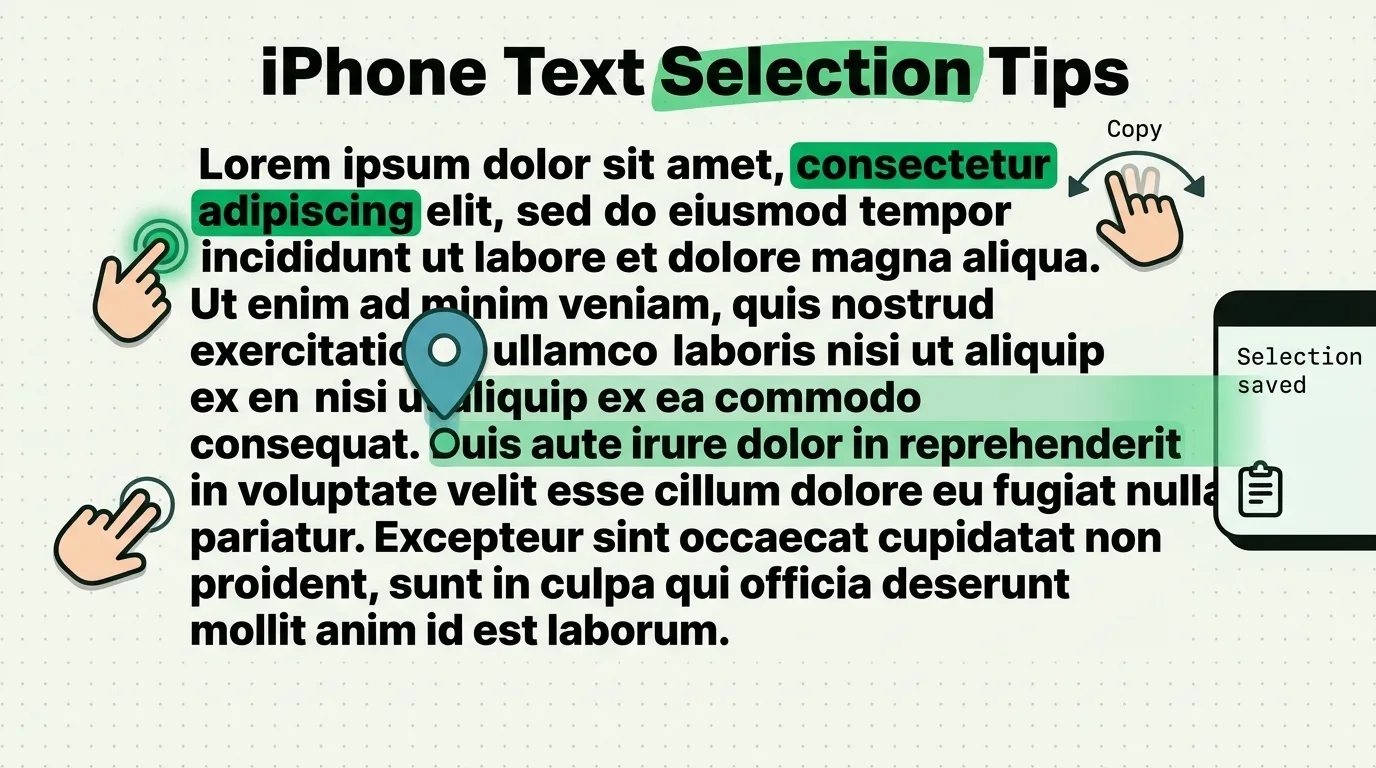
| Select a word | Double tap the word | Double click the word | Shift-Option-Left or Shift-Option-Right extends by word |
| Select a paragraph | Triple tap inside it | Triple click inside it | Shift plus Down arrow, repeated |
| Select a block of text | Double tap and hold the first word, then drag the grab points | Click at the start, then Shift-click at the end | Shift plus arrow keys, held |
| Adjust an existing selection | Drag the grab handles at either end | Shift-click the new end point | Shift plus arrow keys |
| Place the cursor precisely | Touch and hold the space bar, then slide to steer | Click where you want it | Arrow keys |
| Move text to another app | Touch and hold the selection until it lifts, then drag it | Click and drag the selection across | Copy, switch app, paste |
| See every shortcut the current app has | No direct equivalent | No direct equivalent | Press and hold the Command key |
Last checked July 28, 2026. The selection rows were checked again against Apple's iPad User Guide on October 21, 2026, which lists a triple tap for a paragraph and a double tap and hold for a block. Individual apps can and do override these, particularly drawing and music apps that claim multi-finger gestures for their own tools.
One limit on the evidence: the three-finger rows are Apple's documented behavior, not a Simulator run. On an iPad Pro 13-inch (M4) image running iPadOS 26.5, build 23F77, on September 8, 2026, Simulator offered two touch points and these gestures need three. They have been stable since iPadOS 13, and any row can be confirmed in Notes on a real iPad in under a minute.
Selecting text also brings up another route, the menu over the selection. It carries verbs the other routes lack: Look Up, Translate, Share and, in a field the system recognizes, Autofill. It pages, too. If Format or Replace is missing, a chevron at the end of the row hides the rest, and how many items fit depends on the width of your selection and of your window.
The three-finger gestures, and why they sometimes do nothing
Five reasons a pinch fails, in the order they are worth checking:
- You are not in an editing context. The gestures work where text can be edited. In a read-only view, a three-finger pinch has nothing to act on.
- The finger count is off. Two fingers scroll, four fingers swipe between apps, and only exactly three edit. A gesture that does nothing has usually failed on the count and not on the app.
- The fingers did not land together. If one finger touches slightly before the others, iPadOS reads the start of a scroll instead of the start of a pinch. Land all three at once, deliberately.
- The app claimed the gesture. Some apps map three fingers to their own tools. There is no override for that.
- You wanted cut, and pinched too slowly. Cut is two closing pinches in quick succession. Slow it down and you get two copies instead.
When a pinch is not registering, the three-finger single tap is the escape hatch. It brings up a small bar with undo, cut, copy, paste and redo as buttons, which works even when the pinch gestures are being awkward. The bar can be dragged to either side of the screen if it lands on top of what you are reading.
If the gestures fire when you did not mean them to, a third finger is probably resting on the glass, and gripping the iPad further from the edge of the display helps. No switch to turn them off turned up in Settings on iPadOS 26.5, checked in Simulator on September 8, 2026.
The 60-second free win
Learn one gesture today and make it the three-finger swipe left. That is undo.
Open Notes, type a word, swipe left with three fingers, watch it disappear, swipe right with three fingers, watch it come back. Thirty seconds of practice. The payoff arrives the first time you paste the wrong thing into a long message and would otherwise have spent a minute deleting characters one at a time. It also works after an accidental cut, which is the one clipboard mistake that actually removes your text rather than just adding to it.
Moving text between two iPad apps
The fastest route between two visible apps is drag and drop, and it has one property the clipboard cannot match: it never touches the clipboard at all, so it does not destroy whatever you already had copied.
Touch and hold the selection until it lifts off the page, keep dragging with that finger, and drop it into the destination. With two apps side by side this is a single continuous motion. Keep dragging with that finger and tap other items with a second finger, and each one joins a stack with a badge counting them. Drop the stack and all of it arrives, which makes this the one route that moves several items in a single motion. Our walkthrough of drag and drop on iPhone and iPad covers it step by step.
The destination has to be reachable while you are still holding. That means a second window already on screen, or the Dock, which you can pull up mid-drag with your other hand. iPadOS 26 introduced windowed apps, so any two visible windows are valid endpoints, and Split View and Slide Over are earlier layouts for the same idea. Dragging to a Mac works too when Universal Control is on and the two machines sit side by side. Window layout never changes the editing gestures: they and the Command shortcuts belong to the text view, not to the window manager. If a gesture starts failing after you rearrange windows, look at where your fingers landed. One real difference is that holding Command shows the front window's shortcuts, so two windows of the same app can show two different lists.
The honest limits: a drag delivers what it carries once and to one destination, some apps refuse the drop entirely, and it requires both apps to be on screen. For anything you will need more than once, copying is still better, because a copy can be pasted repeatedly and a drag cannot. Our guide to clipboard workflows for iPad multitasking goes further into which one to reach for.
What iPadOS leaves for an app to solve
- One clipboard slot. Copy twice and the first item is gone. Apple documents the general pasteboard as persistent across restarts and app uninstalls, so nothing expired; it was replaced. Our explainer on why iOS only saves one copy covers the design.
- No built-in clipboard history. Apple documents a Spotlight clipboard history for the Mac. There is no documented equivalent on iPadOS.
- Pasting from another app can prompt. Since iOS 16, an app reading something you copied elsewhere raises a user alert unless it uses Apple's dedicated paste control. That prompt is a feature, not a bug, and it applies on iPad too.
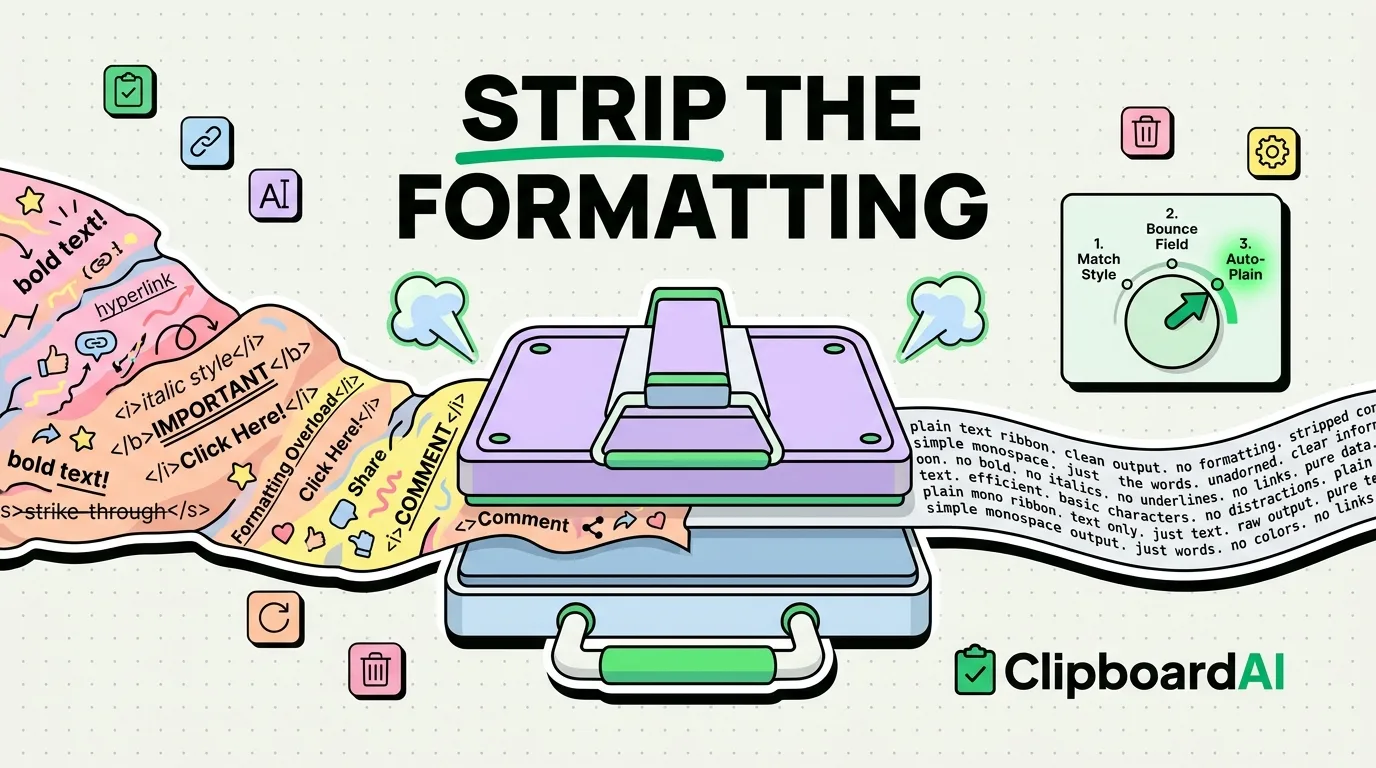
- Paste modes beyond plain Command-V live on the Mac. Pasting a queue of clips one after another, and a standing always-paste-as-plain-text setting, are macOS features in our app. On iPad you strip formatting per paste. Use the destination app's Paste and Match Style where it offers one, from the selection menu or with a hardware keyboard (hold Command to see whether the app declares it). Otherwise paste into a new plain note, select all, copy again, then paste where you meant to. A plain field has nowhere to keep the formatting.
What a clipboard manager adds on an iPad
Two things, and both count for more on a big screen than on a phone. History, so the copy you made an hour ago is still there. And a paste keyboard, so a saved item goes into the field you are typing in without leaving the app, which on an iPad otherwise means rearranging your windows to go and fetch it.
Saving barely interrupts you. With Full Access on, ClipboardAI's keyboard picks up what you copied the moment it comes on screen, so if you are typing anyway the clip is already saved. On an iPhone, Back Tap turns it into a double tap on the back of the phone: silent, instant, nothing opens. On a Mac there is no gesture at all, because capture there is continuous and automatic, and with sync on everything you copy at the desk is waiting on the iPad. Sync needs Pro and the same iCloud account on both devices, covered in clipboard sync between iPhone and iPad. The free tier is 10 stored clips and 5 pins, which is plenty to find out whether the habit sticks.
What that adds up to on an iPad: the reference you copied in Safari at the start of the afternoon is still one globe tap away at the end of it, however many times you copied something else in between.
Sources
- Apple, "Select, edit, and move text on iPad", read October 21, 2026
- Apple, "Use Universal Clipboard to copy and paste between your Apple devices", read October 21, 2026
Frequently Asked Questions
How do I copy with three fingers on iPad?
Select the text first, then pinch closed with three fingers. Pinching closed twice in quick succession cuts instead of copying, and pinching open with three fingers pastes. If the pinch does nothing, land all three fingers at the same instant, because a staggered touch is read as the start of a scroll. A three-finger single tap opens a shortcut bar with the same buttons.
Do the gestures work without a Magic Keyboard?
Yes. The three-finger gestures are touch gestures and need no accessory at all. The keyboard shortcuts and the trackpad actions are alternatives for people who have that hardware attached, not requirements. The one thing you lose without a keyboard is the trick of pressing and holding the Command key to list every shortcut the current app supports, which has no touch equivalent. With a keyboard attached, both sets stay live together, so you can pinch to copy and press Command-V in the same sentence.
What is the fastest way to move text between two iPad apps?
Drag and drop, when both apps are visible. Touch and hold the selection until it lifts, then drag it into the other app and release. It is faster than copying, and it does not touch the clipboard, so whatever you had copied earlier survives. Tap more items with a second finger while dragging and they join the stack. The trade-off is that a drag delivers its payload once. If you need the same text in three places, copy it instead.
Why do the three-finger gestures do nothing in some apps?
Usually one of three reasons, after you have checked that exactly three fingers are down, since two scroll and four swipe between apps. The view is read-only, so there is no text to act on. The fingers landed at slightly different times, so iPadOS interpreted it as a scroll. Or the app has claimed multi-finger gestures for its own tools, which drawing and music apps commonly do. When a pinch will not register, tap once with three fingers to bring up the shortcut bar and use its buttons instead.
Does the iPad keep a clipboard history?
Not on its own. The system clipboard holds one item, and each copy replaces the last. Apple documents a Spotlight clipboard history on the Mac, but there is no documented iPadOS equivalent. A clipboard manager adds the history, and on iPad it can also insert saved items through a keyboard extension so you do not have to leave the app you are typing in.
How do I copy from my iPad to a Mac?
Copy on the iPad and paste on the Mac with Universal Clipboard. Both devices need the same Apple Account, to be near each other, and to have Bluetooth, Wi-Fi and Handoff on. It carries the latest item only and keeps it briefly, so treat it as a hand-off and not as storage. With Universal Control on and the two machines side by side, you can also drag content across. For earlier copies, iCloud sync in ClipboardAI Pro keeps the history on both.