
On this page
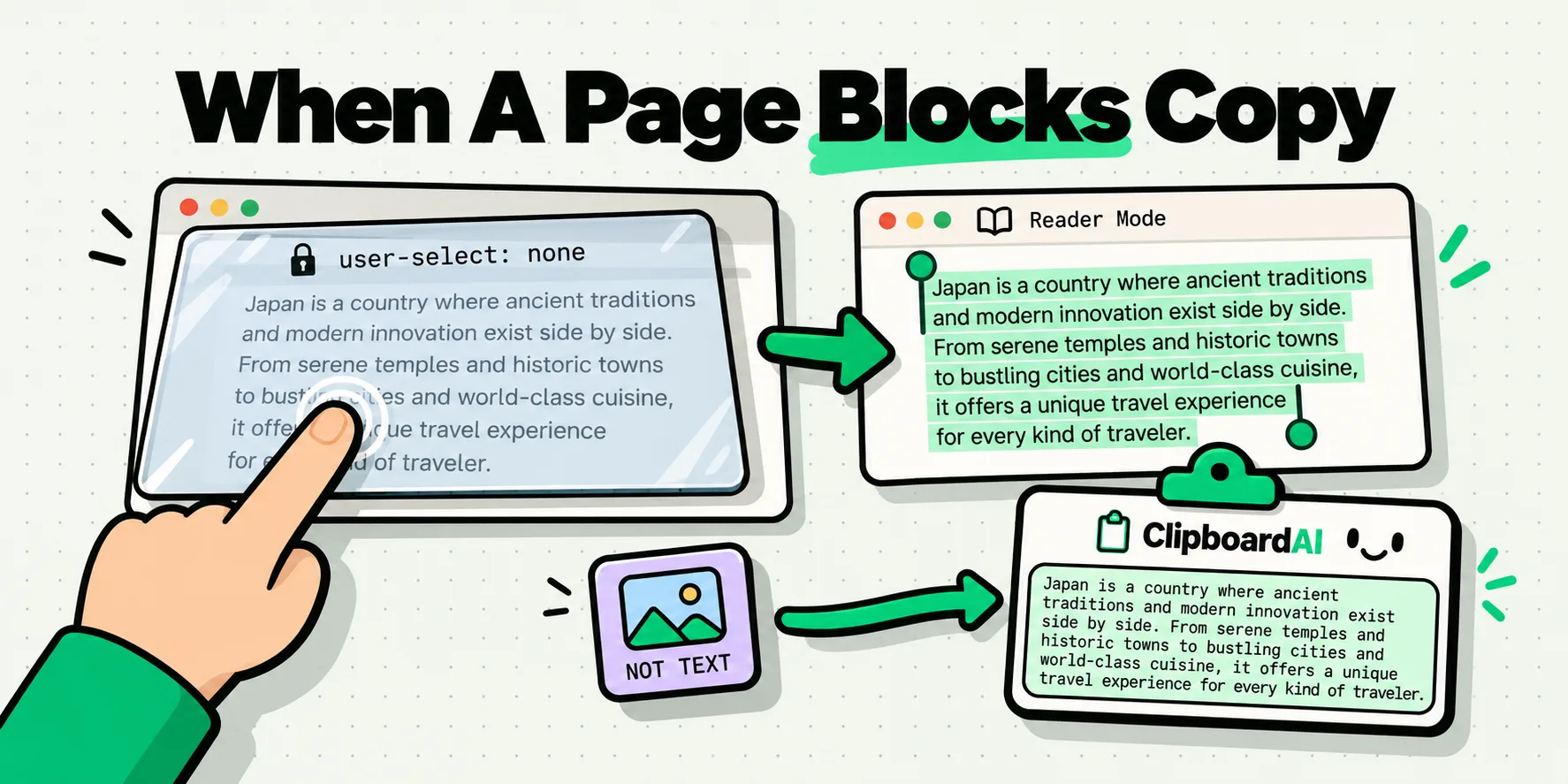
When a website will not let you select text on iPhone, the page is blocking selection deliberately, usually with a line of CSS or a JavaScript handler. Nothing is wrong with your phone. The fastest way around it is Safari Reader: tap the page settings button at the left of the address bar and choose Show Reader. Reader rebuilds the article without the site's own styling, and selection normally comes straight back.
That works often enough to be the first thing you try every time. When it does not, there are four more routes, and they fail in different ways, which is the useful part.
Why a page does this at all
Almost every case comes down to two lines of code. A stylesheet rule called user-select: none tells the browser not to allow selection on part of the page. A script can also listen for the moment you start selecting and cancel it. Some sites layer a transparent element over the text so your finger never actually touches the words.
None of that is encryption or protection in any meaningful sense. The text is already sitting in the page you downloaded. The site is asking the browser politely not to let you highlight it, and every route below is a way of viewing the same text somewhere that never received the request.
There is a second, entirely different case that looks identical: the text was never text. Recipe cards, quotes on news sites and a lot of social content are pictures of words. Long pressing does nothing because there is nothing to select. That case needs its own answer, further down.
The five-second version
Before anything else, on the page that is refusing you:
- Tap the page settings button at the left of the address bar. On recent iOS it is marked
aA. - Choose Show Reader.
- Long press the text and drag the handles as normal.
Reader strips the page's stylesheet and scripts and lays the article out in Safari's own view, so a selection block written into the site has nothing left to attach to. It also drops ads, popovers and the sticky header that keeps eating your long press.
The catch is that Reader only offers itself on pages Safari recognizes as an article. On a product page, a forum thread or a documentation site the option is often grayed out or missing entirely, and you move on to the next route.
Five routes, compared
These are the five ways to get text off an uncooperative page on an iPhone, with the trade-off each one makes:
| Route | How long | Gives you real selectable text? | Works when the words are a picture? | Cost | Main catch |
|---|---|---|---|---|---|
| Safari Reader | About 5 seconds | Yes, and it keeps paragraph breaks | No | Free | Only offered on pages Safari treats as articles |
| Turn JavaScript off for the visit | About 30 seconds each way | Yes, if a script was doing the blocking | No | Free | The switch is global, not per site. Some pages will not render at all until you turn it back on. |
| Screenshot, then Live Text | About 15 seconds | Recognized text, not the original text | Yes | Free | Line breaks and layout are lost, and only what is on screen is captured |
| Request Desktop Website | About 5 seconds | Sometimes, when the block is in the mobile layout only | No | Free | Works less often than people expect, but costs nothing to try |
| A Safari extension built for it | A few minutes to set up, then instant | Yes | No | Usually a few dollars | You are granting an extension access to page content. Read what it asks for. |
Working through them in order
Reader first, always. If it is unavailable, the next cheapest move is the desktop layout: same page settings button, choose Request Desktop Website. Plenty of sites apply their selection blocking only in the mobile stylesheet and forget the desktop one.
If both fail and you suspect a script, you can take the script away. Go to Settings, Safari, Advanced, and turn JavaScript off, then reload the page. A selection blocker implemented in JavaScript simply stops existing. Turn it back on afterwards. It is a global switch, not a per-site one, and a surprising amount of the modern web is blank without it. Treat it as a thirty-second visit, not a setting you leave changed.
The extension route is worth it only if you hit this weekly. The App Store has several small paid extensions whose entire job is re-enabling selection and right click, and the fact that people pay a few dollars for that tells you how often Reader falls short. Look at what page access the extension requests before you enable it, the same way you would with any browser extension.
When the words are a picture
If long pressing produces no selection handles anywhere on the page, including in Reader, the text is probably an image. Selection blocking is not involved and none of the routes above will help.
Take a screenshot, open it, and use Live Text: touch and hold on the words in the image and the usual selection handles appear, with Copy in the menu. Apple's requirements for Live Text are an iPhone XS or XR or later running iOS 15 or later, and comparable iPad models on iPadOS 15.1 or later. If nothing happens, check that it is switched on at Settings, General, Language and Region, Live Text. Apple also notes that Live Text supports only the languages it lists, so an uncommon script may simply not be covered.
Recognition gives you the words, not the document. Columns, tables and bullet indentation come out flattened, and you only capture what was on screen when you took the shot. For anything longer than a paragraph you will be screenshotting several times, which is where a place to stack the pieces starts to matter. There is more on the mechanics in using Live Text on iPhone and, for the harder cases, pulling text out of screenshots.
What none of this will fix
Four situations where you should stop trying and change approach:
- Text the page never loaded. If an article is truncated behind a paywall, Reader cannot reveal words that were never sent to your phone. There is nothing there to un-hide.
- Content inside a reading app rather than a browser. Kindle and similar apps enforce their own copy limits, which have nothing to do with Safari and are not affected by any of this.
- Text drawn onto a canvas. Some viewers paint text as graphics. Selection will never work, and Live Text on a screenshot is your only route.
- Scanned PDFs. These are images of pages. Recognition handles them, but expect the layout to come out flat. We covered that separately in copying text out of a PDF on iPhone.
One non-technical point, briefly. Getting past a selection block says nothing about what you may then do with the text. Copyright and the site's terms apply to the use, not to the method, and quoting a sentence is not the same act as republishing an article.
Once you have the text, keeping hold of it
Getting past the block is the first half. The second half is that a blocked page comes off in pieces: five or six copies in a row, and on iPhone each one destroys the last, which is why people end up shuttling to Notes between every step. ClipboardAI keeps all of them. Grab the paragraphs in one pass, then assemble them at your own pace with every piece still there in order. From Safari you can also send the page or a selection straight in through the share sheet, using Share then Save to Clipboard AI.
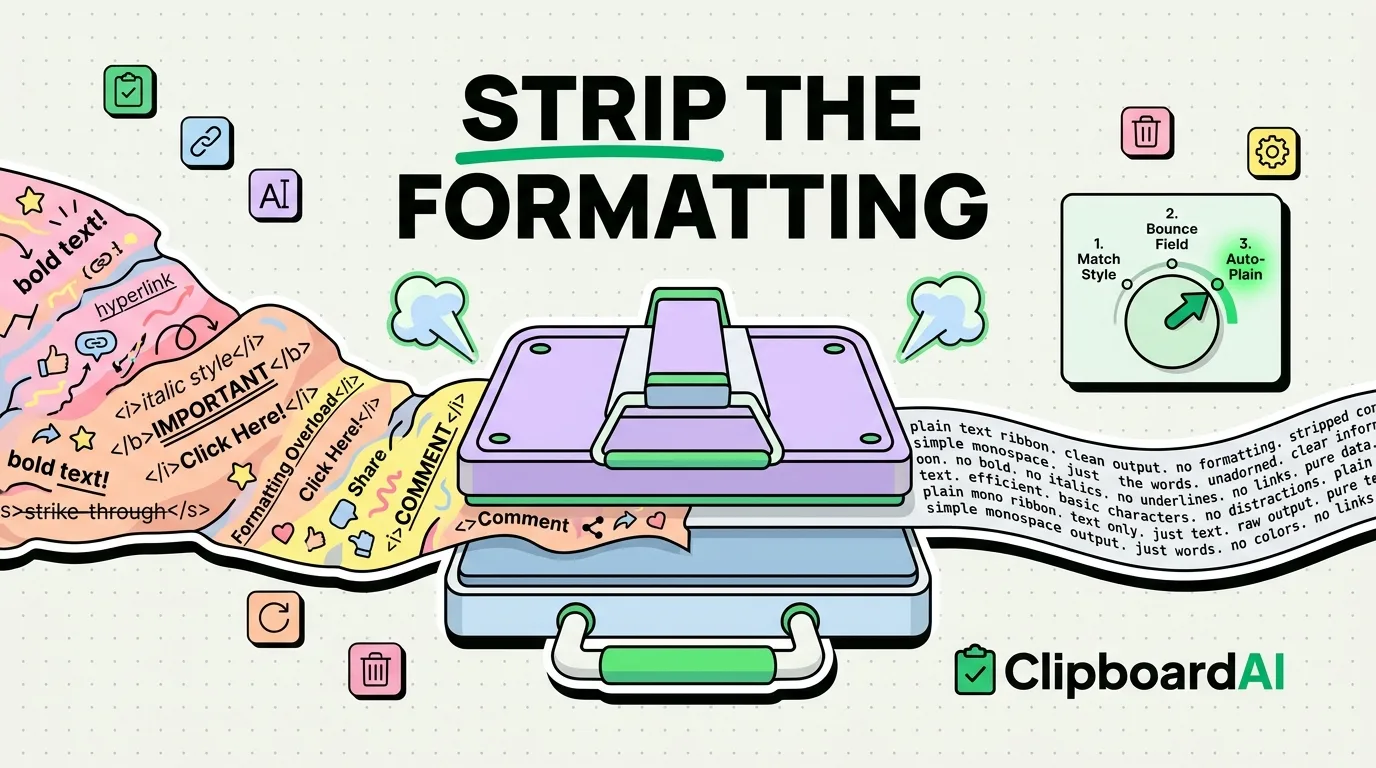
What comes off a stubborn page is not always clean prose either. Ask a Shortcut to fetch the page contents and what lands on the clipboard is source: angle brackets, class names, the lot. Open that clip, tap Transform Text, then tap Strip HTML, and the markup falls away while the sentences stay. Nine transforms share that screen, all nine free on iPhone and Mac, so Trim Whitespace deals with the indentation a copied code sample brings along and Remove Line Breaks rejoins a paragraph that arrived one column-width at a time.
Screenshots get the part that matters most on this page. Text inside a saved image is recognized on the device using Apple's Vision framework, with no network involved, and that recognized text becomes what you search on later. A screenshot of a blocked paragraph is findable by its words months afterwards, and the iPhone app shows it as a Text in Image block with a Copy Text button. It is free, on iPhone and Mac alike. Details are on the text recognition feature page and in reading text inside images.
Saving costs you nothing extra while you work. Assign Back Tap once and from then on a double-tap on the back of the phone keeps whatever you just copied, without an app opening or you leaving Safari. On iPhone 15 Pro and later the Action Button does it in a single press, and on the Mac it is completely hands-off: every copy is captured the moment you make it, so an afternoon of research collects itself. The free tier keeps 10 clips, which covers one stubborn page comfortably, and syncing that history to your Mac is Pro, running through your own iCloud account. Either way, the paragraph you had to fight a website for is still yours tomorrow.
Frequently Asked Questions
Why do some websites stop you copying text?
Usually a stylesheet rule called user-select: none, sometimes a script that cancels the selection as you start it, and occasionally an invisible layer sitting over the words. Sites do it hoping to discourage scraping and republishing. It is a request to the browser rather than any real protection, since the text has already been downloaded to your phone in order to be displayed at all.
Does Safari Reader always re-enable text selection?
No. Reader works by rebuilding the article in Safari's own view without the site's styling or scripts, which removes most selection blocking. But it only offers itself on pages Safari recognizes as an article, so on product pages, forums and documentation sites the option is often missing or grayed out. When that happens, try Request Desktop Website from the same menu next.
How do I copy text that is inside an image on iPhone?
Use Live Text. Open the image, touch and hold on the words, and the usual selection handles appear with Copy in the menu. Apple lists an iPhone XS or XR or later on iOS 15 or later as the requirement. If nothing happens, check Settings, General, Language and Region, Live Text. Apple supports only the languages it publishes, so uncommon scripts may not be covered.
Is it legal to copy text from a site that blocks copying?
That is a question about what you do with the text, not about how you obtained it. Getting past a selection block does not change the copyright status of the words or the terms you agreed to on the site, and quoting a sentence is a very different act from republishing an article. We are not in a position to give legal advice, only to point out that the method is not the issue.
Can I select all the text on a webpage on iPhone?
There is no Select All gesture for a whole page in Safari the way Command A works on a Mac. The practical equivalent is Reader, which puts the article into a single clean text flow you can drag through in one motion. Failing that, the share sheet can hand the page to another app, or a Shortcut can fetch the page contents for you. A fetch returns HTML source rather than prose, so send that clip through Strip HTML in ClipboardAI, free on iPhone and Mac, and you get the readable text back out.