On this page
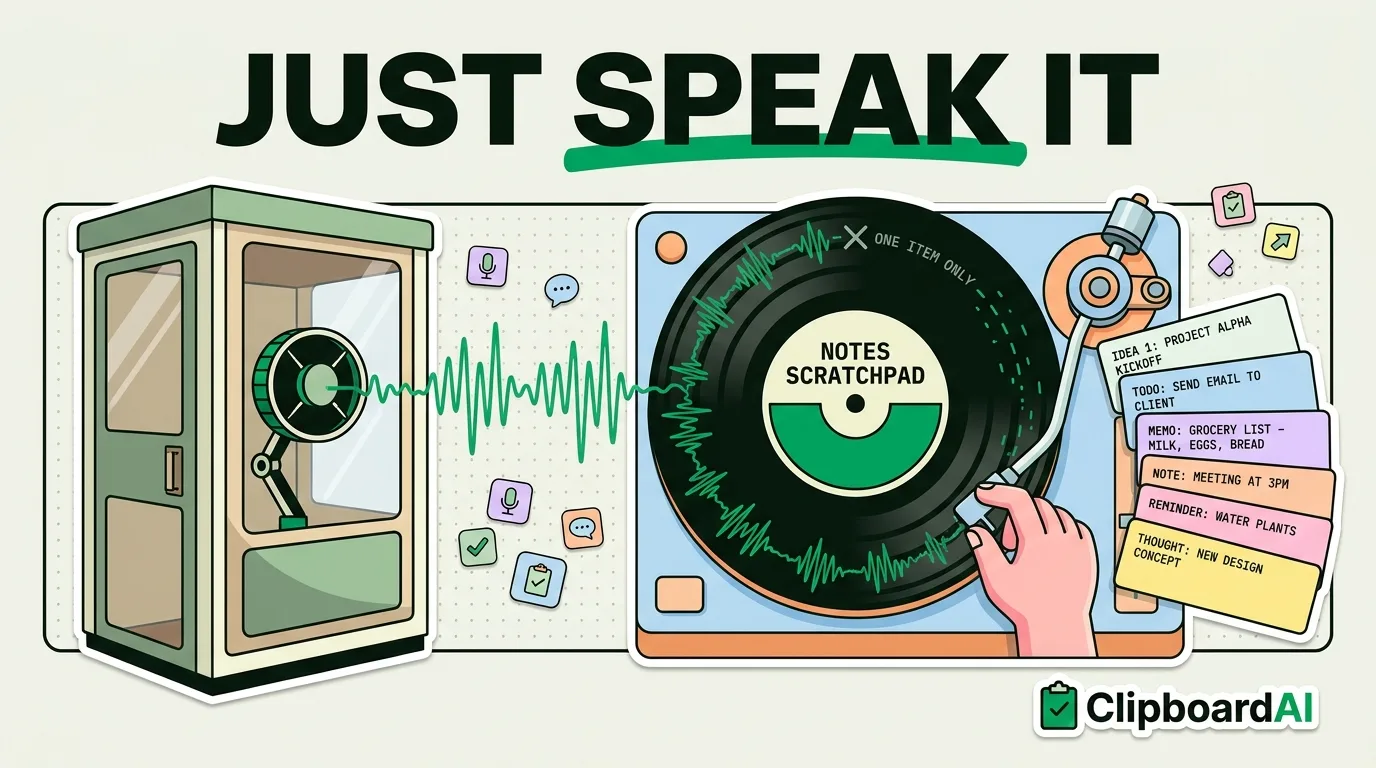
iPhone dictation writes speech directly into whatever text field is focused, it does not "copy" your speech to the clipboard on its own. To get spoken text onto your clipboard so you can reuse it elsewhere, dictate into any text field (like Notes or the Safari address bar), then select the text and copy it normally. There's no direct "speak to clipboard" shortcut in iOS, but the two-step version takes about five seconds once you know the trick.
How Dictation Actually Works
Tap the microphone icon on the keyboard (or say "Hey Siri, type...") and the words appear as text in whatever field you're currently in. It's transcription into a text field, not a clipboard action, which is why there's no "dictate to clipboard" menu option anywhere in iOS. The workaround is simple: dictate somewhere disposable, then copy from there.
The Fastest Method: Notes as a Scratchpad
- Open Notes and start a new note (or use an existing scratch note you keep around for this).
- Tap the microphone icon on the keyboard and speak. Say punctuation out loud if you need it ("comma," "period," "new line").
- Tap the keyboard again (or tap Done) to stop dictating.
- Select the text you just dictated (double-tap a word, then drag the handles, or quadruple-tap for the whole paragraph).
- Copy it (tap Copy, or pinch inward with three fingers).
- Paste it wherever you actually needed it.
This works in any text field, not just Notes. The Safari address bar or a Messages draft work just as well as a temporary scratchpad if Notes isn't open.
Using Siri Directly (No Typing Involved)
You can also say "Hey Siri, take a note" or "Hey Siri, remind me to..." to get spoken text into Notes or Reminders without touching the keyboard at all. The tradeoff: Siri sometimes reformats or trims what you say (especially with reminders, where it tries to parse a date/time out of your sentence), so review what actually landed before copying it.
Where This Breaks Down: Dictating Several Things in a Row
If you're dictating multiple separate pieces of information (an address, then a name, then a phone number, one right after another) and copying each one as you go, the native iPhone clipboard only remembers the last one. Copy the address, then dictate and copy the name, and the address is already gone by the time you go to paste it. ClipboardAI keeps a running history of what you save, so you can dictate and copy three or four things back to back (a double-tap on the back of the phone saves each one) and still have all of them available afterward, in order, instead of just the most recent one.
Caveats
Dictation accuracy drops noticeably in noisy environments, with strong accents the system hasn't adapted to, or with uncommon names and technical jargon. Always proofread before pasting into anything that matters (an email to a client, a form field), since dictation errors are easy to miss on a skim. Dictation also requires either an internet connection (for the standard server-based dictation) or, on newer iPhones with on-device dictation support, works offline but with the accuracy tradeoffs that come with a smaller local model. If dictation seems to be failing entirely, check Settings > General > Keyboard > Enable Dictation is still turned on, since it can get toggled off during a Screen Time or parental-controls configuration.
Frequently Asked Questions
Can I dictate straight to the clipboard on iPhone?
Not directly. iOS dictation writes to whatever text field is focused; you then select and copy that text like any other. There's no built-in "dictate to clipboard" action.
Why is my dictation inaccurate?
Background noise, strong accents the system isn't tuned to, and uncommon words (names, jargon) are the most common causes. Try dictating somewhere quieter, and always review the text before using it somewhere important.
Does dictation work without internet?
On newer iPhones, on-device dictation can work offline, though transcription quality may be slightly lower than the server-based version. Check Settings > General > Keyboard to see your device's dictation options.