
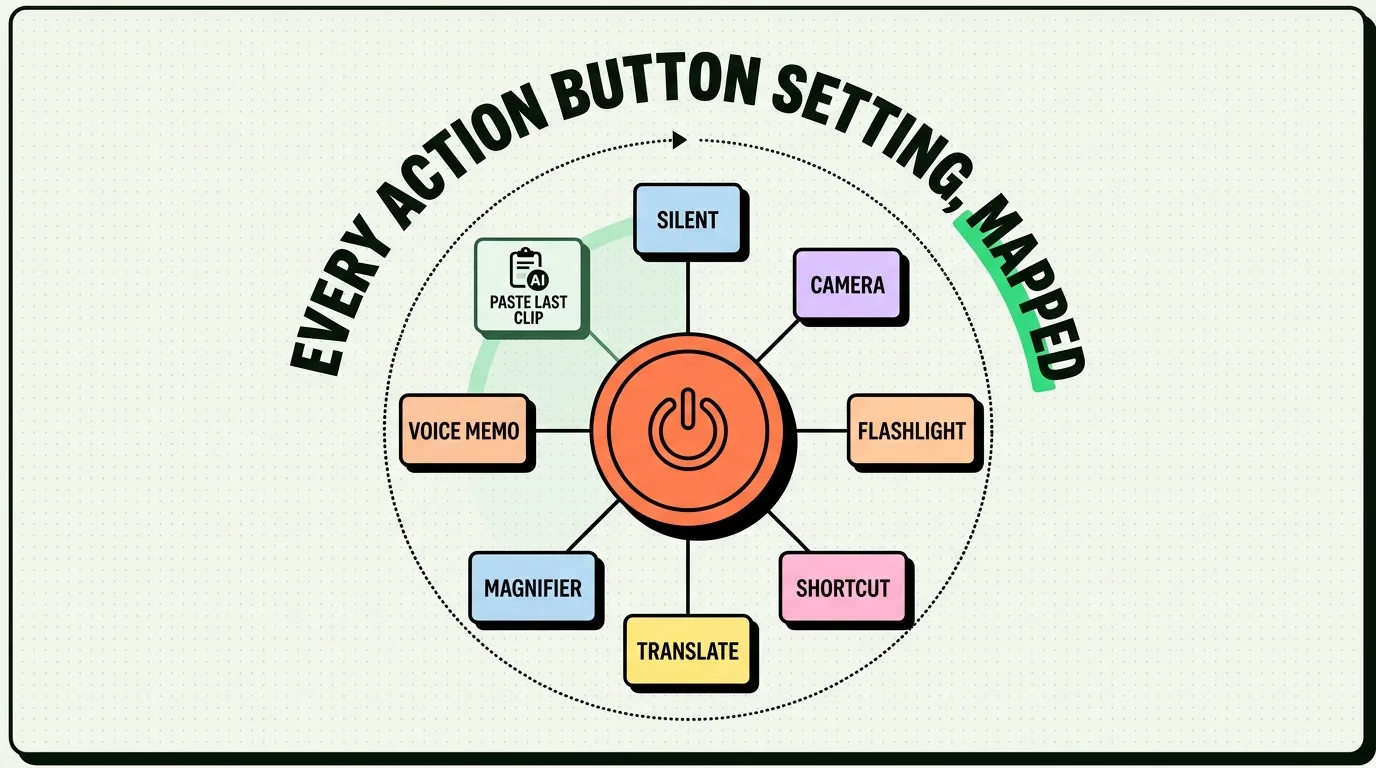
To customize the Action Button on iPhone for maximum utility, map it to a Siri Shortcut rather than standard options like flashlight or silent mode. This allows you to launch custom menus, run clipboard utilities, or toggle smart home devices based on your current Focus mode. By navigating to Settings > Action Button and selecting Shortcut, you unlock context-dependent actions that save hours of app-searching.
The introduction of the Action Button on the iPhone replaced the classic Ring/Silent switch. While Apple’s default onboarding guides encourage you to set it to turn on the flashlight or open the camera, doing so wastes a physical button. A single physical button on a device you hold all day is highly valuable real estate. Setting it to a static function is a missed opportunity.
Action Button Configuration Matrix
Here is how different setups compare for productivity:
| Configuration | Functionality | Complexity | Best For | Productivity Impact |
|---|---|---|---|---|
| Silent Mode (Default) | Toggles ringer on/off. | Zero Setup | Users who toggle ringer frequently. | Low |
| Flashlight / Camera | Turns light on; launches camera app. | Simple | Quick photo capture or light access. | Low |
| Voice Memo | Starts recording audio memo instantly. | Simple | Journalists, students, writers. | Medium |
| Focus Mode Link | Activates Work, Personal, or Sleep Focus. | Simple | Users managing distractions. | Medium |
| Siri Shortcut Menu | Launches popup folder of 5-8 custom tools. | Medium | Power users, task batchers. | High |
| Context-Aware Shortcut | Runs different actions based on time/Focus. | High | Automation experts. | High |
How to Set Up a Custom Shortcut Menu (Step-by-Step)
Instead of running one action, you can configure the Action Button to display a custom list of options whenever you press it. This turns the button into a quick-launch menu.
Step 1: Create a Shortcut Folder in the Shortcuts App
- Open the Shortcuts app on your iPhone.
- Go to the main screen, tap Folders in the top-left, and tap the folder icon in the top-right to create a new folder. Name it "Action Menu".
- Create 3 to 6 separate shortcuts that perform quick tasks. For example:
- Log Expense: Asks for a number and appends it to a spreadsheet.
- Quick Voice Note: Opens a voice memo and transcription script.
- Paste Markdown: Takes your current clipboard text, formats it as Markdown, and copies it back.
- Home Mode: Turns off all your smart lights.
- Move all these shortcuts into your newly created "Action Menu" folder.
Step 2: Map the Folder to Your Action Button
- Open your iPhone Settings.
- Scroll down and tap Action Button.
- Swipe through the options until you find Shortcut.
- Tap the selection menu below "Shortcut", select Show Folder, and choose your "Action Menu" folder.
Now, when you hold down the Action Button, a clean dropdown menu will slide down from the top of your screen, letting you select any of your custom shortcuts in one tap.
The Pro Setup: Context-Aware Actions
If you want to take your automation further, you can write a single shortcut that detects your location or current Focus Mode and behaves differently depending on context.
For example, you can write a shortcut named "Context Action" with this logic:
- IF Focus Mode is Work, then open your task manager (e.g., Reminders or Things).
- IF Focus Mode is Sleep, then turn off all bedroom lights and lock your front door.
- IF location is Home, then open your Apple Home dashboard.
- IF no special Focus is active, then launch the camera.
Once you have written this logic in the Shortcuts app, map your Action Button to run "Context Action". You now have a button that morphs its functionality based on your environment.
Honest Caveats & System Limitations
Before you spend hours building complex automations, keep these limitations in mind:
- The Single Gesture Limit: iOS only supports a single gesture for the Action Button: press and hold. Double-tap and triple-tap gestures are not supported. If you want multiple actions, you must use the folder menu workaround or context-aware scripts described above.
- Lag and Delay: Running a complex Siri Shortcut via the Action Button requires a small amount of processing. You will notice a split-second delay between pressing the button and the script running. It is not as instant as toggling the native silent switch.
- Accidental Presses: If your phone is in your pocket and sits against your keys or wallet, the Action Button can occasionally be held down accidentally. To prevent battery drain, configure your shortcuts so they require an explicit screen tap before running destructive actions (like deleting items).
How ClipboardAI Complements the Action Button
The biggest friction point when using a phone is moving data between apps. You can configure one of your Action Button shortcuts to act as a "smart buffer". Write a shortcut that takes whatever is currently in your clipboard, runs a cleaning script (such as removing tracking tokens from Amazon URLs), and saves the cleaned URL directly into your ClipboardAI history folder.
This workflow allows you to curate a research list or clean your links using a physical button press on the side of your device, completely bypassing manual editing.
To get the most out of the clipboard setup above, pair the Action Button with the Clipboard AI paste keyboard, and browse the full feature tour to see what else your saved clips can do.
Frequently Asked Questions
Can I customize the Action Button on older iPhone models?
No. The Action Button is a hardware feature introduced on the iPhone 15 Pro, iPhone 15 Pro Max, and standard iPhone 16 series. Older models feature the sliding physical mute toggle, which cannot be customized.
Does custom Shortcut usage consume extra battery?
Running a shortcut consumes minimal battery power, roughly equivalent to launching a standard app. However, if your shortcut runs heavy location pings, web API fetches, or smart home controls, it will consume more power than a simple action like turning on the flashlight.
How do I use the Action Button to silence my phone if I mapped it to a Shortcut?
You can silence your phone by adding a "Toggle Silent Mode" action as one of the options in your custom Shortcuts folder menu, or by toggling silent mode via the iOS Control Center.
Does iPhone save clipboard history automatically?
No. iPhone cannot monitor the clipboard in the background, so no app can record every copy on its own. The closest thing is a one-press save: map the Action Button, Back Tap, or Siri to the Save Clip To ClipboardAI shortcut, and whatever you just copied is saved instantly. ClipboardAI's free plan keeps 10 saved clips, and Pro unlocks unlimited history for $19.99 per year or a one-time $34.99 Lifetime purchase.