On this page
The single most powerful automation tool on iPhone is one you already have: Shortcuts, Apple's built-in automation app. It can trigger actions automatically based on time, location, app launch, or NFC tags, and most "automation app" recommendations you see online are really just Shortcuts recipes with a different name attached. Past Shortcuts, a small number of dedicated apps are worth installing for specific jobs Shortcuts doesn't cover well: password-manager automation, home-screen widgets with live data, and text-expansion.
Start With Shortcuts (It's Already On Your Phone)
Before installing anything, open the Shortcuts app and check the Automation tab. Apple ships several triggers that most people never turn on:
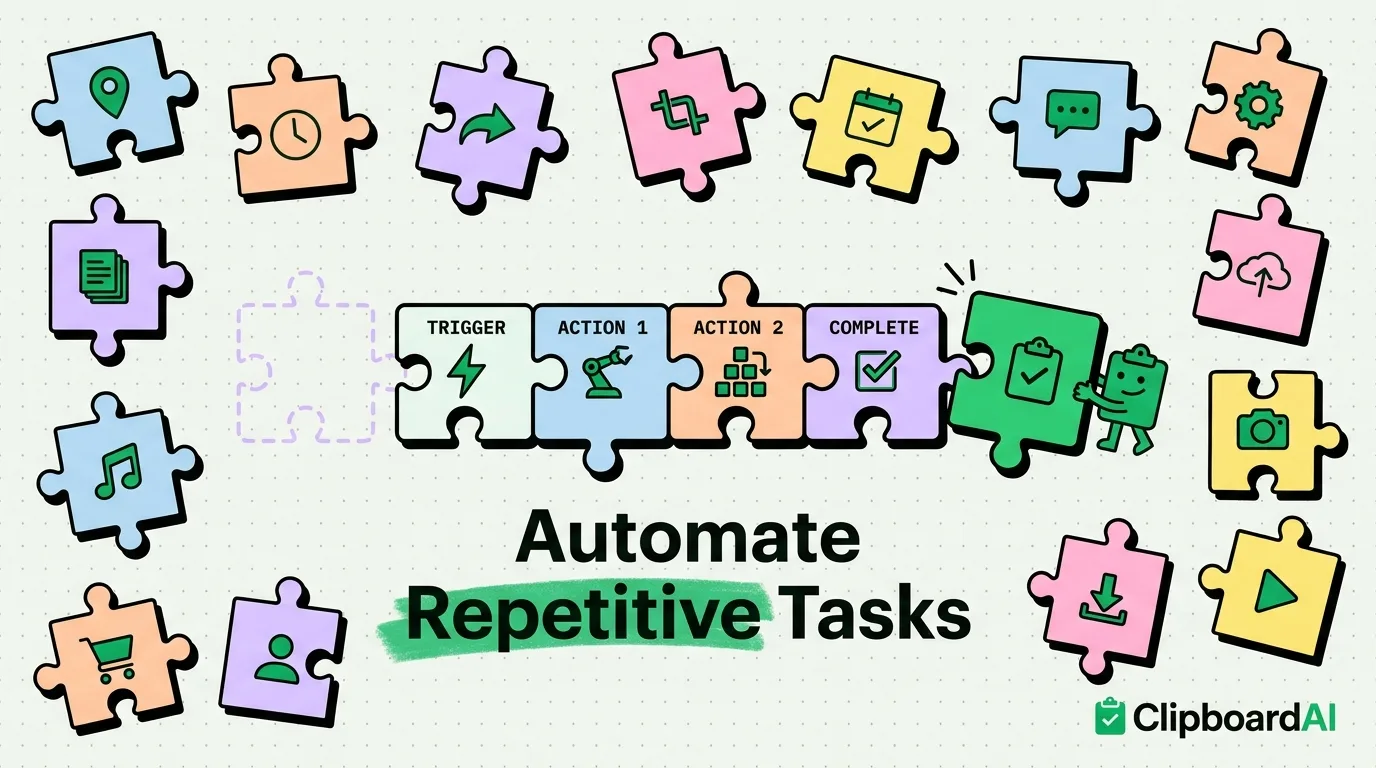
- Personal automations: run when you arrive/leave a location, connect to Wi-Fi or CarPlay, at a set time, or when you open a specific app.
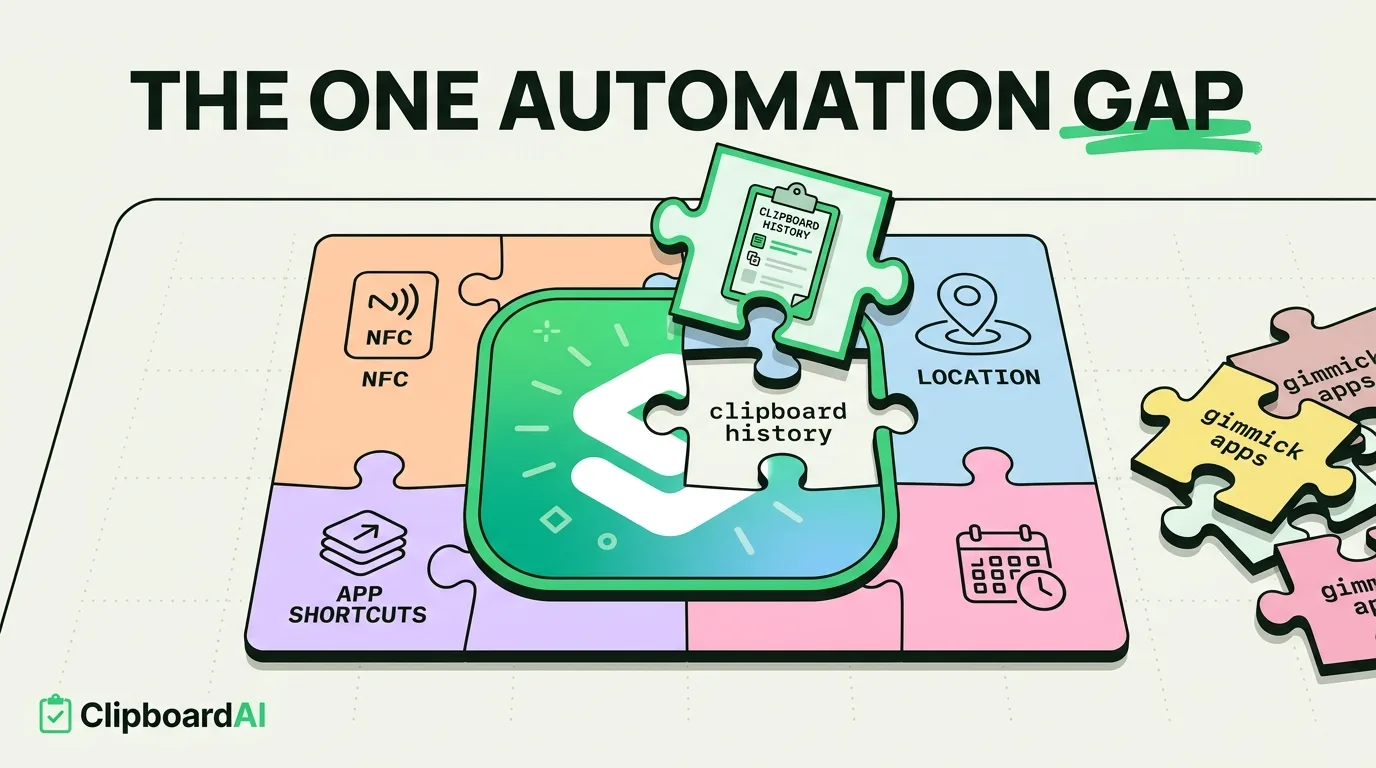
- NFC tag automations: tap your phone to a $1 NFC sticker to trigger a shortcut (put one on your nightstand to trigger a "wind down" shortcut that sets an alarm and turns on Do Not Disturb).
- App Shortcuts: many third-party apps expose actions directly to Shortcuts (Spotify, Notion, Things, Fantastical) so you can chain their actions into your own automations without leaving the Shortcuts app.
This matters because a lot of paid "automation apps" in the App Store are doing nothing Shortcuts can't already do for free. Check Shortcuts first before paying for something.
Where a Dedicated App Actually Helps
| Job | Why Shortcuts alone falls short | What to use instead |
|---|---|---|
| Text expansion (type "@@sig" to insert your full email signature) | Shortcuts requires you to open the Shortcuts app or a widget to run it, not type a trigger inline from any keyboard | A custom keyboard extension that expands snippets as you type, or a clipboard manager with pinned snippets you paste directly |
| Home screen widgets with live, glanceable data | Shortcuts widgets update on a schedule, not in real time | Purpose-built widget apps for the specific data (weather, calendar, habit trackers) |
| Password and login automation | Shortcuts cannot safely read your password manager's vault | Your password manager's own AutoFill integration (1Password, Bitwarden), which iOS supports natively in Settings > Passwords |
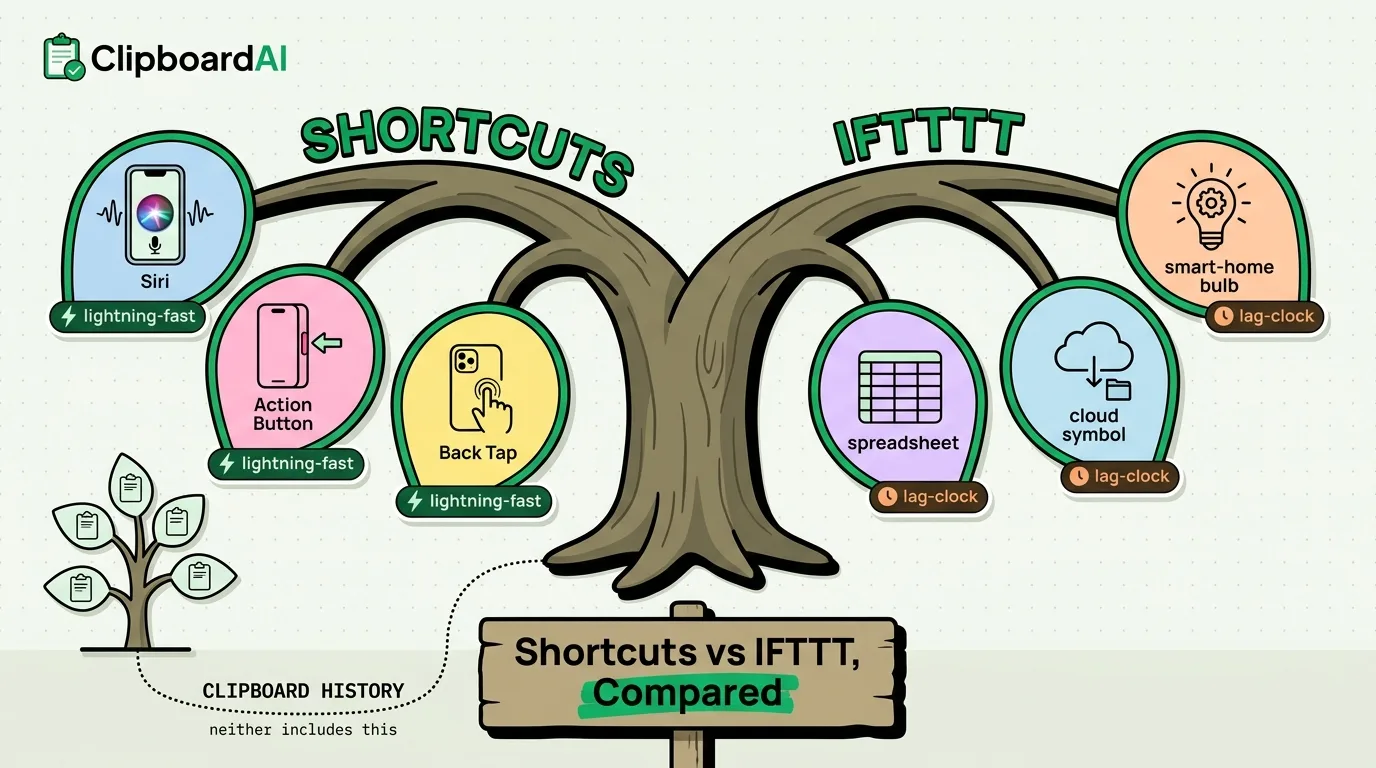
| Repetitive copy-paste across apps | Shortcuts can move a specific value between two apps, but can't hold a running history of everything you copy | A clipboard manager that saves your copy history automatically |
The Automation Nobody Names: Your Clipboard
Every automation eventually needs to move a piece of information from one place to another: a tracking number from a text into a delivery app, a code from an email into a form, a link from a group chat into your notes. iOS's built-in clipboard holds exactly one item, so the moment you copy something else, whatever you had is gone. ClipboardAI covers this specific gap: it saves what you copy with one tap from its keyboard extension (which also pastes from your history in any app), sorts it by type, and lets you pin the snippets you reuse constantly, like an address or a support email template.
Setup Order That Actually Sticks
Do not set up ten automations in one sitting. Most people abandon automation apps within a week because they build a complicated system, forget how it works, and stop trusting it. Instead:
- Pick the one task you do manually every single day that annoys you most.
- Build exactly one Shortcuts automation or install exactly one app to fix it.
- Use it for a week before adding a second one.
Caveats
Location-based and app-launch automations drain battery faster than time-based ones, since they require background location or app-state monitoring. If you notice battery drain after adding a new automation, check Settings > Battery to see which trigger is responsible before assuming it's a different app. Also, iOS periodically disables background automations that have not run in a while as a battery-saving measure. Automations you rely on daily should stay reliable; ones you use rarely may need re-enabling occasionally.
Frequently Asked Questions
Do I need to pay for an automation app on iPhone?
For most common automations (location triggers, time triggers, connecting app actions together) no. Shortcuts, which is free and pre-installed, covers this. Paid apps are worth it for specific gaps like advanced widgets or text expansion.
Why did my Shortcuts automation stop running?
iOS sometimes pauses automations that haven't triggered recently to save battery, and some automations require you to confirm a one-time permission prompt the first few times they run. Open Shortcuts > Automation and check that the automation still shows as enabled.
Can automations read my clipboard automatically?
A Shortcuts action can read the current clipboard contents when you run it manually, but it cannot silently monitor everything you copy throughout the day. A dedicated clipboard manager is built specifically for that ongoing history.