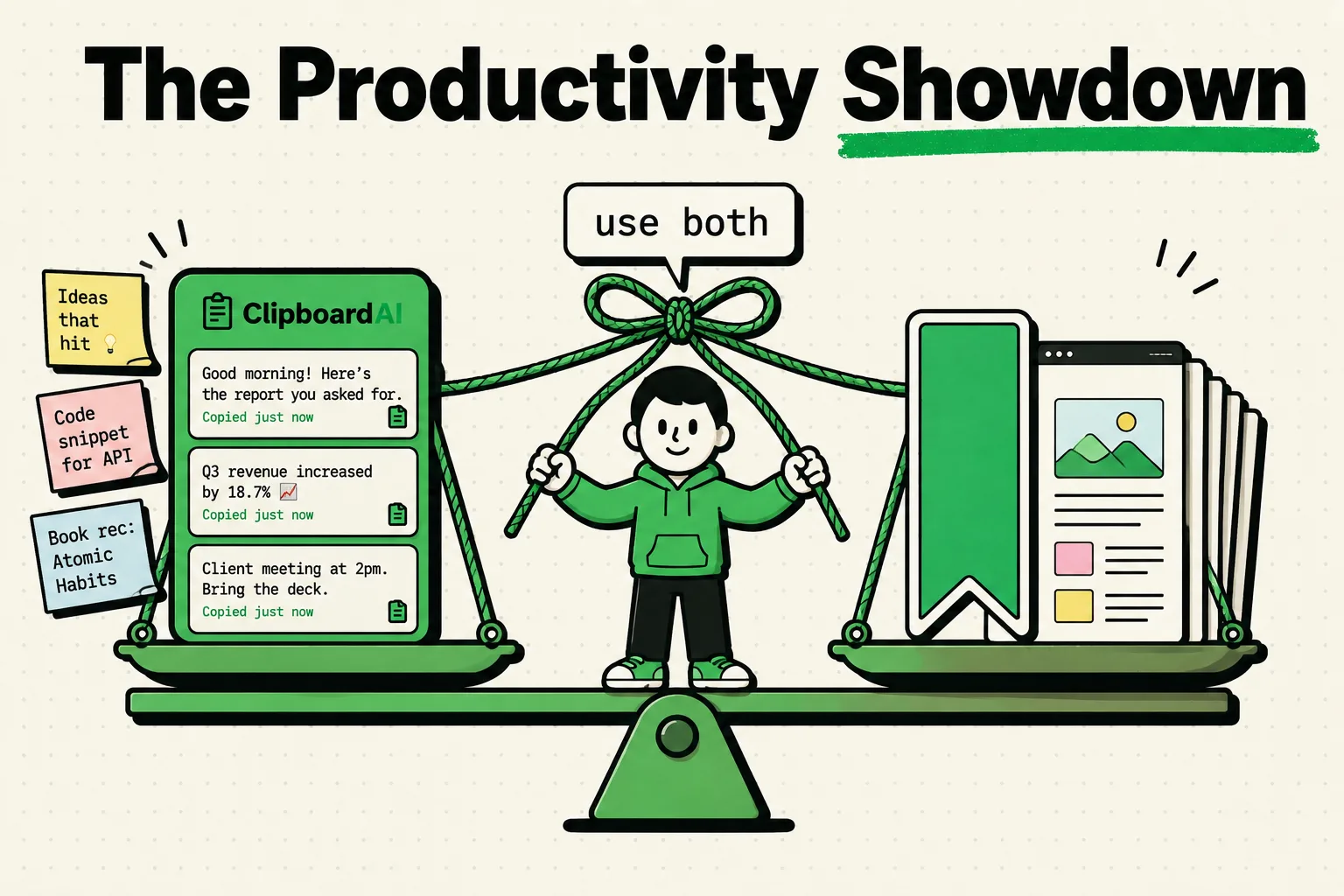

Use Apple Notes for what you write and want to keep organized, and use a clipboard manager for what you copy and need again. The iPhone clipboard holds only your latest copy, so a notes app fills up only with what you paste into it by hand, while Clipboard AI's free plan keeps your last 10 copies and 5 saved clips and pastes any of them into any app from its keyboard. The two jobs barely overlap, so the best setup uses both.
What each tool is built for
Apple Notes is built for writing and organizing. Apple's iPhone User Guide lists checklists, images, web links, scanned documents, handwritten notes and sketches, plus tables and headings you can collapse. A note or a whole folder can also be shared, so several people edit it in real time through iCloud.
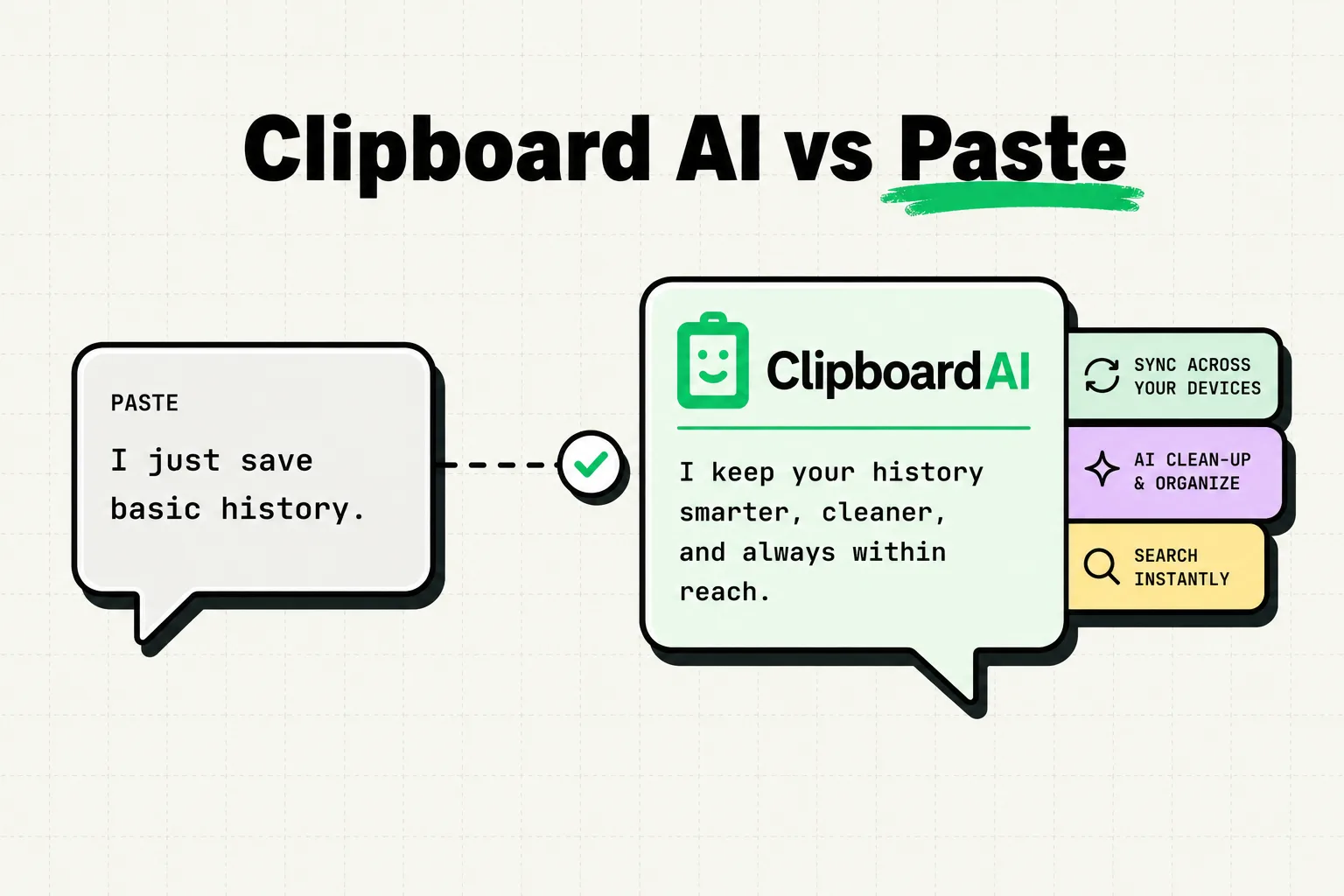
A clipboard manager is built for the short things you copy and need again soon. Clipboard AI files each saved clip under one of seven categories (Links, Phone, Email, Address, Codes, Text and Images), searches the clip text and the words inside saved screenshots, lets you pin and name the clips you reuse, and pastes any of them from its keyboard without leaving the app you are typing in.
Notes is the filing cabinet and the clipboard manager is the desk.
How a copy gets into each one
Take a tracking number you just copied from an email. To keep it in Notes, you switch to Notes, open the note you keep for this or start one, tap to place the cursor, paste, and switch back to the email. Apple's Quick Note shortens that: add Quick Note to Control Center, tap it from any app to jot something over the screen, and tap Save when you are done.
In Clipboard AI it is one action, and you choose which. On iPhone you can switch to its keyboard with the globe key, which saves your latest copy as the keyboard opens. You can also open the app, send the item through the Share sheet, or run the Save Clip To ClipboardAI shortcut from the Action Button, Back Tap or Siri. On iOS 18 and later a Save Clipboard button can sit in Control Center or on the Lock Screen too. iOS only lets an app read the clipboard while you are using it, so Clipboard AI cannot watch from the background on an iPhone. On a Mac it can: Clipboard AI records every copy there in the background, with no step at all.
When Notes is enough
Notes is enough when what you save is part of something you are writing or planning. A quote for a draft, a packing list, a recipe you will adjust, meeting notes with a few links and a shared grocery list all belong in a note, because you will edit them, check things off or share them. The same goes for anything with structure, anything you scan or sketch, and anything you want to keep for months.
Notes also works as a clipboard if you keep only a handful of things a week and do not mind pasting each one by hand. A single note called Links can hold that without much trouble.
The trouble starts when that note becomes a dumping ground. It is common to keep one, titled Stuff, Temp or Links: a long run of unlabeled text with no categories. Finding one link means scrolling or searching for words you may not remember, and re-copying it means selecting the exact characters on a small screen.
When a clipboard manager is better
A clipboard manager pays off when your copies are frequent, short and reused:
- You gather before you use. Once a clip is saved, copying something else does not replace it, so you can collect several addresses or links and paste them one at a time.
- You reuse short items. Codes, links, addresses, phone numbers, tracking numbers, a Wi-Fi password or a canned reply each become their own clip, and one tap pastes it.
- You need the item inside another app. The Clipboard AI paste keyboard puts your clips one tap from any text field, so you skip the trip to a note, the hunt for the text and the second copy.
- You look things up by type or by words. Filter to Links or Address, search part of a clip, or search a word that appears only inside a screenshot. On an iPhone with Apple Intelligence you can also ask for a clip in plain words.
- You want some things to expire. Auto-delete clears history after a window you choose, from 30 days to a year, and keeps your saved clips and Collections.
- You paste pictures. A screenshot or photo saved in Clipboard AI has its text read on your device, and you can paste the picture itself from the keyboard.
Use both: a two-layer setup
Treat Clipboard AI as the short-term layer and Notes as the long-term one.
- Save as you work. Switch to the keyboard after a copy that matters, or press an Action Button set to the Save Clip To ClipboardAI shortcut. The free plan's history keeps your last 10 copies, so save the ones you will need again, and Pro keeps everything. Group the things for one project in a Collection, a Pro feature: a Trip collection with the booking references, the hotel address and the taxi number, for example. The Collections guide shows how.
- Pin the snippets you retype. Your email address, phone number, mailing address, meeting link, profile links and a standard sign-off belong in Saved clips, which never age out of the keyboard however big your history gets. Tap the plus button and choose Add Note to type one you have not copied yet. The free plan holds 5 saved clips, and Pro removes the limit.
- Move only what is worth keeping into Notes. While you edit a note, switch to the Clipboard AI keyboard with the globe key and tap a clip to insert it, so you never leave the note. There is no built-in link between the two apps, so the keyboard is the bridge.
A clipboard manager groups clips by type and by collection, not into documents, so the writing, planning and sharing still happen in Notes. You do not have to migrate an old dump note either. Leave it where it is, and the next time you copy an item out of it that you still use, save it in Clipboard AI.
A quick rule: if you will edit it, share it or keep it for months, put it in Notes, and if you will paste it again soon, keep it in the clipboard manager.
Where AI fits
AI changes the edges of both tools, not the split between them. In Notes, Apple Intelligence Writing Tools can summarize, proofread and rewrite text you select, on iPhones that support it. In Clipboard AI, Ask answers plain-language questions about the clips you saved, such as "the wifi password" or "links from Safari last week", and Pro adds rewrites (Summarize, Key Points, Proofread, Make Professional, Make Friendly and Shorten) on iPhones that support Apple Intelligence.
What iOS 27 changes
iOS 27, released in September 2026, shows a paste suggestion above Apple's keyboard after you copy something: a text preview or image thumbnail labeled with the source app, such as Paste from Safari. It makes the next paste faster. It holds only your latest copy, with no list, no search and no pinning, so it replaces neither a notes app nor a clipboard manager. It is part of Apple's keyboard, so it does not appear while a third-party keyboard such as Clipboard AI's is on screen. How to see clipboard history on iPhone covers what iOS 27 does and does not keep.
Bear, Notion, Obsidian and Google Keep
The same split holds for other notes apps. Bear is a Markdown notes app for iPhone, iPad and Mac that organizes with tags, and its sync is part of Bear Pro, according to Bear's site. Notion, Obsidian and Google Keep also fill up only with what you paste or share into them, so each pairs with a clipboard manager the way Apple Notes does: collect in one, write in the other. The best note-taking apps for iPhone compares the options, and the best clipboard managers for iPhone covers the dedicated clipboard apps.
More head-to-head matchups are in the clipboard app comparisons hub.
Frequently Asked Questions
Is Clipboard AI free, or do I need Pro?
Yes, you can start free. The free plan keeps your last 10 copies and 5 saved clips, and the keyboard, categories, search, text in images and widgets are free too. Pro adds unlimited history and saved clips, Collections and iCloud sync for $19.99 a year, with a 7-day free trial for new subscribers, or $34.99 once for Lifetime. Prices are as of October 2026.
Does the Clipboard AI keyboard need Full Access?
Yes. Full Access is what lets a keyboard read the system clipboard, so the keyboard needs it to save and paste your copies. It also makes network access possible, so ask what an app does with it: Clipboard AI sorts, searches and reads text in images on your device and sends nothing to its own servers. Add the keyboard under Settings > General > Keyboard > Keyboards.
Should I paste passwords into a note or a clipboard manager?
No. Let AutoFill or your password manager fill passwords. If a code or password does land in Clipboard AI, its keyboard shows a padlock until you tap it, and iOS always uses Apple's keyboard in password fields, so a third-party keyboard never sees them. Deleting a clip erases it at once, while a note keeps pasted text until you delete the note.
Can I search my clips from the iPhone's Spotlight search?
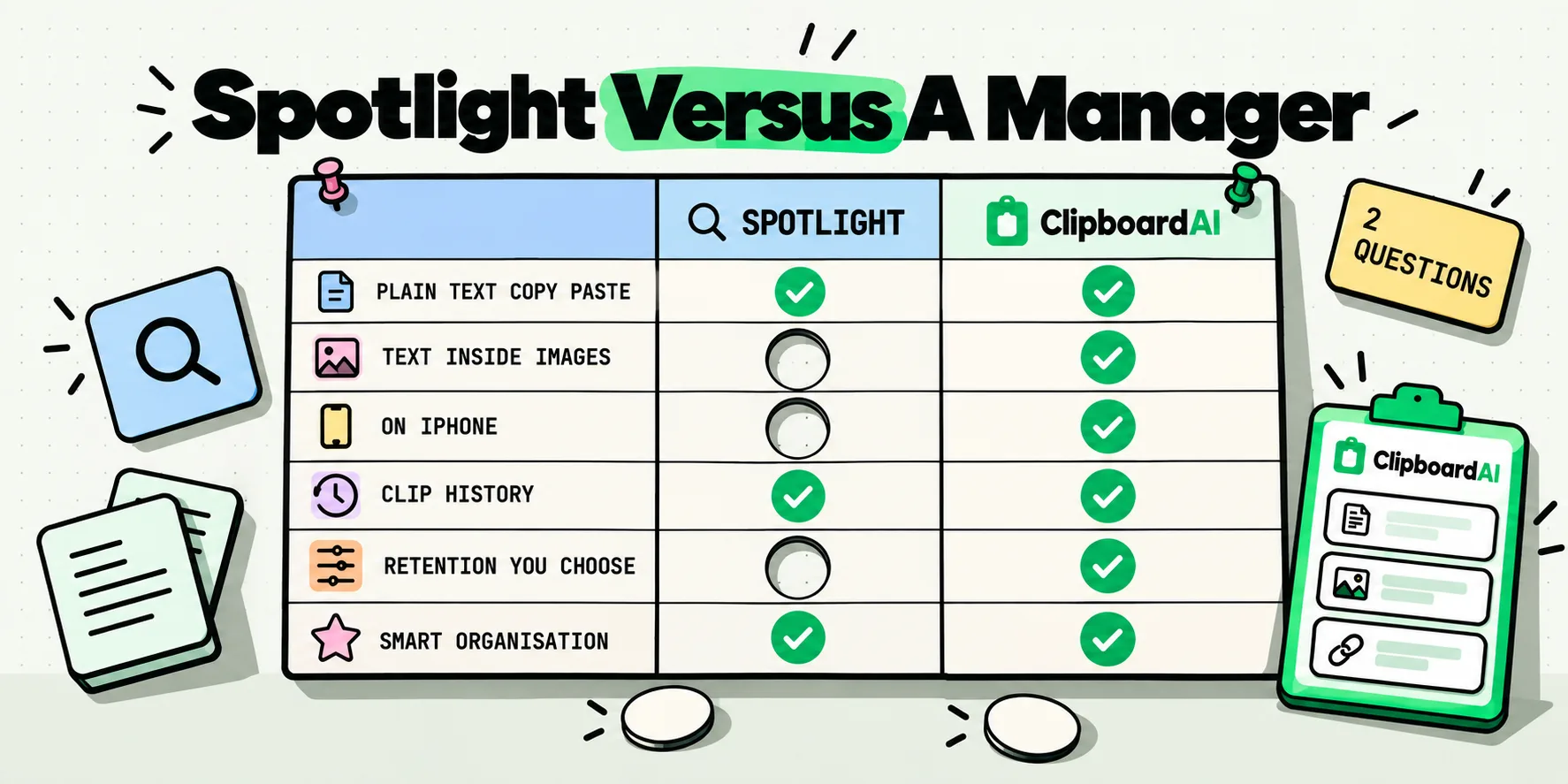
Yes, once you turn on Find Clips in Spotlight in Clipboard AI's Settings. It is off until you do, and it is set per device. The index stays on the device, and codes and sensitive clips are never added. Picking a result opens Clipboard AI on that clip, ready to copy or paste.
Is the answer different on a Mac?
Yes, in the clipboard manager's favor. On a Mac, Clipboard AI records your copies in the background and opens its floating paste menu with Command-Shift-V, which you can change. It skips anything a password manager marks as concealed, and the Ignored Apps setting skips apps you choose.
Sources
- Apple Support, "Create and format notes on iPhone", read October 5, 2026
- Apple Support, "Use Quick Notes on iPhone", read October 5, 2026
- Apple Support, "Share notes and collaborate on iPhone", read October 5, 2026
- Bear, "Bear", read October 5, 2026
- MacRumors, "iOS 27 Adds a Useful New Copy-and-Paste Feature to Your iPhone", July 1, 2026
- 9to5Mac, "iOS 27 adds convenient new iPhone feature you'll use all the time", September 22, 2026