
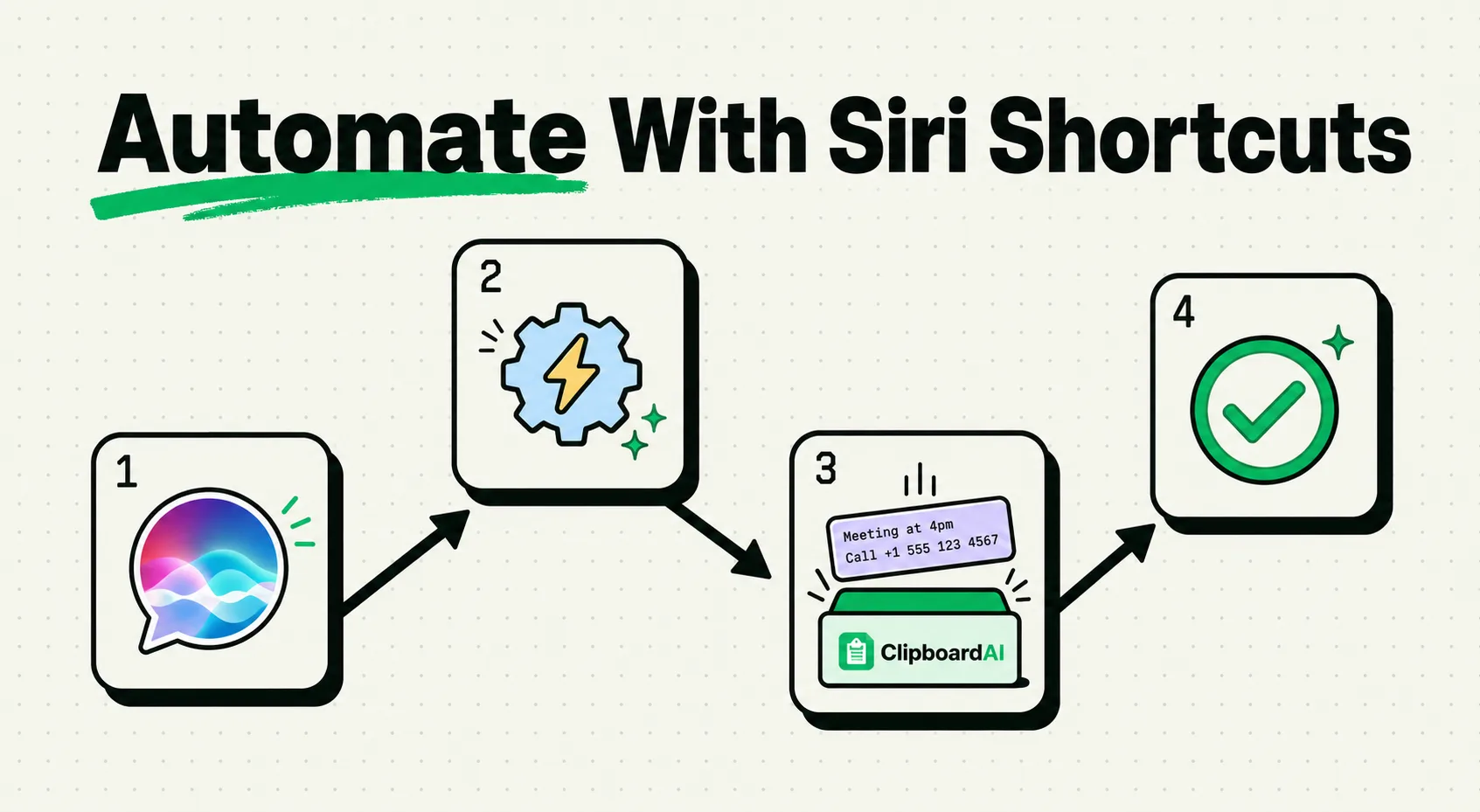
To automate your iOS clipboard, combining Siri Shortcuts with a clipboard manager like ClipboardAI is the most powerful way to copy, format, and organize text automatically. While Siri Shortcuts can pull or set active clipboard text using native actions, a dedicated clipboard utility stores those automated clips permanently, allowing you to build complex workflows that capture text from notifications, scrub formatting, and log templates without manual input.
Here is how to set up shortcuts to automate your text workflows on iPhone and iPad.
Why Automate the Clipboard?
Siri Shortcuts is a native automation application built into iOS. It allows you to chain multiple app actions together to create custom workflows. When you copy information, you can use Shortcuts to parse that text, modify it, and send it to other applications.
However, the native Apple clipboard is highly volatile. If your shortcut extracts text but you copy something else before pasting it, your automated data is lost. A clipboard manager acts as a permanent ledger, capturing the output of your shortcuts so you can reference and paste the information hours later.
Required Value Artifact: The iOS Clipboard Automation Toolkit
Here are three copy-paste automation recipes you can build in Siri Shortcuts. Copy these setups to streamline your daily tasks.
1. The Clean-and-Share Link Builder
- Goal: Takes a copied URL, strips out tracking parameters (like
?utm_source=or&fbclid=), copies the clean link, and saves it to your clipboard history. - Shortcut Construction:
1. Get Clipboard
2. Replace Text: Replace "(?i)\?(utm_|fbclid|aff_|ref_)[^&\s]*" with "" in Text (using Regular Expression: Yes)
3. Replace Text: Replace "&$" with "" in Updated Text
4. Copy Updated Text to Clipboard
5. Show Notification: "Cleaned Link Saved!"
2. Fast Expense Log Capture
- Goal: Grabs a copied receipt total or billing confirmation from your active memory, appends the current date, and saves it directly to a CSV or text log.
- Shortcut Construction:
1. Get Clipboard (Expects a number or price)
2. Format Date: Current Date (Format: Custom, "yyyy-MM-dd")
3. Text Block: "[Formatted Date],[Clipboard]"
4. Append Text: Text Block to "ExpenseLogs.csv" in iCloud Drive
5. Copy Text Block to Clipboard
3. Bulk Text-to-List Formatter
- Goal: Converts a paragraph of copied text separated by commas into a clean, bulleted list.
- Shortcut Construction:
1. Get Clipboard
2. Split Text: Split Clipboard by "Custom ( , )"
3. Combine Text: Combine Split Text with "New Lines"
4. Repeat with Each Item in Combined Text:
   - Text Block: "- [Repeat Item]"
5. Combine Repeat Results with "New Lines"
6. Copy Combined Text to Clipboard
Automation Feature Comparison
Here is how native iOS Shortcuts clipboard actions compare to ClipboardAI features:
| Automation Feature | Native iOS Shortcuts Action | ClipboardAI App Integration | Recommended Automation Method |
|---|---|---|---|
| Get Active Clipboard | Yes (Get Clipboard) |
Yes (Reads active RAM clipboard) | Native Shortcuts action. |
| Set Active Clipboard | Yes (Copy to Clipboard) |
Yes (Writes new text to RAM) | Native Shortcuts action. |
| Historical Clip Archive | No (Overwrites on next execution) | Yes (Saves all executions locally) | ClipboardAI database backend. |
| Text Parsing & Cleanup | Requires complex Regex blocks | Automated categorization filters | Combine native regex with database pins. |
| Cross-Device Shared Memory | Limited to iCloud latency | Secure SQLite sync | Universal Clipboard + Local DB. |
Building Your First Clipboard Automation
To connect Siri Shortcuts with a local clipboard manager database, follow this simple configuration flow:
Step 1: Create the Trigger
Open the Shortcuts app on your iPhone and tap the + button in the top right to create a new shortcut. Rename it to something memorable, like "Clean Copied Link."
Step 2: Add the Actions
Use the search bar at the bottom to find the Get Clipboard action. This action acts as the intake channel, pulling whatever text is currently active on your phone. Next, search for the Replace Text action to perform your cleanup (e.g., using the tracking-cleaner regular expression shown in the toolkit above).
Step 3: Write Back to Memory
Add the Copy to Clipboard action at the end of your workflow. This takes your parsed, cleaned text and writes it back to your device's active memory.
Step 4: Capture to History
Open ClipboardAI or launch the custom keyboard extension. The cleaned, formatted text will be automatically saved to your local database log, ensuring it is preserved even if you perform subsequent copies.
Honest Caveats: Permissions & Sandboxing Restraints
iOS security policies place strict rules on background automations. Keep these constraints in mind:
- Background Copy Limitations: iOS does not allow Siri Shortcuts to run silently in the background and pull clipboard data without user confirmation or a manual trigger (like a Share Sheet tap, a double-tap of the back of the phone, or a widget press).
- The "Allow Paste" Notification: Starting with recent iOS updates, when a shortcut attempts to read your clipboard, you may see a system prompt asking: "Allow Shortcut to paste from other apps?" This is a native security feature that cannot be disabled. We recommend running shortcuts from the iOS Share Sheet to minimize these prompts.
- Volatile Script Runs: If your shortcut loops through 20 different URLs, it will trigger 20 sequential clipboard write cycles. This can overwhelm your history log. Make sure to configure your manager to filter out rapid-fire copies or temporary scripts.
Advanced Automation Settings
To take your mobile workflows further, try these advanced automation triggers:
- Back Tap Trigger: Go to
Settings > Accessibility > Touch > Back Tap. Map "Double Tap" to your clipboard cleaning shortcut. Whenever you copy a messy link, double-tap the back of your phone to clean it instantly. - Action Button (iPhone 15 Pro & Later): Map your side Action Button to run your most frequent clipboard layout parser, allowing you to clean text formatting with a physical press.
- Apple Watch Integration: Run Siri Shortcuts from your watch to copy dictated voice notes directly to your phone's synchronized clipboard list.