
The Clipboard AI keyboard sometimes comes up light in one app and dark in another, or looks nothing like the app itself. That is not random, and there is one setting that puts you in charge of it.
Open Clipboard AI, go to Settings, and set Color Scheme to Light or Dark. The keyboard follows that choice in every app. Leave it on System and it follows the app you are typing in, exactly like the built-in keyboard.
Why it changes from app to app
On iOS, the app you are typing in decides what a keyboard looks like. A light-only app gets a light keyboard even on a dark phone, and some text fields pin their own look: Spotlight asks for dark, Safari's address bar asks for light. The built-in keyboard obeys all of this, and with Color Scheme set to System, so does Clipboard AI's. That is the platform rule, not a bug.
Pick a colour and keep it
- Open Clipboard AI and go to Settings.
- Under General, tap Color Scheme and choose Light or Dark.
- Open the keyboard in any app. It picks up the choice each time it appears.
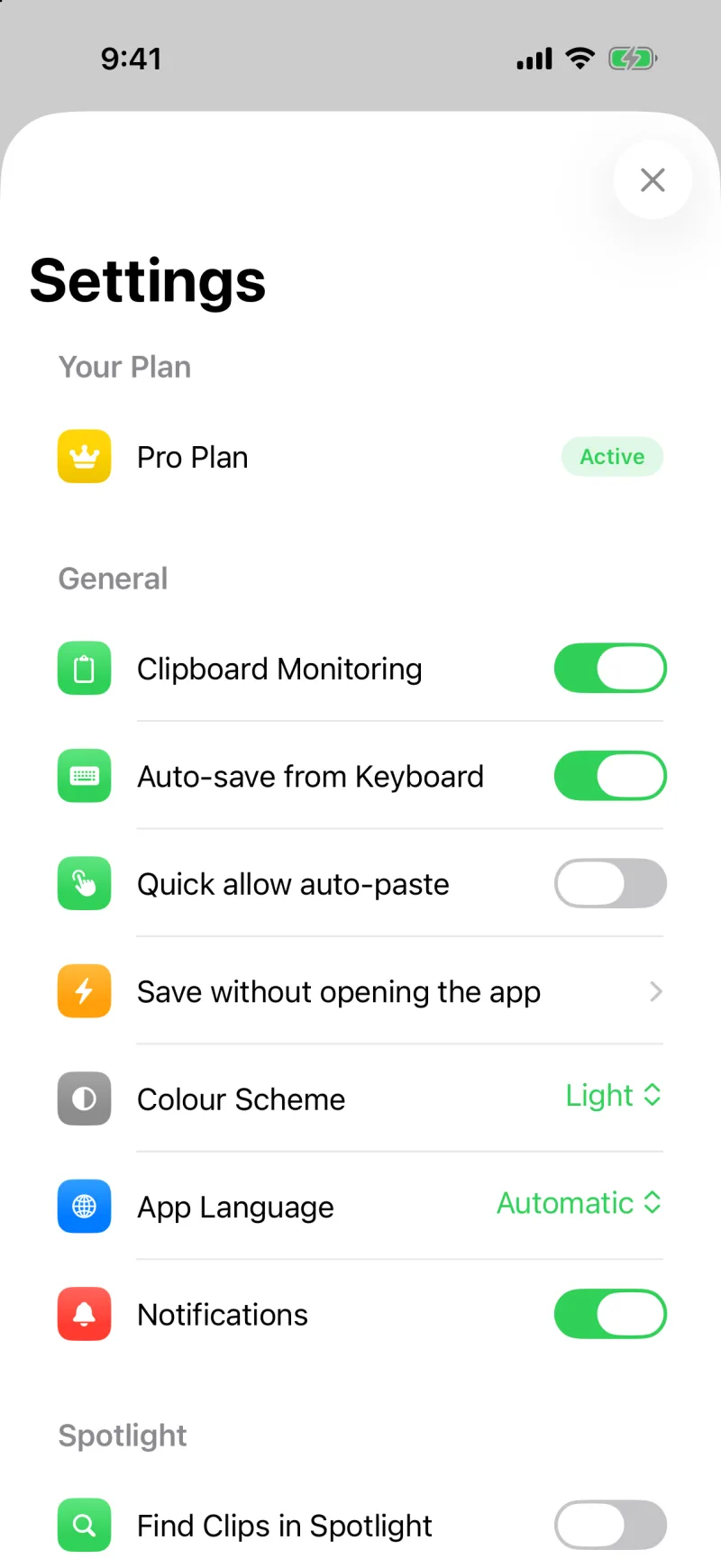
With Light or Dark chosen, the keyboard renders that way in every app, whatever the app or the text field asks for. The app itself follows the same setting, so the two always match.
The keyboard draws its clips on the same material, colour, and rounded corners as every other keyboard, so it looks like it belongs. That is also why a mismatch used to be so visible: the clip list would come up dark on a light backdrop. It now switches with the system the moment the appearance changes.
If it still looks wrong
- Check Color Scheme is set to Light or Dark, not System, if you want one look everywhere.
- Update to iOS 3.1 or later of Clipboard AI. Before that the keyboard could not follow the app's setting.
- On iOS 27, the All and Saved row at the top of the keyboard rendered as a blur in some apps. That was fixed in 3.2; update if you see it.