On this page
The Trick, Directly
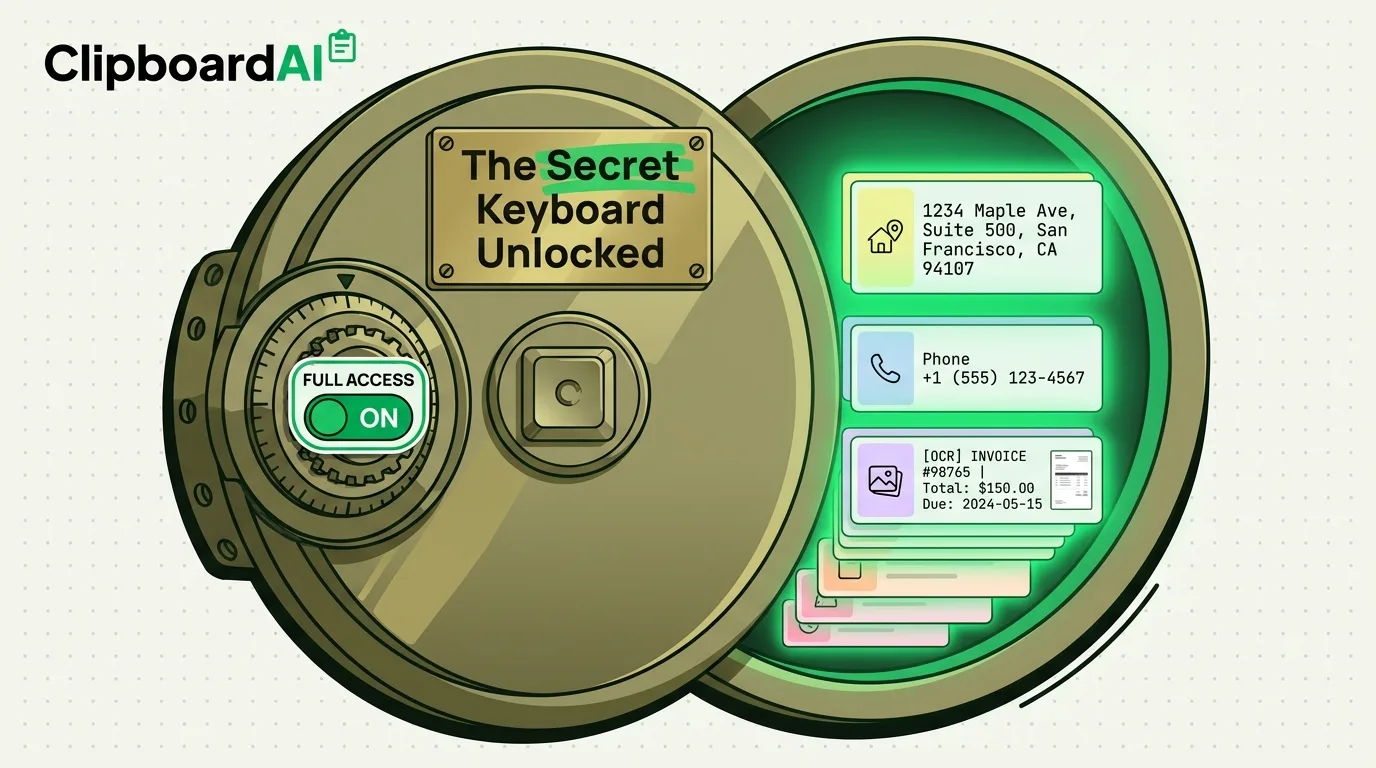
The iPhone keyboard most people never touch is a third-party replacement keyboard with "Full Access" turned on. Once enabled, you can paste from a full clipboard history, jump straight to saved snippets, or run OCR text-in-images without leaving the app you are typing in. Apple's own keyboard cannot do any of this: iOS only remembers your single most recent copy, and there is no built-in way to browse what you copied ten minutes ago.
How to Set It Up
- Install a clipboard-history keyboard extension, such as the one built into ClipboardAI.
- Go to Settings > General > Keyboard > Keyboards > Add New Keyboard and select it.
- Tap the new keyboard in the list, then toggle Allow Full Access. This step is what most people skip, and it is the one that actually matters: without Full Access, a keyboard extension cannot read your clipboard history at all, so it behaves like any other keyboard with none of the extra function.
- In any text field, tap the globe icon to switch keyboards until you reach the new one. Your recent copies appear right above the keys, ready to tap and insert.
Why "Full Access" Sounds Scarier Than It Is
"Allow Full Access" is the same permission every clipboard, GIF, or predictive-text keyboard needs, because Apple sandboxes keyboard extensions away from the rest of the system by default. It is worth being selective about which keyboards you grant it to, since a malicious keyboard could technically log keystrokes. The practical filter: only enable Full Access for a keyboard from a developer whose business model you understand. A clipboard manager needs it to show you your own clipboard history; that is a legitimate, narrow reason, not a blank check.
What Actually Changes Day to Day
| Situation | Apple's default keyboard | With Full Access clipboard keyboard |
|---|---|---|
| You copied an address, then a phone number | Only the phone number survives; the address is gone | Both are still in your history, tap to paste either one |
| Filling out the same form 5 times a day | Retype or re-copy each field every time | Pin the recurring snippets, tap once |
| Text is baked into a screenshot or photo | Not selectable at all | OCR extracts the text so you can copy and paste it |
Caveats Worth Knowing
- Full Access is required for a clipboard keyboard extension to function as described. There is no partial-access mode that still shows history.
- Removing a keyboard from Settings revokes Full Access immediately; nothing lingers after you delete it.
- None of this is Apple-hidden or undocumented. It is a standard iOS extension mechanism that most people simply never go looking for.
Frequently Asked Questions
Is Full Access safe to grant to a clipboard keyboard?
It is required for the feature to work, and the same permission model applies to any third-party keyboard. Grant it only to keyboards whose purpose is clear to you, and check Settings > General > Keyboard > Keyboards periodically to remove ones you no longer use.
Does this replace Apple's default keyboard?
No. iOS lets you install multiple keyboards and switch between them with the globe key. You keep your default keyboard for normal typing and switch to the clipboard keyboard only when you need to paste from history.