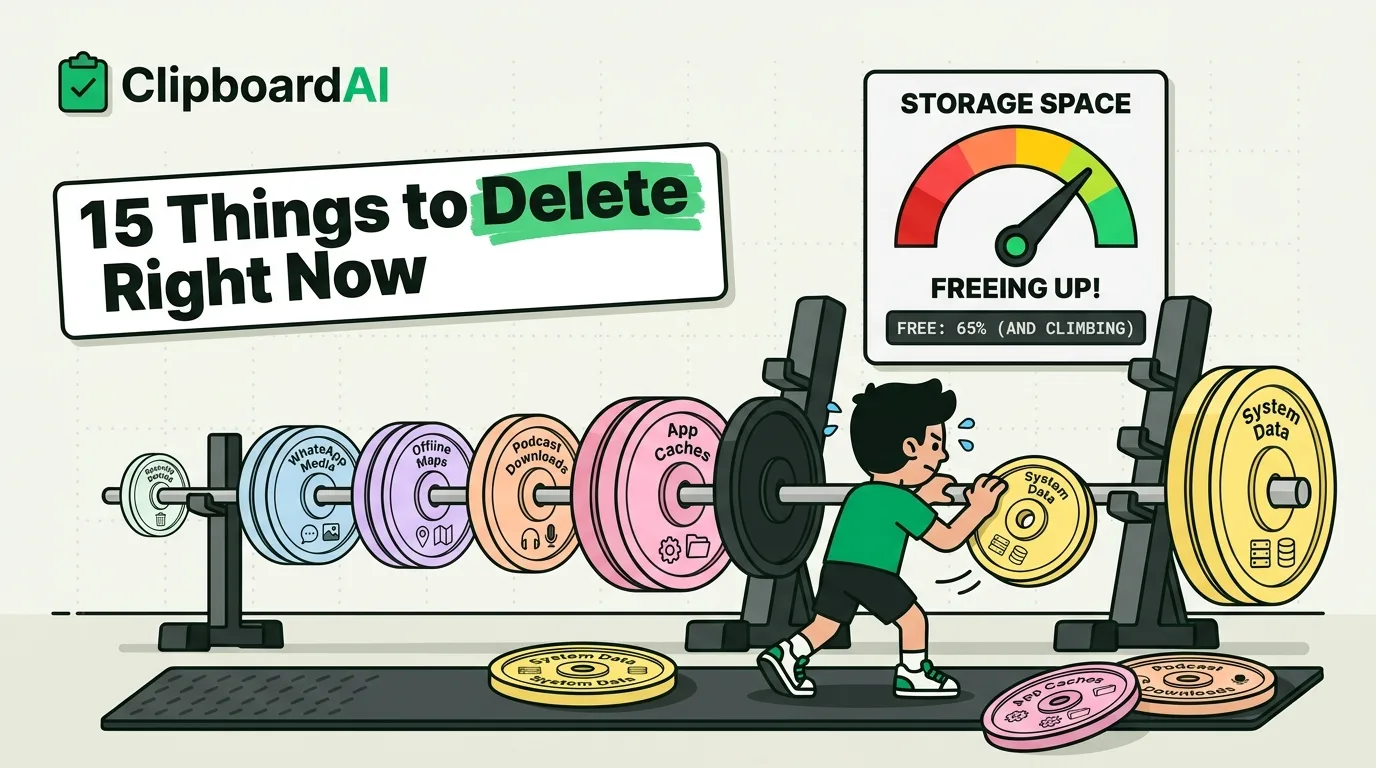
Before you delete a single photo, check Settings > General > iPhone Storage. It shows you exactly what's eating your space, sorted largest first. On most "storage full" iPhones, the top offenders aren't photos at all — they're the Photos app's own cache, chat app media auto-saved to your camera roll, offline maps, and apps you haven't opened in a year but that are still quietly downloading data. Work through the list below in order; each entry tells you where to look and roughly how much it tends to free up.
Check This First: The Storage Breakdown
Go to Settings > General > iPhone Storage. iOS shows a color-coded bar of what's using space (Apps, Photos, Media, System Data, etc.) and a list of every app with its storage footprint, tappable for an "Offload App" or "Delete App" option. Screenshot this bar before you start so you can compare after. Nothing below requires jailbreaking, third-party cleaner apps, or paid storage tools — all of it is built into iOS.
15 Things to Delete or Offload (In Order of Impact)
1. Recently Deleted and Duplicates in Photos
Photos you "delete" sit in the Recently Deleted album for 30 days still counting against your storage. Open Photos > Albums > Recently Deleted > Select > Delete All. Separately, go to Albums > Duplicates (iOS 16+) — it's common to have dozens of near-identical burst shots you don't remember taking.
2. WhatsApp, Telegram, and Signal media auto-saves
Chat apps often save every photo and video someone sends you directly to your camera roll by default, which means group chain-forwarded memes end up permanently in Photos. In WhatsApp: Settings > Chats > toggle off "Save to Camera Roll." Then go back to Photos and delete the backlog manually — turning off the setting doesn't retroactively remove anything already saved.
3. Offline maps you downloaded once and forgot
Google Maps and Apple Maps offline regions can each run 1-2GB per city or region. In Google Maps: tap your profile > Offline maps > check for old downloads from trips you've already taken.
4. Podcast and music app downloads
Apple Podcasts, Spotify, and Overcast all default to auto-downloading new episodes for shows you're subscribed to, even ones you stopped listening to months ago. In Apple Podcasts: Settings > the show > turn off "Episode Limit" auto-download, then delete downloaded episodes you've finished.
5. App caches for the apps you use most
Instagram, TikTok, and Chrome cache huge amounts of scrolled video and image data locally. There's no in-app "clear cache" button on most of these on iOS — the actual fix is deleting and reinstalling the app, which wipes its local cache but keeps your account and login (you'll just need to sign back in).
6. Safari's website data
Settings > Safari > Advanced > Website Data can quietly grow to several hundred MB to a few GB from years of browsing. Tap "Remove All Website Data" (note: this logs you out of sites you're currently signed into).
7. Voice memos and screen recordings
Long voice memos and screen recordings are large per-minute compared to photos. Check the Voice Memos and Photos (Videos album, look for screen recordings) apps for anything you recorded once and never revisited.
8. Old iOS update files stuck mid-download
If an iOS update failed partway through, the partial download can sit in storage. Settings > General > iPhone Storage will show it as a discrete line item you can delete directly.
9. Messages with large attachments
Settings > General > iPhone Storage > Messages shows total size, and the Messages app itself (Settings > Messages > Keep Messages) lets you auto-expire messages after 30 days or 1 year instead of keeping every conversation, photo, and video forever.
10. Apps you haven't opened in 90+ days
In the iPhone Storage list, apps are sorted by size, but tap "Last Used" sorting if available, or just scroll for apps you recognize but haven't touched. Use "Offload App" instead of "Delete App" — offloading removes the app binary but keeps your documents and data, so reinstalling later restores everything.
11. Downloaded files in the Files app
PDFs, downloaded email attachments, and files saved "for later" pile up silently in the Files app, especially in the Downloads folder, since nothing prompts you to clean it.
12. Live Photos you don't need as Live Photos
Live Photos store a few seconds of video alongside every still, roughly doubling the file size. In Photos, select older Live Photos you don't need motion for and use Edit > Live > Off to convert them to plain stills (this doesn't undo, so do it only on ones you're sure about).
13. Old device backups stored on the phone itself
This one's counterintuitive: Settings > General > iPhone Storage sometimes shows old app data left behind by apps you've since deleted and reinstalled under different names. Look for generic-sounding entries you don't recognize and check what they are before removing.
14. Your clipboard history, if you're on a manager that stores images
If you use a clipboard manager (including ClipboardAI), a long history of copied screenshots and images does take some storage, though typically far less than the camera roll itself since most clips are text and links. ClipboardAI's Auto-Delete Old Clips setting (Settings > Auto-Delete Old Clips, options from 30 days up to 1 year, or Never) can trim this automatically instead of manual cleanup.
15. Reduce future clutter: turn off auto-save for things you don't need saved
The fastest way to stay out of this situation is turning off auto-save at the source: chat apps saving media to your camera roll, podcast apps auto-downloading, and browsers keeping unlimited history. None of these deletions matter much if the same junk re-accumulates in three months.
What Won't Show Up Here
"System Data" in the storage breakdown is a catch-all for caches, temp files, and system logs that iOS manages itself — you can't browse or delete it directly. Restarting your phone sometimes shrinks this figure because it clears temporary caches on reboot. If System Data alone is many GB and nothing above helps, a full backup-and-restore (via Finder/iTunes or iCloud) is the most reliable way to reset it, though it's a bigger step than anything on this list.
Frequently Asked Questions
Will deleting an app also delete its data?
"Delete App" removes both the app and its data. "Offload App" (Settings > General > iPhone Storage > select app) removes only the app binary and keeps your documents and data in place, so reinstalling restores your data without needing new setup.
Why does Safari or Messages show gigabytes of storage use?
Safari counts cached website data and Messages counts every photo, video, and voice memo ever sent or received in a thread. Both accumulate for years unless you set an expiration or clear them manually.
Does this work on all iPhone models?
Yes, the Settings > General > iPhone Storage breakdown has worked the same way since iOS 12 and is present on any iPhone that can run a current version of iOS.