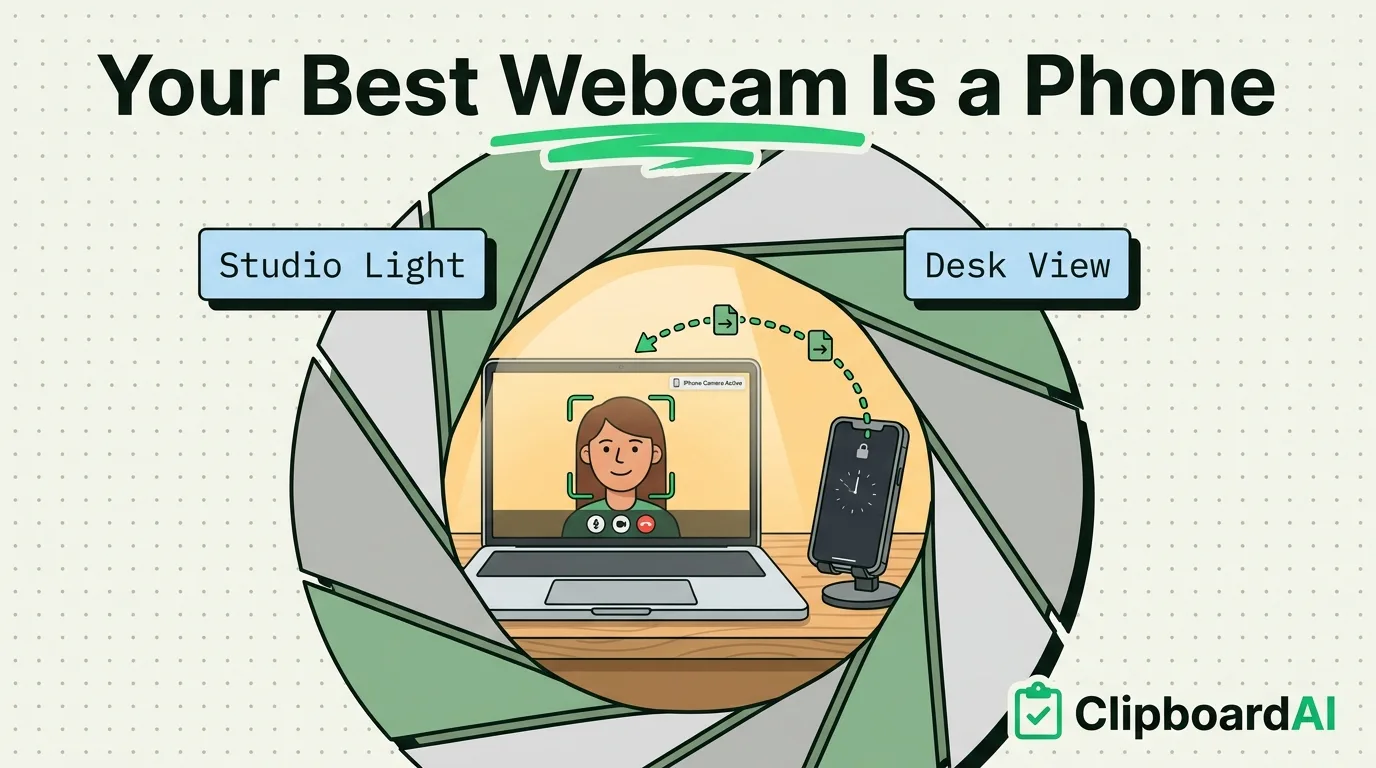
Continuity Camera is a built-in macOS feature (introduced in macOS Ventura) that lets your iPhone act as your Mac's webcam wirelessly. If both devices are signed into the same Apple ID, have Wi-Fi and Bluetooth on, and are near each other, most Macs will detect the iPhone automatically the moment you open a video app. No app to install, no cable required for the wireless version, though a cable does make the connection more stable.
What You Need
- Mac: running macOS Ventura (13) or later
- iPhone: iPhone XR/XS or later, running a compatible iOS version
- Both devices signed into the same Apple ID
- Wi-Fi and Bluetooth turned on for both devices (they don't need to be on the same Wi-Fi network, but both radios need to be enabled for the handoff to negotiate)
Setting It Up
- Place your iPhone near your Mac, above or beside the display (a case-mount clip designed for this makes it steadier, but isn't required).
- Open any app that uses your Mac's camera: FaceTime, Zoom, Google Meet in a browser, Photo Booth, QuickTime.
- Click the video/camera source menu within that app and select your iPhone from the list of available cameras (it will show up by name, e.g. "[Your Name]'s iPhone").
- Your Mac's built-in camera turns off automatically and the feed switches to your iPhone's camera.
If your iPhone doesn't show up as an option, lock the iPhone's screen (it still works locked, face-down or face-up) and check that both devices have Bluetooth and Wi-Fi enabled, not just one.
What You Get That a Regular Webcam Doesn't
| Feature | What it does |
|---|---|
| Center Stage | Camera automatically pans and zooms to keep you framed as you move |
| Studio Light | Dims the background and adds light on your face (needs a supported iPhone model) |
| Desk View | Uses the iPhone's ultra-wide lens to show an overhead view of your desk alongside your face, useful for demos |
| Portrait mode blur | Background blur using the iPhone's camera system rather than a software webcam filter |
Access these while connected via the Mac's Control Center > Video Effects panel, which appears once Continuity Camera is active.
If It Won't Connect
- iPhone doesn't appear in the camera list at all: confirm both devices use the same Apple ID (not just the same iCloud family) and that Handoff is enabled on both (Settings > General > AirPlay & Continuity on iPhone; System Settings > General > AirDrop & Continuity on a Mac with macOS 26 Tahoe or later).
- Connects but drops out: move the iPhone closer, or use a USB-C/Lightning cable instead of wireless, which Continuity Camera also supports for a more stable link.
- Video is there but no audio: Continuity Camera provides video only by default in some apps; check the app's separate microphone source setting and select your iPhone's mic there too if you want it, or leave your Mac's built-in mic selected.
Caveats
Using your iPhone this way means it's occupied and can't be used normally during the call, and it will charge slower or drain battery unless it's plugged in. If you're on a video call that also needs your phone for two-factor codes or notifications, that's a real tradeoff worth planning around. It also requires both devices to be reasonably recent (roughly iPhone XS/XR-era or newer, and a Mac running Ventura or later); older hardware on either side won't support it at all.
Frequently Asked Questions
Do I need to install an app on my iPhone for this to work?
No. Continuity Camera is built into iOS and macOS; there's no separate app required.
Does this work over cellular data if I'm not on Wi-Fi?
No, both devices need Wi-Fi and Bluetooth enabled to negotiate the connection, though they don't have to be joined to the exact same Wi-Fi network.
Can I use my iPad instead of my iPhone the same way?
Yes, Continuity Camera works the same way with a compatible iPad.
Does this work on all iPhone models?
No. Continuity Camera requires roughly iPhone XS/XR or later, and features like Studio Light or Desk View need specific newer camera hardware. Older iPhones can still often connect for basic video, but effects availability varies by model.