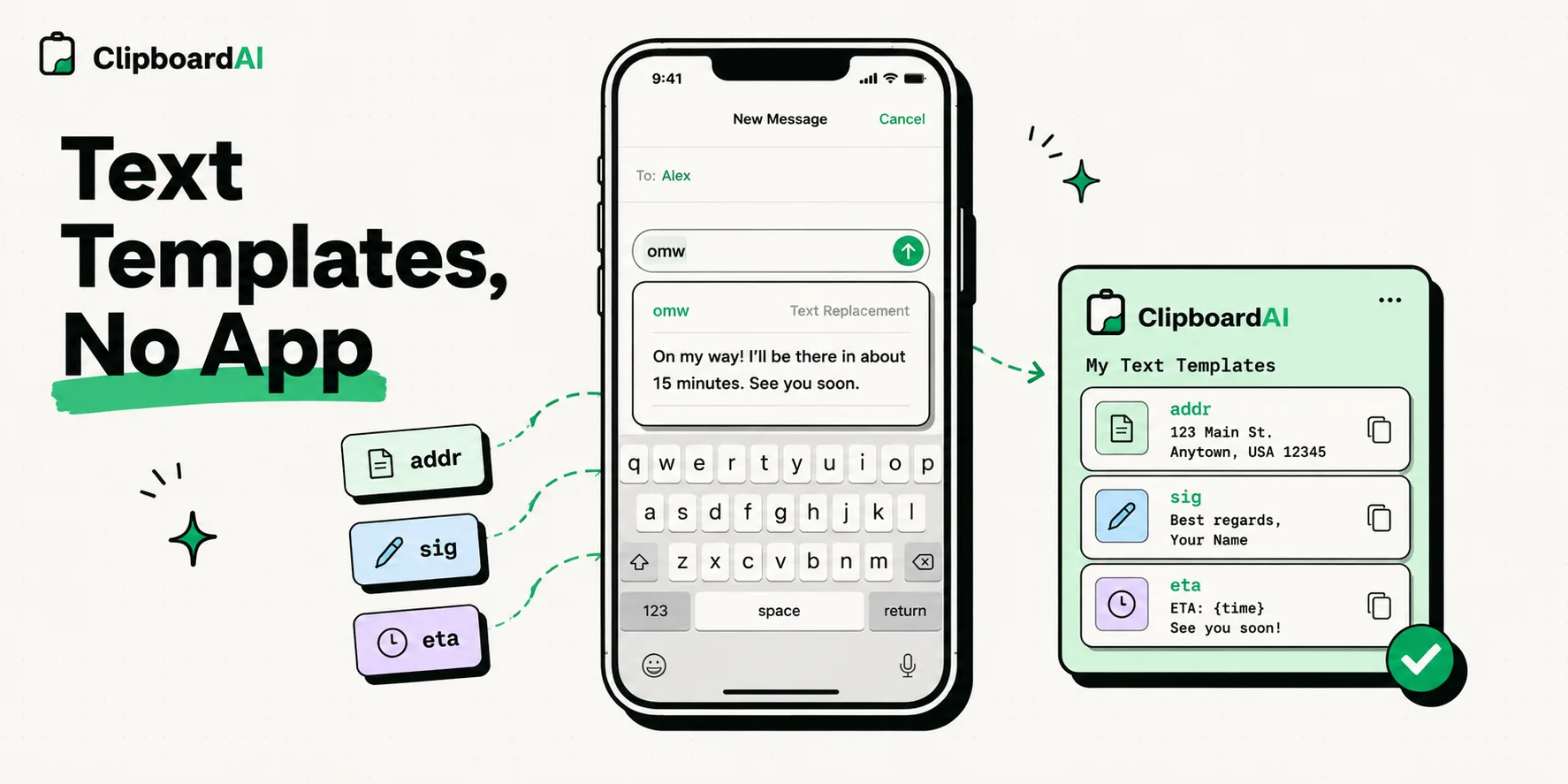

The iPhone's built-in text expander is Text Replacement: go to Settings > General > Keyboard > Text Replacement, tap +, type the full text in Phrase and a short trigger in Shortcut, then tap Save. From then on, typing the trigger on Apple's keyboard swaps in the phrase. Your list syncs to your iPad and Mac through iCloud Drive, and one entry is already there to try: type omw and you get "On my way!"
Set up Text Replacement
- Open Settings, tap General, then Keyboard, then Text Replacement. From any text field there is a faster route: touch and hold the globe or emoji key, tap Keyboard Settings, then Text Replacement.
- Tap + at the top right.
- In Phrase, type or paste the text you want to appear, such as your email address.
- In Shortcut, type the trigger, such as
@@e. - Tap Save.
Now type @@e and a space in Mail, Messages or Safari, and your address replaces it. To remove an entry, tap Edit on the same screen, tap the remove button next to it, then tap Delete.
Pick triggers you will never type by accident
A trigger that is also a real word expands every time you type that word. Start each one with a symbol, such as @@ or ;, and keep to a pattern you can remember:
@@efor your personal email and@@wfor your work email@@afor your home address and@@pfor your phone number;sigfor an email signature;zoomfor your meeting link;tyfor "Thank you so much, I really appreciate it!"
Keep passwords, card numbers and ID numbers out of Text Replacement, because anyone holding your unlocked phone can type the trigger.
How Text Replacement syncs across iPhone, iPad and Mac
Text replacements travel through iCloud Drive, not through a switch of their own. On iOS 27, Apple's steps are Settings > [your name] > iCloud > See All > iCloud Drive, then turn on Sync this iPhone; on iOS 26 it is the iCloud Drive switch under iCloud. Do the same on each device, signed in to the same Apple Account, and an entry added on one appears on the others. On a Mac the list lives at System Settings > Keyboard > Text Replacements, which is also the easiest place to tidy a long list with a real keyboard. If entries stop showing up on another device, check iCloud Drive there first.
Multi-line phrases: build them on a Mac
Text Replacement can hold a phrase with line breaks, such as a signature or an address block, but the iPhone is the wrong place to make one. The Phrase field on iPhone is a single line with no return key, and Gary Rosenzweig of MacMost found in June 2026 that pasting multi-line text into it on iPhone collapses it to one line. On a Mac, open System Settings > Keyboard > Text Replacements, click + and paste the multi-line text in as the replacement. It syncs to your iPhone and expands there with its line breaks intact. Avoid editing that entry on the iPhone afterward, because saving it there strips the breaks out.
Where Text Replacement falls short
- It is a feature of Apple's keyboard. Apple's keyboard expands your shortcuts as you type. A third-party keyboard does so only if its developer built that in; Apple makes it possible by handing keyboards your shortcut list through its UILexicon interface. The Clipboard AI keyboard is a paste keyboard rather than a typing keyboard, with your clips above a row of space, delete and return, so switch back to Apple's keyboard with the globe key to type triggers.
- Plain text only. No bold, links, images or attachments.
- No variables. It cannot insert today's date, whatever is on your clipboard or a blank to fill in, and it cannot place the cursor in the middle of a phrase.
- Nothing to browse. The list is flat and lives in Settings, so to use an entry you have to remember its trigger, which gets harder as the list grows.
When saved clips work better than shortcuts
A saved snippet flips the model: instead of remembering a trigger, you pick the text from a list. That suits long templates you use now and then, like a full customer reply, a bio or delivery instructions, and it suits anyone who would rather see their snippets than memorize them.
In Clipboard AI for iPhone, tap Save under a clip, or the bookmark icon on any clip in your history, and it moves to the Saved tab, grouped by category. To store a snippet you have not copied yet, tap the plus button, choose Add Note, type it and save. Giving a clip a custom name such as Guest Wi-Fi or Standup link makes it easy to spot in lists and on the keyboard, while pasting still inserts the real content, and the name is what search matches first. Then, in any app, switch to the Clipboard AI keyboard with the globe key, tap Saved in its filter row and tap the snippet to paste it, line breaks and all. A Collection widget set to your Saved clips copies a snippet from the Home Screen with one tap, without opening the app.
The free plan keeps 5 saved clips and your last 10 copies, and the paste keyboard is free. Clipboard AI Pro removes both limits and adds Collections for grouping sets of snippets, plus iCloud sync to iPad and Mac, for $19.99 a year with a 7-day free trial or $34.99 once for Lifetime. The keyboard needs a one-time setup at Settings > General > Keyboard > Keyboards > Add New Keyboard, where you add Clipboard AI, tap it and turn on Allow Full Access, which the keyboard needs to show your saved clips. Saving and pinning clips also covers editing a saved snippet's text.
Templates to start from
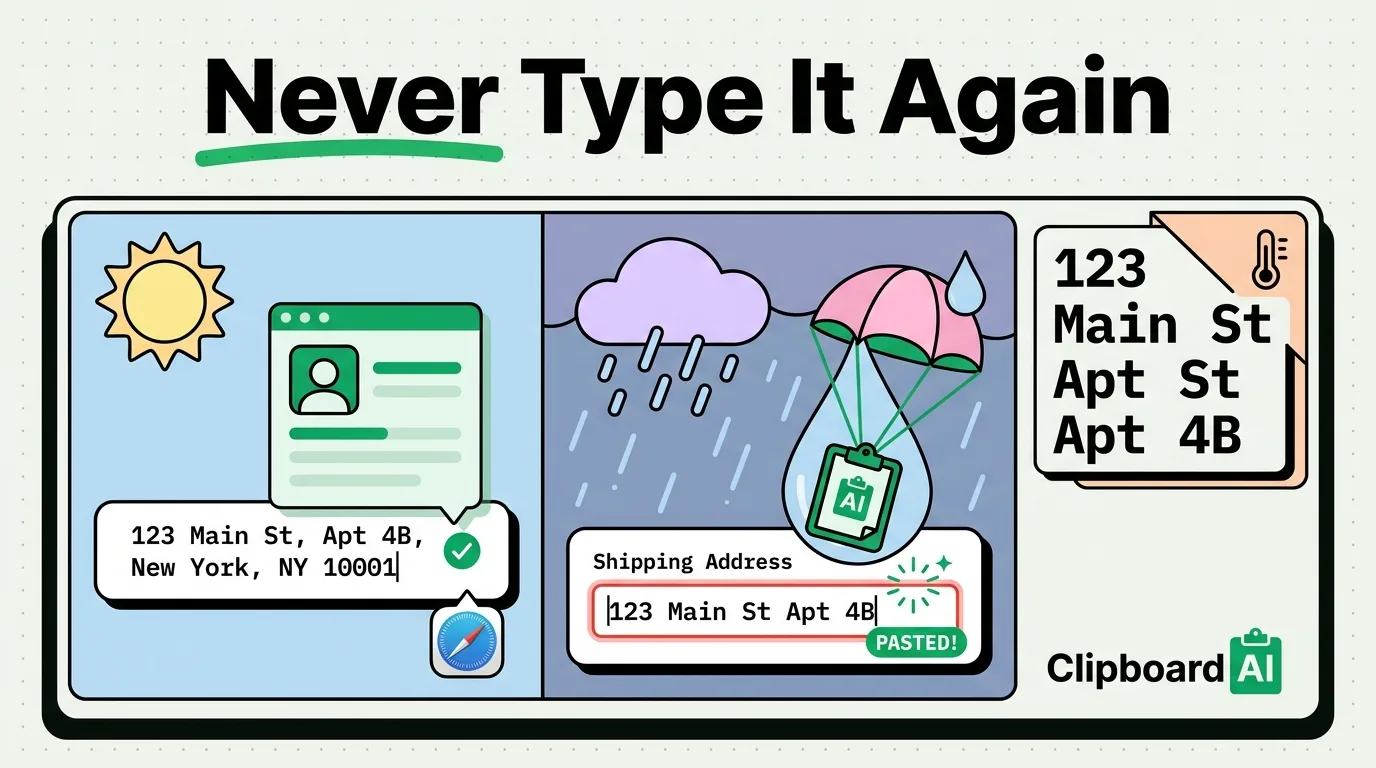
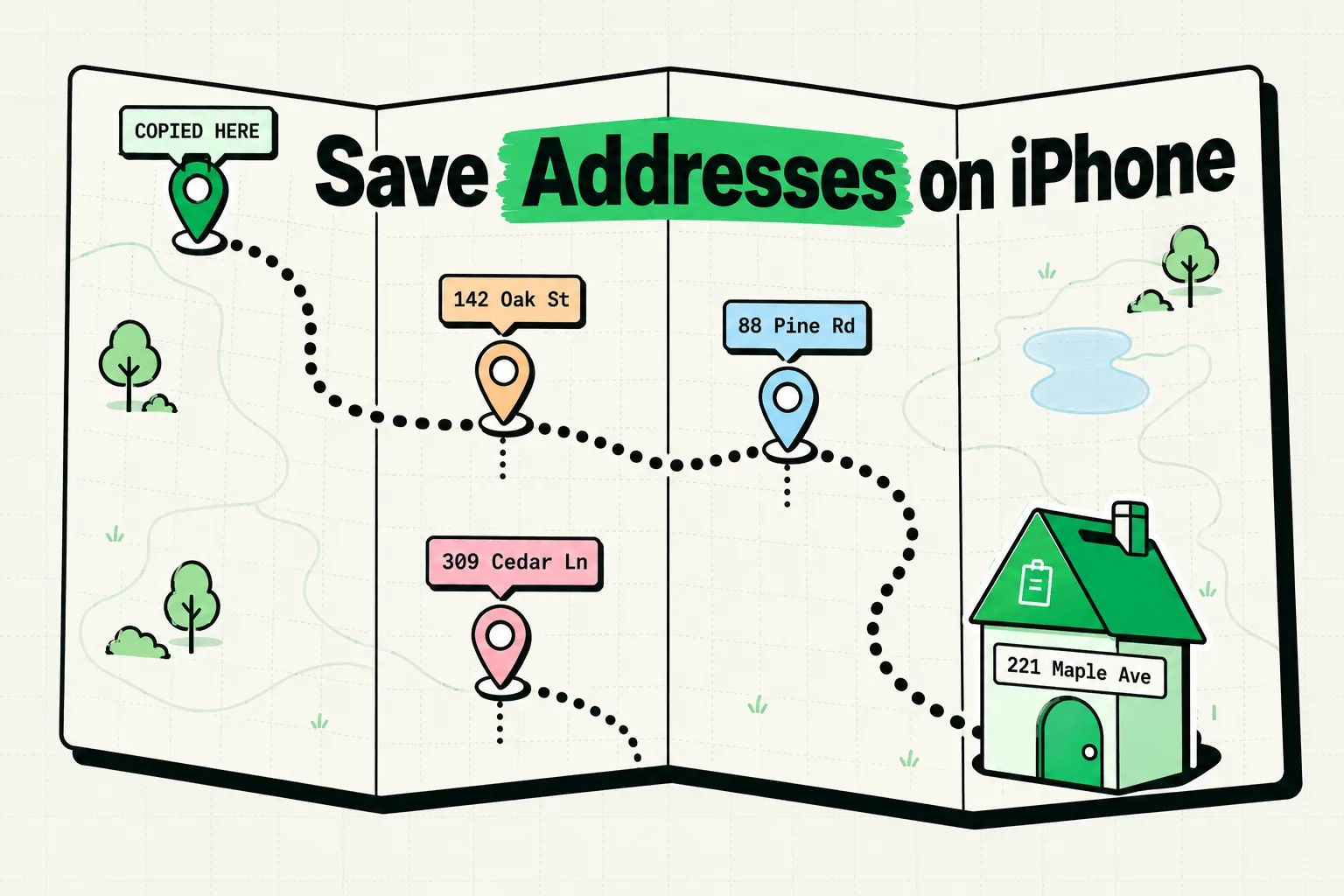
For a starter set of out-of-office replies, availability messages and contact blocks you can add as text replacements or save as clips, see text templates for iPhone. The snippets and text expansion guides cover saving addresses, phone numbers and Wi-Fi passwords for reuse.
Want them ready-made? Our free Text Replacement Builder has more than 50 shortcuts to pick from, and makes a file you can import on a Mac.
What dedicated text expander apps add
Third-party expanders on iPhone are custom keyboards. You switch to one with the globe key, type an abbreviation in it, and it swaps in the snippet. Because they are apps of their own, they can do what Text Replacement cannot: fill-in fields, the current date and time, the clipboard's contents, folders, and a cursor placed where you want it inside the expanded text. The App Store listing for one of them, Snippet Keyboard: TypeShelf, advertises date, time and clipboard variables plus cursor positioning, and says Allow Full Access is required so its keyboard can read the snippet library the app stores.
The trade-offs are those of any third-party keyboard. Its suggestions and autocorrect are its own rather than Apple's, it never appears in password fields, and switching back and forth costs a tap each time.
If you mostly need a dozen short phrases, Text Replacement is enough. If you send long templates with blanks to fill in, an expander keyboard earns its place. If what you reuse is mostly text you once copied, saved clips are the lighter option.
A free option with Shortcuts
The Shortcuts app can stand in for an expander when you need one long block now and then. Make a shortcut with a Text action holding the block and a Copy to Clipboard action, name it something you can say, such as Paste Address, and run it with Siri, the Shortcuts widget or a Back Tap gesture at Settings > Accessibility > Touch > Back Tap. It copies the text, and you paste it yourself.
Frequently Asked Questions
Can Text Replacement stop autocorrect from changing a word?
Yes. Add the word on the Text Replacement screen as a Phrase and leave the Shortcut field empty, and autocorrect stops changing it. Apple's guide offers this for any word or phrase you use and do not want corrected, which helps with names and brand spellings.
Can I back up or export my text replacements?
Yes, from a Mac. In System Settings > Keyboard > Text Replacements, select the entries and drag them to the desktop to save a file named property list.plist. Drag that file back into the window to restore the list or share it with another Mac. Apple documents no export on the iPhone itself.
Do text replacements work when I dictate?
No. Dictation types the words you say, and saying a trigger does not expand it, as MacMost points out in its June 2026 guide. Type the trigger instead, or keep the text as a saved clip you can tap to paste.
Will resetting the keyboard dictionary delete my shortcuts?
Yes. Reset Keyboard Dictionary, under Settings > General > Transfer or Reset iPhone > Reset, deletes all your custom words and shortcuts and returns the dictionary to its default state. Export the list from a Mac first if you rely on it.
Sources
- Apple Support, “Set up shorthand for frequently used text on iPhone”, iPhone User Guide for iOS 27, read October 5, 2026
- Apple Support, “Save keystrokes with text replacements on iPhone”, iPhone User Guide for iOS 26, read October 5, 2026
- Apple Support, “How to use Auto-Correction and predictive text on your iPhone, iPad, or iPod touch”, March 30, 2026
- Apple Support, “Replace text and punctuation in documents on Mac”, read October 5, 2026
- Apple Support, “Back up and share text replacements on Mac”, read October 5, 2026
- Apple Developer Documentation, “UILexicon”, read October 5, 2026
- MacMost, “Tips For Text Replacements On the iPhone”, June 2, 2026
- App Store, “Snippet Keyboard: TypeShelf”, read October 5, 2026