
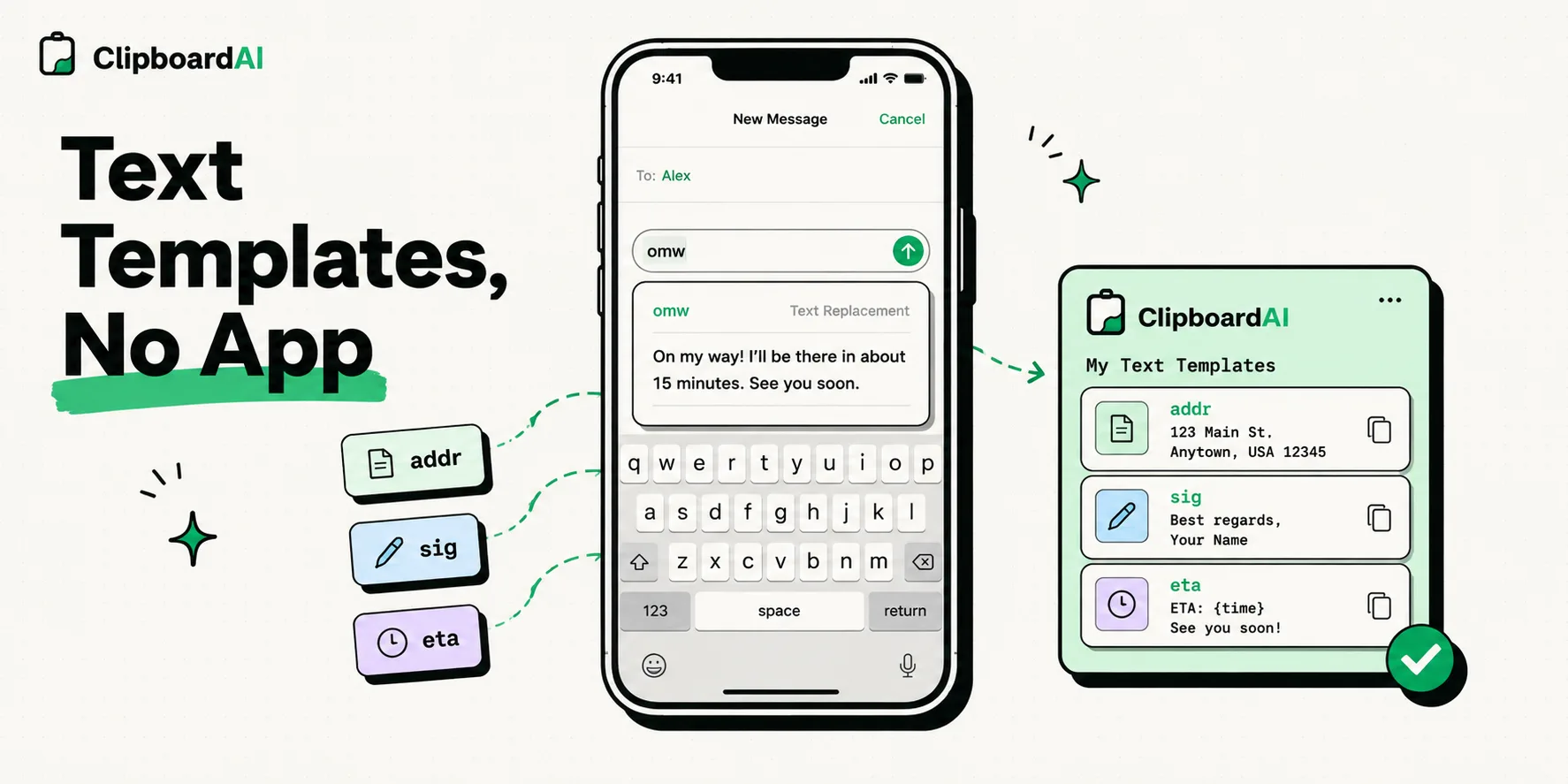
To create text templates on your iPhone without installing a third-party app, use the built-in Text Replacement feature. Navigate to Settings > General > Keyboard > Text Replacement, tap the "+" icon in the top-right corner, enter your full template in the Phrase field, and assign a short trigger word in the Shortcut field. Typing that shortcut in any app will automatically expand it into your complete saved template.
We all spend too much time typing the same things on our phones. Whether it is your email address, standard business replies, driving directions, or canned customer support responses, repeating these inputs manually is inefficient.
Apple includes a robust text expansion tool directly inside the iOS system settings. Known as Text Replacement, this feature allows you to build a custom dictionary of shortcuts that expand into paragraphs of text instantly. Below, we discuss how to set this up, share a secret trick to bypass the single-line layout restriction, and compare native options to dedicated snippet managers.
Step-by-Step: Setting Up Your First Text Replacement
Setting up a text shortcut takes under a minute. Here is the process to create your first template:
- Open the Settings app on your iPhone.
- Scroll down and tap General, then select Keyboard.
- Tap Text Replacement at the top of the menu.
- Tap the "+" (Plus) sign in the top-right corner.
- In the Phrase field, type or paste the full text template you want to save.
- In the Shortcut field, enter the short trigger phrase that will expand the template. (For example, use
@@to expand into your primary email address). - Tap Save in the top-right corner.
- Test your shortcut: Open Messages or Notes, type your shortcut, press the spacebar, and watch the text expand automatically.
The Secret Trick: Adding Line Breaks to iOS Templates
A common complaint about iOS Text Replacement is that the setting screen does not have a "Return" key, preventing you from adding line breaks to create structured multi-paragraph templates. You can bypass this layout limit with this simple workaround:
- Open the Notes app on your iPhone.
- Type out your multi-paragraph template, including all line breaks, spacings, and formatting.
- Tap and hold the text, select all, and tap Copy.
- Navigate back to Settings > General > Keyboard > Text Replacement.
- Create a new entry and tap inside the Phrase field.
- Select Paste. The text will insert with your line breaks intact, even though you cannot edit them inside the settings window.
- Assign a shortcut name and save.
Pre-Written Shortcut Template Kit
To help you get started, here are five highly functional templates you can copy, edit, and paste into your iPhone's Text Replacement settings:
1. Professional Out of Office (Shortcut: ooo1)
Hi, thank you for reaching out. I am currently out of the office with limited access to email. I will respond to your message as soon as possible upon my return. For urgent matters, please contact [email protected].2. Standard Meeting Availability (Shortcut: avail1)
Hi! I would love to connect. Here are a few times that work for me this week:
- Monday: 2:00 PM - 4:00 PM EST
- Wednesday: 10:00 AM - 12:00 PM EST
- Thursday: 1:00 PM - 3:00 PM EST
Let me know if any of these windows fit your schedule!
3. Business Card Details (Shortcut: bizcard)
My Contact Info:
Name: [Your Name]
Title: [Your Title]
Phone: [Your Phone Number]
Website: [Your Website URL]
4. Directions to Location (Shortcut: directions1)
Here are the directions to our office: We are located at 123 Main Street, Suite 400. The nearest subway station is 5th Avenue. Parking is available in the garage directly behind the building. Buzz code is 405.Tool Comparison: Native Shortcuts vs. Third-Party Managers
While native iOS Text Replacement is useful for short text expansions, complex workflows require different solutions.
| Feature | iOS Text Replacement | Apple Shortcuts App | ClipboardAI Keyboard |
|---|---|---|---|
| Line Breaks | Trick required | Yes | Yes (Native) |
| Formatting (Bold/Italic) | No (Plain Text Only) | No | Yes (Rich Text) |
| Dynamic Variables | No | Yes (Complex Script) | Yes (Smart Tags) |
| Organization | Single flat list | Library view | Structured folders |
| Sync Syncing | iCloud (Often Buggy) | iCloud | Optional Secure Sync |
Honest Caveats: iOS System Limitations
Before migrating your entire business writing pipeline into iOS Text Replacement, consider these system limitations:
1. Security Warning (Plaintext Storage)
Text Replacement entries are stored in plaintext in your device's local dictionary file. iOS does not encrypt this dictionary file. Do not save sensitive credit card numbers, passwords, or security PINs inside your shortcuts. Anyone who unlocks your phone can type your shortcut name (e.g. pin1) and access your sensitive data.
2. iCloud Sync Bugs
A long-running bug in Apple’s iCloud sync causes Text Replacement dictionaries to silently break. Shortcuts created on your iPhone might not show up on your Mac, or your entire shortcut library may disappear during an iOS upgrade. Always keep a backup of your primary templates in a secure document or database.
3. App Compatibility Failures
iOS Text Replacement relies on the system keyboard’s predictive text bar. Some third-party apps - particularly custom web browsers, password input fields, corporate secure chat apps, or terminal emulators - disable predictive text. In these input environments, typing your shortcut will not expand the text, forcing you to write it out manually.