
The Bottom Line
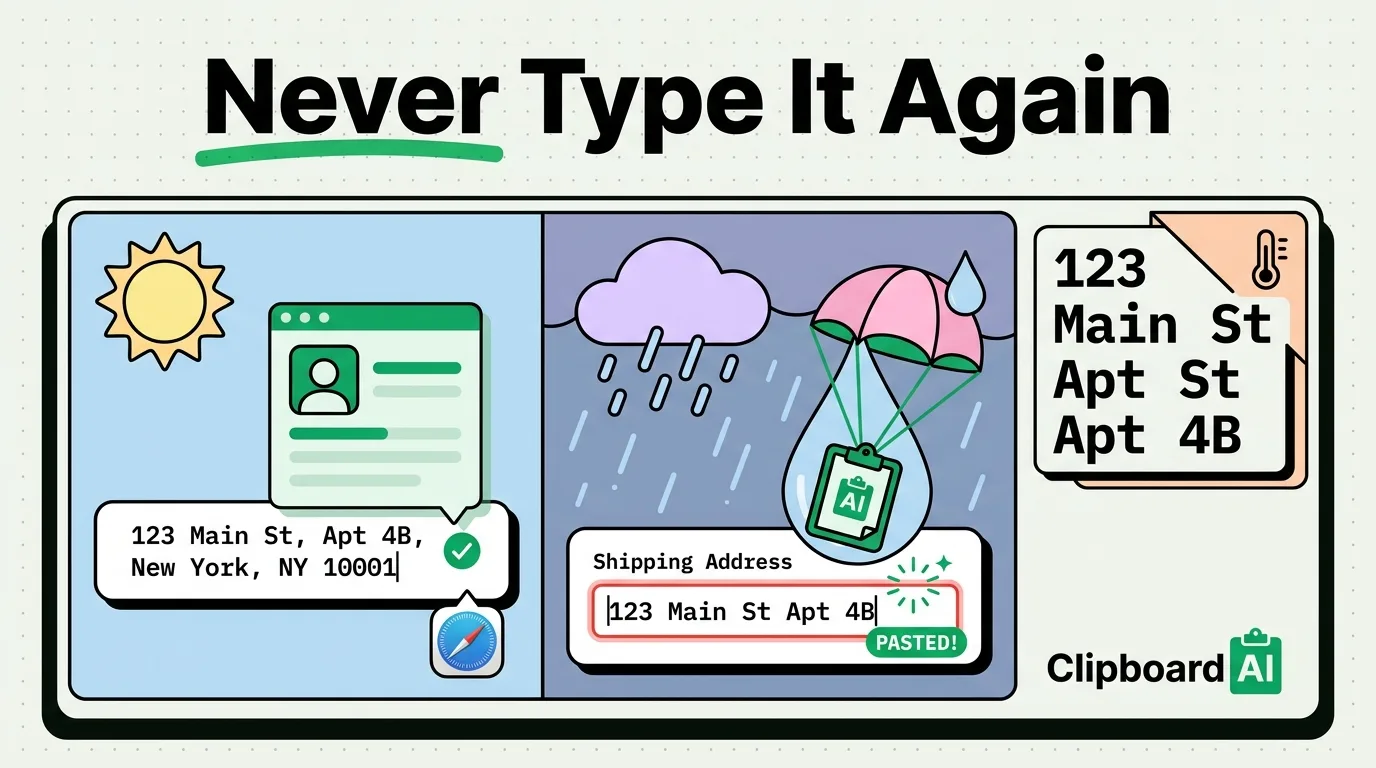
iOS already has a built-in way to autofill your address in most apps and websites: it comes from your own Contacts card. Set that up once and Safari and most well-built apps will offer it as a QuickType suggestion above the keyboard. For the forms that don't support autofill (some in-app checkout flows, PDFs, government sites), a pinned clipboard snippet is the fallback that still beats retyping it.
Step 1: Set Up My Info for Real Autofill
- Open Contacts app > find or create My Card (tap your own name, or Settings > Contacts > My Info if it's not set).
- Make sure your full address is filled in accurately on that card.
- Go to Settings > Safari > Autofill and confirm "Use Contact Info" is on, with My Info pointed at your card.
Now, in Safari and many apps, tapping an address field shows a QuickType bar above the keyboard suggesting your saved address; tap once and it fills the whole field, no typing required.
Why This Doesn't Work Everywhere
Autofill depends on the app or website using standard iOS text field types that the system recognizes as an address field. Many in-app forms (some checkout flows, older web forms, PDFs you're filling out) don't implement this correctly, so the QuickType suggestion never appears even though your info is saved correctly in Contacts. This is a limitation of how each app was built, not something you can fix from Settings.
Step 2: The Clipboard Fallback for Everything Else
For forms that don't support autofill, the next best thing is having your address pre-formatted and pinned somewhere you can paste from, rather than typing it fresh each time (and risking a typo in an apartment number or zip code). With ClipboardAI, copy your address once, pin it so it stays at the top of your clipboard history, and paste it into any field using the custom keyboard (enable via Settings > Keyboard > Keyboards > Add New Keyboard, then toggle Full Access for paste functionality).
Consider pinning a few formats since different forms want different structures:
- Full address, one line:
123 Main St Apt 4B, Springfield, IL 62704 - Full address, multi-line (for forms with separate fields): street / city / state / zip as separate pinned entries
- Just the zip code, for forms that only ask for that
Caveats
Autofill through Contacts only fills what's on your own card; if you frequently ship to a different address (an office, a family member's place), you'll want that saved as a separate pinned clip rather than fighting with My Card's single address field. Also, some sites intentionally disable autofill for security reasons (certain financial or government portals), in which case the clipboard method is the only option that saves any time at all.
Frequently Asked Questions
Why doesn't autofill show up on some websites?
Autofill relies on the site or app using standard address field types iOS recognizes. Sites built without that standard support won't trigger the QuickType suggestion regardless of your Contacts setup.
Does this work on all iPhone models?
Contacts-based autofill works on any iPhone running a current iOS version. ClipboardAI's custom keyboard requires enabling Full Access once in Settings, and works on iOS 16 and later.