On this page
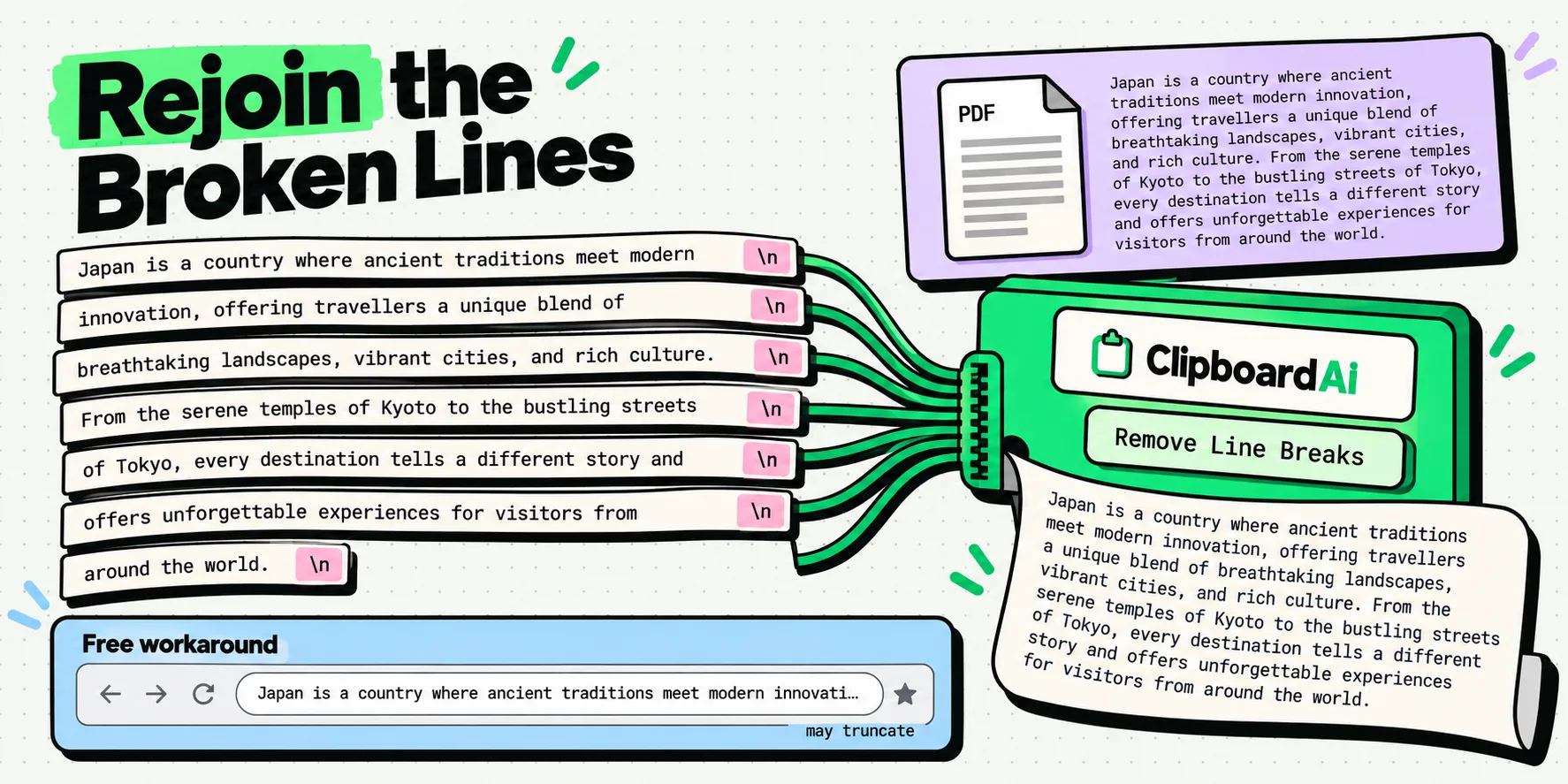
A PDF stores positioned lines, not paragraphs. Every visual line ends with a real line-break character in the text layer, so a copied paragraph arrives pre-broken and stays broken in whatever you paste it into. The fix is to join the lines back up: a single-line field does it free in about fifteen seconds, and a Remove Line Breaks transform does it in one tap without touching anything else.
What follows is the mechanism, the free route, four routes compared, the two things a plain join will not repair, and a Terminal rule for Mac users that goes further.
Why the breaks are in the text, not in the formatting
People assume this is a formatting problem, because it looks like one. It is not. Formatting is fonts, weights, colors and spacing, and stripping formatting will not touch a single one of these breaks.
A PDF page is closer to a printed sheet than to a document. The file records glyphs and the exact coordinates to paint them at. There is no concept of a paragraph that reflows when the window gets narrower, because the page will never be narrower. When a viewer builds the text layer you copy from, it reconstructs lines from those coordinates and terminates each one. That terminator is a genuine character sitting in the string, and it travels with your copy the same way the letters do.
The size of the effect is easy to see. A two-column page was typeset for this article with Core Text, in nine-point type with hyphenation on, and its text pulled back out with PDFKit on macOS 26.2 (build 25C56) on September 8, 2026. One paragraph of 799 characters came back as 15 lines and 814 bytes, with a hyphen ending seven of them. The extractor has no paragraph to hand over, so the only honest thing it can emit is one line per line on the page.
So the paste is honest. Apple Notes, Mail, Word, Google Docs, a chat box, an email reply: they all receive text that has already decided where its lines end, and they respect it. This is the mirror image of the failure where a paste loses your line breaks on iPhone, where a destination collapses breaks you wanted. Here you have breaks you never asked for, and they are content rather than styling, which is exactly why every "paste as plain text" suggestion in every forum thread fails to help.
Quick diagnostic: put the cursor at the end of a short line and press Delete once. If the next line jumps up, that break is a character in your text. If the lines rearrange themselves when you resize the window instead, it was a wrap and there was never a problem.
The 15-second fix that needs nothing installed
Before installing anything, there is a trick that works on any iPhone, iPad or Mac right now with zero setup. It exploits a limitation of single-line text fields.
- Copy the broken block out of the PDF.
- Tap into a field that can only hold one line. Safari's address bar and the Spotlight search field both qualify.
- Paste. The field cannot store multiple lines, so it flattens them.
- Select all, copy again. What comes back out is a single run of text.
It costs nothing and it is genuinely useful. Two caveats. Long passages can be truncated, because these fields were never meant to be text buffers, so check the end of what comes back. And it flattens everything, so a two-paragraph copy returns as one paragraph, exactly as a transform would.
There is a pleasing symmetry to it. The behavior that ruins a structured paste, which is why the address bar is the wrong place to launder a list, is precisely the behavior you want when the structure is the problem.
Four ways to rejoin the lines, compared
These are the routes people actually use for this job. The columns that matter are whether it works on the device in your hand, and whether your unpublished draft has to travel to somebody else's server to get fixed.
| Route | Works on iPhone or iPad | Text stays on your device | Steps once set up | Notes |
|---|---|---|---|---|
Word find and replace, searching ^p |
No. The wildcard find is a desktop feature | Yes | 6 to 8 | Removes the paragraph marks you wanted to keep as well, so you rebuild them by hand |
| Google Docs find and replace with a regular expression | Partly. The mobile app's find and replace is cut down | No. The document lives in Google's cloud | 6 to 8 | Needs regex mode enabled and a correct pattern |
| Paste into a line-break-remover website | Yes | No. Your text is submitted to a site you have never heard of | 5 to 6 | Fine for a recipe. Not fine for an unpublished thesis, a client contract, or anything under embargo |
| Single-line field trick | Yes | Yes | 4 | Free and instant. May truncate long passages |
| Remove Line Breaks in a clipboard app | Yes | Yes | 2 | Shows the result before you copy it out |
Last checked: July 29, 2026. The privacy column is the one people skip and then regret. Those cleanup sites sit at the top of this search result for a reason, and the reason is not that they are good. They are cheap to build, and they monetize a problem your own device can solve locally.
One tap on the phone, one panel on the Mac
Open the clip and tap Transform Text. The screen puts ORIGINAL at the top, the transform list in the middle and RESULT underneath, so you read the outcome before you accept it. Tap Remove Line Breaks, watch the ragged block become one clean paragraph, then tap Copy Transformed Text. Two taps and it is on your clipboard, ready for the document.
Nine transforms live in that list and all nine are free on iPhone and Mac alike: UPPERCASE, lowercase, Title Case, Sentence Case, Trim Whitespace, Remove Line Breaks, Strip HTML, URL Encode and URL Decode. On the Mac the same set sits in a Transform panel inside All Clips, with a PREVIEW pane and a Copy result button, so the habit you build on the phone is the habit you already have at the desk. Step-by-step in transforming text in ClipboardAI.
Two details so the result never surprises you. Remove Line Breaks drops blank lines too, so a copy with a gap between paragraphs comes back as one clean run rather than one run with a stray double space in it. And Trim Whitespace collapses runs of spaces and tabs, which is the companion fix when a PDF's justified spacing arrives as a field of gaps.
What rejoining will not repair
Two limits, both worth knowing before a rejoined paragraph goes into something that matters.
End-of-line hyphens survive. Typesetters split long words across lines. If the PDF broke "visualization" into "visual-" and "ization", joining the lines produces "visual- ization": the hyphen stays and a space lands beside it. This is a gap in every plain line-joiner, because software cannot reliably distinguish a typesetter's split from a real hyphen in "self-aware" or "state-of-the-art". The two look identical: all seven line-ending hyphens in the test page were the ordinary ASCII hyphen-minus, U+002D. They were not the soft hyphen at U+00AD, which exists for this purpose and would have made the job trivial, and not the typographic hyphen at U+2010. Read the rejoined paragraph once and repair the two or three you find. That takes less time than most automated attempts, and the Mac section below shows why.
A copy spanning two paragraphs becomes one paragraph. The transform removes every break it is handed, and it has no way to know that one of them was a genuine division. That has a clean fix, and it is the most useful habit on this page.
A Mac Terminal rule that rejoins the hyphens too
If you are comfortable in Terminal, two substitutions fix the lines and most of the hyphens in one pass:
pbpaste | perl -0777 -pe 's/(\p{Ll})-\n(\p{Ll})/$1$2/g; s/(?<!\n)\n(?!\n)/ /g' | pbcopyThe first substitution removes a hyphen only where a lowercase letter sits on both sides of the line break, which is the signature of a word the typesetter split. The second turns any remaining single newline into a space and leaves doubled newlines alone, so the blank lines between paragraphs survive. Order matters: run them the other way round and the hyphens are stranded mid-line with a space after them. Fed the 15 extracted lines of the test page, it returned 799 characters identical to the source paragraph, including well-known and state-of-the-art, whose hyphens sit mid-line and were correctly left alone.
To scan the joins instead of proofreading eight hundred characters, this variant prints each one to standard error:
pbpaste | perl -0777 -pe 's{(\p{L}+)-\n(\p{Ll}+)}{ warn "joined: $1|$2\n"; "$1$2" }ge' | pbcopyOn the test page it listed seven short joins: mo|ment, Suf|ficient, ex|poses, re|classification, de|pend, hy|phens and mis|spelled.
Two things go wrong, and the second is why the log exists. A dictionary check looks like the obvious refinement, joining only when the result is a real word, and it makes things worse. macOS ships a word list at /usr/share/dict/words, a symlink to web2 with 235,976 entries. Four of the seven joined words were in it (moment, sufficient, reclassification and depend) and three were not (exposes, hyphens and misspelled), because the list holds headwords with almost no plurals, verb forms or past participles. A dictionary-checked rejoin would have left three of seven words broken, with no warning.
$ printf 'a state-of-\nthe-art rejoin\n' | perl -0777 -pe 's/(\p{Ll})-\n(\p{Ll})/$1$2/g'
a state-ofthe-art rejoin
The other failure is a compound word that breaks at its own hyphen. The rule cannot tell the difference and joins across it, and the log would show joined: state-of|the, which reads wrong at a glance so you can fix it by hand. There is no automatic solution for that case.
Run the transform once at capture, while the text is still on the clipboard, so every later paste is already clean. On iPhone, a Shortcut with two Replace Text actions, both set to Regular Expression and given a share sheet input, applies the same two patterns to selected text.
Copy paragraph by paragraph and the merge problem disappears
Rather than dragging across a whole page, select one paragraph, copy, transform, paste. Then the next. It feels slower and it is not, because you skip the part where you comb back through a wall of merged text hunting for where the divisions used to be.
Working this way is also where a clipboard with a history stops being a convenience and becomes the point. Six paragraphs means six copies, and a phone that only remembers the last one means five trips back to the PDF. With a history, all six are still waiting when you reach your document, in order, and you paste them one after another. Same argument as copying multiple items on iPhone, applied to a source that punishes you for going back.
On a Mac there is an extra gear. Every copy is captured automatically as you make it, so you can work down the PDF taking paragraph after paragraph without touching anything else, then lay the run into your document in order. The mechanics are in pasting multiple clips on Mac.
Where the text is going changes the fix
Rejoining is right for prose. It is wrong for several other things people pull out of PDFs, and knowing which is which saves an undo.
- A reference list. The correct output is one line per reference, so joining lines is exactly the wrong operation. Keep the breaks and clean the entries individually.
- A table. The lines are rows. Once joined they are unrecoverable. Screenshot it instead and lift the text from the image, which keeps the visual grouping intact.
- A two-column paper. Rejoining will not save you, because the columns were already interleaved before the breaks became your problem. Different failure, different fix: copying one column out of a two-column PDF.
- Word specifically. Word has its own quirks on the receiving end, and they deserve handling in Word's own terms. See pasting a PDF paragraph into Word without the line breaks.
- A scanned PDF. With no text layer there are no line breaks to fix, because there is no text to copy. No amount of rejoining helps, and the route is recognition instead, covered in the OCR hard cases playbook.
- A form field in the PDF. Going the other way has its own set of problems, covered in pasting into PDF forms.
The habit that keeps the clean version
The last piece is not the transform, it is still having the result later. Clean a paragraph, paste it, copy something else, and the clean version is gone. On the phone, wire up Back Tap once and a double-tap on the back of the iPhone files whatever you just copied, with no app opening and nothing interrupting what you were reading. On the Mac there is no gesture at all: every copy is kept the moment you make it.
The result on a working afternoon is that the PDF stays open, your paragraphs pile up as you go, each one is a tap away from being clean, and a source you already dealt with never has to be reopened. The wider study workflow is in ClipboardAI for students.
Frequently Asked Questions
Why does copying from a PDF add a line break on every line?
Because the breaks are already there. A PDF page is a set of glyphs painted at fixed coordinates, and the text layer records where each visual line ends. Nothing in the file says this is a paragraph that should reflow. When you copy, you get the lines exactly as they were laid out, complete with the break that ended each one. Your destination app is not adding anything. It is faithfully reproducing what the PDF handed over.
Does removing line breaks change the words?
No. Joining lines is a whitespace operation. Every character that is not a line break survives untouched, in the same order, with the same spelling and the same punctuation. What changes is that each break becomes a single space, so the text becomes one continuous run that wraps to whatever width you paste it into. Nothing is rewritten, summarized, corrected or reordered.
Can I do this on iPhone without pasting into a website?
Yes, and you should. The single-line field trick works with nothing installed: paste the broken block into Safari's address bar or the Spotlight search field, then select all and copy it back out. A single-line field cannot hold multiple lines, so it flattens them for you. For anything longer than a paragraph or two, a Remove Line Breaks transform inside a clipboard app is faster and does not risk the field truncating your text.
What about the hyphens at the end of lines?
They stay. If a typesetter split visualization across two lines as visual- and ization, a plain join gives you visual- ization, hyphen and all, with a space where the break was. Software cannot reliably tell a typesetter's split from a genuine hyphen in self-aware or state-of-the-art. A rule that drops a hyphen between two lowercase letters fixed all seven in one test but joins across a compound split at its own hyphen, so read the rejoined text once and fix the strays by hand.
Why did my two paragraphs turn into one?
Because a line-break transform removes every break in what you give it, including the one that separated the paragraphs. It has no way to tell a wrap from a real division. The fix is to copy one paragraph at a time rather than a whole page, which costs a few seconds and gives back exactly the structure the author wrote. If you must take a page in one go, put the paragraph breaks back in your editor afterwards.
Why can't I search for a word I copied from a PDF?
A ligature may be the cause. Some PDFs encode fi as a single character, U+FB01, and the copy carries it across, so a search for office misses the word. On a Mac, pbpaste | grep -n '[^ -~]' in Terminal prints every line holding a character outside plain ASCII. Depending on the font's character map, a ligature arrives either as that single character or as two ordinary letters, and only the first kind fails a search.