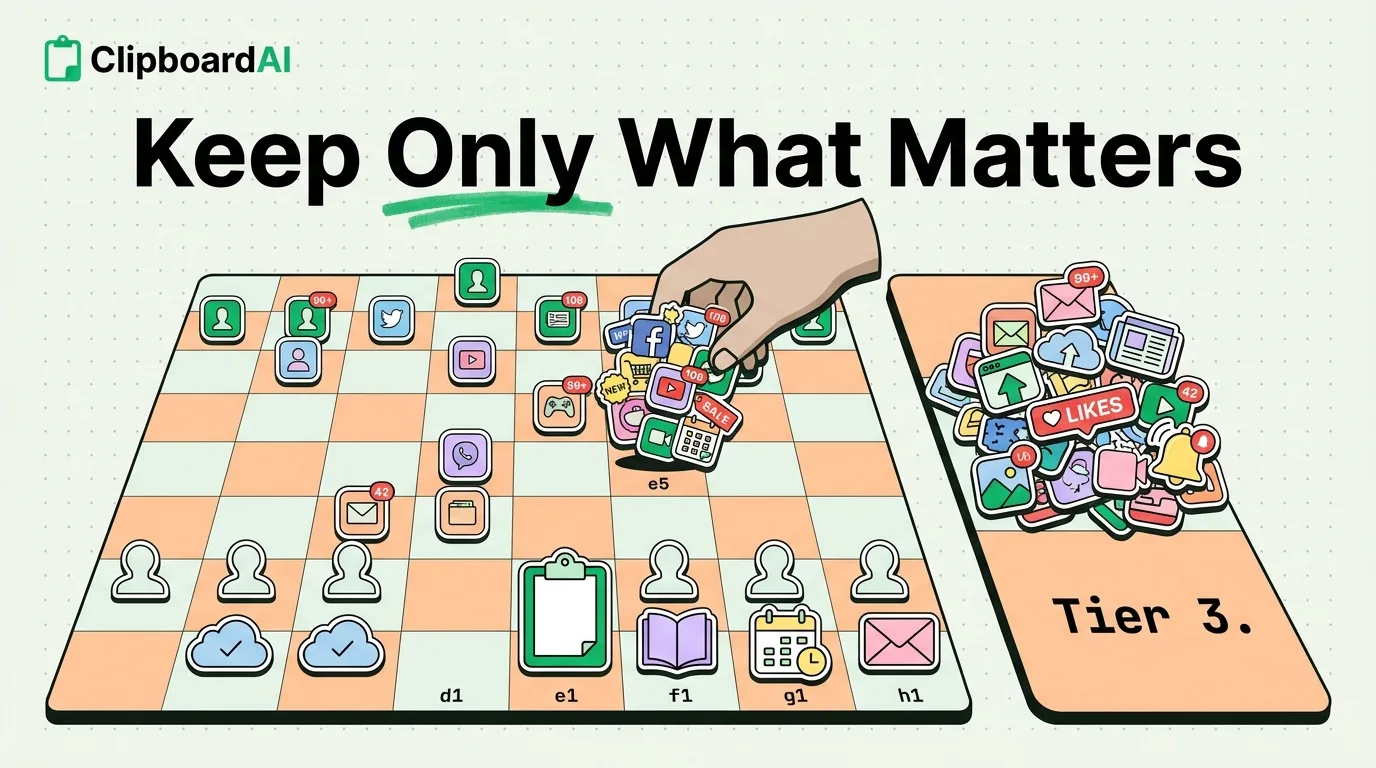
A minimalist setup isn't about deleting apps for the sake of a smaller number, it's about removing the ones that exist mainly to be opened out of boredom rather than intention. The test that actually works: for each app on your home screen, ask "did I open this because I needed something, or because I had a spare thirty seconds." Anything in the second category moves off the home screen, not necessarily off the phone.
The 3-Tier Sort
| Tier | Where it lives | Examples |
|---|---|---|
| Tier 1: Genuine daily tools | Home Screen, first page only | Messages, Camera, Maps, whatever you use for calendar/notes |
| Tier 2: Used often but not reflexively | App Library only (swipe past your last home screen page, or search) | Banking app, a specific game you actually schedule time for, shopping apps |
| Tier 3: Rarely used or purely reflexive-scroll | Delete, or offload via Settings > General > iPhone Storage | Social apps you open out of boredom, apps you forgot you installed |
To move an app to Tier 2 without deleting it: long-press the icon > Remove App > Remove from Home Screen (this keeps the app and its data, just off your main screen; it's still reachable via App Library or Spotlight search).
Doing the Actual Setup
- Long-press an empty area of your Home Screen > tap the page dots at the bottom > uncheck every Home Screen page except the first one. This hides all other pages, effectively creating a single-screen phone while every app remains searchable via the App Library.
- On the one remaining page, remove everything except Tier 1 apps using the same "Remove from Home Screen" method.
- Set your wallpaper to something plain rather than a photo, since a visually busy or nostalgic Lock Screen is a small but real trigger for idle unlocking.
- Turn off badges (the red notification dots) for anything left on the home screen: Settings > Notifications > [app] > toggle off Badges. A badge is a visual "check me" nudge; removing it removes a large share of impulse opens.
Why This Often Includes a Clipboard Manager, Not Excludes One
It seems counterintuitive to add an app while minimizing, but a clipboard manager like ClipboardAI often replaces several habits at once: instead of opening Notes to find a saved address, or Messages to re-find a link someone sent you last week, you search one clipboard history. It consolidates several "just checking something" app-opens into fewer, more purposeful ones.
What Usually Goes Wrong
The most common failure mode is doing this once and drifting back within a few weeks as new apps reappear on the home screen automatically (iOS defaults new installs to your last home screen page). Check Settings > Home Screen and set "Newly Downloaded Apps" to add to the App Library only, not the Home Screen, so the setup doesn't quietly undo itself.
Frequently Asked Questions
Does removing an app from my Home Screen delete it?
No, "Remove from Home Screen" keeps the app installed with all its data; it just becomes reachable only via App Library or Spotlight search instead of a tap.
How do I stop new app downloads from cluttering my home screen again?
Settings > Home Screen > under "Newly Downloaded Apps," choose "App Library Only" instead of "Home Screen and App Library."