Setting up an iPhone for a parent or grandparent goes better when you change a small number of high-impact settings rather than trying to "simplify everything." The goal is fewer things that can go wrong, bigger text, and a clear path back to you in an emergency, without turning the phone into something unfamiliar.
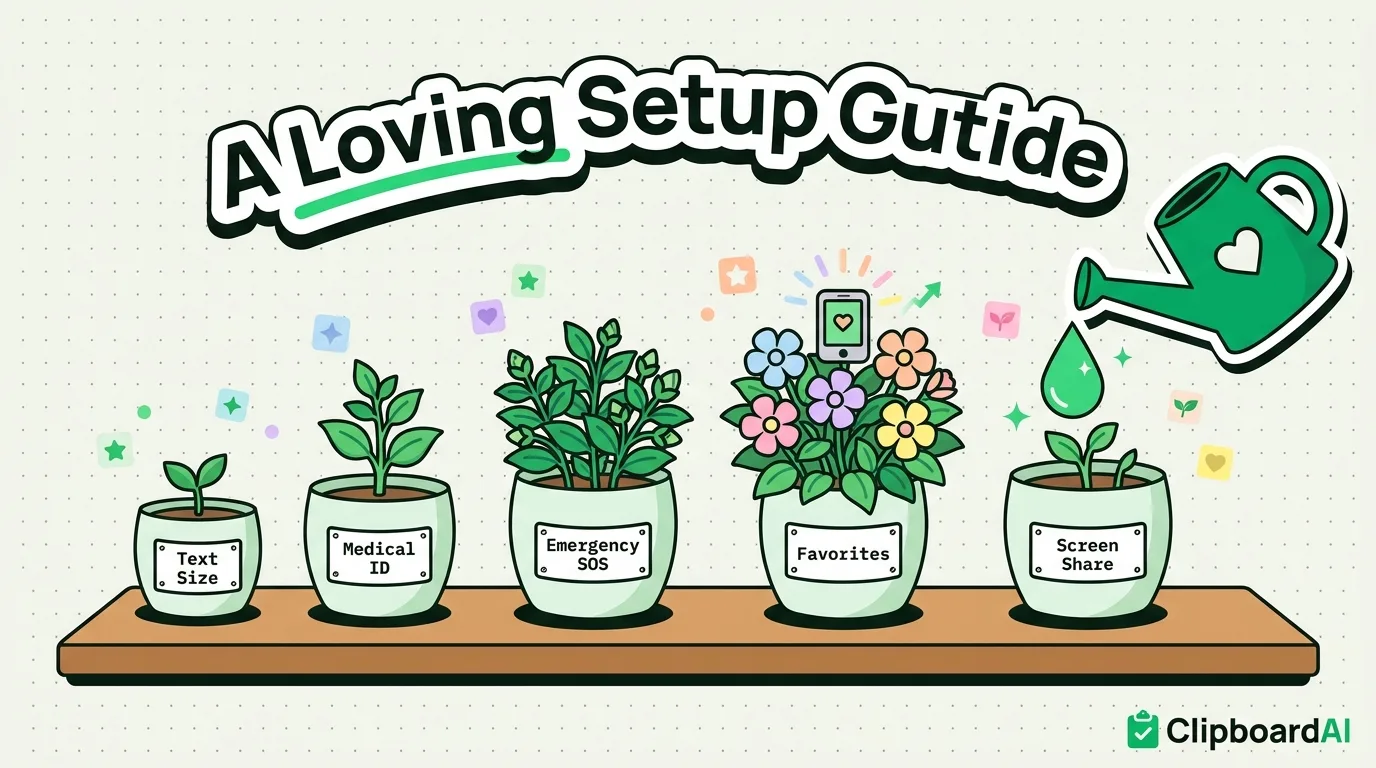
The Setup Checklist
| Setting | Where | Why it helps |
|---|---|---|
| Larger text | Settings > Display & Brightness > Text Size, and Accessibility > Display & Text Size for even larger options plus Bold Text | The single biggest usability fix for most older users; do this before anything else |
| Reduce home screen to essentials | Long-press apps to remove from home screen (they stay in App Library, not deleted) | A cluttered home screen causes people to tap the wrong thing; move rarely-used apps off-screen rather than deleting them |
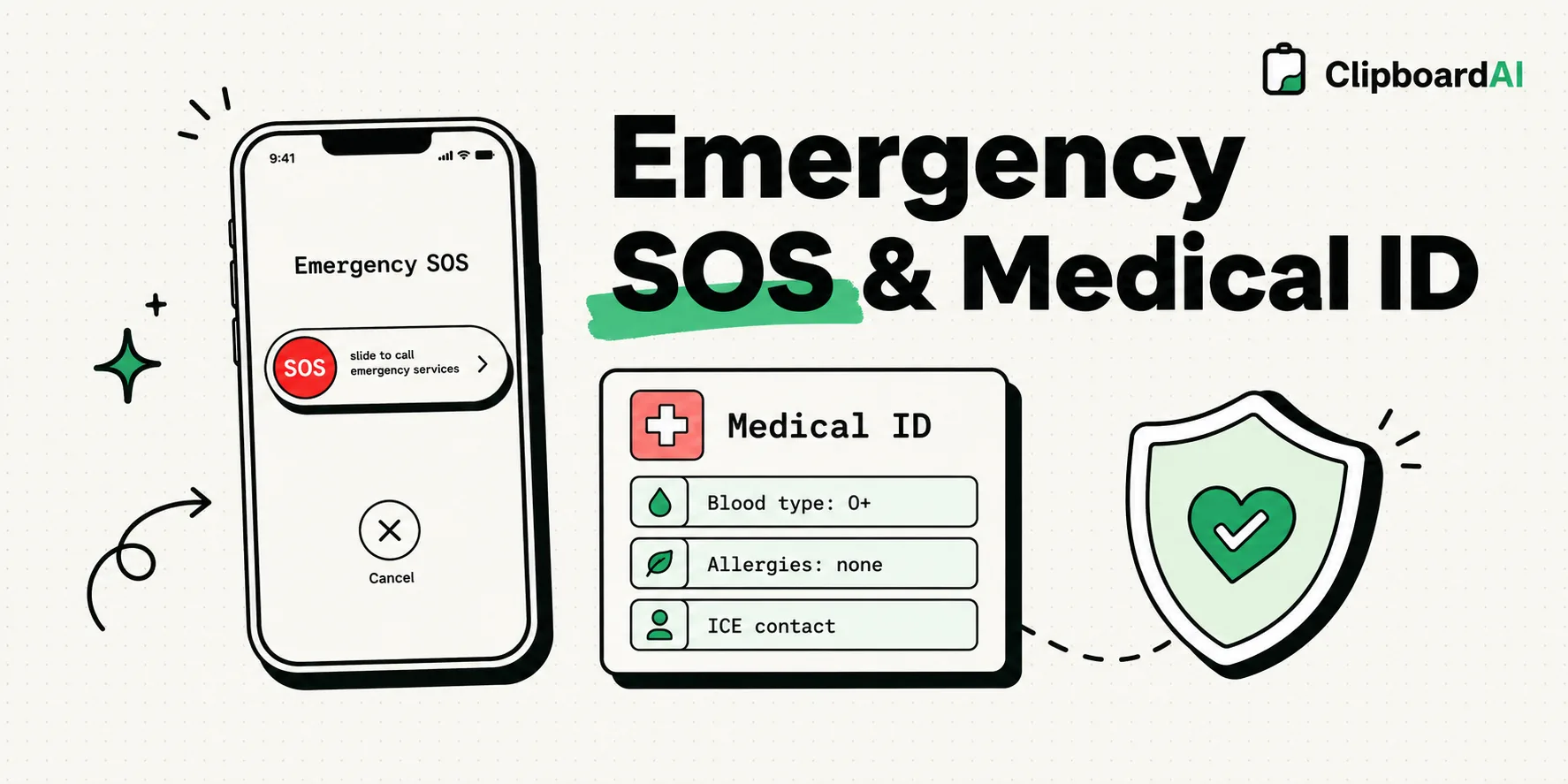
| Emergency contacts + Medical ID | Health app > profile icon > Medical ID > Edit | Accessible from the lock screen without unlocking the phone, critical if someone else needs to help in an emergency |
| Set up Emergency SOS | Settings > Emergency SOS | Side-button-hold calls emergency services and can auto-notify chosen contacts with location |
| Turn on Voice Control or Larger Touch Targets if needed | Settings > Accessibility > Touch > Touch Accommodations | Helps with tremors or reduced dexterity by requiring a slightly longer touch before it registers |
| Set up Face ID or a simple passcode | Settings > Face ID & Passcode | Removes friction of a complex password while keeping the phone secure; avoid no passcode at all |
Making It Easy to Reach Family
Add close family members to Favorites in the Phone app (open a contact, tap "Add to Favorites") so calling anyone important is two taps from the Phone tab, without navigating Contacts. If FaceTime is something they will use, test it together once during setup rather than assuming it will make sense the first time alone.
Setting Up Remote Help for Yourself
Screen Sharing over FaceTime (start a FaceTime call, tap the screen-share icon) lets you see and guide their screen remotely during a call, which solves the most common support request: "something looks different and I don't know what happened." This is far more effective than talking someone through settings menus over a phone call with no visual.
One Small Thing Worth Setting Up
If the person you are setting this phone up for regularly needs to share things like a home address, an insurance number, or a doctor's phone number, a clipboard manager with pinned items removes the need to retype or dictate them each time. ClipboardAI lets you pre-pin a few key snippets (their address, your phone number, a pharmacy number) during setup so they are always one tap away, rather than something they have to remember or search for later. This is optional and only worth adding if the person is comfortable with a bit more on their phone; for many, sticking to the core checklist above is enough.
Frequently Asked Questions
How do I set up Medical ID on an iPhone for a parent?
Open the Health app, tap the profile icon, choose Medical ID, then Edit. Add emergency contacts, conditions, and medications. This information becomes visible from the lock screen without unlocking the phone, which matters in an actual emergency.
What is the easiest way to increase text size on iPhone?
Settings > Display & Brightness > Text Size gives a slider for standard sizes. For larger options plus bold text, go to Settings > Accessibility > Display & Text Size instead, which offers a wider range.
How can I remotely help a parent with their iPhone?
Start a FaceTime call and tap the screen-sharing icon (introduced in iOS 15) to see their screen in real time and guide them visually, rather than trying to describe menu locations over a voice call.