
The Bottom Line
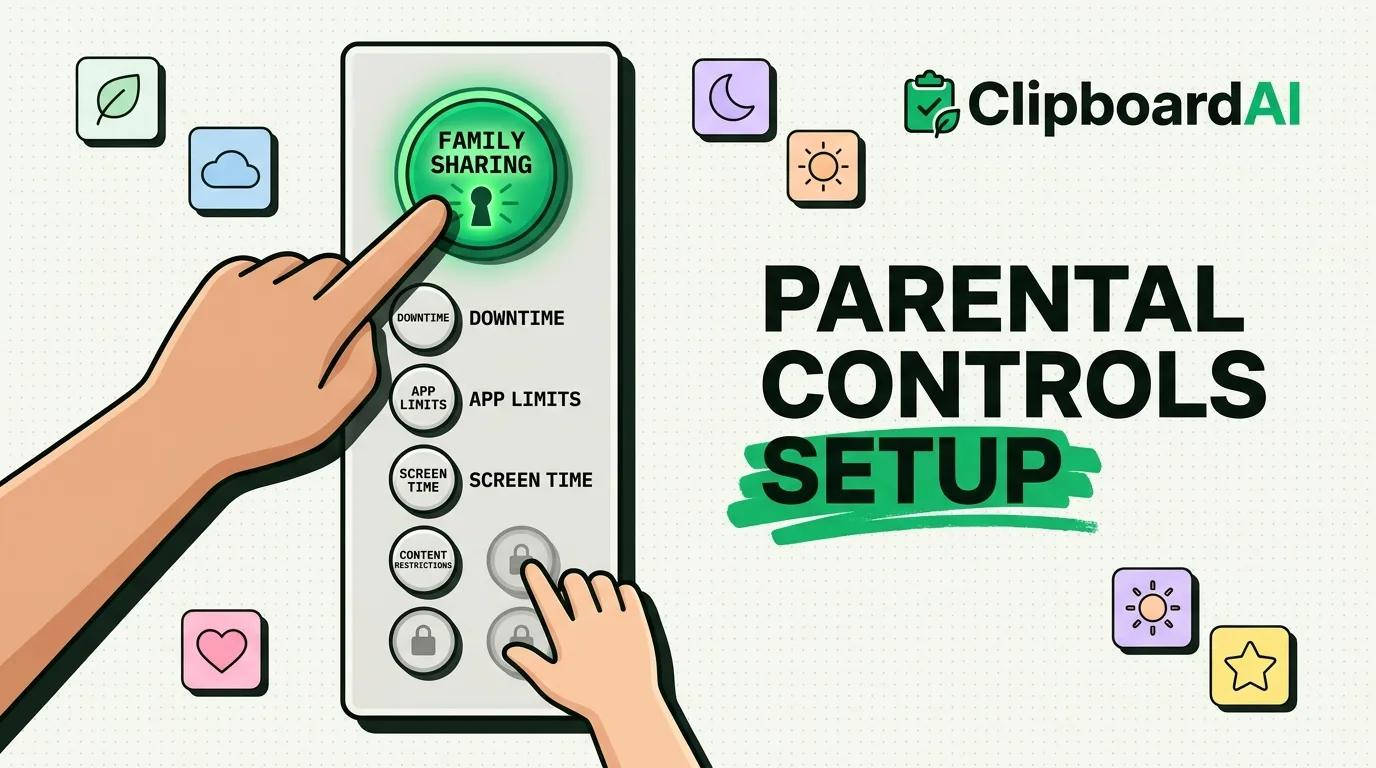
iPhone parental controls run through two connected systems: Family Sharing (to link a child's Apple ID to yours) and Screen Time (to set the actual limits). Set up Family Sharing first, since Screen Time's content restrictions and remote management only fully work once a child's device is linked to a parent account.
Step 1: Set Up Family Sharing
On the parent's iPhone: Settings > [your name] > Family Sharing > Add Member. If your child does not have their own Apple ID yet, choose "Create Account for Child," which walks you through setting one up with an age attached to it, iOS uses that age to apply sensible default restrictions automatically.
Step 2: Configure Screen Time for Their Device
From your device, go to Settings > Screen Time > [child's name] (they need to appear under Family first). From here you can set:
- Downtime: a schedule where only phone calls and apps you allow are available, useful for bedtime or school hours
- App Limits: daily time caps per app or app category
- Communication Limits: restrict who they can call, message, or FaceTime, and when
- Content & Privacy Restrictions: the actual content filtering, covered next
Step 3: Content & Privacy Restrictions
This is the section that actually blocks content, not just limits time. Under Screen Time > Content & Privacy Restrictions, you can set:
| Setting | What it controls |
|---|---|
| Content Restrictions | Movie/TV/app age ratings, explicit music and podcasts, web content filtering |
| Web Content | Limit Adult Websites (built-in filter) or Allowed Websites Only (allowlist) |
| App Store Purchases | Require approval for installs, deletions, and in-app purchases |
| Privacy | Lock down changes to Location Services, contacts, photos, and other permissions |
| Passcode | A separate Screen Time passcode so the child cannot change these settings themselves |
Set a Screen Time passcode that is different from their device passcode. Without it, a tech-savvy kid can simply turn the restrictions back off.
Ask to Buy and Purchase Approval
Family Sharing includes "Ask to Buy," which routes any App Store purchase or download by a child through a request that a parent approves or declines from their own device, including free app downloads if you choose to require approval for those too.
Common Mistakes
- Skipping the Screen Time passcode. Without it, restrictions are just a suggestion.
- Setting restrictions from the child's device instead of the parent's. Content & Privacy Restrictions can be configured locally on the child's own phone if it is not linked via Family Sharing, but then there's nothing stopping them from just changing it back since there's no remote parental lock.
- Forgetting Communication Limits apply to Messages and FaceTime, not just app usage. If you only set App Limits, unrestricted messaging still gets through.
When This Will Not Work
Restrictions only apply to the device they are configured on. If your child has access to a second device, a hand-me-down iPad, a school Chromebook, a friend's phone, none of these settings follow them there. Screen Time also cannot restrict content inside a web browser tab that uses in-page search separate from Safari, so combine Web Content restrictions with Allowed Websites Only for younger children rather than relying on the "Limit Adult Websites" filter alone.
Frequently Asked Questions
Can my child bypass Screen Time restrictions?
Not without the separate Screen Time passcode, assuming Family Sharing is set up so the parent controls that passcode remotely. If restrictions are set locally on the child's own device without Family Sharing linking it to a parent account, they can go into Settings and turn them off.
Does this work on a shared family iPad too?
Yes, Screen Time and Content & Privacy Restrictions apply per Apple ID or per device depending on how it is set up. For a shared device, use Settings > Screen Time directly on that iPad rather than routing it through Family Sharing.
What Apple ID age range gets the strictest default settings?
Apple applies stricter defaults for accounts created for children under 13, including tighter default web filtering and required purchase approval. Parents can loosen or tighten these regardless of the default.