
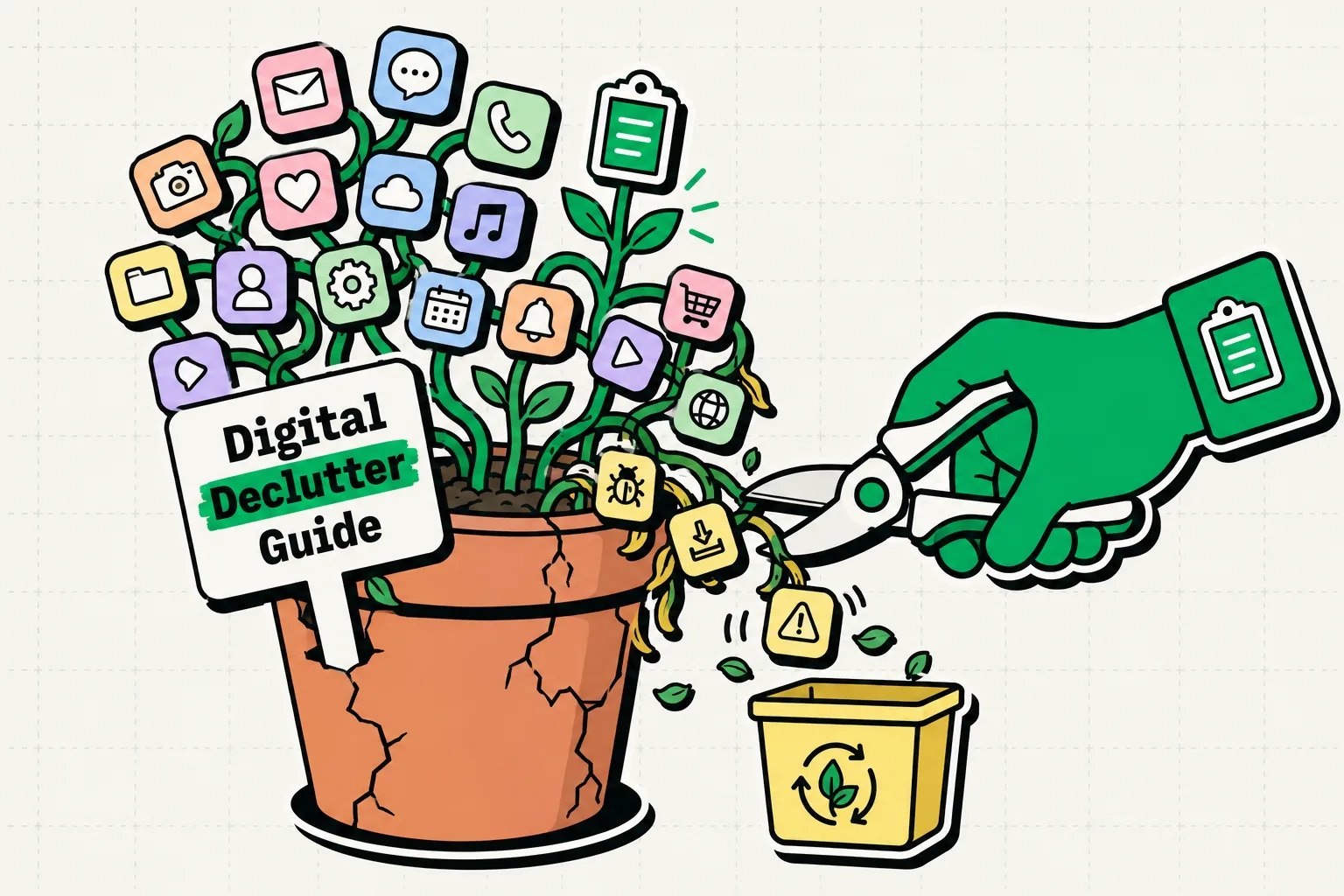
Digital clutter builds up because none of it forces you to deal with it - unlike a messy room, a phone with 4,000 unsorted photos and 80 barely-used apps still looks the same from the Home Screen. This guide is a concrete, timed reset: a 30-minute quarterly pass through the five places clutter actually accumulates, plus the 5-minute weekly maintenance that keeps it from piling back up. It includes the one area most declutter guides skip entirely: the information passing through your clipboard.
The direct version
Do these five things, in this order, and you've covered the areas that matter most: audit apps by last-used date, clear photo duplicates and old screenshots, tame notifications with Scheduled Summary, review what's piling up in Notes and your clipboard, and rebuild your Home Screen around what's left. Budget 30 minutes for the full pass; each step is roughly 5-6 minutes.
The 30-minute quarterly checklist
| Step | Where | Action | Time |
|---|---|---|---|
| 1 | Settings → General → iPhone Storage | Delete anything unused 30+ days; Offload the rest | 8 min |
| 2 | Photos → Utilities → Duplicates | Merge duplicates; delete unneeded screenshots | 6 min |
| 3 | Settings → Notifications | Set non-urgent apps to Scheduled Summary | 5 min |
| 4 | Notes app + clipboard manager | Delete scratch notes; review clipboard history | 6 min |
| 5 | Home Screen | Rebuild around your 6-8 most-used apps + widgets | 5 min |
Step 1: The app audit (8 minutes)
Go to Settings → General → iPhone Storage. Every app is listed with its size and last-used date - this is the fastest way to find dead weight, faster than trying to remember what you actually opened this month.
- Anything untouched for 30+ days that isn't an occasional-use utility (a boarding pass app, a one-time-a-year tax tool): delete it. You can always redownload it in seconds.
- Apps you use but rarely, enable Offload Unused Apps in Settings → App Store. This removes the binary but keeps your data, so reinstalling later restores everything.
- Everything else, let it sit in the App Library rather than cluttering a Home Screen page. You can always reach it via search.
Step 2: Photos and screenshots (6 minutes)
Photos is usually where the most storage disappears unnoticed.
- Open the built-in Duplicates album (Photos → Utilities) and merge what it finds.
- Filter Media Types to Screenshots - this is almost always the fastest way to reclaim visible clutter, since screenshots accumulate from receipts, tracking numbers, and one-off reference images that nobody goes back to delete.
- Turn on Optimize iPhone Storage in Settings → Photos so full-resolution originals live in iCloud while your device keeps lighter versions.
Step 3: Notifications (5 minutes)
Go to Settings → Notifications and go app by app. For anything that isn't a person messaging you directly - news, shopping, games, social - either turn notifications off entirely or set them to Scheduled Summary, which bundles them into a digest at times you choose instead of interrupting you individually.
Step 4: Notes and clipboard, the step most guides skip (6 minutes)
This is the part of a digital declutter that usually gets ignored, and it's often where the most genuinely useful information is buried.
Notes cleanup: Open Notes and look for scratch entries - copied confirmation numbers, one-off addresses, things pasted in because there was nowhere else to put them at the time. Delete what's stale, move anything still relevant into a proper folder.
Clipboard cleanup: The stock iOS pasteboard holds one item with zero history, so most people's workaround is exactly the Notes-as-junk-drawer pattern above. If you use ClipboardAI or another clipboard manager, this step is different: instead of deleting scratch notes, review your actual clipboard history.
- Delete anything sensitive that shouldn't sit in history long-term (verification codes you no longer need, anything account-related you copied once).
- Pin the handful of items you copy constantly - email, address, a recurring link - so they stop generating new Notes entries in the first place.
- If you want history to clean itself going forward, ClipboardAI's Auto-Delete Old Clips setting can automatically clear items after 30 days, 60 days, 3 months, 6 months, or a year (there's no shorter option - 30 days is the minimum).
Step 5: Rebuild an intentional Home Screen (5 minutes)
With steps 1-4 done, the reset is mostly about arrangement:
- Keep your dock to 4 apps you use constantly.
- Limit your main Home Screen page to 6-8 apps plus a couple of glanceable widgets (calendar, a pinned-clips widget if you use one).
- Let the App Library hold everything else - you'll reach it through search, not by scrolling past it every day.
Weekly maintenance (5 minutes, not 30)
You don't need the full pass every week. A short version keeps clutter from re-accumulating between quarterly resets:
- Delete this week's unnecessary screenshots.
- Clear Safari tabs you're not actually going back to.
- Glance at your clipboard history and pin anything new that's becoming a repeat copy.
Honest caveats
- Deleting an app doesn't delete its iCloud backup. If your goal is reclaiming iCloud storage rather than on-device storage, you need a separate pass through Settings → Apple ID → iCloud → Manage Account Storage.
- Clipboard history isn't a substitute for a real filing system. It's useful for text scraps and recurring snippets, not for documents or anything you need long-term structure around - that's still a job for Files or a notes app with actual folders.
- Auto-delete is a one-way door. Once ClipboardAI's Auto-Delete Old Clips setting clears an item, it's gone. Pin anything you'd regret losing before you turn on an aggressive auto-delete window.
Frequently Asked Questions
How often should I declutter my iPhone?
A full pass quarterly, with light 5-minute maintenance weekly. The quarterly version catches storage and app buildup; the weekly version stops small clutter (screenshots, browser tabs, uncategorized clips) from piling back up between resets.
Does decluttering actually improve iPhone performance?
Removing unused apps frees storage, and reducing background app refresh and notification volume cuts down on both battery drain and general noise. It's not a performance fix in the sense of making an old phone fast again, but it does remove friction.
What's the fastest way to find storage-hogging apps?
Settings → General → iPhone Storage, sorted by size with last-used dates shown for each app. This is faster than guessing from memory which apps you've actually opened recently.
How do I stop clipboard clutter from building up again?
Pin the handful of items you copy repeatedly instead of retyping or re-copying them, and set an auto-delete window (30 days minimum in ClipboardAI) so old, unpinned clips clear themselves instead of accumulating indefinitely.