
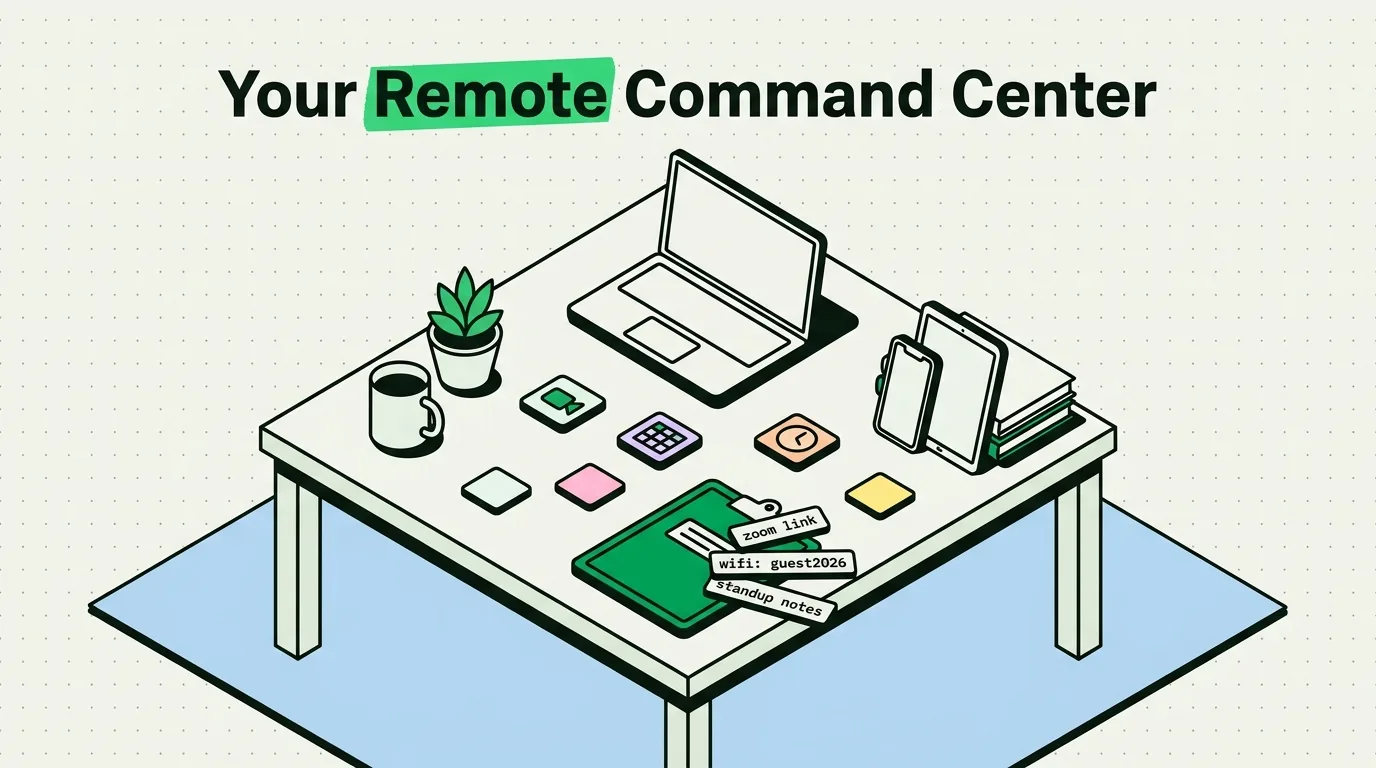
Remote work now runs largely on mobile: coordinating with a team from a co-working space, a home office, or a cafe increasingly means doing real work from an iPhone or iPad, not just checking in. The right set of apps is the difference between a productive day and a frustrating one. Below is a curated list of the tools that consistently show up in remote workers' stacks in 2026, organized by category, with pricing and the specific feature that makes each one worth installing.
Communication & Collaboration
1. Slack
Slack remains the backbone of remote team communication. The iOS app supports Huddle audio calls, threaded conversations, and integrations with nearly every other tool on this list. The free tier includes unlimited message history, which makes it viable even for small teams and freelancers who don't want to pay for a communication tool on day one.
Best for: Team messaging, channel-based organization, quick huddle calls. Price: Free / Pro from $7.25/month
2. Zoom
For video meetings, Zoom remains the most reliable option on iPhone. The AI Companion feature generates meeting summaries and action items automatically, and screen sharing from iOS works well even on middling connections.
Best for: Video conferencing, client calls, webinars. Price: Free (40-min limit on group calls) / Pro from $13.33/month
3. Loom
Loom solves the "this could have been a written message" problem for async teams. Record a quick screen-and-camera video to explain something instead of typing a wall of text. The iOS app supports recording your iPhone screen directly, which is useful for quick tutorials or bug reports on the go.
Best for: Async video communication, tutorials, feedback. Price: Free (25 videos) / Business from $12.50/month
Project Management & Tasks
4. Notion
Notion has become a default workspace for remote teams: project wikis, task boards, meeting notes, and documentation in one place. The iOS app supports genuine offline editing, not just offline viewing, and a built-in AI assistant helps draft and summarize content.
Best for: Documentation, project wikis, databases, team knowledge bases. Price: Free / Plus from $10/month
5. Todoist
For personal task management, Todoist's natural language input lets you type "review proposal tomorrow at 2pm" and have it parsed correctly into a dated task. The Kanban board view and priority flags make it easy to see what actually needs attention today versus what can wait.
Best for: Personal task management, daily planning, habit tracking. Price: Free / Pro from $5/month
6. Linear
For software teams, Linear is the issue tracker most developers actually enjoy using. The iOS app supports full issue management on the go: triaging new issues, updating sprints, reviewing progress.
Best for: Software teams, sprint planning, issue tracking. Price: Free (up to 250 issues) / Standard from $8/month per user
Clipboard & Text Productivity
7. ClipboardAI
Remote work involves constant copying and pasting: meeting links, client email addresses, project URLs, code snippets, addresses. The problem on iPhone is that the built-in clipboard holds exactly one item at a time, so copying something new erases whatever you had. ClipboardAI fixes this by automatically saving everything you copy and sorting it by type.
What's useful about it specifically for remote work:
- Automatic categorization: links, emails, phone numbers, and addresses are sorted without manual tagging.
- Search: find a Zoom link you copied three days ago by typing a keyword, instead of scrolling back through chat history.
- Pinning: keep recurring meeting links and client contacts pinned for instant access.
- iCloud sync (optional): access your history on both iPhone and iPad. It is not available on Windows.
- Mac-specific batch paste: if you also use a Mac, ClipboardAI's free "Paste All" and "Paste One by One" tools let you paste a whole batch of clips in sequence, which is useful for repetitive form-filling or onboarding paperwork.
Best for: Clipboard history, quick access to copied content, reducing repetitive typing. Price: Free (10 saved clips) / Premium from $19.99/year, or a one-time lifetime purchase
Caveat: ClipboardAI cannot read your clipboard silently in the background; you need to open the app, use its widget, or invoke its keyboard extension for a new copy to register. That's an iOS platform restriction shared by every clipboard app, not a gap specific to this one.
8. Grammarly
For anyone writing extensively - emails, documents, Slack messages - Grammarly's iOS keyboard catches errors and suggests improvements in real time. Tone detection and AI rewriting are particularly useful on international teams with non-native English speakers.
Best for: Writing assistance, grammar checking, tone adjustment. Price: Free / Premium from $12/month
Focus & Time Management
9. Forest
Forest gamifies staying off your phone: start a session, grow a virtual tree, and leaving the app early kills it. For remote workers fighting phone distractions, the visual stakes provide just enough friction to matter.
Best for: Reducing phone distractions, focus sessions, Pomodoro technique. Price: $3.99 one-time purchase
10. Toggl Track
If you bill by the hour or just want to know where your time actually goes, Toggl Track makes starting and stopping timers nearly frictionless, with a Home Screen widget for one-tap tracking and clean reporting by project.
Best for: Time tracking, billable hours, productivity analysis. Price: Free (up to 5 users) / Starter from $9/month per user
11. Apple Focus Modes (built in)
Don't overlook what's already on your iPhone. Focus modes create custom profiles - Work, Personal, Do Not Disturb - that filter notifications and can limit which apps are visible on your Home Screen. A "Deep Work" Focus that silences everything except your project management and communication apps costs nothing to set up.
Best for: Notification management, context switching, work-life boundaries. Price: Free (built into iOS)
Cloud Storage & Files
12. iCloud Drive / Files app
For Apple-first remote workers, iCloud Drive with the Files app gives seamless document access across devices, with shared folders that work well for teammates also on Apple hardware.
Best for: Apple ecosystem users, file access across devices, document sharing. Price: Free (5 GB) / iCloud+ from $0.99/month
13. Google Drive
If your team runs on Google Workspace, Google Drive on iOS is close to mandatory: edit Docs, Sheets, and Slides directly, and the offline mode genuinely works without a connection.
Best for: Google Workspace teams, document collaboration, cross-platform file access. Price: Free (15 GB) / Google One from $1.99/month
Security & VPN
14. 1Password
Remote workers juggle credentials for dozens of services. 1Password secures passwords, API keys, and sensitive documents, with Face ID integration and AutoFill that makes logging in fast. Teams can share vaults for shared credentials.
Best for: Password management, secure credential sharing, team vaults. Price: Individual from $2.99/month / Teams from $19.95/month
15. NordVPN
Working from coffee shops, airports, or co-working spaces means connecting to public Wi-Fi, and that means you want a VPN. NordVPN connects quickly and includes threat protection against malicious sites.
Best for: Public Wi-Fi security, privacy, accessing region-restricted content. Price: From $3.49/month (2-year plan)
Building your stack: start with one tool per category
You don't need all 15 apps. Pick one from communication, one from tasks, a clipboard manager, a focus tool, and cloud storage, and expand only when you hit a real limitation, not because a new app looks interesting.
Tips for maximizing remote productivity on iPhone
- Set up Focus modes: a "Work" Focus that limits notifications to essential apps only.
- Use widgets strategically: put your most-used work apps - calendar, task list, clipboard manager - on your Home Screen as widgets.
- Automate with Shortcuts: build shortcuts for repeatable routines like morning standup prep or end-of-day reporting.
- Review your tools periodically: the best option in a given category six months ago may have been surpassed; it's worth revisiting your stack occasionally rather than assuming it's still optimal.
Frequently asked questions
What are the must-have apps for remote workers in 2026?
A communication tool (Slack or Microsoft Teams), a project management app (Notion or Asana), a clipboard manager (ClipboardAI), a focus timer (Forest), cloud storage (iCloud or Google Drive), and a video conferencing tool (Zoom or Google Meet) cover the core of most remote workflows.
What is the best clipboard manager for remote workers on iPhone?
ClipboardAI is a strong option because it automatically categorizes what you copy (links, emails, phone numbers, addresses) and is free to start, with a 7-day free trial of the full Pro experience if you want to see whether unlimited history is worth it. It syncs optionally via iCloud across iPhone, iPad, and Mac, but is not available on Windows.
How can I be more productive working from home with my iPhone?
Use Focus modes to reduce distractions, a clipboard manager to avoid re-typing information you've already copied once, time-blocking with a calendar app, and Shortcuts to automate repetitive steps.
Are there free apps for remote workers?
Yes. Slack, Notion, Zoom, Google Drive, and ClipboardAI all offer usable free tiers. Most remote work apps use a freemium model where the free tier covers core functionality and paid plans add capacity or advanced features.