On this page
The Short Answer
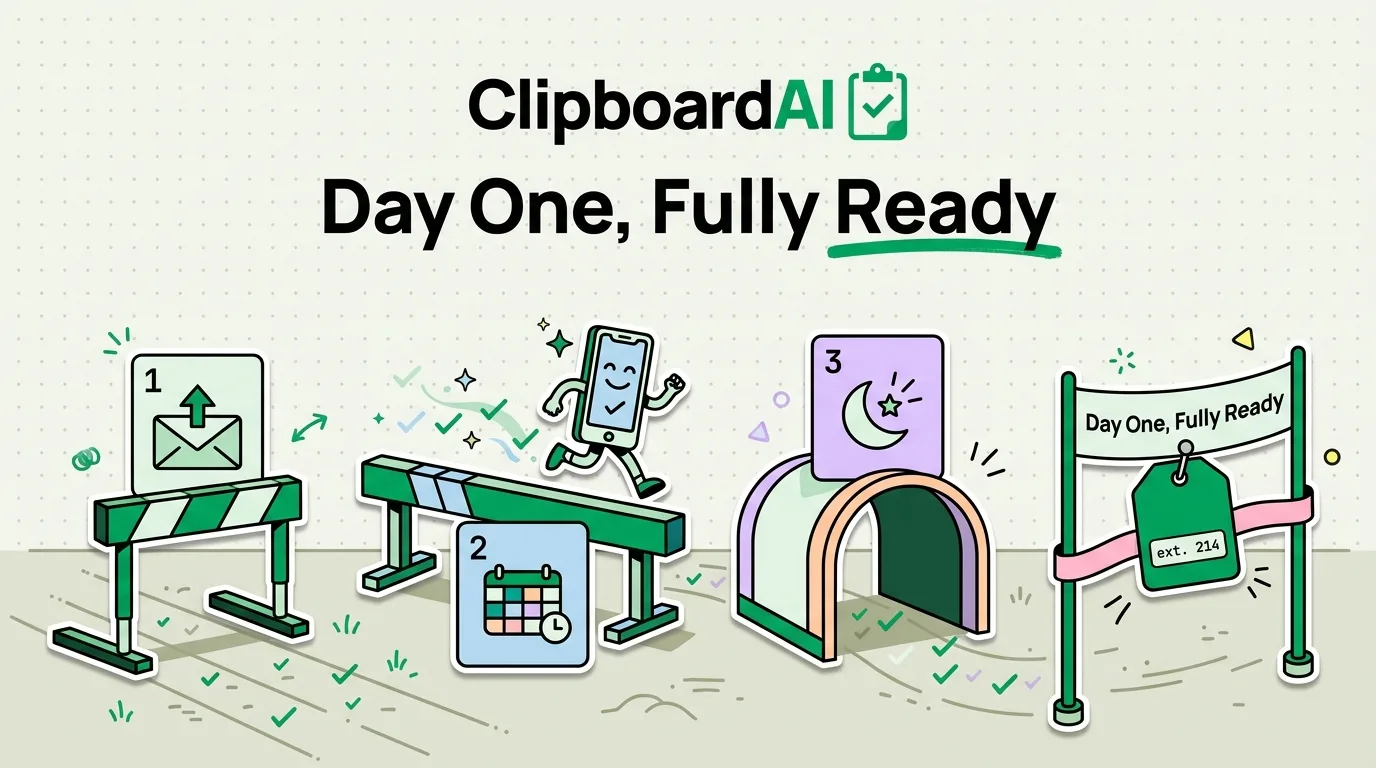
Before your first day, do three things on your iPhone: add the work email account as a separate account (not merged into personal Mail), create a dedicated calendar for work events so they are color-coded apart from personal ones, and decide upfront how you will keep work contacts and snippets separate from personal ones. Everything else below builds on those three.
Setup Checklist
- Add the work email as its own account. Settings > Mail > Accounts > Add Account. Keep it as a distinct account rather than forwarding to personal Gmail, so you can control notifications and signatures separately.
- Create a work calendar. In the Calendar app, tap Calendars at the bottom, then Add Calendar, and give it a distinct color. Turn off notifications for it outside work hours if your company culture supports that boundary, via Settings > Focus.
- Set up a Work Focus mode. Settings > Focus > add a Work focus, choose which apps and people can notify you, and schedule it for work hours. This keeps personal notifications from interrupting meetings and vice versa.
- Add a work-hours signature. Settings > Mail > Signature, set a per-account signature for the work email distinct from your personal one.
- Save recurring info as reusable snippets. New-job weeks involve repeating the same information constantly: your extension, your manager's name, standard meeting-request phrasing, your new mailing address if you relocated. A clipboard manager with pinning, like ClipboardAI, lets you pin these once and paste them for weeks instead of retyping the same three lines in every onboarding form.
- Turn on Auto-Delete Old Clips if the job involves sensitive info. Settings inside ClipboardAI let you set clipboard history to clear automatically after 30 days, 60 days, 3, 6, or 12 months, useful if you are handling anything you would rather not have sitting in history indefinitely.
Personal vs. Work Separation, Concretely
| What | Personal | Work |
|---|---|---|
| Email account | Existing personal account, untouched | New account added separately, own notification settings |
| Calendar | Default calendar | New calendar with its own color, shown/hidden as needed |
| Focus mode | Personal Focus or none | Work Focus scheduled to working hours |
| Pinned clipboard snippets | Personal addresses, frequently texted replies | Extension, manager's name, standard onboarding answers |
Caveats
- If your employer issues a managed device or requires an MDM profile on your personal phone, some of these settings (Focus modes, notification controls) may be partially controlled by that profile. Check with IT before assuming full control.
- Do not store passwords or credentials as pinned clipboard snippets. Use a dedicated password manager for those; a clipboard history is not designed as secure credential storage on iOS.
Frequently Asked Questions
Should I use my personal phone for a work email account?
That depends on your employer's policy. Some companies require MDM enrollment for work email access on personal devices; check with IT before adding a corporate account to avoid unexpected device management restrictions.
Will a Work Focus mode block personal calls during work hours?
Only for contacts and apps you have not explicitly allowed through. You configure the allow-list when setting up the Focus mode, and can add exceptions like "allow calls from Favorites" at any time.