On this page
The Short Answer
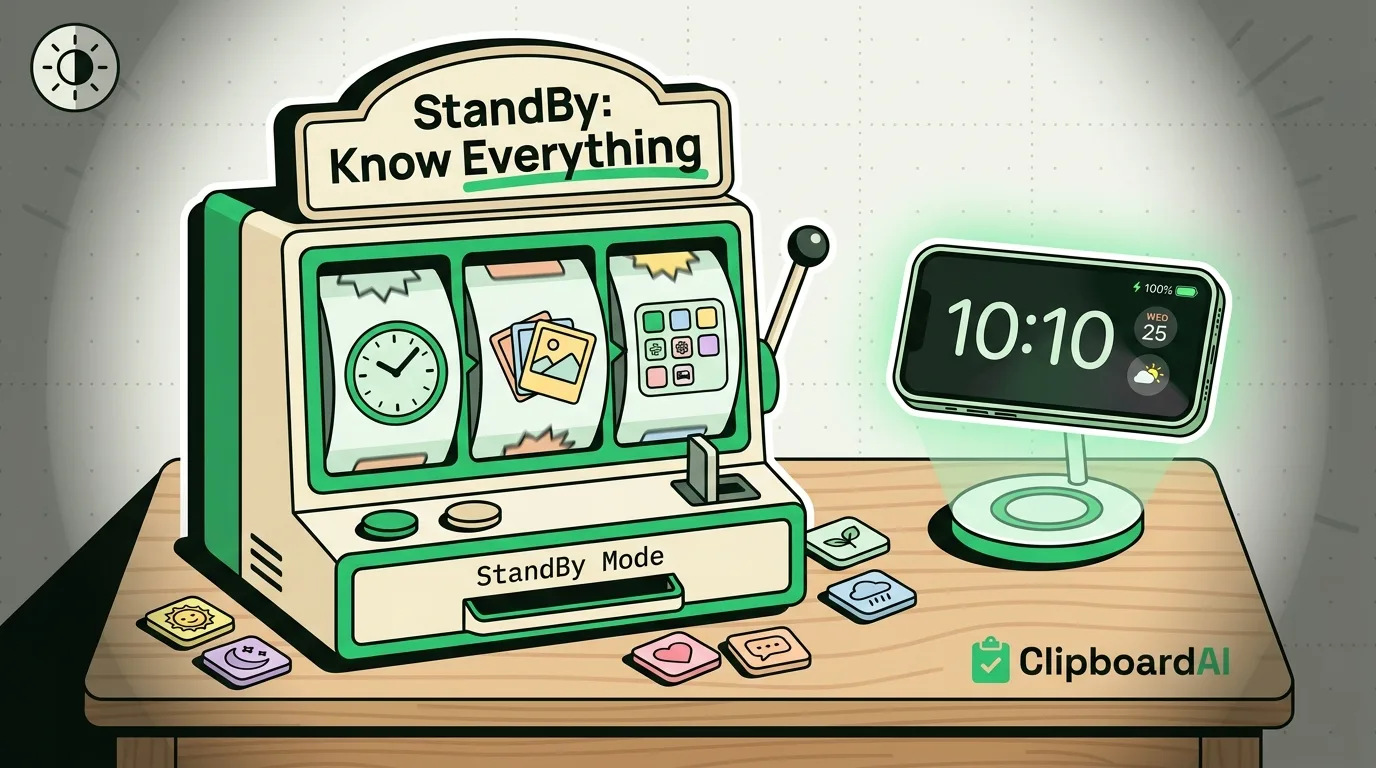
StandBy turns your iPhone's screen into a glanceable bedside display when the phone is charging and placed horizontally (landscape). It requires iOS 17 or later. To turn it on: charge your iPhone, lay it on its side, and the screen wakes automatically into one of three modes: full-screen clock, photo, or a widget layout. If nothing happens, check Settings > StandBy to confirm it is enabled, since it is on by default but can be toggled off.
Setting It Up
- Connect your iPhone to power (any charger or MagSafe stand works, it does not need to be Apple's own accessory).
- Place the phone in landscape orientation, screen visible.
- The display wakes into StandBy automatically. If it does not, check Settings > StandBy and make sure the toggle is on.
- Swipe left or right on the screen to switch between the clock, photo, and widget views.
- Tap and hold on any StandBy screen to enter edit mode, where you can change the clock style, choose which photos appear, or add/remove widgets.
The Three Modes, Compared
| Mode | What it shows | Best for |
|---|---|---|
| Clock | Large digital or analog clock face, several style options | Bedside table, minimal distraction at night |
| Photos | Rotating shuffle of a chosen album, or a single Memory | Nightstand or kitchen counter as a digital photo frame |
| Widgets / Smart Stack | A widget stack (calendar, weather, calendar, Live Activities) similar to the Lock Screen | Desk or kitchen, where you want info at a glance without unlocking |
Night Mode Behavior
In low ambient light, StandBy automatically switches to a red-tinted, dimmer display to reduce brightness in a dark bedroom. This is automatic based on the phone's ambient light sensor; there is no separate manual toggle beyond what the sensor detects.
Common Problems
- StandBy will not activate: Confirm the phone is actually charging (not just plugged into a non-powering cable) and is genuinely in landscape, not slightly tilted.
- Screen turns off too quickly: Check Settings > StandBy > "Show When Locked" behavior and your Low Power Mode status, since Low Power Mode can dim or limit always-on-style displays to conserve battery.
- Widgets outdated or wrong: Widgets in StandBy pull from the same Smart Stack sources as your Lock Screen; check that the underlying app (Calendar, Weather, etc.) has the permissions it needs.
One Practical Caveat
StandBy only activates while charging. It is not an always-on display in the sense of showing content without power connected; unplug the phone and it returns to a normal locked or unlocked state depending on how you last left it.
Frequently Asked Questions
Does StandBy drain the battery faster?
It only runs while the phone is actively charging, so it does not drain battery from an unplugged state. Any added draw is offset by the fact that the phone is plugged in during use.
Can I use StandBy without MagSafe?
Yes. Any charging method (Lightning or USB-C cable, any Qi charger) triggers StandBy as long as the phone is charging and in landscape orientation. MagSafe stands are just a convenient way to prop the phone up at the right angle.