On this page
The Short Answer
Before you reset anything, check the two most common causes of a slow-feeling iPhone: nearly-full storage (iOS slows down significantly under about 1-2GB free, since it has no room for swap and temp files) and a battery whose health has degraded enough that iOS throttles performance to avoid unexpected shutdowns. Both are checkable in under a minute and fixable without erasing anything.
Step 1: Check Storage
Go to Settings > General > iPhone Storage. If you are under 2GB free, that alone can cause system-wide lag, since iOS needs headroom for temporary files and app caches. Fixes that do not touch your data:
- Offload unused apps (Settings > General > iPhone Storage > tap an app > Offload App). This removes the app binary but keeps its documents and data, so reinstalling restores everything.
- Clear Safari's cache: Settings > Safari > Clear History and Website Data. This does not delete bookmarks or saved passwords.
- Review "Recommendations" at the top of the Storage screen; Apple surfaces specific large, unused items rather than making you guess.
Step 2: Check Battery Health
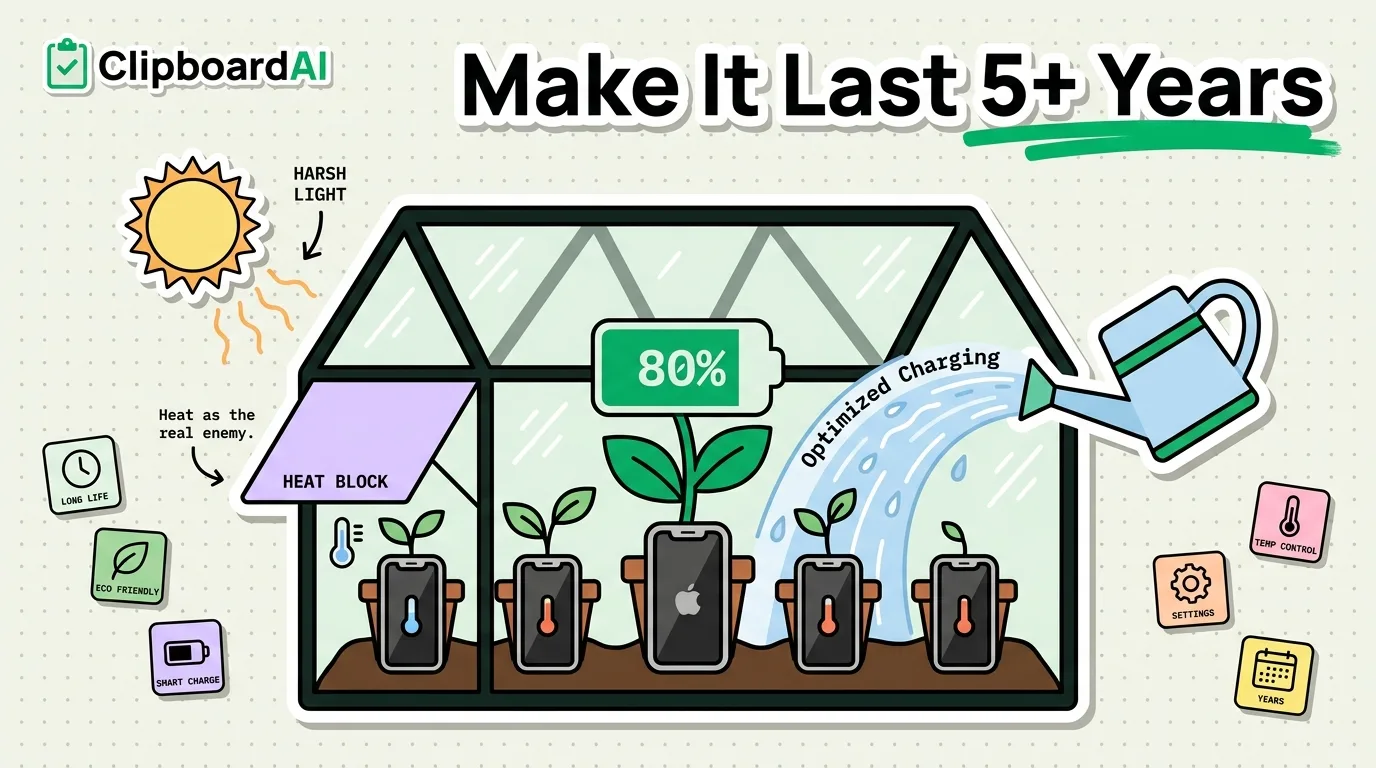
Go to Settings > Battery > Battery Health & Charging. If it reports significantly reduced maximum capacity, iOS may be applying performance management to prevent the phone from shutting down unexpectedly under peak power draw. This shows up as general sluggishness, especially when opening camera or graphics-heavy apps. The fix is a battery replacement, not a software reset; a factory reset does not restore battery chemistry.
Full Checklist (Do These in Order)
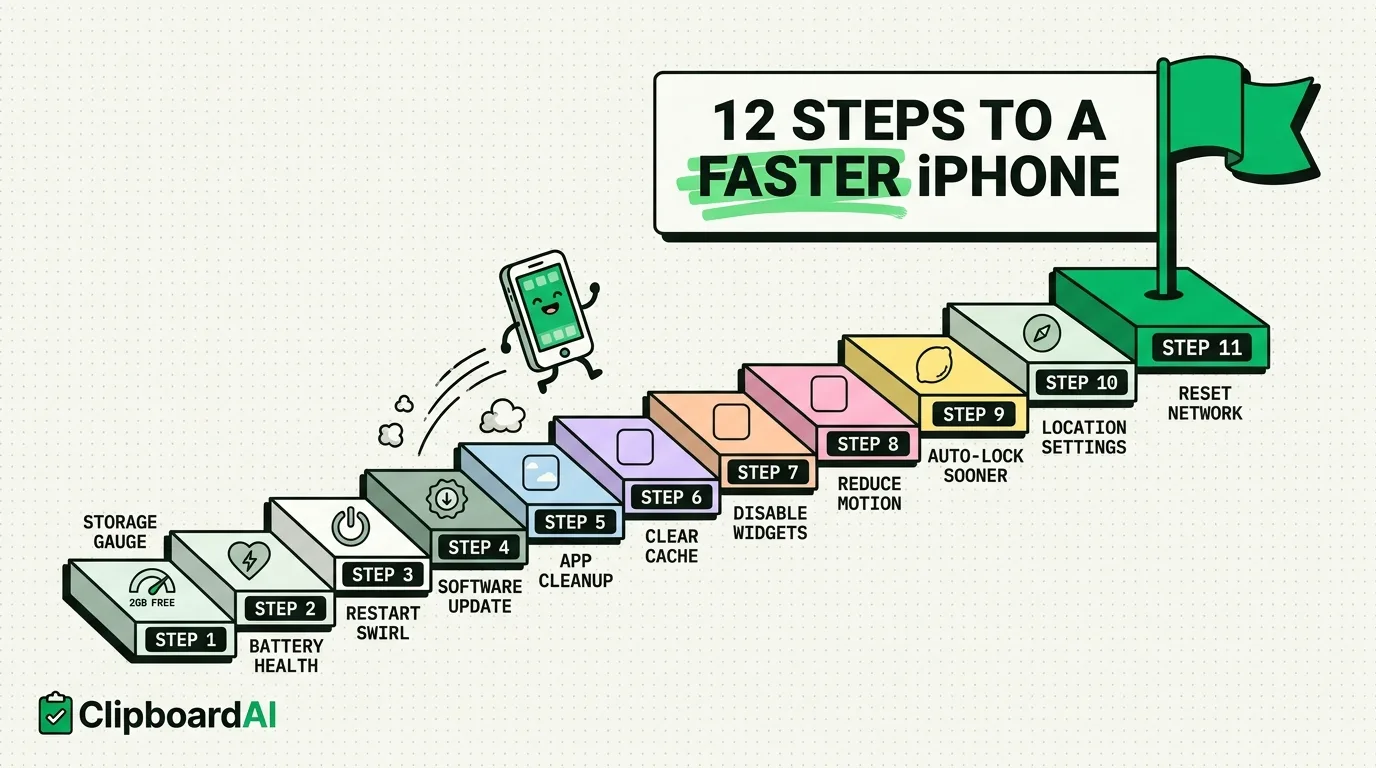
- Check free storage (Settings > General > iPhone Storage). Get to at least 2GB free.
- Check battery health (Settings > Battery > Battery Health & Charging).
- Restart the phone fully (not just lock/unlock). Hold the side button and a volume button, slide to power off, wait 30 seconds, turn back on.
- Check for a pending iOS update (Settings > General > Software Update). Some updates specifically address performance regressions from prior versions.
- Review Background App Refresh (Settings > General > Background App Refresh) and turn it off for apps you rarely use actively.
- Check for apps stuck in a loop (a specific app draining battery constantly even when closed): Settings > Battery, scroll to see per-app usage over the last 24 hours or 10 days.
- If storage is the persistent issue, look at what is actually filling it: Settings > General > iPhone Storage shows a breakdown by app and category (Photos, Apps, System Data).
When a Reset Actually Is the Right Call
If you have done all of the above and the phone is still consistently slow, and Battery Health is fine, and storage has meaningful free space, the remaining causes are usually a corrupted system state or an old, un-updatable iOS version on hardware that has genuinely aged out. At that point a reset (or, for very old devices, accepting reduced performance as a hardware limit) may be the realistic answer, not a first resort.
Frequently Asked Questions
Does closing background apps from the app switcher speed things up?
Generally no. iOS manages memory automatically and suspended apps use minimal resources; force-quitting apps you use often can make things slower, since they have to fully relaunch instead of resuming.
Will offloading an app delete my data in it?
No. Offloading removes the app itself but keeps its documents and data on your device; reinstalling the app restores them, provided you have enough storage to reinstall.