
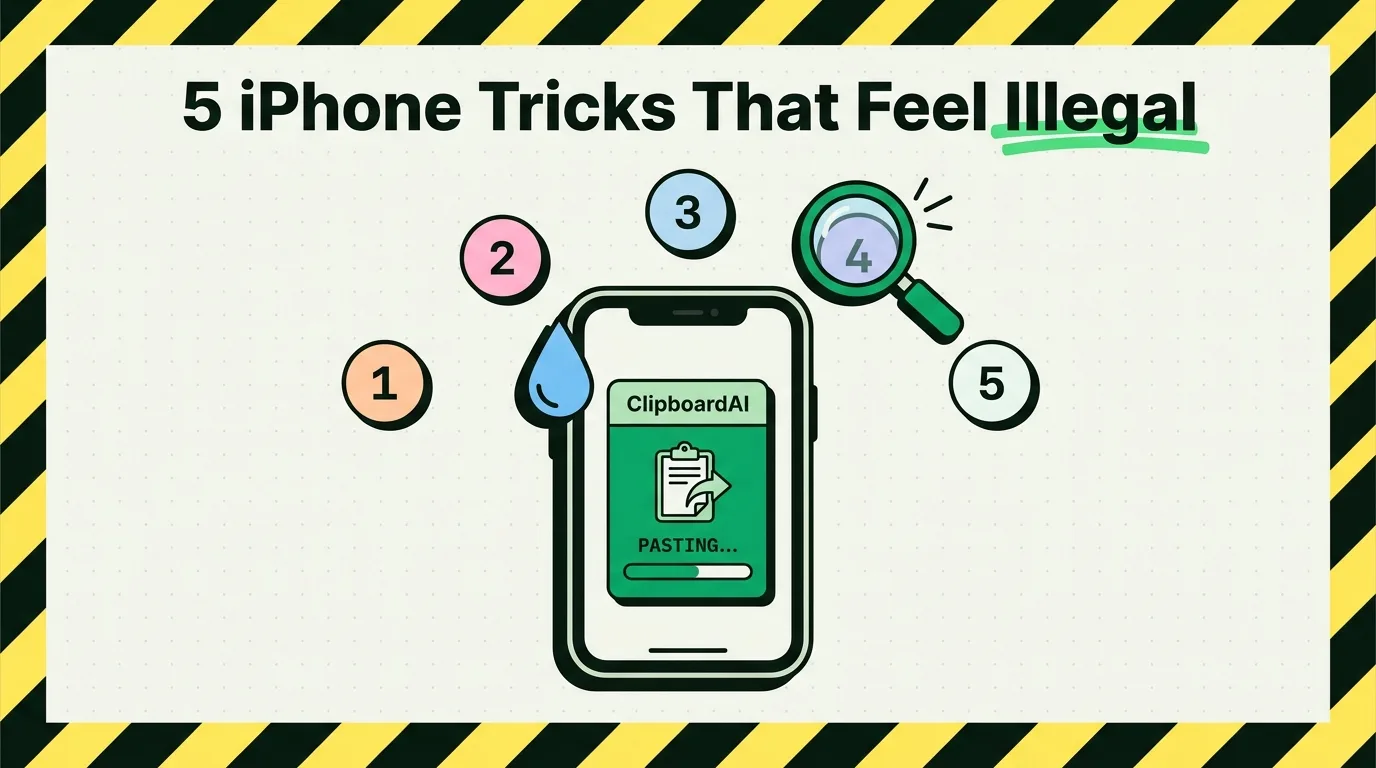
To unlock hidden iPhone features that speed up your daily workflows, you must use system configurations like Back Tap shortcuts, multi-app drag-and-drop gestures, system-wide Live Text OCR scanning, spacebar precision trackpad mode, and a local multi-item clipboard tray like ClipboardAI. Operating systems hide these capabilities under accessibility or security submenus, but configuring them correctly transforms your phone's capabilities, letting you bypass the standard single-item clipboard limits and slow text selection options.
Hidden Power Features in iOS
Every major release of iOS introduces dozens of small feature enhancements that Apple rarely showcases in their keynote events. Because Apple values a minimal and uncluttered default user experience, many of their most advanced tools are hidden deep within the Accessibility or Shortcuts submenus.
To power users who discover them, these settings completely change how they interact with their phones, making default workflows look incredibly slow.
The "Illegal" iPhone Feature Directory
Here are five of the most powerful undocumented features built into iOS and how to set them up:
| Trick | iOS Menu Path | Practical Application | Why It Feels Like Cheating |
|---|---|---|---|
| 1. Back Tap Button | Settings > Accessibility > Touch > Back Tap | Double-tap the physical back of your phone to capture a screenshot or launch ClipboardAI. | Turns the entire back glass of your iPhone into a programmable physical button. |
| 2. Multi-App Drag & Drop | No menu required; works system-wide in any text field or image view. | Press and hold a web image with one finger, swipe apps with another, and drop it into Slack. | Bypasses the copy-paste buffer entirely; moves files instantly across sandbox boundaries. |
| 3. Live Text OCR Capture | Enabled by default; tap the scan icon in the camera or Photos app. | Point your camera at a physical book page, billboard, or serial plate to extract the text instantly. | Replaces manual typing and expensive third-party scanner apps with native hardware OCR. |
| 4. Spacebar Trackpad | Press and hold the Spacebar key on the default iOS keyboard. | Slide your thumb across the blank keyboard to glide the text cursor between letters with pixel precision. | Gives you the text editing speed of a desktop mouse on a small touchscreen. |
| 5. Multi-Slot Clipboard | Custom keyboard extension enabled in Settings > General > Keyboard. | Copy five different text blocks in Safari and paste them in order using ClipboardAI. | Eliminates the single-item copy limit, letting you harvest data without app-switching. |
5 Shortcuts and Tweaks to Setup Today
Unlock these configurations right now to optimize your device's speed:
- Configure Back Tap Screenshots: Set Double Tap to Screenshot under Settings > Accessibility > Touch > Back Tap. This eliminates the clumsy Volume Up + Power button combination.
- Set Up Spotlight Currency and Unit Math: Pull down on your home screen and type
150 USD to EURor85 miles to km. Spotlight will display the calculation instantly without requiring you to launch a browser or calculator. - Enable Shake to Undo: Go to Settings > Accessibility > Touch and ensure Shake to Undo is active. If you accidentally delete a paragraph, a physical shake of the device will restore it.
- Activate Auto-Copy Live Text in Camera: Open the Camera app, frame some text, and tap the indicator box that appears in the bottom-right corner. You can copy the entire block directly from the live preview camera feed.
- Set Up Custom Text Replacements: Go to Settings > General > Keyboard > Text Replacement. Map abbreviations like
@@to your primary email address to save typing time.
Bypassing the One-Copy Limit
The most limiting default behavior on the iPhone is the clipboard's single-item memory capacity.
If you copy an address, then copy a tracking code before pasting the address, the address is deleted from memory.
  [Legacy iOS Clipboard] ────(New Copy)────> [Overwrites Previous Copy]
                                                    │
                                            (Data Deleted)
                                                    │
                                                    ▼
  [ClipboardAI Local Log] <───(Logs All)──── [Retains Up To 100 Entries]
Using ClipboardAI changes this dynamic. When you copy text, links, or image paths, they are routed to a secure local database on your phone.
When you need to paste, you don't have to navigate back to your source app. You simply switch to the ClipboardAI custom keyboard and choose from your historical log of copies.
Technical Constraints and Disclaimers
While these features offer significant advantages, they have specific limitations:
- Back Tap Sensitivity: The back tap feature uses the iPhone’s accelerometer to detect taps. Heavy phone cases can absorb the impact, making it difficult for the system to register the double-tap unless you hit the back of the case firmly.
- Sandbox RAM Restrictions: iOS allocates very little memory to keyboard extensions (often under 75MB). If you copy massive documents, the clipboard manager keyboard must process the data efficiently to prevent the operating system from crashing it.
- Text Selection Boundaries: Drag-and-drop operations require holding your finger on the screen continuously. If you let go of the file or image while switching apps, the drag gesture cancels, requiring you to start over.
Frequently Asked Questions
Does the Back Tap trick drain my iPhone battery?
No. Back Tap utilizes the accelerometer sensor, which is already active in the background to detect when you lift your phone to wake the screen. The battery impact is negligible.
How do I use drag-and-drop with images?
Press and hold an image in Safari until it pops out. Start dragging it. While keeping that finger pressed down on the screen, use your other hand to swipe up from the bottom bar to go to the Home screen, open Messages, and drop the image into the chat window.
Can I retrieve a password I copied using ClipboardAI?
ClipboardAI is configured to automatically ignore copies coming from password fields or secure inputs, ensuring that your financial data and login credentials are not saved in your history.
Why doesn't Live Text recognize handwriting on my phone?
Live Text recognizes clear handwriting, but stylized scripts, cursive, or low-contrast text may fail to parse. Make sure you have adequate lighting when scanning hand-written notes.