
The Bottom Line
Two habits account for most of the speed gap between someone who "types fine" on an iPhone and someone who's genuinely fast: using swipe typing (glide from letter to letter instead of tapping each one) instead of pecking, and not retyping things you already typed once. The second one is the bigger opportunity for most people and the one this guide spends the most time on.
Swipe Typing: The Fast Path Apple Buried
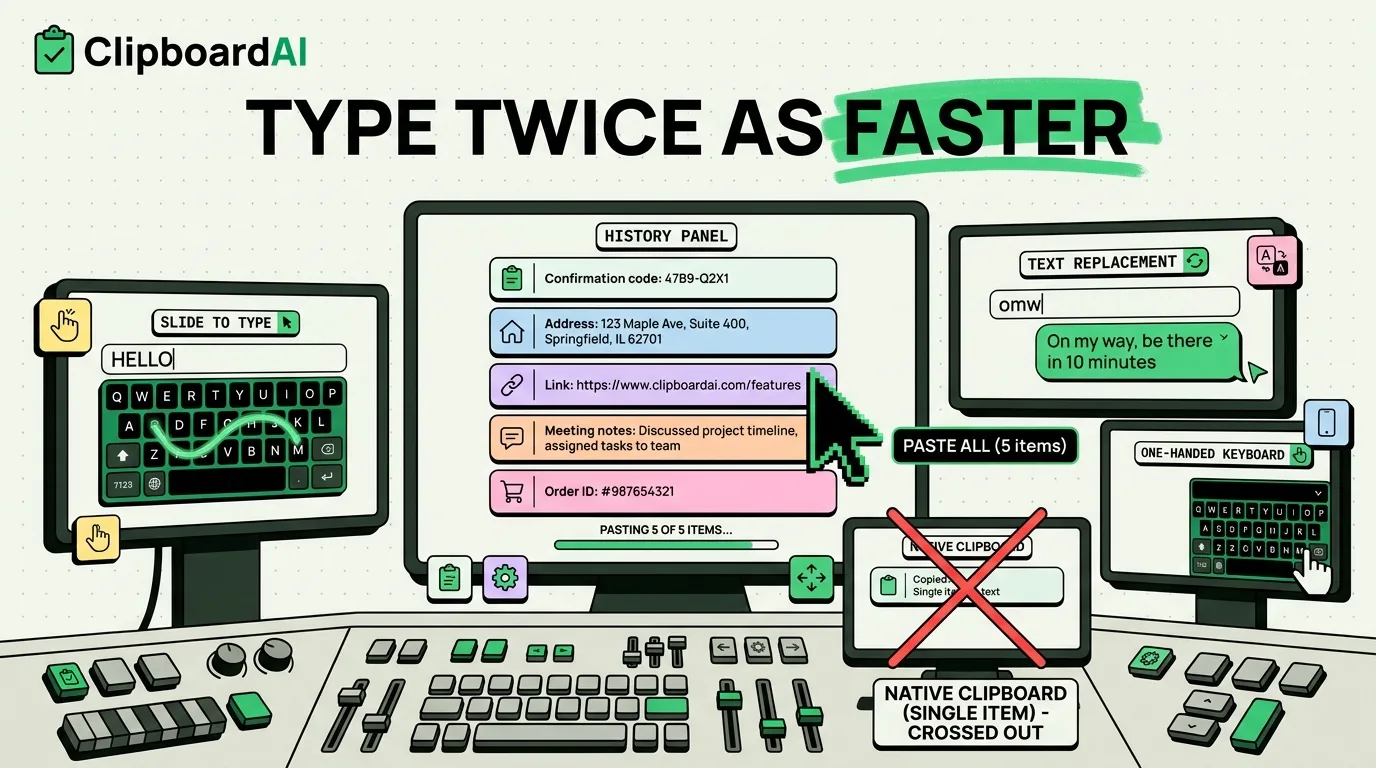
Swipe typing (Apple calls it QuickPath) has been built into the iPhone keyboard since iOS 13, but it is off by default in some regions and easy to miss because there is no onboarding for it. To check it is on, go to Settings > General > Keyboard and confirm "Slide to Type" is enabled. Once it is on, instead of tapping each letter, drag your finger from letter to letter without lifting, and lift only when the word is done. The keyboard predicts the word from the path your finger traced.
It takes a few days to feel natural if you are used to tapping, and it is genuinely faster once it clicks, particularly for common words. It is not faster for typing things like passwords, code, or anything with unusual capitalization or punctuation, where tapping each key is more reliable.
Text Replacement: The Underused Speed Trick
Settings > General > Keyboard > Text Replacement lets you set up shortcuts that expand into full phrases. Type "omw" and it becomes "On my way, be there in 10 minutes." Type your email shortcut and it becomes your full email address. Most people only ever set up two or three of these and then forget the feature exists.
Worth setting up if you frequently type: your email address, your physical address, a standard sign-off for messages, or a phrase you use constantly for work (a support script, a scheduling line, whatever comes up daily).
Where Copy-Paste Fits Into "Typing Faster"
Text replacement only helps with things you type from scratch. A lot of daily typing is actually re-typing something you already had, somewhere, a minute or an hour ago: a confirmation code from a text, an address from an email, a link someone sent you. The honest fastest way to "type" that is not to type it at all, but to copy it once and paste it.
The catch is that the built-in iPhone clipboard holds exactly one item. Copy the confirmation code, then copy the address before you have pasted the code, and the code is gone. A clipboard manager like ClipboardAI keeps a history of everything you copy so you can grab something from ten minutes ago, not just the last thing. It also ships as a keyboard extension, so pasting from history happens without switching out of whatever keyboard you are already using.
Quick Reference: Keyboard Settings Worth Checking
| Setting | Location | Why it matters |
|---|---|---|
| Slide to Type | Settings > General > Keyboard | Enables swipe typing, off by default in some regions |
| Text Replacement | Settings > General > Keyboard > Text Replacement | Turns short triggers into full phrases |
| Keyboard Feedback (haptic) | Settings > Sounds & Haptics > Keyboard Feedback | Off by default; helps typing accuracy for some people |
| One-Handed Keyboard | Hold the globe/emoji key on the keyboard | Shrinks the keyboard to one side for one-handed typing |
Frequently Asked Questions
Is swipe typing actually faster than tapping on iPhone?
For common words and casual messages, most people find it faster once the gesture becomes familiar, typically after a few days of regular use. For passwords, code, or precise punctuation, tapping each key is still more reliable.
Why is Slide to Type not working on my iPhone?
Confirm it is enabled at Settings > General > Keyboard > Slide to Type. If it is on and still not registering, try lifting your finger more clearly at the end of each word. It requires a continuous, unbroken drag between letters.
Can a clipboard manager replace text replacement shortcuts?
They solve different problems. Text replacement is for phrases you compose yourself and reuse. A clipboard manager is for things you copy from somewhere else. Most fast typists use both together.