On this page
The Short Answer
Tax season on an iPhone comes down to three tasks: scanning paper receipts and forms before they get lost, extracting specific numbers off those scans without retyping them, and keeping the account numbers and reference codes you need for e-filing somewhere you can find them again. The built-in Notes scanner and OCR (via Live Text or a clipboard app with text-in-images support) handle most of this without any tax-specific app.
Scanning Documents
- Open Notes, create a new note, tap the camera icon, and choose Scan Documents. This produces a flattened, cropped PDF-style scan, better for archiving a full W-2 or 1099 than a plain photo.
- For a quick reference rather than an archival copy, a regular photo works, and iOS's Live Text (point the camera or open an existing photo, then tap and hold on the text) lets you select and copy specific numbers directly off the image without retyping them.
- Keep scanned tax documents in a dedicated Notes folder or a specific Files location so they are not mixed in with unrelated photos.
Getting Numbers Off a Scan Without Retyping
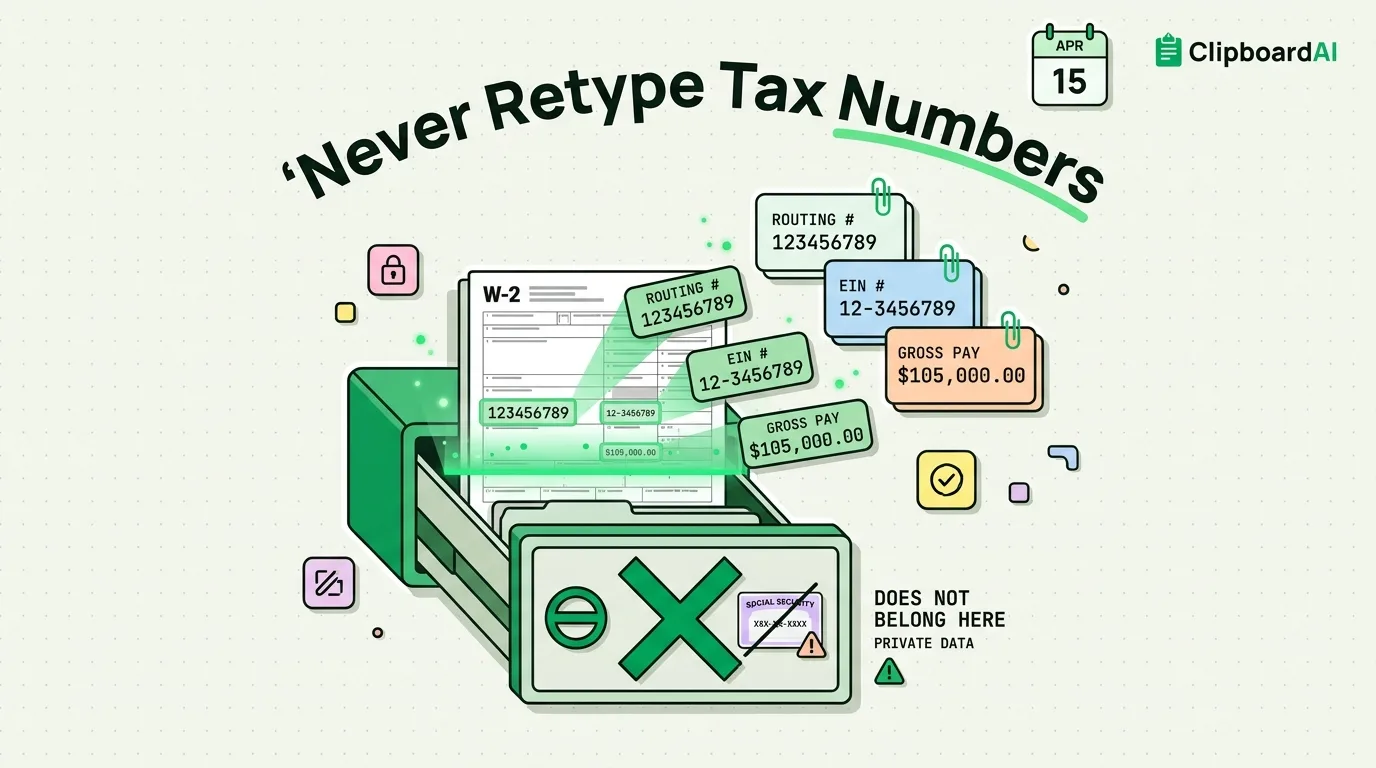
This is where most people still retype instead of using what is built in. If you have a routing number, an EIN, or a specific dollar figure on a scanned document or photo, select the text directly (Live Text on iOS, or OCR text-in-images inside ClipboardAI on both iOS and Mac) and copy it exactly rather than typing it by hand into a tax-prep app or spreadsheet, which is where transcription errors like a transposed digit tend to happen.
Keeping Reference Numbers Straight
If you are moving between a tax-prep app, your bank, and an accountant's portal, you likely need several codes at once, an account number, a confirmation number from the tax software, an EIN. iOS's default clipboard holds one item at a time, so copying the second number erases the first. A clipboard history tool keeps everything you copied during the session available, so you can paste each number where it belongs instead of re-finding it.
What Not to Do
- Do not treat your clipboard history as long-term storage for a Social Security number or full bank account number. Use it to move a number from one place to another in the same sitting, then remove it, or set Auto-Delete Old Clips (30 days up to 12 months) so it clears automatically.
- Everything you copy stays on your device by default, and the AI features that sort and summarize your clips run entirely on-device, so nothing is ever sent to a server. If you turn on optional cross-device sync, it moves through your own private iCloud account using Apple's CloudKit, the same infrastructure that protects your Photos and Notes, encrypted in transit and at rest. Your clips never touch a ClipboardAI server, and you can leave sync off entirely for a fully local setup.
- This app is not a tax preparation tool and does not calculate deductions. It only helps with the mechanical parts: scanning, extracting text, and not losing numbers mid-task.
Frequently Asked Questions
Can Live Text read numbers from a blurry photo of a form?
Accuracy depends on image quality; a blurry or low-light photo may produce incorrect character recognition, especially for similar-looking digits. Verify anything financial against the original document before submitting it anywhere.
Is it safe to keep a photo of my W-2 on my phone?
It is common practice, but be aware that anything stored on-device is only as safe as your phone's passcode and any cloud backup settings. Consider deleting scans once tax filing is complete if you do not need them for records.