On this page
The Bottom Line
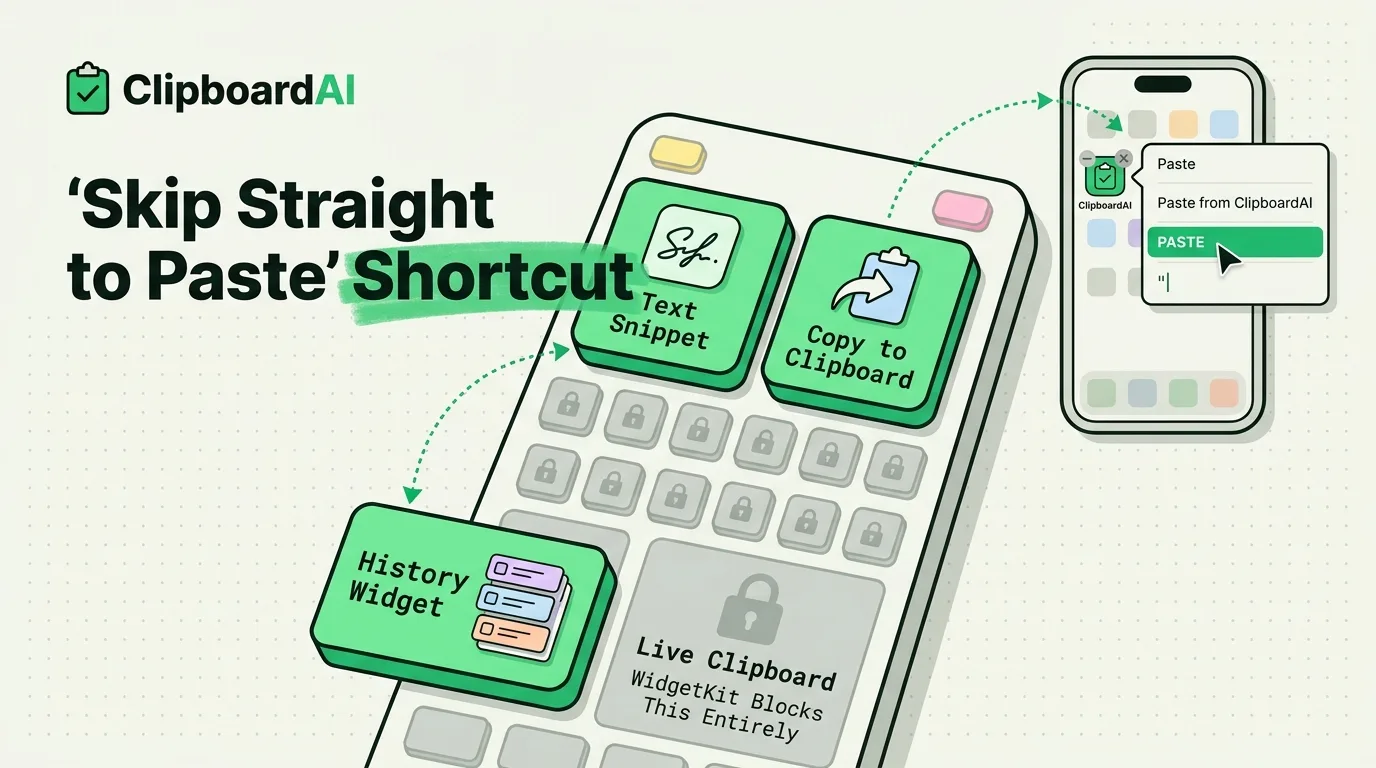
iOS does not have a native "clipboard widget" that shows your last copied item on the home screen, Apple restricts widgets from reading live clipboard content for privacy reasons. What you can do instead: use the Shortcuts app to build a home screen icon or widget that opens directly into a saved snippet or into your clipboard manager's paste view, skipping the step of opening the app and navigating to what you need.
Why There's No Native Clipboard Widget
WidgetKit, Apple's framework for home screen widgets, does not grant widgets standing access to UIPasteboard content. This is a deliberate privacy boundary: a widget that could silently display your clipboard contents on your home screen (potentially visible to anyone glancing at your locked or unlocked phone) would be a real privacy leak. So "paste widget" ideas floating around online are really shortcuts or app-specific views, not literal live clipboard readers.
Building a One-Tap Snippet Shortcut
- Open the Shortcuts app, tap the + to create a new shortcut.
- Add the "Text" action and paste in a specific snippet you reuse often (a canned reply, your address, a Wi-Fi password).
- Add the "Copy to Clipboard" action, feeding it the text from step 2.
- Name the shortcut, then add it to your home screen: tap the shortcut's settings (the "i" icon) > "Add to Home Screen."
Tapping that home screen icon copies the snippet directly, no app-switching, no search. This works well for a small number of frequently-used snippets (a signature, an address, a support macro) but does not scale to dozens of items, each one needs its own shortcut and icon.
Using a Clipboard Manager's Widget Instead
ClipboardAI includes a home screen widget that opens directly into your clipboard history rather than the app's main screen, saving the extra tap of opening the app then navigating to history. For pinned items specifically, tapping the widget takes you straight to the paste view rather than requiring you to search first.
Which Approach Fits Your Use Case
| Use case | Best approach |
|---|---|
| 2-3 fixed snippets you paste constantly (address, signature) | Shortcuts, one icon per snippet |
| A growing, changing history of copied items | Clipboard manager widget/app |
| Passwords or codes from a password manager | Neither, use Keychain/password manager AutoFill instead |
Caveat
Do not put sensitive text (passwords, one-time codes) into a Shortcuts snippet that lives permanently as home screen text; unlike a password manager entry, it is stored as plain shortcut data without additional protection.
Frequently Asked Questions
Can a widget show my most recent clipboard item automatically?
No, WidgetKit does not allow widgets to read live pasteboard content, this is an iOS privacy restriction, not a limitation specific to any one app.
Do Shortcuts snippets sync across my devices?
Yes, if iCloud sync for Shortcuts is enabled (Settings > [your name] > iCloud > Shortcuts), your shortcuts and their home screen icons appear on your other Apple devices too.