
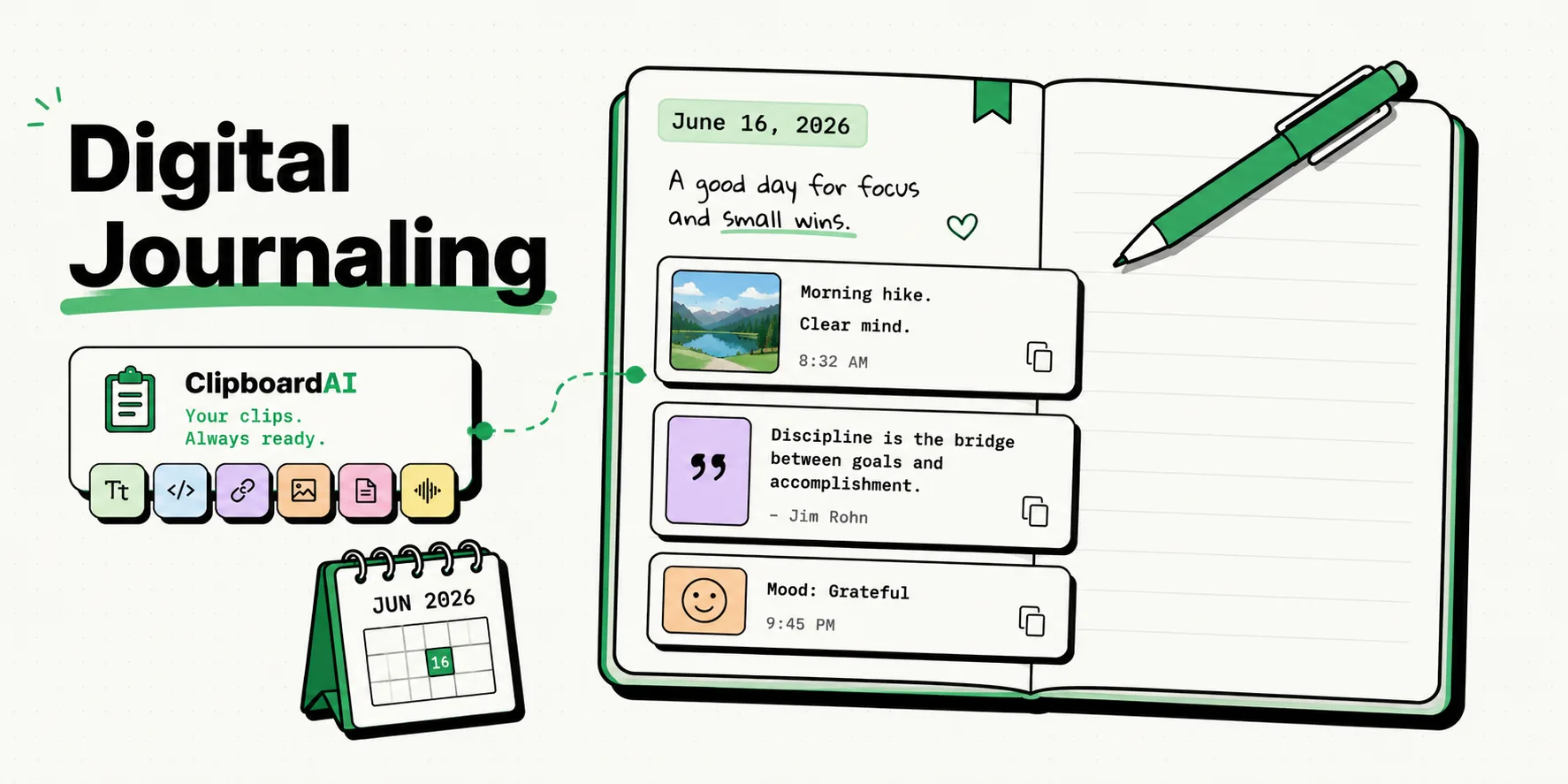
To start digital journaling on your iPhone, choose between Apple's built-in Journal app for intelligent personal prompts or Day One for advanced cross-platform syncing and PDF exports. Establishing a structured template kit inside your keyboard settings or using a smart clipboard manager makes capturing thoughts, photos, and web clippings fast and seamless, turning your journaling habit into a friction-free daily routine.
Journaling is one of the most effective habits for mental clarity, stress reduction, and tracking personal growth. While paper journals have their charm, journaling on an iPhone offers distinct advantages: you can attach photos, record voice memos, drop in location tags, paste quotes you read online, and search your entire history in seconds.
The challenge of digital journaling is twofold: finding the right application and reducing the friction of daily writing. Below, we compare the top iOS journaling tools, provide a copy-pastable daily template kit, and discuss how to capture memories without spending hours typing.
1. Apple Journal vs. Day One: The Core Comparison
The iOS journaling landscape is dominated by two primary applications: Apple's native Journal app and Day One.
Apple Journal: The System-Integrated Option
Introduced in iOS 17.2, Apple’s native Journal app is built to leverage on-device machine learning.
- The Suggestions Engine: The standout feature is its ability to suggest entries based on your daily activity. It scans your photos, physical workouts, music listened to, podcasts played, and visited locations to generate writing prompts (e.g., "You walked in the park this morning and listened to this playlist. Write about it.").
- Privacy: All processing happens on-device. Apple cannot read your journal entries, and the app can be locked behind Face ID.
- Limitations: It is iOS-only (no Mac or iPad version), lacks a search bar, does not support custom templates, and has no export options to move your data to another platform.
Day One: The Power User's Sanctuary
Day One is the gold standard for third-party journaling apps. It has spent over a decade refining its writing environment.
- Advanced Features: Day One offers multi-device sync, Markdown formatting, multiple separate journals (e.g., work, personal, travel), tag systems, and PDF book exports.
- Sync Security: It supports end-to-end encryption with user-managed keys, ensuring your private thoughts are secure in transit.
- Limitations: The free version is highly restricted. Accessing multi-device sync, audio entries, and multiple photos requires a subscription ($34.99/year).
2. Setting Up a Friction-Free Journaling Workflow
The main reason people quit journaling is the "blank page" problem. Opening a blank screen and trying to write from scratch feels like work. You can solve this by using structured prompts.
The Template Workaround:
Instead of rewriting your prompts daily, save them as templates. Since Apple Journal does not support templates, you can store your prompts in your clipboard manager.
With ClipboardAI, you can keep your journaling prompts pinned in a folder. When you open your journal app, switch to the ClipboardAI keyboard, select your prompt template, and insert it with a single tap.
Daily Journaling Template Kit
Copy and paste these templates into your keyboard shortcuts or clipboard pins:
Morning Focus Template
[Date] - Morning Review
1. Top priority for today:
2. One thing I am looking forward to:
3. How I want to show up today:
Evening Reflection Template
[Date] - Evening Review
1. What went well today? (Three wins):
2. What was challenging, and how did I handle it?:
3. One thing I learned today:
4. What am I grateful for tonight?:
Quick Memory Log (For capturing links & quotes)
Source/Inspiration: [Paste Link/Quote Here]
Why this stood out to me today:
Journaling App Comparison Matrix
The table below outlines how the leading journaling apps compare across essential features:
| App | Platforms Supported | Suggestions Engine | Export Formats | Search & Tags | Encryption Level | Price |
|---|---|---|---|---|---|---|
| Apple Journal | iOS only | On-Device ML | None | No | Local Passcode / Face ID | Free |
| Day One | iOS, Mac, Android, Web | No suggestions | PDF, JSON, TXT | Yes (Tags & Search) | End-to-End Encrypted | Free / $34.99/yr |
| Notion | Universal | No suggestions | PDF, Markdown | Yes | Database Security (Not E2EE) | Free / Premium |
| Grid Diary | iOS, Android, Mac | Question grid templates | PDF, Markdown | Yes | Local / Account Lock | Free / Premium |
Honest Caveats: Data Portability and Security Risks
Digital journals store your most intimate thoughts. Before selecting a tool, consider these critical caveats:
1. The Apple Journal Export Trap
Apple Journal has no built-in export tool. If you write daily in Apple Journal for three years and then want to print your journal, switch to Android, or export your entries into a text database, you cannot do so easily. You are locked into Apple's iOS ecosystem. If data ownership and future portability matter to you, choose a tool like Day One that allows full JSON or PDF backups.
2. Encryption and Private Data Policies
If you use database tools like Notion or custom cloud notes for journaling, be aware that your entries are typically stored in plaintext on company servers. Employees or administrators can programmatically read your database in certain support scenarios. For absolute privacy, use local-only notes or journals that support client-side end-to-end encryption.
3. Backup Management
If you choose a local-only journaling setup (storing data only on your iPhone memory without cloud sync), your entries are lost if your phone is stolen, damaged, or wiped during a system update. Ensure your iPhone is backed up to iCloud with Advanced Data Protection turned on, which encrypts your backup files.