
The short answer
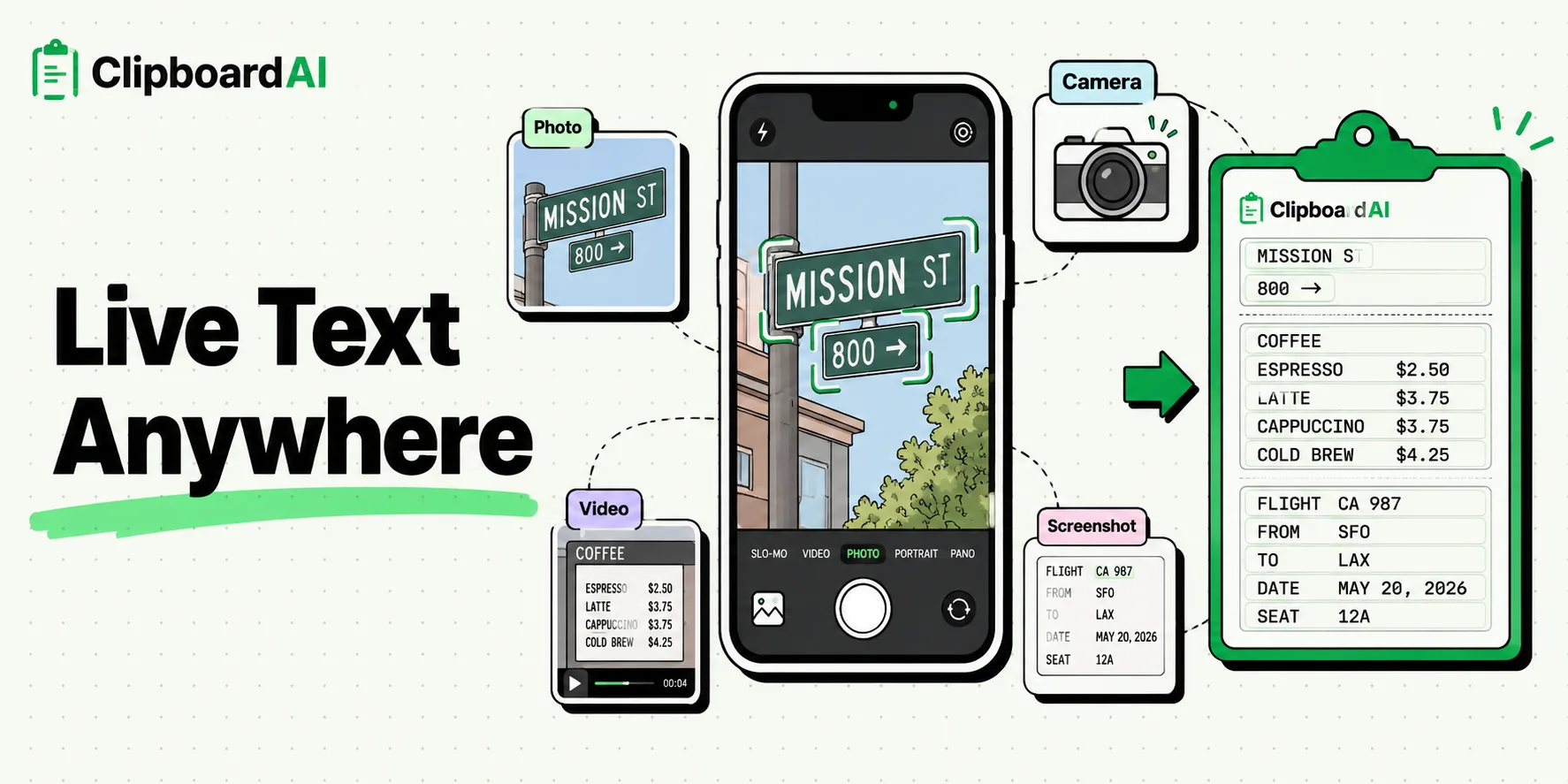
To copy text from a picture on iPhone, open the photo in Photos, tap the Live Text button in the bottom-right corner, select the words, and tap Copy. The same trick works in the Camera preview, on paused videos, on screenshots, and on images in Safari. Live Text is built into iOS 15 and later and runs entirely on your device, no app to install, no cloud round trip.
Here is every place Live Text shows up, plus the one trick for lifting text out of an app that will not let you select it.
What Live Text is, and where it works
Live Text reads printed words inside images and makes them selectable, right where they sit. It works in your Photos library, the Camera preview, paused videos, screenshots, Quick Look, and even on images in Safari. It arrived with iOS 15 and works on iPhone XS, XR, and later. If your iPhone is from the last several years and up to date, you already have it.
How can I extract text from an image?
- Open the photo in the Photos app.
- Tap the Live Text button in the bottom-right corner, a small square with three lines inside it.
- Drag to highlight the words you want, or press and hold and tap Select All.
- Tap Copy, then paste wherever you need it.
Snapped a business card, a Wi-Fi password taped to a router, a page of a book? This is the quickest way to turn it into text you can actually use.
Copy text straight from the camera
You do not even have to take the photo. Open the Camera and point it at the text. If Live Text can read it, a yellow frame appears with the Live Text button in the corner. Tap it, select, and copy, all from the live preview. Perfect for a menu, a street sign, or a serial number on the back of a device.
Copy text from a paused video
Watching a video in Photos and spot something you want, a URL on a slide, a name in the credits? Pause on that frame, and if there is readable text, the Live Text button appears. Tap it and copy the same way. It works on your own recordings and on videos saved to your library.
Copy text an app will not let you select
Some apps lock their text down: a story, a paywalled article, a screen that treats its words as an image. Live Text has a tidy way around it. Take a screenshot of the screen, open it, tap the Live Text button, and select the text from the screenshot instead. What the app would not hand over, Live Text quietly opens back up. Full walkthrough: extract text from screenshots on iPhone.
When Live Text is not enough
Live Text copies text once and forgets it. The iPhone clipboard holds one item, and the next copy wipes it, so if you are gathering text from several photos or screens, the earlier pieces disappear as you go.
Clipboard AI picks up where Live Text stops. Its on-device OCR keeps the extracted text in your clipboard history, lets you copy all of an image's text or just a selected part, and makes screenshots searchable by the words inside them. It reads screenshots, receipts, and photos automatically, on your device and never on our servers. See Copy the text out of any image.
Copy on iPhone, paste on Mac
With Apple's Universal Clipboard, text you copy on your iPhone can be pasted on a nearby Mac or iPad signed into the same Apple Account, with Bluetooth and Wi-Fi on. Want it there without the timing? Turn on sync in Clipboard AI and your clips follow you across every device.
If Live Text is not showing up
- No Live Text button. Update iOS under Settings, General, Software Update. iPhones older than iPhone XS do not support it.
- Switched off. Make sure Live Text is on under Settings, General, Language and Region, Live Text.
- Blurry or unusual text. Zoom in before you select. Live Text handles clear printed text far better than tiny, stylised, or handwritten text.
When the text needs to stick around after you copy it, Clipboard AI's on-device OCR keeps it in your clipboard history, on iPhone and on your Mac.
Frequently Asked Questions
How do I turn on Live Text on iPhone?
Live Text is on by default. If it is not working, go to Settings, General, Language and Region, and make sure Live Text is switched on. You also need iOS 15 or later.
Which iPhones support Live Text?
iPhone XS, XR, and every model since, running iOS 15 or later. Older iPhones do not have it.
Can I copy text from a video?
Yes. Pause the video on the frame you want, and if there is readable text, the Live Text button appears. Tap it, select the text, and copy.
How do I copy text an app will not let me select?
Take a screenshot of the screen, open it, tap the Live Text button, and select the text from the screenshot. Live Text can read text that the app itself blocks from selection.
Does Live Text save the text it copies?
No. Live Text puts the words on the clipboard, and the iPhone clipboard holds one item, so the next copy replaces them. A clipboard manager like Clipboard AI keeps extracted text in your history and makes images searchable by the words inside them.