
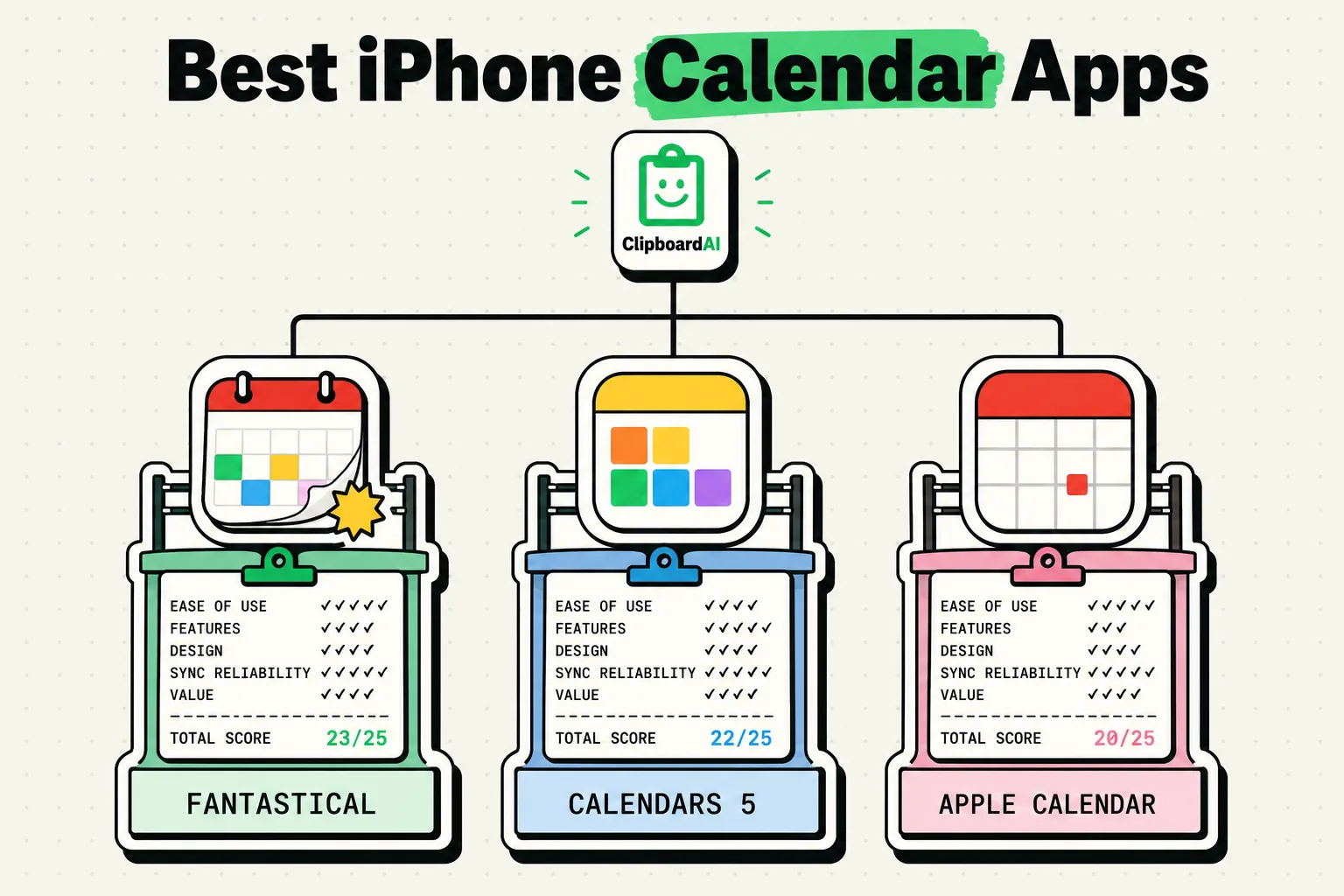
For iPhone users selecting a calendar application, the decision depends on your entry speed and budget: Apple Calendar is the best free, lightweight option for native ecosystem integration. Fantastical is the ultimate power-user app, featuring industry-leading natural language parsing and meeting scheduler tools, but requires a $57/year subscription. Google Calendar is the best choice for Google Workspace users who prioritize color-coded scheduling. Choose Apple Calendar for simplicity, Fantastical for advanced parsing, or Notion Calendar for database sync.
What Makes an Effective Mobile Calendar?
A calendar application is only useful if it reduces the friction of entering and reviewing your schedule. If adding an event requires you to click through multiple date menus, specify start and end times manually, and type out location fields, you are more likely to forget to log it.
On mobile, the calendar app must excel at three elements:
- Frictionless Entry: Parsing sentences to build events automatically.
- Visual Scanning: Displaying day and week views clearly on small phone screens.
- Account Merging: Displaying personal iCloud events alongside corporate Google Workspace or Microsoft Outlook schedules in a single interface.
Here is how the top iPhone calendar apps compare in 2026.
iPhone Calendar App Comparison Matrix
This table compares pricing models, sync capabilities, input parsing, and advanced tools for the top iOS scheduling applications.
| Calendar App | Cost | Natural Language Input | Scheduling Links | Multi-Account Merger | Target Audience |
|---|---|---|---|---|---|
| Apple Calendar | Free | Basic | No | Yes | Casual Apple users |
| Fantastical | $57/year (Premium) | Advanced (Industry best) | Yes (Proposals & Links) | Yes | Power users & Freelancers |
| Google Calendar | Free | Basic | Yes (via Workspace) | Yes (Partial) | Google Workspace users |
| Notion Calendar | Free | No | Yes (Basic) | Yes | Notion users & Developers |
1. Fantastical: The Premium Powerhouse
Fantastical is widely considered the most advanced calendar application on iOS, but it carries a professional price tag.
- Pros: Its natural language engine is outstanding. If you type "Coffee with John at Starbucks tomorrow at 9am," Fantastical parses the sentence instantly, creating the event, assigning it to Starbucks, and scheduling it for the correct hour. It also includes built-in scheduling links (similar to Calendly), allowing people to book meetings directly on your calendar, and embeds local weather forecasts directly in your day view.
- Cons: The subscription cost ($56.99 per year) is high for a calendar app. The free version is highly restricted, locking out natural language input and multi-account syncing.
2. Apple Calendar: The Native Option
Apple's built-in calendar is a clean, no-nonsense utility that integrates deeply with iOS.
- Pros: It is completely free, contains no ads, and has the lowest battery impact of any calendar app on iOS. It integrates natively with Siri, allowing you to add events via voice commands, and reads travel time alerts using Apple Maps data.
- Cons: It lacks advanced features. There are no built-in scheduling links, the widget layouts are basic, and its natural language parsing is limited compared to Fantastical.
3. Google Calendar: The Corporate Workspace Standard
If your professional life runs on Google Workspace, the official Google Calendar app is a solid, free choice.
- Pros: It integrates natively with Google Tasks, Gmail (automatically pulling flight details or hotel reservations into your schedule), and Google Meet. Its visual design uses clean illustration cards for specific events (like flights, dentist appointments, or hair cuts) making your schedule highly scannable.
- Cons: The app uses Google's Material Design language, which can feel out of place on iOS. It also lacks advanced formatting scripts and does not integrate as cleanly with Apple Keychain or Siri.
4. Notion Calendar (Formerly Cron): Best for Project Sync
Notion Calendar is a minimalist, developer-focused calendar that syncs directly with Notion databases.
- Pros: If you manage project deadlines inside a Notion database, Notion Calendar can display those database entries alongside your personal Google and Microsoft calendars. It includes a built-in scheduling link tool and offers a highly clean, dark-themed user interface on both Mac and iOS.
- Cons: It does not support iCloud Calendar accounts natively. You must route your iCloud events through a Google Calendar to display them.
The Clipboard Connection: Coordinating Invites and Availability
Scheduling meetings frequently involves copying and pasting text back and forth between your email, messaging apps, and calendar tools.
[Email / Slack / Zoom Invites]
               │
      (Copy Meet Details)
               ▼
  [ClipboardAI SQLite Database] ──► Pinned Scheduling Links
               │
        (Create Event)
               ▼
[Fantastical / Apple / Google Calendars]
When you need to send your availability windows or share a Zoom meeting invite, you can use ClipboardAI to streamline the process. ClipboardAI stores your standard scheduling links and meeting details in a secure local database. Instead of switching back to your calendar app to retrieve a link, you can open the ClipboardAI custom keyboard in your email app and paste your booking link or zoom passcode with a single tap.
Honest Caveats and Pricing Trade-offs
- Fantastical Subscription Trap: Many legacy Fantastical users were frustrated when the app transitioned to a subscription model. If you stop paying the yearly fee, features that used to be free are locked, rendering the app a basic viewer.
- Notion Calendar iCloud Lockout: If you do not use Google Calendar as your primary hub, Notion Calendar is unusable, as it cannot authenticate directly with Apple iCloud.
Final Recommendations: Which App Wins?
- Choose Fantastical if: You manage multiple calendars, schedule client meetings daily, rely heavily on natural language input, and do not mind paying a yearly subscription fee for premium tools.
- Choose Apple Calendar if: You want a clean, simple, free utility that integrates with Siri and has zero impact on your iPhone's battery life.
- Choose Google Calendar if: Your daily workflow is anchored in Gmail, Google Meet, and Google Workspace teams.
- Choose Notion Calendar if: You use Notion as your personal or professional database, and want a clean, minimalist timeline view on your Mac and iPhone.
Frequently Asked Questions
Can I display my work Outlook calendar in Apple Calendar?
Yes. Go to Settings > Calendar > Accounts > Add Account, enter your Microsoft Exchange or Outlook credentials, and toggle "Calendars" on. Your work schedule will sync to the native app.
How does travel time work in Apple Calendar?
If you add a physical location to an event in Apple Calendar, you can edit the event details and enable "Travel Time." The app reads your current location and traffic data via Apple Maps, sending you a notification when it is time to leave.
Is Notion Calendar completely free?
Yes. Currently, Notion Calendar is entirely free to download and use on iOS and macOS, with no in-app purchases or subscription tiers required for its core features.