
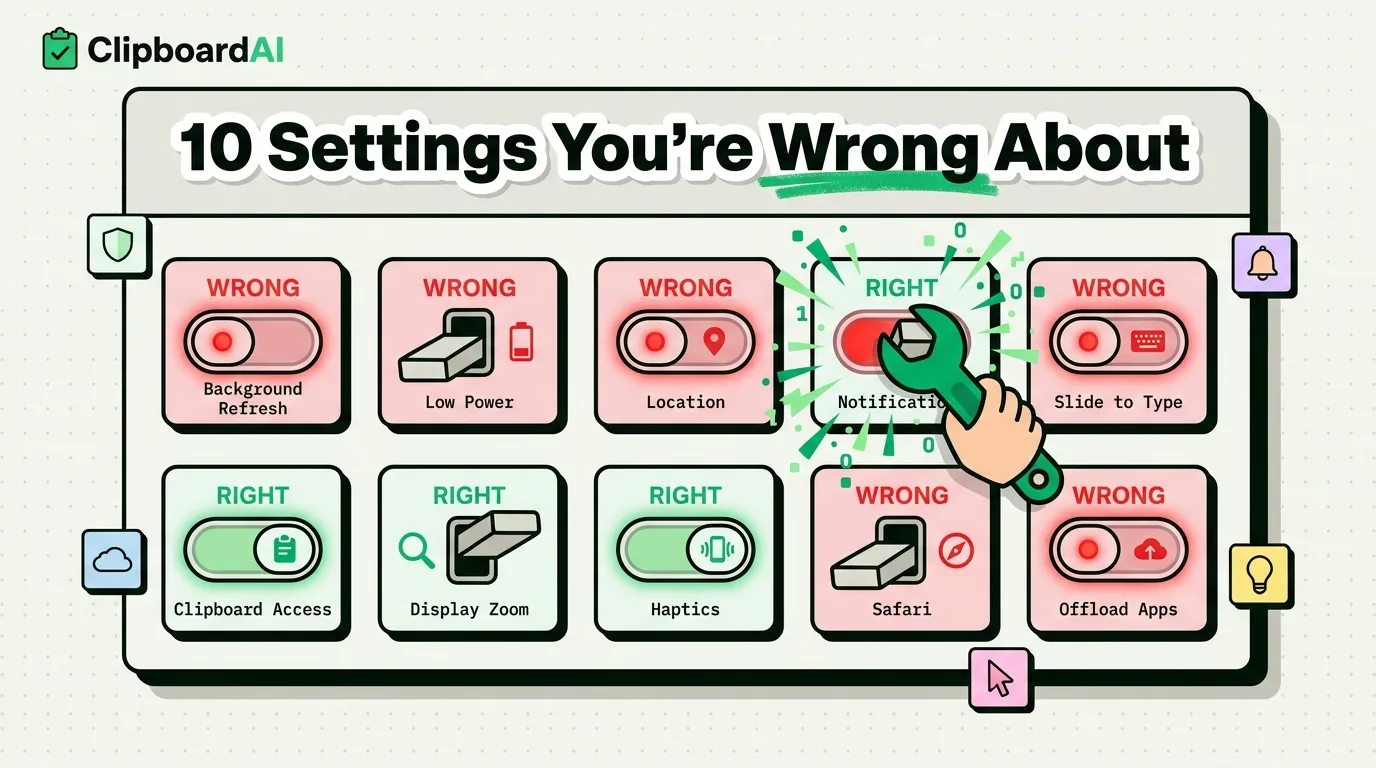
You Think You Know Your iPhone. You Don't.
Every iPhone user thinks they have their settings dialed in. You turned off Background App Refresh. You set your wallpaper. Maybe you even ventured into Accessibility once. There's still a long list of settings buried in menus Apple never surfaces during setup.
Several of them are commonly misunderstood in ways that quietly work against you: draining battery for no real benefit, exposing more privacy than intended, or leaving useful features off by default. The ten below are the ones that come up most often once someone actually digs into Settings instead of leaving everything on default.
1. Background App Refresh: You're Doing It Backwards
Most people either leave Background App Refresh on for everything (bad for battery) or turn it off entirely (bad for functionality). The correct approach is neither - it is selective.
Turn it ON for: email, messaging apps, news apps, and clipboard managers. These apps genuinely benefit from background updates. Turn it OFF for: social media, games, shopping apps, and anything you only use when you actively open it.
The key insight: Background App Refresh does not mean 'the app runs constantly in the background.' It means 'the app can refresh its content periodically so it is up to date when you open it.' Turning it off for your email app means your email is stale every time you open it.
2. Low Power Mode Doesn't Do What You Think
Low Power Mode reduces background activity, dims the screen slightly, disables some visual effects, and reduces the auto-lock timeout. What it does NOT do: significantly extend your battery life when you are already at 80%.
The battery savings from Low Power Mode are most impactful below 30%. Using it all day at 100% gives you maybe 15-20 minutes of extra battery while making your phone feel noticeably slower. The trade-off is not worth it unless you genuinely need to stretch your battery.
Better battery tip: manage your screen brightness and Background App Refresh selectively. These two settings have more impact than permanent Low Power Mode.
3. Location Services: All or Nothing Is Wrong
The three options for location access are 'Always,' 'While Using,' and 'Never.' Most people set everything to 'Never' for privacy, or leave everything on 'Always' because they never changed it.
The correct setting for most apps is 'While Using the App.' This gives apps location access when you are actively using them but prevents background tracking. For Maps, Weather, and Find My, 'Always' is reasonable. For everything else, 'While Using' or 'Never.'
Go to Settings > Privacy & Security > Location Services and audit every app. You will be surprised how many have 'Always' access that do not need it.
4. Notifications: The Nuclear Option Isn't the Answer
Some productivity gurus recommend turning off all notifications. This is terrible advice for most people. You will miss important messages, reminders, and alerts.
Instead, use the three-tier system: Tier 1 (sound + banner) - only for people and urgent apps: Messages, Phone, your team's Slack. Tier 2 (banner only, no sound) - useful but not urgent: email, calendar, news. Tier 3 (notification center only) - everything else. This keeps you informed without the constant buzz.
5. Keyboard Settings You Never Changed
Auto-Correction is not the villain everyone makes it out to be. For most people, it catches more errors than it creates. The real setting you should change is Auto-Capitalization - turn it off if you type informal messages frequently.
The hidden gem: Enable 'Slide to Type' (Settings > General > Keyboard). Swipe typing is 30-40% faster than pecking once you get the hang of it. Most iPhone users do not know this feature exists because Apple never prominently advertised it.
Also consider enabling the one-handed keyboard (hold the globe icon on the keyboard) if you frequently type with one hand.
6. Privacy Settings That Actually Matter
Everyone talks about location privacy, but clipboard privacy is equally important. Apps can read your clipboard without asking. iOS shows a banner when this happens, but many people ignore it.
Go to Settings > Privacy & Security and review: Clipboard access (be wary of apps reading it), Tracking (keep this off), Analytics (disable sharing), and Advertising (limit ad tracking). These four settings have more privacy impact than anything else on your phone.
For clipboard-specific privacy, check our clipboard privacy tips guide.
7-10: Four More Settings You're Getting Wrong
7. Display Zoom - Settings > Display & Brightness > Display Zoom. Most people leave this on 'Standard,' but 'More Space' gives you smaller text and more content on screen. If you have good eyesight, this is a significant upgrade.
8. Haptic Feedback - The keyboard haptic feedback (Settings > Sounds & Haptics > Keyboard Feedback) improves typing accuracy. Most people never turned it on because it launched as off by default.
9. Safari Settings - Settings > Safari > Tabs. Switch from 'Tab Bar' to 'Single Tab' if the bottom tab bar annoys you. Also, enable 'Block Pop-ups' and 'Prevent Cross-Site Tracking' - both are off by default.
10. Storage Management - Settings > General > iPhone Storage. Enable 'Offload Unused Apps.' This automatically removes apps you have not used recently but keeps their data, so reinstalling is seamless. It is free storage with zero downside.
The 15-Minute Settings Audit
| # | Setting | Where | Default | Better setting for most people |
|---|---|---|---|---|
| 1 | Background App Refresh | Settings > General > Background App Refresh | On for all or off for all | Selective: on for messaging/email/clipboard apps, off for social/games |
| 2 | Low Power Mode | Settings > Battery | Off, manually toggled | Use only below ~30% battery, not as a permanent setting |
| 3 | Location Services per app | Settings > Privacy & Security > Location Services | Varies widely by app | "While Using" for most apps, "Always" only for Maps/Weather/Find My |
| 4 | Notifications | Settings > Notifications, per app | Sound + banner for everything | Tiered: sound for urgent apps, banner-only or Notification-Center-only for the rest |
| 5 | Slide to Type | Settings > General > Keyboard | Off in some regions | On, for faster typing once the gesture is familiar |
| 6 | Clipboard access review | Settings > Privacy & Security (bottom of list) | Rarely checked | Review periodically for apps reading clipboard unexpectedly |
| 7 | Display Zoom | Settings > Display & Brightness > Display Zoom | Standard | "More Space" if you have good eyesight and want more content visible |
| 8 | Keyboard haptic feedback | Settings > Sounds & Haptics > Keyboard Feedback | Off | On, if you want tactile confirmation while typing |
| 9 | Safari cross-site tracking | Settings > Safari | Mixed by iOS version | Confirm "Prevent Cross-Site Tracking" and "Block Pop-ups" are both on |
| 10 | Offload Unused Apps | Settings > General > iPhone Storage | Off | On; frees storage automatically with no real downside |
Spend 15 minutes going through this table against your own phone. Most people find at least two or three settings here that do not match how they actually use their iPhone.
For more iPhone optimization tips, check out our guides on iPhone tips and tricks for 2026.
Frequently Asked Questions
What iPhone settings should I change for better battery?
Selectively manage Background App Refresh (on for essential apps only), avoid permanent Low Power Mode above 30%, manage screen brightness, and enable Offload Unused Apps for storage optimization.
What are the most important iPhone privacy settings?
Review clipboard access, disable app tracking, turn off analytics sharing, limit ad tracking, and set location services to 'While Using' for most apps instead of 'Always.'
Should I turn off auto-correction on iPhone?
For most people, auto-correction catches more errors than it creates. Consider turning off Auto-Capitalization instead if you type informal messages frequently, and enable Slide to Type for faster input.
What is Display Zoom on iPhone?
Display Zoom (Settings > Display & Brightness > Display Zoom) lets you choose 'More Space' for smaller text and more content on screen. It is ideal for users with good eyesight who want to see more at once.