
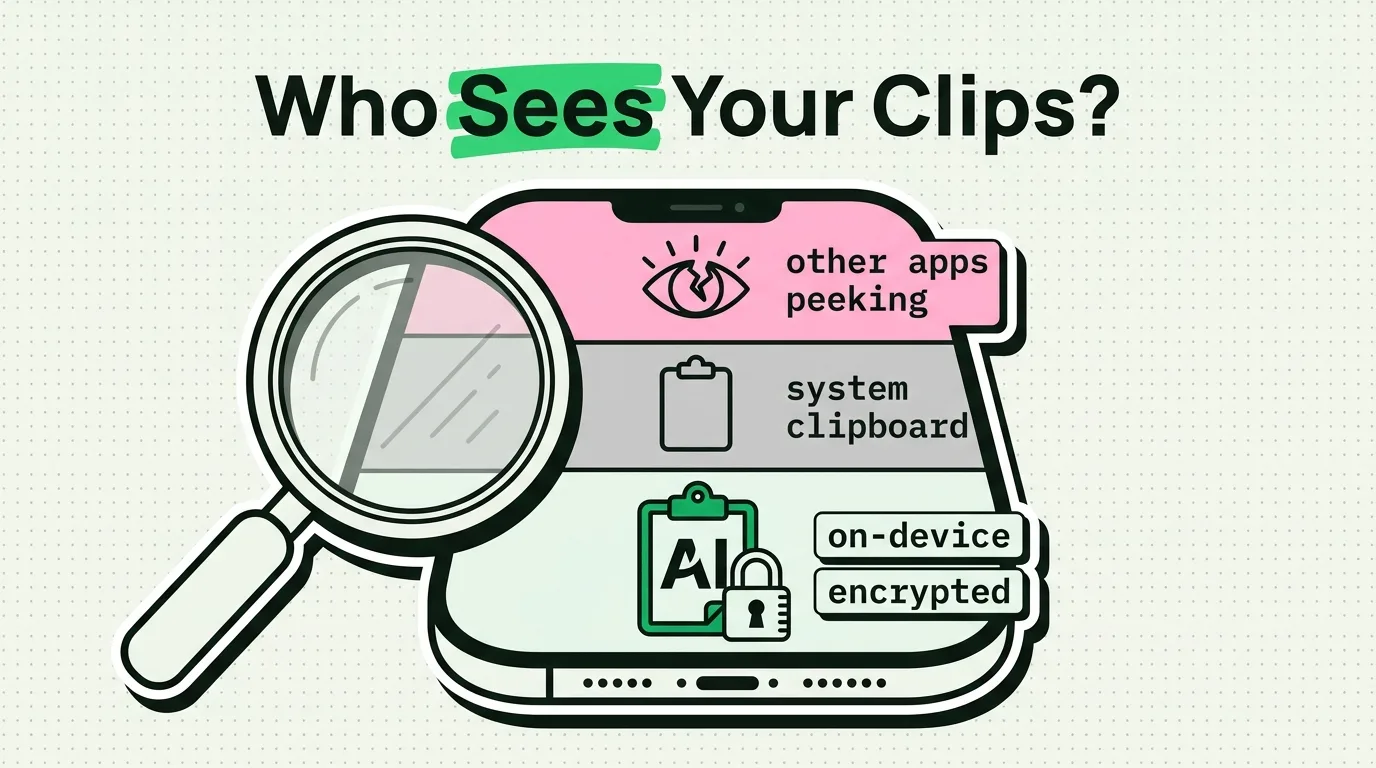
Your clipboard logs things you copied and forgot about. A phone number from a text. An address from a delivery confirmation. A bank reference number from an email. A password you copied because AutoFill was not working. None of these feel sensitive when you copy them - but sitting in a clipboard history a week later, they form a detailed picture of your digital life.
Here is an honest, technically accurate look at what clipboard privacy actually means on iPhone, what risks are real versus overstated, and the exact steps to protect yourself.
What the iOS Clipboard Actually Stores
The system clipboard (what Apple calls the UIPasteboard) stores exactly one item: whatever you copied most recently. It lives in RAM. When you restart your iPhone or copy something new, it is replaced.
A clipboard manager app like ClipboardAI stores a persistent history of every item you copy - saved to an on-device SQLite database. This is where the privacy consideration begins: a history database is a longer-lived, queryable record of your copied text, not just a transient RAM buffer.
The critical distinction: what happens to that database depends entirely on the app and its configuration.
The Actual Privacy Risks (Ranked by Severity)
High Risk: Custom Keyboard with "Full Access" + Cloud Sync
If you have installed a third-party keyboard and granted "Allow Full Access," and that keyboard developer transmits data to their servers - every keystroke and copied string you use while that keyboard is active may be logged remotely. This is the highest-risk clipboard scenario on iOS.
How to check: Settings → General → Keyboard → Keyboards. Review each keyboard. If a keyboard you don't trust has Full Access enabled, disable it here.
Medium Risk: Clipboard Manager with Unencrypted Cloud Sync
If you use a clipboard manager that syncs your history to a cloud server without end-to-end encryption, your clipboard data is readable by the service provider and potentially accessible if that service is breached.
ClipboardAI's approach: Sync is opt-in and runs through your own private iCloud account using Apple's CloudKit and iCloud Key-Value Store, encrypted in transit and at rest, the same infrastructure that protects your Photos and Notes. Your clips never pass through or land on a ClipboardAI server, there is no account, and you can leave sync off for a fully local, on-device-only setup.
Low Risk (But Worth Knowing): Apple's Universal Clipboard
Apple's Universal Clipboard shares whatever is on your system clipboard to other Apple devices on the same Apple ID over Bluetooth/Wi-Fi. This is a 2-minute window, not indefinite.
Risk scenario: if you share an Apple ID with a partner or family member on a Mac nearby, they can paste from your clipboard during that 2-minute window without being notified. This is not a common attack vector, but it is real.
To disable: Settings → General → AirDrop & Handoff → toggle Handoff off.
Privacy Lockdown Checklist
Work through this list to audit and secure your clipboard environment:
| Action | Where to Do It | Why It Matters |
|---|---|---|
| Review keyboards with Full Access | Settings → General → Keyboard → Keyboards | Full Access keyboards can log keystrokes + clipboard |
| Add password managers to Excluded Apps (Mac only) | ClipboardAI (Mac) → Settings → Excluded Apps | Prevents credentials from entering history; no equivalent setting exists on iPhone/iPad |
| Set history retention limit | ClipboardAI → Settings → History → Retention | Limits how long sensitive items persist |
| Disable Universal Clipboard | Settings → General → AirDrop & Handoff → Handoff | Stops clipboard sync to nearby shared-Apple-ID devices |
| Enable auto-clear on password manager | 1Password/Bitwarden → Settings → Security → Clear Clipboard | Removes passwords from RAM after X seconds |
| Review and delete old history | ClipboardAI → History → Swipe to delete | Manual cleanup of items you no longer need |
| Enable ClipboardAI local-only mode | ClipboardAI → Settings → Sync → Disable | No iCloud sync, history stays on device only |
What ClipboardAI Stores and Does Not Store
Stored locally on device:
- Full text of every item you copy (unless excluded by your filter rules)
- Timestamp of each copy action
- Source app name (e.g., "Copied from Safari")
Not stored or transmitted:
- Keystrokes typed on the ClipboardAI keyboard (the keyboard only displays history - it does not log new typing)
- On Mac, items copied inside apps on your Excluded Apps list or apps that stamp the nspasteboard.org privacy markers (1Password, KeePassXC, BetterTouchTool, etc.) - this filtering is Mac-only and has no iPhone/iPad equivalent
- Any biometric or system authentication data
Optionally synced via iCloud:
- Your clipboard history, encrypted in transit and at rest using Apple's iCloud infrastructure (CloudKit and iCloud Key-Value Store)
- This sync can be disabled entirely in app settings
The Practical Privacy Default
For most users, the right configuration is:
- On Mac, add password managers to your Excluded Apps list (this setting does not exist on iPhone/iPad)
- Set a 30-day retention limit
- Keep iCloud sync enabled (convenient and encrypted) OR disable it if you want strictly local storage
- Review the keyboards you've installed and revoke Full Access from any you no longer use
You do not need to stop using a clipboard manager to protect your privacy. You need to configure it correctly.