
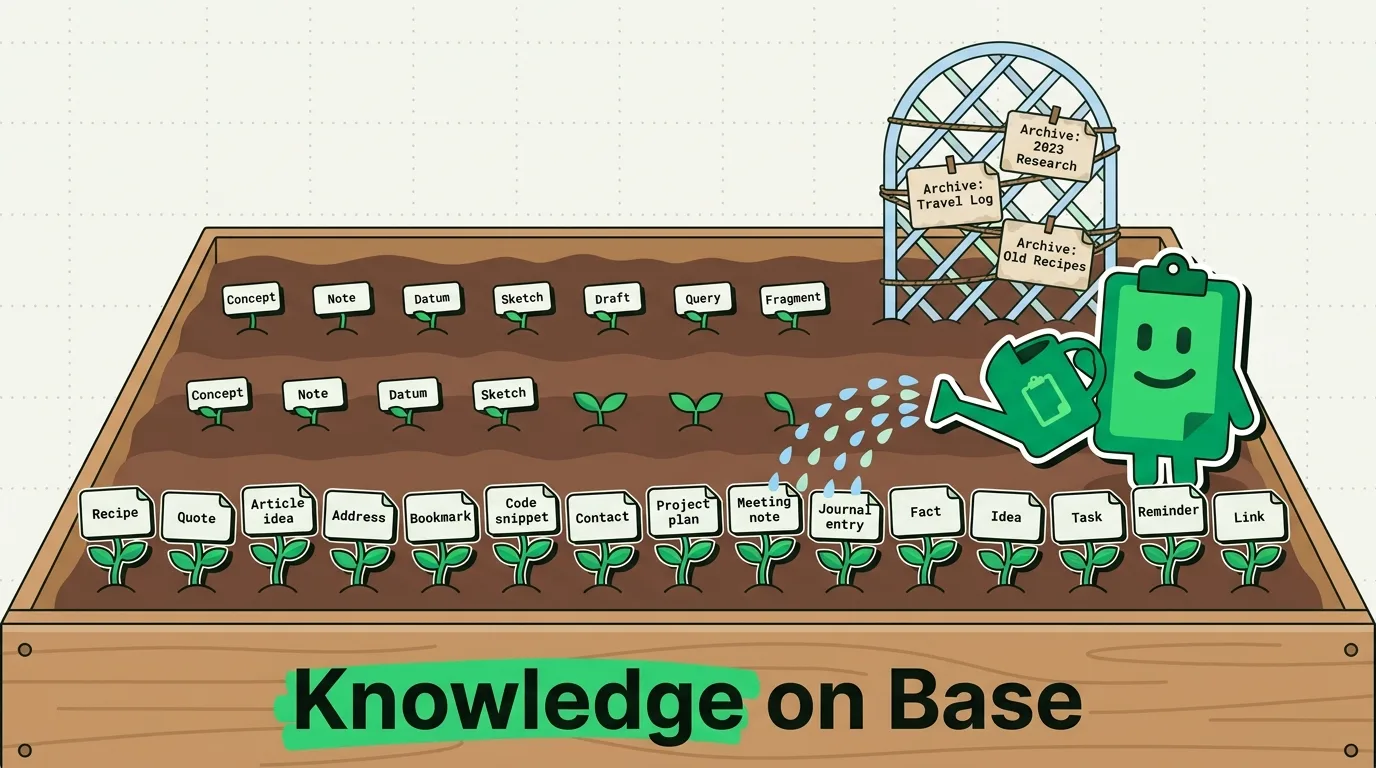
You already curate information every day, you just don't keep any of it. Every time you copy a quote, a link, a stat, or a snippet, you're making a small editorial decision: this is worth keeping. The default iPhone and Mac clipboard throws that decision away the instant you copy something else. A clipboard manager is the only change required to turn that daily stream of copies into a searchable archive - no new app to learn, no folders to build by hand.
Why this works when note apps don't stick
Notion, Obsidian, and Evernote all require you to stop what you're doing, open the app, create an entry, and file it somewhere. That's several seconds of friction per item, and friction is exactly what kills a knowledge-management habit - most people abandon a new system within a week because the overhead of filing things outweighs the value of having them.
Copying doesn't have that problem. You already copy dozens of things a day without thinking about it: a shipping address, a code snippet, a quote from an article, a phone number from a text. The only thing missing is persistence. ClipboardAI (iOS and Mac) keeps every one of those copies instead of discarding all but the last, and sorts them automatically into categories - links, phone numbers, emails, addresses - so retrieval doesn't require you to have organized anything up front.
What this is not
To be direct about the limits: this is not a replacement for long-form notes, project docs, or anything that needs structure, cross-references, or editing over time. A clipboard history is a capture layer, not a writing tool. If you're drafting an essay or building a wiki, you still want Notes, Obsidian, or whatever you already use for that. Where a clipboard-based knowledge base wins is in the layer before that - the raw material you'd otherwise lose track of before you ever got around to filing it properly.
The weekly capture-and-review workflow
Here's a concrete routine that turns passive copying into an actual knowledge system, rather than just a pile of unsorted clips:
DAILY (zero extra effort):
- Copy anything you'd normally copy: quotes, links, addresses, codes, prices.
- Do nothing else. ClipboardAI categorizes and timestamps each one automatically.

WEEKLY (10-15 minutes, one sitting):
1. Open ClipboardAI and scroll the past 7 days chronologically.
2. Pin anything you'll need again this month (reference links, recurring
   addresses, template text).
3. For research or writing material: search by keyword, copy the relevant
   clips into your actual notes app as a batch, and archive the raw clips.
4. Delete anything clearly one-time-use (an OTP, a delivery tracking number
   you already used).
The daily half of this loop costs nothing because it's just copying, which you were already doing. The weekly half is the only deliberate step, and it's closer to inbox triage than to note-taking from scratch.
A before/after on what actually gets captured
| Without a clipboard history | With ClipboardAI |
|---|---|
| Copy a great quote from an article, paste it somewhere, then copy a URL - quote is gone | Quote and URL both saved, timestamped, searchable later |
| Save an address by texting it to yourself | Address auto-categorized under Addresses, no self-text needed |
| Screenshot a Wi-Fi password or confirmation code to "remember" it | Code saved as plain searchable text under Codes |
| Bookmark a page just to preserve the URL, never revisit the bookmark | Link saved with the rest of your copy history, findable by keyword |
| Re-Google something you already found once | Search your own clipboard history first |
Where this actually helps
- Research reading: copy quotes and source links as you read; compile them into your writing tool only when you sit down to write, not while you're still reading.
- Job hunting: copy posting URLs, recruiter emails, and salary ranges as you browse; search later instead of maintaining a separate spreadsheet.
- Freelance/client work: addresses, invoice numbers, and meeting links accumulate automatically across a project without a dedicated project-tracking step.
- Shopping research: product links, prices, and promo codes land in categorized buckets instead of a dozen open tabs.
Honest caveats
- No OCR-free capture from images - if the information you want lives inside a screenshot or photo, you need the OCR/text-in-images feature (available on both iOS and Mac) to pull text out first; copying an image just saves the image.
- Everything stays on-device by default. Sync is optional, and when it's on it runs through your own private iCloud account (CloudKit and iCloud Key-Value Store), encrypted in transit and at rest the same way iCloud Photos is. No clip content ever reaches a ClipboardAI server, and you can leave sync off for a fully local setup.
- It won't organize itself into an outline. Auto-categorization sorts by content type (link, email, phone number, address, text), not by topic or project. For project-level organization, use ClipboardAI's collections/pinning to group related clips manually - the auto-sort gets you 80% of the way, not 100%.
FAQ
Can my clipboard actually replace a note-taking app? For temporary or reference material - links, codes, addresses, quotes you haven't written into anything yet - yes. For long-form writing or anything you need to structure and revise, no; keep using a dedicated notes app for that.
How far back can I search? ClipboardAI keeps history until you delete it or hit your configured Auto-Delete Old Clips window (Never, 30 days, 60 days, 3 months, 6 months, or 1 year - 30 days is the shortest option). Set it to Never if you want the archive to keep growing.
Does this sync between my iPhone and Mac? Yes, through your own private iCloud account, encrypted in transit and at rest by Apple at the same protection level as iCloud Photos. No clip content ever touches a ClipboardAI server, and sync is optional if you'd rather keep everything on-device.
What if I copy something by accident that I don't want kept? Delete the individual clip from your history at any point - nothing is permanent unless you pin it.