
The Bottom Line
A connecting flight with a 40-minute layover is the wrong moment to be retyping a confirmation number from memory. The fix isn't a single app — it's keeping the handful of things you re-enter on every trip (confirmation codes, loyalty numbers, hotel address, rental car reservation) somewhere you can paste from instead of retype, and knowing which native iPhone features already cover boarding passes and offline access without any extra app at all.
What iPhone Already Handles Natively
Before adding anything, know what's already built in:
- Boarding passes and hotel confirmations: Add to Wallet directly from the airline or hotel confirmation email (look for "Add to Apple Wallet" in the email itself, or the calendar-style icon on airline apps). These work fully offline and show up on your Lock Screen near departure time.
- Offline maps: Both Apple Maps and Google Maps let you download a city or region for offline use before you lose signal, useful for international trips where you'd otherwise be on roaming data.
- Live Text for scanning paper documents: Point your camera at a printed visa form, hotel address, or paper boarding pass and long-press to copy the text directly, no app needed.
The Travel Snippet Kit: What Actually Gets Re-Typed
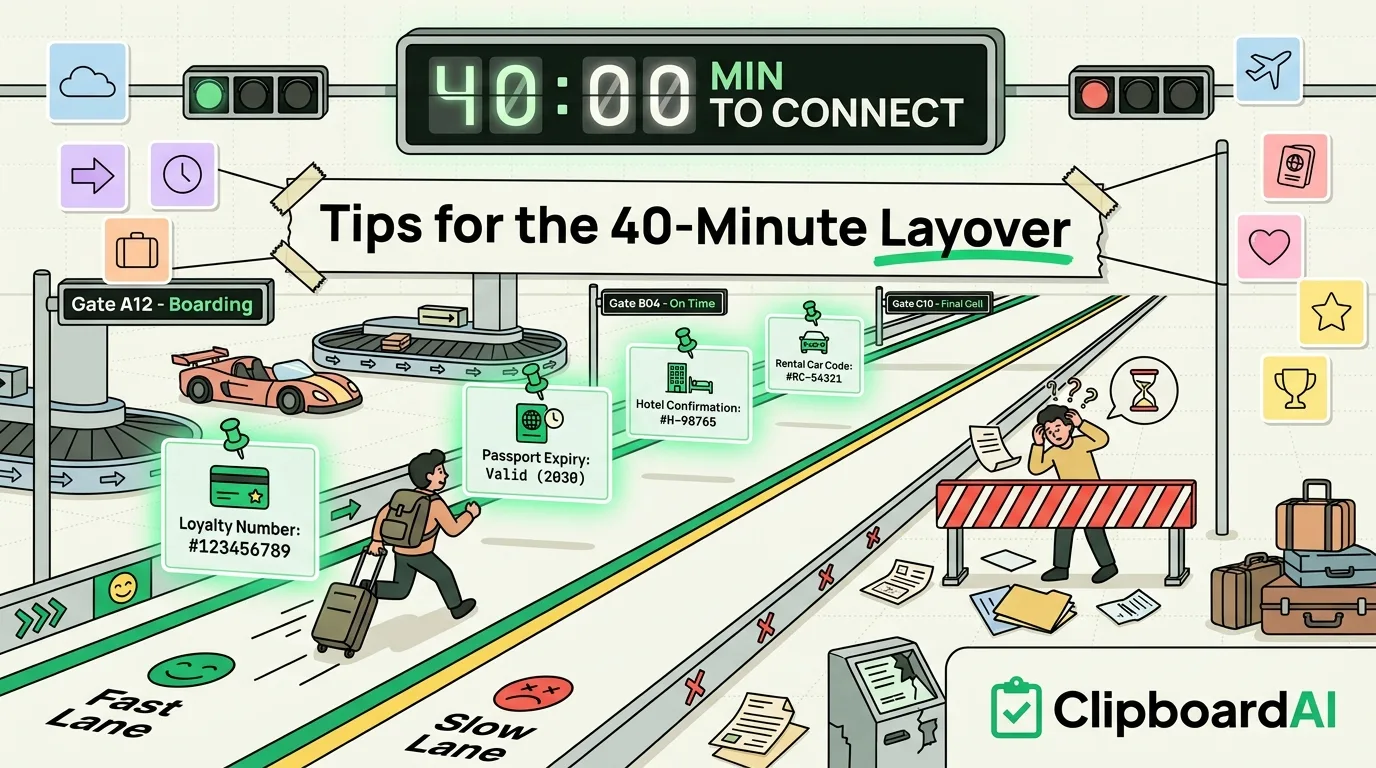
On a multi-leg trip, the same handful of strings get typed into check-in kiosks, rental car counters, hotel front desks, and forms, over and over. Pin these in a clipboard manager the day your trip is booked, so they're one tap away instead of a memory exercise:
| What to pin | Where you'll need it again |
|---|---|
| Frequent flyer / loyalty numbers | Every airline check-in kiosk and app, lounge desks |
| Passport number and expiry | Visa forms, car rental, some hotel check-ins abroad |
| Hotel confirmation number + address | Rideshare apps, front desk, customs forms |
| Rental car confirmation code | Counter pickup, roadside assistance calls |
| Emergency contact + travel insurance policy number | Any incident abroad; you don't want to be searching email for this under stress |
| Work email auto-reply / OOO text | Setting out-of-office on the go from your phone |
With ClipboardAI, you'd copy each of these once, then pin them so they sit at the top of your clipboard history instead of scrolling past dozens of newer copies. The custom keyboard (enable Full Access once in Settings > Keyboard > Keyboards) lets you paste any pinned item directly into a form field without switching apps, which matters at an airport kiosk where switching apps means losing your place in line.
If You Travel With a MacBook
For trips where you're drafting the same email to multiple hotels or vendors (comparing quotes, requesting invoices), ClipboardAI's Mac-only Paste All and Paste One by One features let you queue up several pieces of copied text and paste them in sequence into a form or series of emails, instead of manually alt-tabbing and pasting one at a time. This is Mac-only and free; there's no iOS equivalent since iPhone doesn't support the same background paste automation.
What This Doesn't Solve
A clipboard manager does not replace TSA PreCheck, doesn't work without your phone charged, and syncing clips between your iPhone and Mac requires iCloud, which needs a data connection at some point to sync (it won't sync mid-flight without WiFi). If you're crossing into a country where you won't have data, copy what you need onto your phone before you lose signal, not after.
Frequently Asked Questions
Do I need a paid app for boarding passes?
No. Apple Wallet handles boarding passes and hotel keys natively and works fully offline once added.
Can I sync my clipboard between my iPhone and Mac while traveling?
Yes, through iCloud sync, but it requires both devices to have a network connection at some point to exchange data — it won't sync in airplane mode.
What if I lose my phone mid-trip?
This is a real limitation worth planning for: if your pinned confirmation numbers and passport details live only on your phone, losing it mid-trip means losing access to them too. Keep a backup, such as a printed copy or a note with a family member, for anything you'd need to recover from if your phone were lost or stolen.