
The Bottom Line
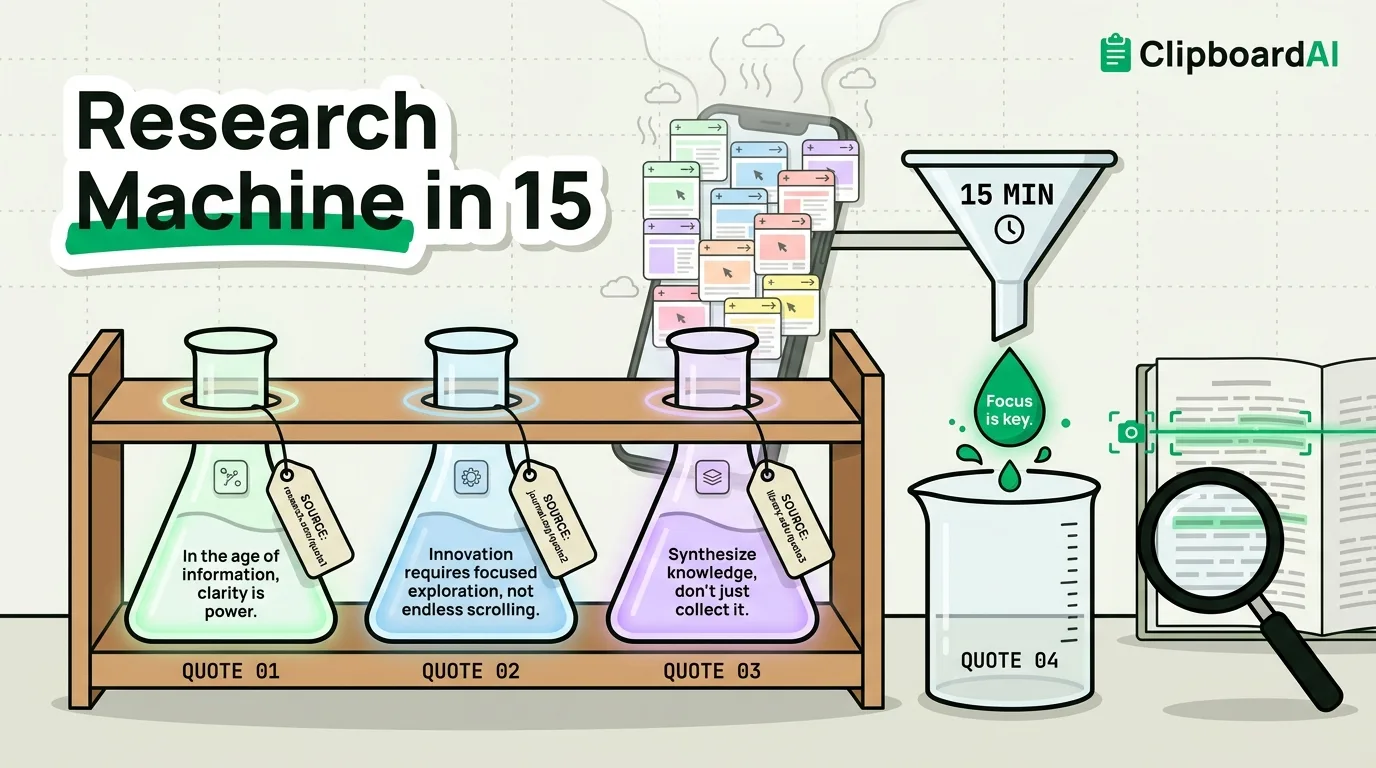
Research on a phone falls apart for one specific reason: you have fifteen tabs open, and every time you copy a quote or a citation from one, it erases the quote you copied from the last one. The fix is not a new research app, it is fixing the one-item clipboard problem and using two features Apple already built in but rarely markets: Reader mode and Live Text.
A 15-Minute Setup
- Turn on Safari Reader automatically for cluttered sites. Settings > Safari > scroll to "Reader" and pick which sites should auto-switch to distraction-free reading. This strips ads, pop-ups, and layout clutter from long articles before you even start reading.
- Install a clipboard manager with history before you start. This is the step that actually solves the "who copied over my citation" problem. ClipboardAI keeps every copy in order, so you can pull a quote from tab one, a quote from tab two, and a URL from tab three, and still have all three when you sit down to write.
- Learn Live Text for anything not selectable. Point the camera (or long-press an image already on screen) and iOS will detect and let you copy text embedded in images, screenshots, or PDFs that do not allow normal text selection.
- Use Split View (iPad) or Slide Over to keep a source and your notes visible together instead of app-switching for every single quote.
A Repeatable Capture Pattern
The workflow that holds up across a research session: read a source, copy the exact quote, then immediately copy the URL right after it (both stack in your clipboard history), then move to the next source and repeat. At the end, paste everything at once into your notes document, in the order you found it, with both quote and source intact. This only works because the clipboard remembers more than the single last thing copied. Doing this with the native iOS clipboard means re-opening each tab a second time just to re-copy the URL you already had and lost.
Snippets Worth Pinning for Repeat Research
- A citation format template (e.g.,
"[Quote]" — [Author], [Title], [URL], accessed [Date]) so formatting a source takes one paste instead of retyping structure every time - Search operators you use often (e.g.,
site:,filetype:pdf) for faster searching - A standard note-taking header you reuse for each new source
What This Doesn't Solve
None of this replaces actual critical reading or citation-management software like Zotero for anything approaching academic rigor. Live Text occasionally misreads text from low-quality images or stylized fonts, so verify anything pulled that way before quoting it as fact. Treat this as a faster capture workflow, not a substitute for verifying sources.
Frequently Asked Questions
How do I copy text from an image or screenshot on iPhone?
Use Live Text: open the image (in Photos or on-screen), and iOS will underline detected text you can select and copy like normal text. It works on photos, screenshots, and PDFs where text is not otherwise selectable.
Why does my copied quote disappear when I copy something else on iPhone?
The built-in iOS clipboard only holds one item at a time; each new copy replaces the previous one. A clipboard manager with history keeps every copy in a searchable list instead of overwriting, so quotes from earlier sources are not lost.
Does Safari Reader mode work on every website?
Not on every site, some pages do not support it or render poorly. It works best on article-style, text-heavy pages and is less useful on highly interactive or app-like web pages.