
The Bottom Line
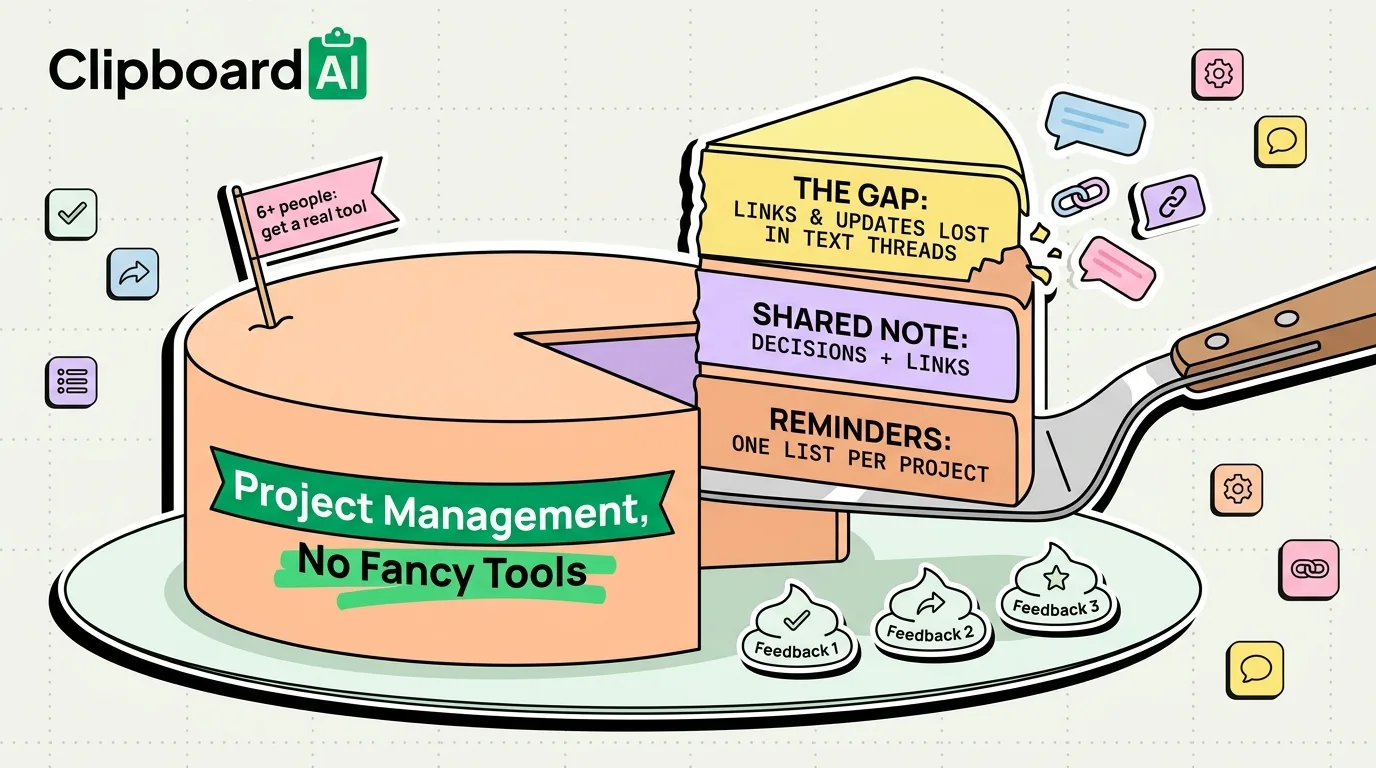
A small project (a few people, a handful of tasks, a deadline or two) does not need Asana, Monday, or Jira. Reminders and Notes, both free and preinstalled, cover task tracking and shared documentation. The part that actually breaks down without a dedicated tool is passing information back and forth: links, file references, status updates, and decisions that get made in a text thread and then lost.
Setting Up Reminders as a Lightweight Project Tracker
- One list per project, not one giant list for everything. Reminders > New List, name it after the project.
- Use flags for "blocked" or "urgent," not priority levels for everything. Overusing priority flags makes them meaningless within a week.
- Set dates only for tasks with real deadlines. A list where every item has a date becomes noise; a list where only the genuinely time-sensitive items have dates stays useful.
- Use Smart Lists (iOS 17+) to auto-group tasks tagged the same way across multiple project lists, e.g. everything tagged "waiting on client" regardless of which project list it lives in.
Notes as Shared Project Documentation
A single shared Note (Share button in Notes, add collaborators) works as a lightweight project doc: decisions made, links to reference, open questions. It will not replace a wiki for anything complex, but for a project with 2-5 people, it avoids the overhead of setting up a whole tool nobody will maintain.
Where This Approach Actually Breaks Down
The real failure point of a no-tool setup is not tasks or docs, it is the constant small transfers: someone sends a file link in a text thread, someone else needs to paste a deadline into three different reminders, someone shares a status update that needs to go into the shared Note verbatim. iOS's single-item clipboard makes this worse than it needs to be, because copying the second link erases the first before you have used it.
A clipboard manager with history fixes this specific gap without requiring anyone to learn a new project tool. With ClipboardAI, you can copy a client's three feedback points from a text thread in sequence, then paste all three into a Reminders list or shared Note one after another, instead of switching apps and re-copying each one individually.
When You Actually Do Need a Real Project Tool
This setup stops working past a certain size: more than about 5-6 active contributors, tasks with real dependencies (task B cannot start until task A finishes), or anything needing a timeline view. At that point the overhead of Reminders and Notes exceeds the overhead of learning a dedicated tool, and it is worth switching rather than forcing a workaround.
Frequently Asked Questions
Can Reminders handle a real project with deadlines and multiple people?
For a small project with a handful of contributors, yes, using one list per project with dates only on genuinely time-sensitive tasks. For projects with task dependencies or more than 5-6 active contributors, a dedicated project management tool becomes worth the setup cost.
How do I share a project note with someone on iPhone?
Open the note in Notes, tap the Share button, and add collaborators by name, email, or link. Both people can then edit the same note in real time.
What's the biggest limitation of managing a project with just Notes and Reminders?
Neither app handles the constant back-and-forth of copying links, updates, and file references between conversations and your project docs. That gap is where a clipboard manager with history helps most, since the built-in clipboard only remembers the single most recent copy.