
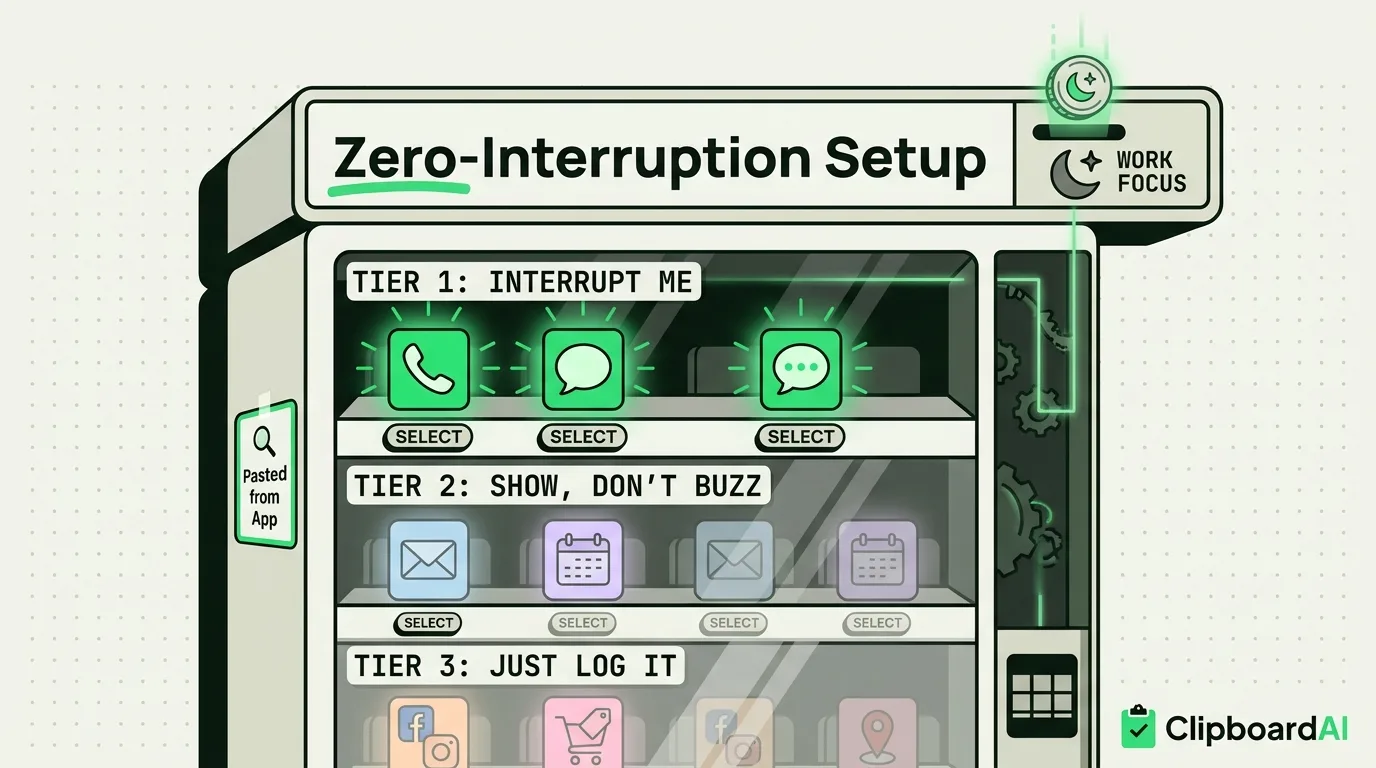
The Bottom Line
The two extremes people try, turning off all notifications or leaving everything on default, both fail. All-off means missing things you actually need. Default-on means fifty interruptions a day, most of them low-value. The fix is sorting apps into three tiers based on how urgently you actually need to see them, then configuring iOS's per-app notification settings to match.
The Three-Tier System
| Tier | Behavior | Typical apps | How to set it |
|---|---|---|---|
| Tier 1: Interrupt me | Sound + banner + lock screen | Phone, Messages from real people, your work chat app | Settings > Notifications > [app] > Allow Notifications on, Sounds on, Banner Style "Persistent" |
| Tier 2: Show me, don't buzz me | Banner only, no sound | Email, calendar, delivery tracking | Same screen, turn Sounds off, keep banners on |
| Tier 3: Just log it | Notification Center only, no banner, no sound | Social media, games, shopping apps, most app promotions | Turn off "Lock Screen" and "Banners," leave "Notification Center" checked |
Setting this up for every app individually is tedious the first time (expect 20 to 30 minutes for a phone with 60+ apps), but it is a one-time setup, not a recurring task.
Using Focus Modes to Automate the Tiers
iOS Focus modes (Settings > Focus) let you attach different notification rules to different times of day or activities, on top of the per-app tiers above. A "Work" Focus can allow Tier 1 and 2 apps but silence Tier 3 automatically during work hours, then a "Personal" Focus in the evening can loosen things back up. This matters more than most people realize: without a Focus schedule, you are stuck manually toggling settings, and most people give up after a week and let it drift back to default.
Practical setup: create one Focus for "Work" (or "Deep Focus") allowing only Tier 1 apps, and a second for "Wind Down" turning off Tier 2 and 3 in the evening. Schedule both under Settings > Focus > [Focus name] > Smart Activation or manual time windows.
The One Notification Type Worth Knowing About
One notification is easy to dismiss reflexively but worth reading: the "Pasted from [App]" banner that appears when an app reads your clipboard. It exists specifically so you notice when something is silently accessing what you copied. If you see it from an app you were not actively pasting into, that is worth investigating, not swiping away without a glance.
Frequently Asked Questions
How do I stop all notifications except texts and calls on iPhone?
Create a Focus mode (Settings > Focus) that allows only Phone and Messages, then turn it on manually or schedule it. Separately, review Settings > Notifications for any app you never want interrupting you and set it to Tier 3 (Notification Center only) so it stays quiet even outside Focus mode.
What is the difference between turning off notifications and using Focus mode?
Turning off notifications per-app is permanent until you change it again. Focus mode is time-based or context-based, letting the same app interrupt you during work hours but stay silent in the evening, without you touching individual app settings each time.
Why do I still get notifications during Do Not Disturb?
Check Settings > Focus > Do Not Disturb > People and Apps. Contacts or apps marked as allowed exceptions will still notify you. Repeated calls from the same person within three minutes also break through by default unless you turn that off.