
The Bottom Line
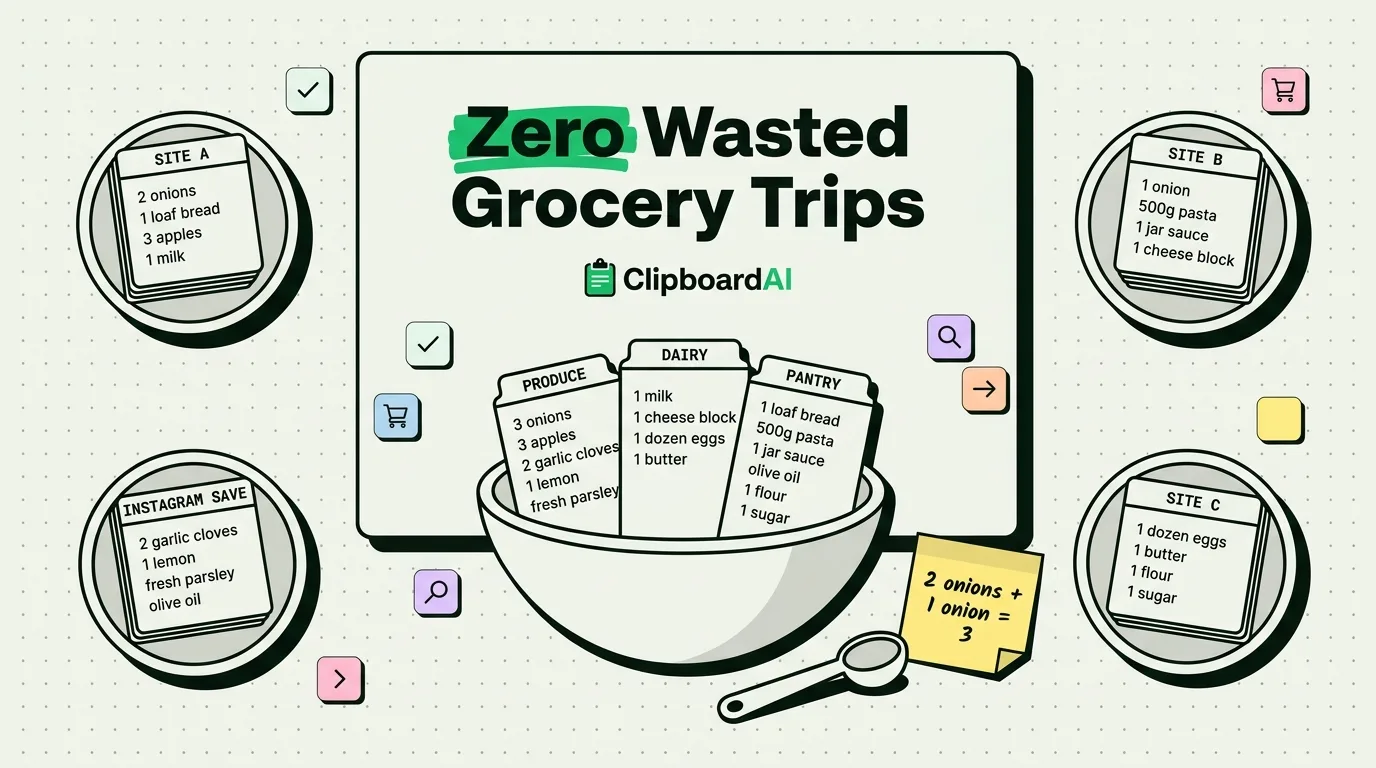
Meal prep breaks down at one specific moment: you find four recipes across three different sites and a saved Instagram post, then try to turn them into a single grocery list without missing an ingredient or buying something twice. iOS's one-item clipboard makes this worse, not better, because copying the second recipe's ingredient list erases the first one before you have pasted it anywhere.
A Recipe-to-Grocery-List Workflow That Actually Works
- Collect first, list second. Go through all your recipes for the week and copy each ingredient list as you find it, without stopping to build the grocery list yet. This only works if something is saving each copy instead of overwriting it, which is where a clipboard history matters. With ClipboardAI, every ingredient list you copy stacks up in order instead of disappearing.
- Paste them all into one note. Once you have all four or five recipes copied, paste them one after another into a single Notes entry or your grocery app of choice. Now you are looking at everything at once instead of tab-switching back and forth.
- Consolidate duplicates manually. No app safely automates "you need 2 onions for recipe A and 1 for recipe C, so buy 3 total," because ingredient phrasing varies too much between sites. Scan the combined list once and merge the obvious repeats (garlic, olive oil, onions) yourself.
- Reorder by store layout. Cut and paste category headers (Produce, Dairy, Pantry) above the relevant items so the list matches how you actually walk the store, rather than the order recipes happened to list ingredients.
Capturing Recipes Without Losing the Source
A common annoyance: you copy the ingredient list but lose track of which recipe it came from, so you cannot find the instructions again at cook time. Two fixes that actually hold up:
- Paste the source URL right after the ingredients. A clipboard manager with history means you can copy the page link separately, right after copying the ingredient text, and paste both together.
- Use Safari's Reader mode + Share > Add to Notes if you want the full recipe (not just ingredients) saved as a static copy you can find later, independent of whether the site changes or takes the recipe down.
Snippets Worth Pinning If You Meal Prep Weekly
If you repeat the same base recipes often, pin these in your clipboard manager instead of re-copying them every week:
- Your standard "base" grocery list (staples you always need: eggs, milk, rice)
- A go-to substitution note (e.g., "swap Greek yogurt for sour cream, 1:1")
- The store's specific aisle layout if you have it memorized as a note
Where This Approach Falls Short
Merging quantities across recipes still takes a human glance. No clipboard tool understands that "1 cup diced tomatoes" and "one 14oz can of tomatoes" are close enough to combine. Treat the copy-paste workflow as removing the tedious re-typing and app-switching, not as full meal-planning automation.
Frequently Asked Questions
How do I combine ingredient lists from multiple recipes on iPhone?
Copy each recipe's ingredient list into a clipboard manager with history so nothing gets overwritten, then paste them all into one note and manually merge duplicate items, since quantity phrasing varies too much for automatic merging.
Can I copy a recipe and its source link at the same time on iPhone?
Not in a single copy action, but a clipboard manager with history lets you copy the ingredients, then copy the URL right after, and paste both together when you build your grocery list.
Does ClipboardAI organize grocery lists automatically?
It keeps a searchable, chronological history of everything you copy and lets you pin frequently used snippets, but it does not automatically merge or categorize ingredient quantities. That step still needs a quick manual pass.