
The Short Version
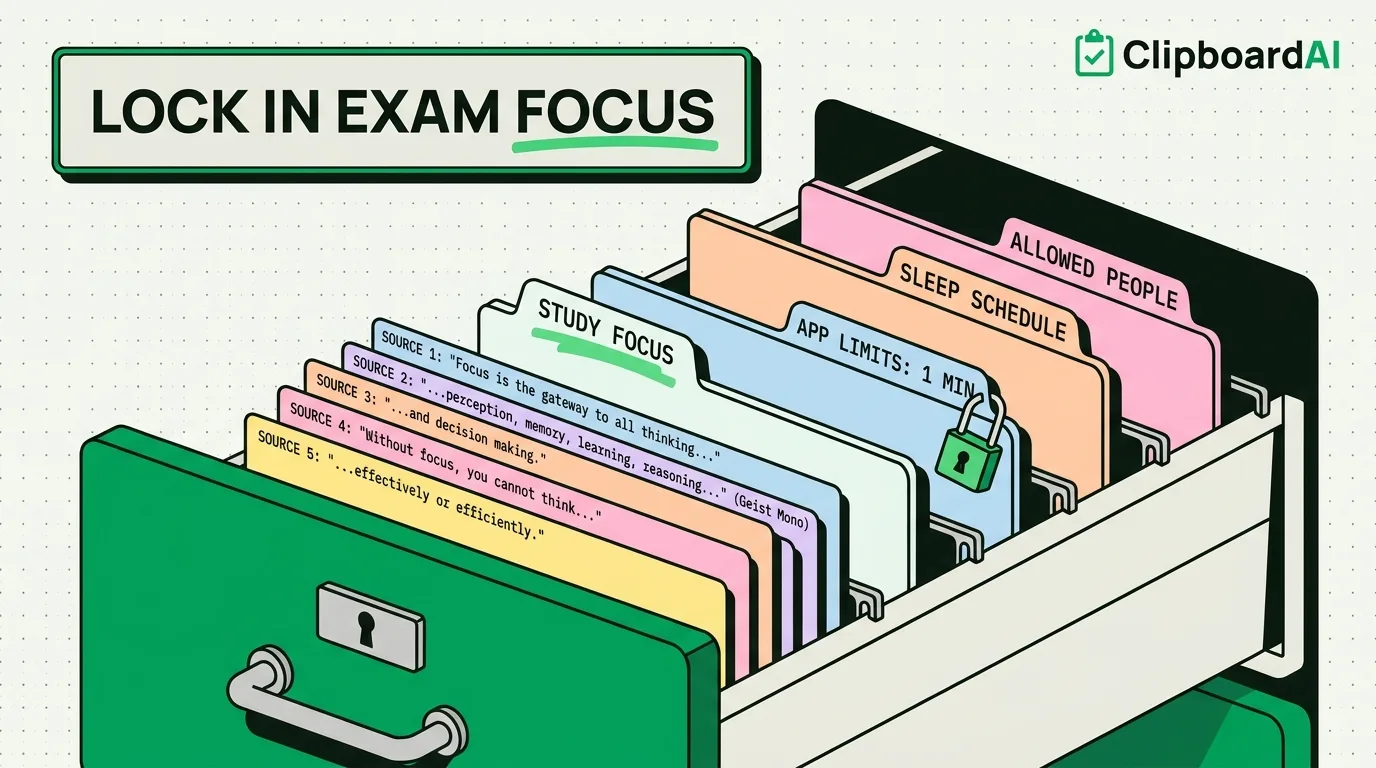
The fastest way to cut phone distractions during exam prep is a dedicated Focus Mode that blocks everything except a short allow-list, combined with App Limits as a hard backstop for the apps you do need. Below is the exact setup, not just "turn on Do Not Disturb."
Set Up a Dedicated "Study" Focus (5 Minutes)
- Go to Settings > Focus > + and choose Custom, name it "Study."
- Under People, allow only contacts who might have a real emergency (parents, roommate); everyone else gets silenced.
- Under Apps, allow only what studying actually requires (Notes, a specific study app, Calculator). Leave everything else, especially social and messaging apps, off the allow-list.
- Tap Focus Status and enable "Share Focus Status" so people who message you see you're in Study mode instead of assuming you're ignoring them.
- Under Home Screen, choose to dim or hide app badges and notification-heavy pages so you're not tempted by red dots when you unlock the phone for a legitimate reason.
Backstop With App Limits and Downtime
Focus Modes are opt-in; you can turn Study off mid-session. Screen Time's App Limits add friction to prevent that: Settings > Screen Time > App Limits > select your top distraction apps (social, games, messaging) > set a very low daily limit (1 minute is a common trick to make the limit a hard stop, not a real allowance). Add a Screen Time passcode different from your device passcode, and have someone else (a parent, partner, or roommate) hold it, so you cannot simply extend the limit yourself mid-exam-week.
Automate It for Exam Week
Set the Study Focus to activate on a schedule (Settings > Focus > Study > Smart Activation, or a manual time window) covering your actual study blocks, rather than remembering to toggle it every session. For a full exam week, this removes the daily "should I turn this on" decision entirely.
Where a Clipboard Manager Fits Into Studying
Research and note-taking for exams often involves copying multiple sources: a definition, a citation, a page number, in quick succession, and iPhone's single-item clipboard overwrites each one as you copy the next. If you're pulling quotes or data points from multiple sources into a study guide, ClipboardAI keeps a running history so you can copy five sources in a row from a textbook PDF or website, then paste all five into your notes at once instead of switching back and forth after every single copy.
Common Problems and Fixes
Focus Mode turns itself off unexpectedly: Check whether you have a Smart Activation schedule that's conflicting with a manual toggle, or whether another automation (a Shortcut, a calendar-based Focus trigger) is overriding it.
Notifications still come through during Study Focus: Double-check the app is not on your allowed People or Apps list, and that "Time Sensitive Notifications" is not set to bypass Focus for that specific app under Settings > Notifications > [app].
You keep disabling App Limits yourself: This means the friction is too low. Increase it by having someone else hold the Screen Time passcode, or move the distracting app off the home screen entirely during exam week.
Frequently Asked Questions
What's the difference between Focus Mode and App Limits for studying?
Focus Mode silences notifications and hides distracting apps from view but can be turned off instantly by you. App Limits add a specific time restriction per app that requires an extra confirmation (or a passcode someone else holds) to bypass, making it a stronger commitment device.
Can I let emergency contacts through during Study Focus?
Yes. Add specific people to the "People" allow-list when setting up the Focus so their calls and messages still come through while everyone else is silenced.
Does Focus Mode block apps completely or just notifications?
By default, Focus Mode only silences notifications; the apps are still on your phone and open normally if you tap them. To actually restrict app access, you need to combine it with Screen Time App Limits or Downtime.