
The Short Version
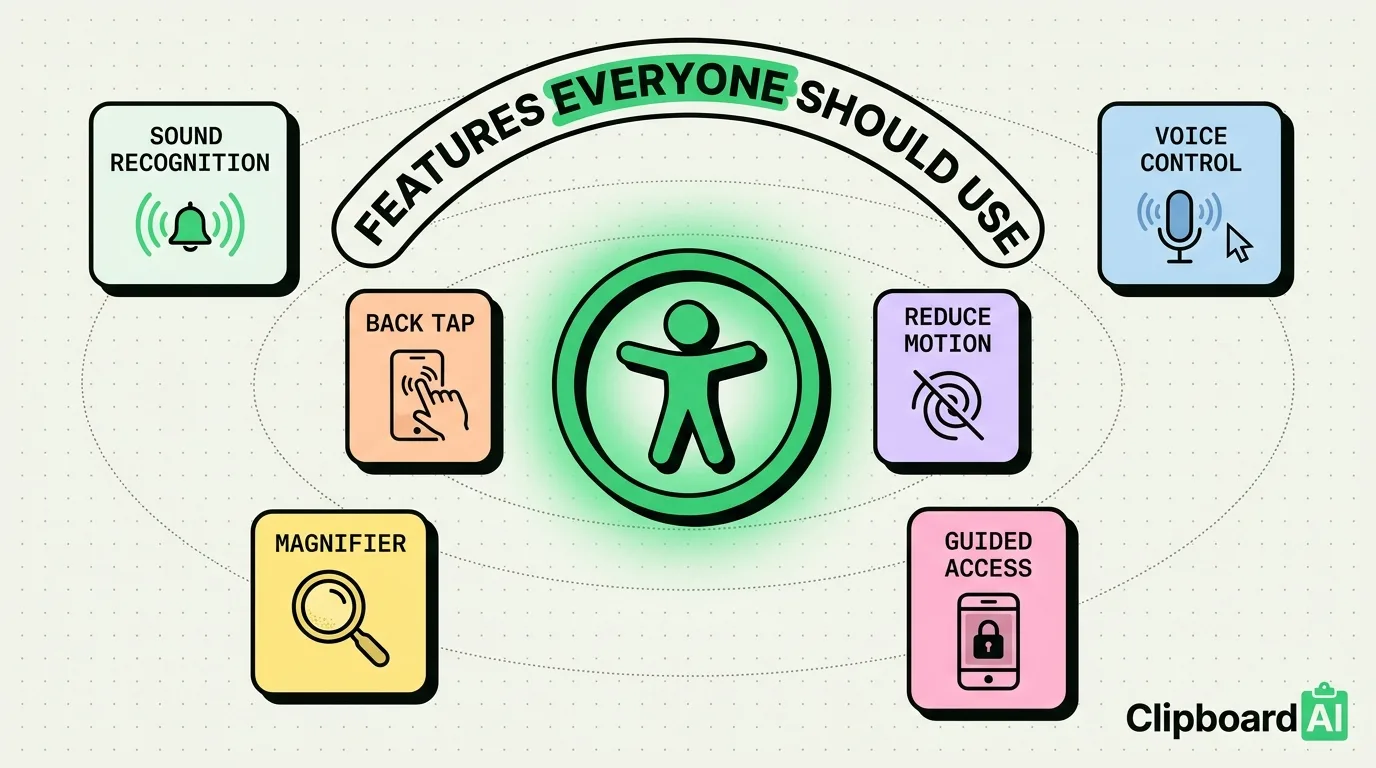
Apple's Accessibility settings menu includes features built for specific needs (low vision, motor impairment, hearing loss) that quietly solve everyday annoyances for anyone. Below are six that are worth turning on regardless of why they were originally designed, with the exact settings path for each.
Three Worth Trying First
- Back Tap for one-tap actions without reaching for a button.
- Reduce Motion for less battery drain and fewer distracting animations.
- Sound Recognition for catching doorbells or alarms you'd otherwise miss with headphones in.
The Full List
1. Back Tap: Settings > Accessibility > Touch > Back Tap
Double-tap or triple-tap the back of your iPhone to trigger an action: screenshot, Control Center, mute, or a Shortcut. This is genuinely useful for anyone who wants a screenshot shortcut faster than the button combo, not just users who have difficulty with the physical buttons.
2. Reduce Motion: Settings > Accessibility > Motion > Reduce Motion
Turns off the parallax and zoom animations between apps and screens. Built for people sensitive to motion, but it also makes the interface feel snappier and can measurably reduce battery use from constant animation rendering, useful for anyone trying to stretch a charge.
3. Sound Recognition: Settings > Accessibility > Sound Recognition
iPhone listens for specific sounds (doorbell, smoke alarm, crying baby, running water) and sends a notification when it detects one. Designed for users who are deaf or hard of hearing, but equally useful for anyone wearing noise-canceling headphones who wants to still catch a doorbell.
4. Voice Control: Settings > Accessibility > Voice Control
Full hands-free control of the phone by voice, including numbered overlays on tappable elements. Useful any time your hands are occupied (cooking, driving passenger seat, holding a baby) not just for users with motor impairments.
5. Magnifier: Settings > Accessibility > Magnifier (or add to Control Center)
Uses the camera as a zoomable magnifying glass with adjustable contrast and brightness. Handy for reading small print (menus, medication labels, serial numbers) even with normal vision in poor lighting.
6. Guided Access: Settings > Accessibility > Guided Access
Locks the phone to a single app and disables specific buttons or screen regions. Built for users with cognitive or attention differences, but also a genuinely effective way to hand your phone to a kid to watch one video without them wandering into other apps or your messages.
Setup Notes
None of these require a paid app or a jailbreak, they are already on your phone. Start with Back Tap and Reduce Motion since they take under a minute each to configure and the benefit is immediate. Add Sound Recognition next if you regularly wear headphones at home.
Frequently Asked Questions
Do I need a disability to use Accessibility features?
No. Apple designs these for specific needs, but the settings are available to every iPhone user and many, like Back Tap and Reduce Motion, are broadly useful regardless of the reason you turn them on.
Will Sound Recognition drain my battery?
It runs a lightweight on-device listening process, similar in impact to always-on Siri detection. Most users do not notice a meaningful battery difference, though heavy multitasking with many background processes active will compound faster on older devices.
Can I undo these settings if I don't like them?
Yes, every setting listed here is a simple toggle in Settings > Accessibility and can be turned off instantly with no side effects.