
The Short Version
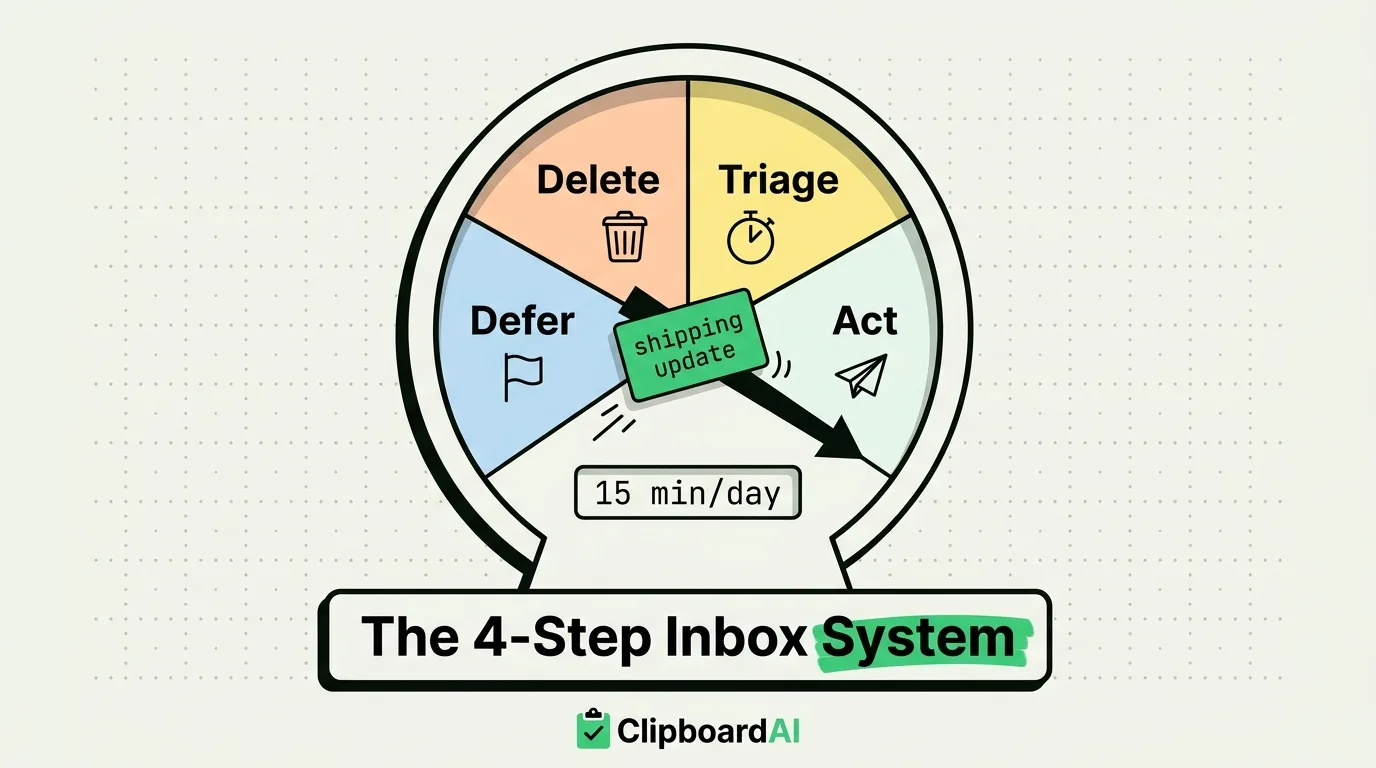
Inbox Zero on iPhone is not about having zero unread emails at all times, it is a 4-step processing loop you run each time you open Mail: Triage, Act, Defer, or Delete. Every message gets exactly one of those four decisions the moment you read it, so nothing gets re-read three times before you act on it.
The 4-Step System
| Step | What it means | iPhone action |
|---|---|---|
| 1. Triage | Decide in under 10 seconds: does this need a reply, or is it noise? | Swipe left on anything that is not actionable and tap the trash or archive icon. Set these swipe actions in Settings > Mail > Swipe Options. |
| 2. Act | If the reply takes under two minutes, send it now instead of postponing it. | Reply directly from the message view. If you find yourself typing the same reply repeatedly, pin it as a saved snippet in a clipboard manager instead of retyping it. |
| 3. Defer | If it needs more than two minutes of work, get it out of the inbox but keep it visible for later. | Long-press the message and choose "Remind Me Later," or flag it. Use one Focus Filter view for flagged mail so deferred items do not mix with new mail. |
| 4. Delete or Archive | Once handled, it leaves the inbox permanently. | Swipe to archive rather than leaving read mail sitting in the inbox as a false sense of "still there, still relevant." |
Where a Clipboard Manager Actually Helps
The "Act" step is where most people quietly abandon Inbox Zero, because typing the same answer over and over (a shipping update, a scheduling link, a policy explanation) is slower than it should be, so messages pile up as "I'll answer this properly later." A clipboard manager fixes exactly this part: instead of retyping or hunting through old sent mail to find your last version of an answer, keep 3-5 pinned replies saved in ClipboardAI and paste one in seconds. On iPhone, that means switching to the ClipboardAI keyboard (enabled with Full Access) inside the Mail compose screen; on Mac, Cmd-Shift-V brings up the floating panel over Mail or any mail client.
Where This System Breaks Down
- It requires a daily minimum session. Skip three days and you are triaging 150 emails at once, which defeats the "10 seconds per message" premise. Fifteen minutes a day beats a Sunday-night catch-up.
- Newsletters and marketing mail need a separate rule, not per-message triage. Unsubscribe or filter these to a folder in bulk (Mail > long-press sender > "Unsubscribe" when Mail detects it), rather than swiping each one individually.
- Shared or team inboxes do not fit this model well. The 4-step loop assumes one person owns every decision; if replies need sign-off from someone else, "Act" often has to become "Defer" by default.
Frequently Asked Questions
Does Inbox Zero mean zero unread emails?
No. It means every email in the inbox has been triaged into one of four states (acted on, deferred with a reminder, deleted, or archived), not that the inbox is literally empty at every moment.
How long does the daily Inbox Zero pass take?
For a typical personal inbox, 10-15 minutes once the swipe actions and pinned reply snippets are set up. The first setup session, configuring swipe actions and pinning template replies, takes longer, usually 20-30 minutes.
Can I use this system with Gmail or Outlook on iPhone?
Yes, the 4-step triage logic works in any mail app. The specific swipe-action setup in this article refers to Apple's built-in Mail app; Gmail and Outlook's iOS apps have their own swipe-action settings menus with similar options.