
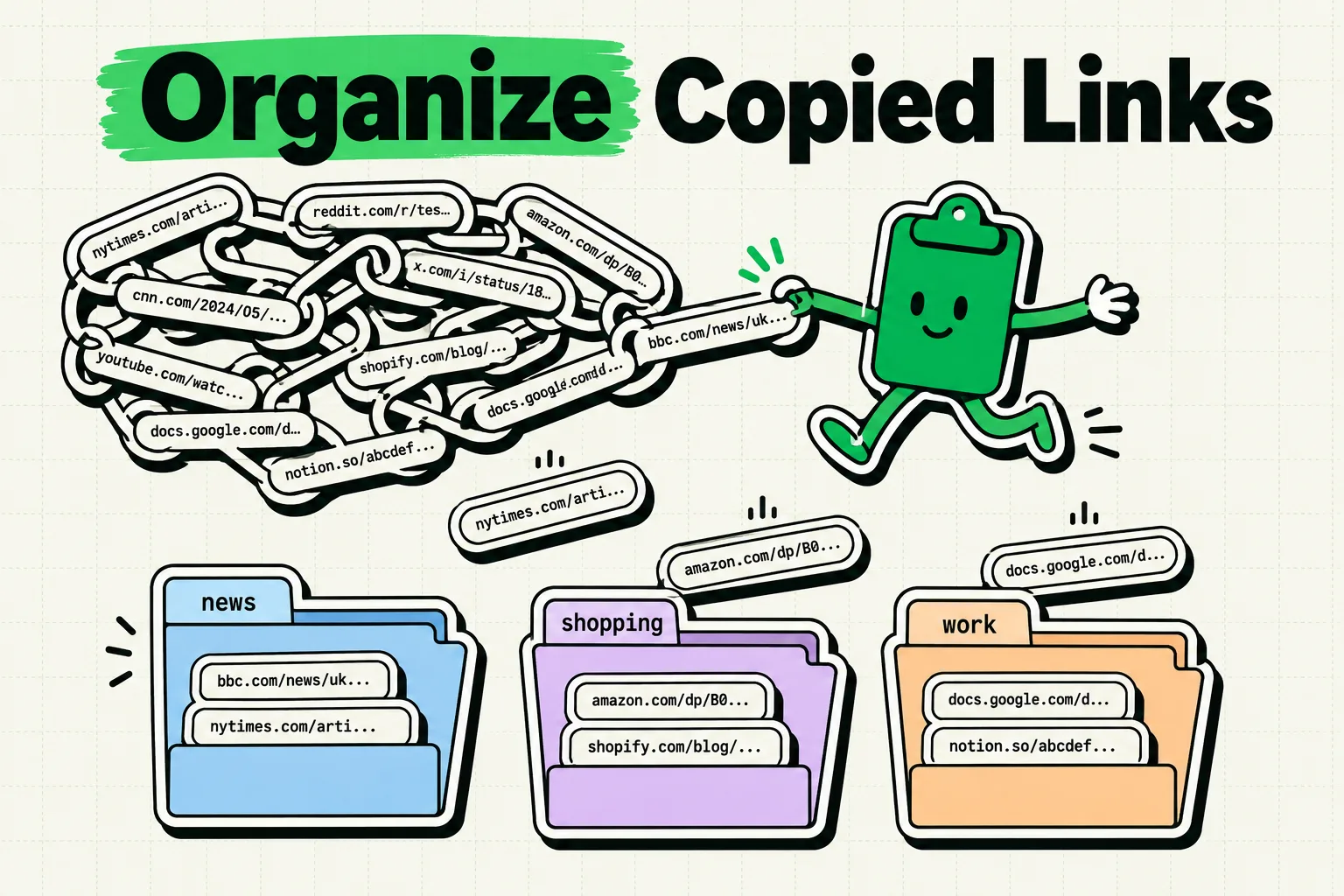
To organize copied links on your iPhone, use a smart clipboard manager like ClipboardAI to automatically capture and categorize every URL you copy. Unlike Safari Bookmarks or Apple Notes, ClipboardAI tracks your copying history in the background, sorting links into a dedicated, searchable list. If you prefer built-in tools, you can use Safari's Reading List or manual Note logs. Below, we explain how to set up an automated link organizer and compare the best approaches.
We have all been there. You are browsing your favorite social media app and find an interesting article. You copy the link, intending to read it later. A few minutes later, your friend sends you a recipe link in iMessage, which you also copy. Next, you copy a shipping address from an email.
By the time you sit down to read that first article, it is gone. iPhone’s native system clipboard only holds one item at a time. The moment you copied the recipe and the address, that original article URL was permanently overwritten.
iPhone users copy dozens of links every single day: retail products, recipes, work documents, social media posts, videos, and reference guides. Yet, iOS provides no built-in clipboard history to recover them. In this guide, we will show you how to break free from this one-item limit, automate your link-saving workflow, and build a searchable link library on your iPhone.
Why Built-In iOS Tools Fall Short for Link Management
When it comes to organizing links on iOS, the default options require too much manual effort. Let's look at why standard workflows often fail.
The Limits of Safari Bookmarks
Safari bookmarks are designed for desktop-style browsing, not mobile multitasking:
- App Silos: You can only bookmark pages currently open inside Safari. If you copy a link from Slack, Twitter/X, or Gmail, you must open it in Safari first before bookmarking it.
- Too Many Taps: Saving a bookmark requires tapping the Share button, selecting "Add Bookmark", choosing a folder, editing the name, and tapping "Save". It is a slow, high-friction process.
- Manual Organization: Bookmarks do not categorize themselves. If you do not actively sort them into folders, your bookmark list quickly becomes a graveyard of dead URLs.
Safari Reading List: Better, But Still Friction-Heavy
The Reading List is slightly more convenient than traditional bookmarks, but it still requires manual steps:
- You have to open the link in Safari first.
- You must manually add it to the Reading List.
- It does not index content by where you copied it from, and searching through hundreds of saved items is notoriously clunky.
How to Automate Link Organization with ClipboardAI
Instead of changing how you browse or forcing you to manually save links, a clipboard manager runs alongside your daily workflow. Every time you copy a URL - from Safari, YouTube, Instagram, or email - it is instantly saved to your clipboard database.
Here is how to set up an automatic link organization system using ClipboardAI:
1. Enable Clipboard Capture
Install ClipboardAI and give the app permission to monitor your copied items.
Under Apple's strict privacy rules on iOS, clipboard managers cannot run silently in the background reading your clipboard without your consent. ClipboardAI works by capturing your clipboard history when you open the app or when you use the custom ClipboardAI keyboard to paste.
2. Copy Links Normally
You do not need to change your habits. Tap and hold any URL, then tap Copy. Or, tap the share icon on a page and select Copy Link. ClipboardAI will instantly register the URL, detect that it is a web link, and automatically tag and categorize it as a Link.
3. Open the "Links" View
Open ClipboardAI. Instead of scrolling through a cluttered list of mixed text, phone numbers, and images, tap the Links filter. You will find a clean, chronological list of every URL you have copied, complete with page titles, website icons, and exact timestamps.
4. Pin Your High-Priority Links
If you have a link you need to access repeatedly - like a flight itinerary, a project document, or a zoom room link - swipe right on the item and tap the Pin icon. This locks the link to the top of your list so it is never pushed down by newer copies.
5. Search Your Copied History
Need to find a link you copied last Tuesday? Tap the search bar and type a keyword (e.g., "recipe" or "amazon"). ClipboardAI indexes both the URL path and the page title, letting you pull up matching links in milliseconds.
Method Comparison: How Should You Save Links?
To help you decide which method fits your workflow, we compared the five most common ways to manage copied URLs on an iPhone:
| Feature | Safari Bookmarks | Safari Reading List | Apple Notes | Pocket / Instapaper | ClipboardAI |
|---|---|---|---|---|---|
| Capture Friction | High (5 taps) | Medium (3 taps) | High (Requires pasting) | Medium (Share sheet) | Zero (Auto-captures copy) |
| Source App | Safari only | Safari only | Any app | Any app (via Share) | Any app |
| Categorization | Manual folders | None | Manual | Automatic tags | Smart Auto-Categorizing |
| Searchability | Poor | Poor | Fair | Good | Excellent (Title + URL) |
| iCloud Sync | Yes | Yes | Yes | Third-party cloud | Yes (Secure iCloud) |
| Best For | Desktop bookmarks | Offline articles | Curated reference notes | Long-form reading | Daily multitasking & research |
3 Practical Link-Saving Workflows for iPhone Power Users
Once you have a clipboard manager organizing your links, you can implement these workflows to save hours of digital housekeeping.
Workflow A: The "End of Day" Link Triage
Throughout the day, copy every interesting article, YouTube video, and shopping link you come across. Do not open them immediately or get distracted from what you are doing. At the end of the day, open ClipboardAI, review your Links category, open what you want to read, pin items for long-term reference, and delete the temporary clutter.
Workflow B: The Shopping Comparison Matrix
When comparing products across different stores:
- Copy the URL of each product option.
- Open ClipboardAI and find them grouped together in your Links list.
- Select the checkmarks next to these links and export them directly into a single Apple Note or a Slack message to share with a partner.
Workflow C: Travel Planning Hub
If you are planning a trip, copy URLs for hotels, flights, and restaurants. In ClipboardAI, pin these travel links to the top. When you are standing in the airport or checking in at the hotel lobby, you do not have to dig through emails; simply open your pinned clips, tap the URL, and access your booking page instantly.
Honest Caveats & System Limitations
While clipboard link organization is incredibly powerful, Apple’s iOS environment imposes a few limitations you should be aware of:
- iOS Paste Banners: Since iOS 14, Apple displays a brief banner notification whenever an app reads data from the system clipboard. To minimize these notifications, ClipboardAI uses optimized local checks to verify if the clipboard content has changed before pulling the link.
- Temporary & Session-Based URLs: Some links contain temporary session IDs (like password reset URLs or shopping cart states). While the clipboard manager will store the URL accurately, the destination website may invalidate the session after a few minutes, rendering the saved link expired.
- Tracking Parameters: Websites often append long tracking tags to URLs (such as
?utm_source=twitter&utm_medium=social...). When you copy these links, the tracking text is copied too. ClipboardAI includes a cleaning feature to strip these parameters, giving you clean, short URLs.
Frequently Asked Questions
How do I recover a link I copied but forgot to paste?
If you have a clipboard manager like ClipboardAI installed prior to copying, simply open the app and tap the "Links" category to find your full history. If you are using stock iOS without a clipboard manager, the link is permanently lost once you copy something else.
Can I search for links inside my clipboard history?
Yes. With ClipboardAI, you can search using keywords, domains (like "youtube.com"), or words contained within the website's title.
Does ClipboardAI support iCloud Sync?
Yes. Links copied on your iPhone are securely synchronized via iCloud and will instantly appear in the ClipboardAI app on your iPad and Mac.
Will saving links drain my iPhone’s battery?
No. ClipboardAI operates locally and only runs when triggered by a copy event, a paste event, or when you manually open the app. It does not run background processes that drain your battery.