
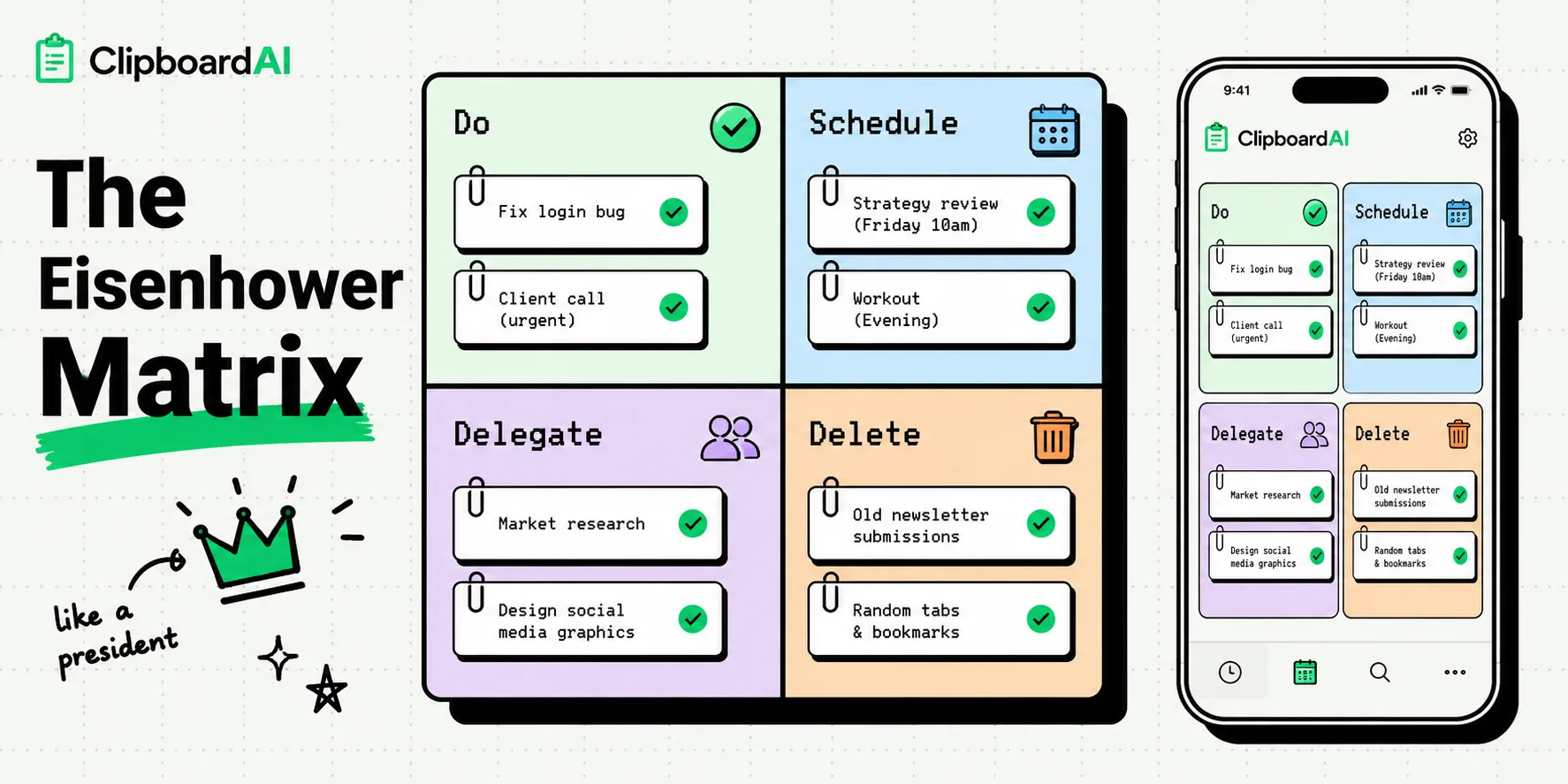
To use the Eisenhower Matrix on your iPhone, set up four distinct lists in Apple Reminders: 1. Do (Urgent & Important), 2. Schedule (Not Urgent & Important), 3. Delegate (Urgent & Not Important), and 4. Delete (Not Urgent & Not Important). Organizing your tasks into these four quadrants helps you prioritize daily workloads, make fast decisions, and manage your focus directly from home screen widgets.
Standard to-do lists are linear. They present tasks in a single flat list, which treats a high-value client proposal the same as replying to a casual text message. This layout often leads to choice paralysis, where you complete easy, low-value tasks just to cross them off, while important, long-term work is neglected.
The Eisenhower Matrix solves this problem by filtering tasks through two criteria: Urgency and Importance. This creates a four-quadrant priority system that guides your focus. By setting up this framework on your iPhone, you can quickly filter incoming tasks and manage your time.
The Four Quadrants Explained
The matrix divides your work into four categories, each requiring a different management action:
                  URGENT                     NOT URGENT
         ┌───────────────────────────┬───────────────────────────┐
         │       QUADRANT 1          │       QUADRANT 2          │
         │          DO               │        SCHEDULE           │
         │                           │                           │
IMPORT-  │  • Crisis management      │  • Long-term planning     │
 ANT     │  • Pressing deadlines     │  • Skill development      │
         │  • Client emergencies     │  • Relationship building  │
         ├───────────────────────────┼───────────────────────────┤
         │       QUADRANT 3          │       QUADRANT 4          │
         │       DELEGATE            │         DELETE            │
         │                           │                           │
NOT      │  • Booking travel         │  • Social media browsing  │
IMPORT-  │  • Sorting inbox email    │  • Sorting cluttered files│
 ANT     │  • Repetitive data entry  │  • Unproductive habits    │
         └───────────────────────────┴───────────────────────────┘
Method 1: The Native Apple Reminders Configuration
You do not need to buy a task manager app to use the Eisenhower Matrix. Apple's built-in Reminders app is fully equipped to handle this workflow.
Step-by-Step Instructions:
- Open the Reminders app on your iPhone.
- Tap Add List in the bottom-right corner.
- Create four separate lists, using color tags for visual clarity:
- 1. Do (Urgent & Important) - Color: Red
- 2. Schedule (Not Urgent & Important) - Color: Orange
- 3. Delegate (Urgent & Not Important) - Color: Blue
- 4. Delete (Not Urgent & Not Important) - Color: Gray
- Put these lists into a single folder: Tap and hold on one list, drag it over another, name the folder "Eisenhower Matrix," and drop the remaining lists inside.
- Add a Home Screen Widget: Go to your Home screen, tap and hold the background, tap the "+" icon, select Reminders, and choose the medium or large widget. Set it to display your "Do" list so your highest-priority tasks are always visible.
Method 2: Re-evaluating Q3 (Delegation) as Automation
If you are an individual contributor, freelancer, or student, you may find Quadrant 3 (Delegate) difficult to use because you do not have staff to hand tasks off to.
You can adapt this quadrant by reinterpreting "Delegation" as Automation. Tasks in this category are urgent but low-value - such as sorting invoices, copying customer addresses, or scheduling meetings.
How to Automate:
- Meeting Bookings: Replace manual scheduling emails by pasting a scheduling link (such as Calendly) into your shortcuts.
- Information Sorting: Use ClipboardAI's sequential paste features. Instead of copy-pasting customer details one-by-one from emails into a spreadsheet, copy the whole text block, and let ClipboardAI parse the fields to fill the forms automatically.
Task Management Tool Comparison Matrix
Here is how the leading iOS task managers compare when setting up the Eisenhower Matrix:
| Task App | Custom Lists / Groups | Smart Tag Filters | Widget Layout Options | Sharing & Delegation | Price |
|---|---|---|---|---|---|
| Apple Reminders | Yes (Folders) | Yes (Custom Smart Lists) | Grid & Single List Views | Yes (iCloud Shared Lists) | Free |
| Things 3 | Yes (Areas of Focus) | No (Manual tags only) | Clean, Compact | No (Local Sync Only) | $9.99 (One-time) |
| Todoist | Yes (Projects) | Yes (Custom Filter Syntax) | Rich Customization | Yes (Shared Projects/Teams) | Free / $48/yr |
| Notion | Yes (Board views) | Yes (Database views) | Custom Blocks | Yes (Real-time collaboration) | Free / Premium |
Honest Caveats: The Over-Planning Pitfall
While the Eisenhower Matrix is an excellent sorting framework, keep these practical limitations in mind:
1. The Productivity Theater Trap
It is easy to spend 45 minutes categorizing, styling, and color-coding your tasks across the four quadrants without actually completing any work. The matrix is a tool to guide action, not a replacement for it. If sorting takes more than 10 minutes of your morning, simplify your list structure.
2. The Quadrant 2 Neglect
Quadrant 2 (Not Urgent & Important) contains long-term, high-value tasks like skill development, relationship building, and strategic planning. Because these tasks have no immediate deadlines, they are frequently pushed aside by Q1 emergencies or Q3 distractions. Protect your Q2 tasks by scheduling dedicated blocks on your calendar.
3. Sync and Widget Refresh Delays
If you use third-party apps for your matrix, iOS widget refreshing rules can cause display delays. A task completed on your Mac might still show up on your iPhone home screen widget for several minutes, causing minor visual desyncs. Use native systems if real-time updates are critical.