
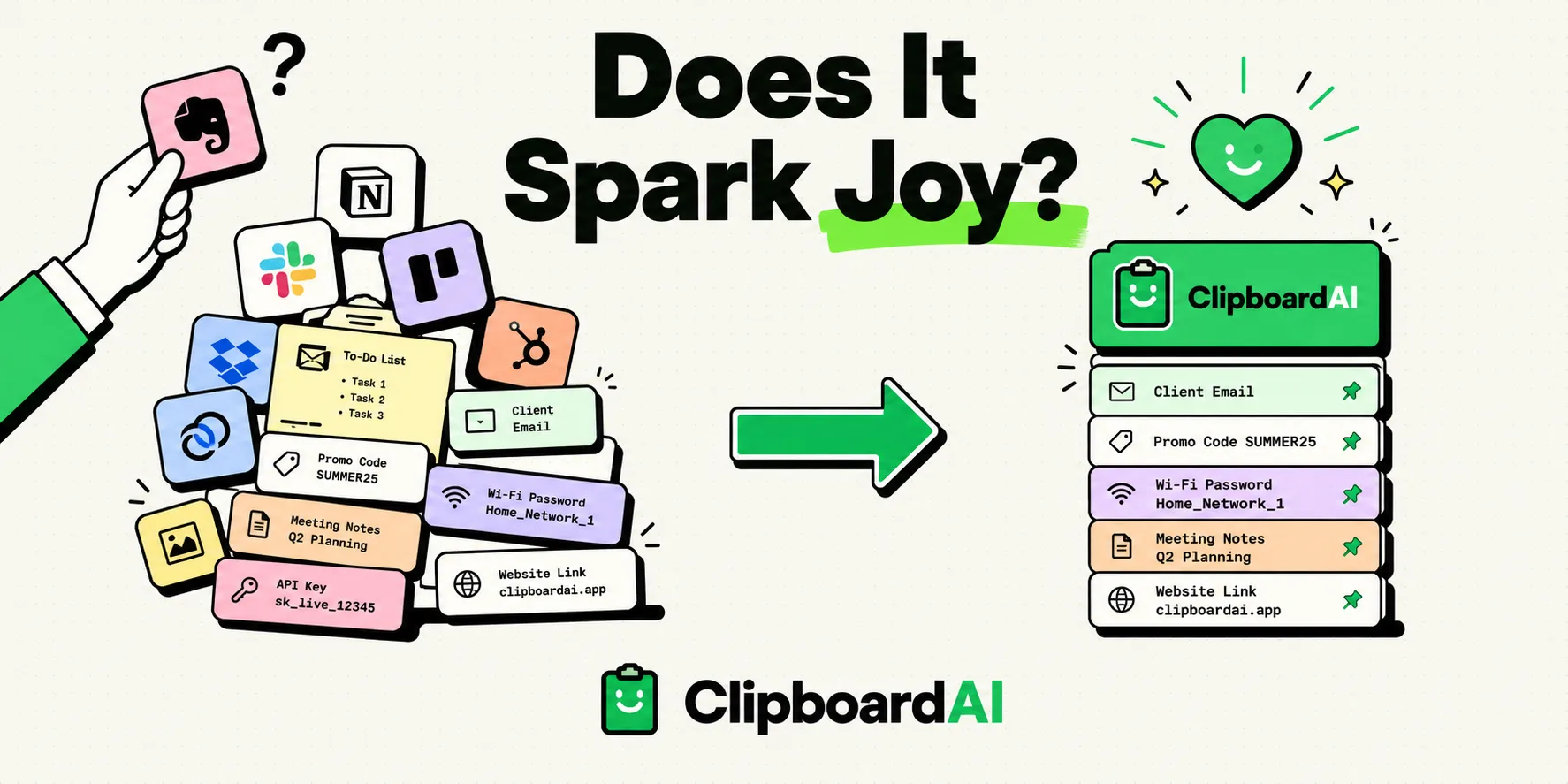
To declutter your iPhone using the Marie Kondo method, audit your apps and keep only those that are useful or "spark joy." Group remaining apps by function, move secondary utilities to the App Library, clear your photo roll of screenshots, and mute non-essential notifications. Consolidating your daily copy-paste scraps into a single smart clipboard manager prevents digital hoarding, leaving you with a clean, intentional mobile workspace.
Digital clutter is the modern equivalent of a messy closet. Because storage on our phones is cheap and virtual, we do not notice the accumulation of digital junk. We download apps we use once, save screenshots of recipes we never cook, and keep thousands of text scraps in our notes apps "just in case."
This accumulation creates a subtle, constant cognitive load. Every time you unlock your phone, the visual noise of unorganized folders and notification badges competes for your focus. Applying the principles of Marie Kondo’s KonMari method - specifically sorting by category, discarding items with gratitude, and creating intentional storage systems - can transform your iPhone into a calm, focused workspace. Here is our 5-step digital decluttering guide.
Step 1: The App Audit (Does It Spark Joy or Utility?)
The KonMari method starts with discarding. To declutter your apps, do not go folder by folder. Instead, look at your phone as a single collection.
- Review your app list: Go to Settings > General > iPhone Storage to see a list of every app installed on your phone, sorted by size and the date last used.
- Discard the unused: If you see an app you have not opened in the last three months, tap it and select Delete App. If you are holding onto it for a hypothetical scenario, delete it anyway - you can reinstall it in seconds if the need arises.
- Move to the App Library: For utility apps you need but do not use daily (such as insurance portals, airline apps, or smart home settings), remove them from your Home screen. Tap and hold the app icon, select Remove App, and tap Remove from Home Screen. This keeps the app searchable in your App Library without cluttering your home workspace.
Step 2: The Photos & Screenshots Cleanse
Our photo libraries are often cemeteries for temporary information. We take screenshots of maps, receipts, product barcodes, and text blocks, which then sit in our camera roll forever.
- Navigate to the Photos app and scroll down to the Media Types menu.
- Select Screenshots.
- Tap Select in the top-right corner, select all outdated utility screenshots, and tap the Trash icon.
- Go to Albums > Recently Deleted and clear the trash bin to free up on-device storage.
- The Prevention Habit: For temporary visual information (like copying a tracking number off a receipt), use Live Text to extract the data immediately to your clipboard, and delete the photo right away instead of saving it.
Step 3: Notification Minimalism
Notifications are uninvited guests commanding your attention. If you let every app send you alerts, your lock screen becomes a constant distraction.
- Go to Settings > Notifications.
- Tap each app and evaluate its alerts.
- Turn off alerts for non-human apps: If the app is a shopping portal, a game, or a news channel, toggle off Allow Notifications completely.
- Use Scheduled Summary: For apps that provide useful but non-urgent alerts (like news updates or social digests), set them to Scheduled Summary. This bundles their notifications into a single digest delivered at a time you choose (e.g., 8:00 AM and 6:00 PM), keeping your screen silent during work hours.
Step 4: The Notes & Clipboard Purge
Many users treat their Apple Notes app as a junk drawer, creating hundreds of scratchpad notes containing copied URLs, shopping lists, flight details, and quick ideas.
To clean this area:
- Open your Notes app and delete all temporary scratch notes.
- Move persistent resources (like work templates or emergency contacts) into structured folders.
- Use a Clipboard History Manager: Instead of creating a new note every time you need to copy-paste data between apps, let a clipboard manager handle your history. ClipboardAI records your copy feed automatically. You can set the history database to auto-delete entries after 30 days, the shortest window ClipboardAI offers. This keeps your temporary text scraps self-cleaning, preventing notes folder clutter.
The KonMari Digital Declutter Checklist
Use this checklist to complete your digital decluttering session:
| Step | Target Area | Action to Take | Joy/Utility Evaluation | Prevention Habit |
|---|---|---|---|---|
| 1 | Apps | Delete unused; archive utilities to App Library | Keep only daily tools on Home Screen | Keep Home Screen to one page of apps |
| 2 | Photos | Delete utility screenshots and duplicate pictures | Keep only personal memories and art | Use Live Text OCR; delete images immediately |
| 3 | Notifications | Mute news, shopping, and game alerts | Allow only real-person messages to ping | Use iOS Scheduled Summary for news digests |
| 4 | Notes | Delete old scratchpads; structure work folders | Keep only active references | Use a self-cleaning clipboard feed |
| 5 | Cloud Files | Purge duplicate documents and downloads | Organize folders by project | Clean the Downloads folder weekly |
Honest Caveats: The Digital Hoarding Rebound
The hardest part of decluttering is preventing the clutter from returning. Unlike physical items, digital clutter is invisible, meaning we default back to hoarding behavior quickly.
- iCloud Storage Pitfall: Deleting apps from your phone screen does not automatically delete their backups or cache directories from your iCloud storage. To free up actual cloud space, go to Settings > Apple ID > iCloud > Manage Account Storage and delete old app backups manually.
- Verify Before Purging: When setting your clipboard history to auto-delete or purging your Notes inbox, ensure you have pinned or exported critical items (like tracking numbers, client details, or travel tickets). Once purged from local RAM or trash folders, this data is gone.
- The "Just in Case" Trap: Recognize when you are keeping text fragments out of anxiety. If a link or note has not been read or edited in six months, let it go with gratitude - the internet is searchable, and you can likely find the resource again if needed.