
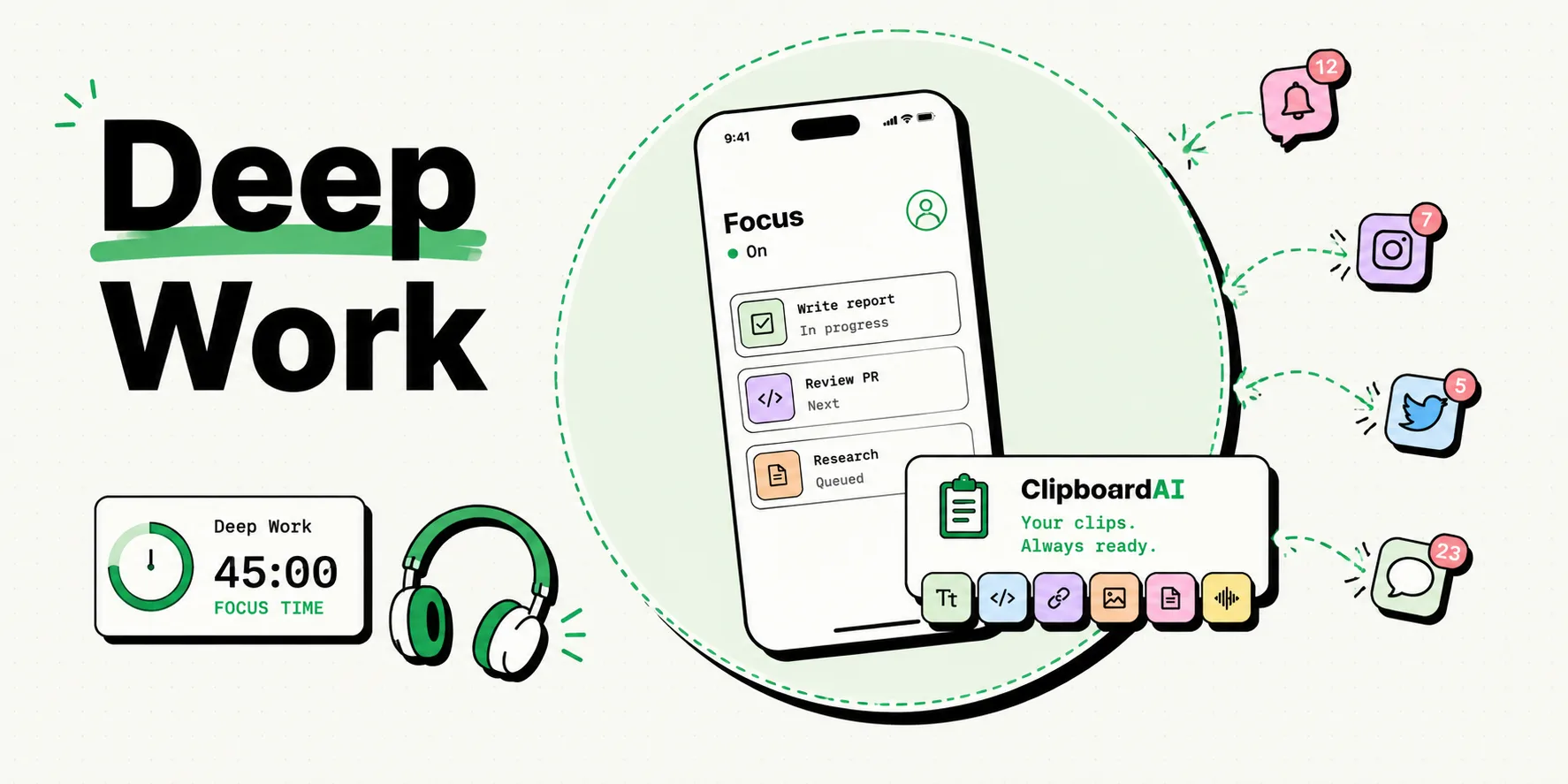
To eliminate distractions and configure your iPhone for deep work, set up custom Focus Modes under Settings > Focus. Create a dedicated profile that silences all social media and communication alerts, allows notifications only from critical contacts, and triggers a blank Home screen page. Linking this profile to an automation or a lock screen lets you enter a distraction-free environment instantly when starting deep work sessions.
Modern smartphones are built to capture and monetize your attention. From notification badges to variable-reward feed scrolls, your device is constantly vying for your focus. For writers, developers, designers, and students, a single buzz can break a state of deep work, taking upwards of 20 minutes to rebuild that cognitive momentum.
But you do not need to lock your phone in another room to stay productive. By configuring iOS Focus Modes, Home screen pages, and custom filters, you can turn your iPhone from a source of distraction into a focused work utility. Here is our step-by-step blueprint for building a distraction-free iPhone workspace.
1. Configuring Your Deep Work Focus Mode
The built-in Focus feature in iOS goes far beyond "Do Not Disturb." It allows you to create context-aware system states that change app layouts, silence specific notification channels, and filter incoming communications.
Step-by-Step Focus Setup:
- Open Settings on your iPhone and tap Focus.
- Tap the "+" (Plus) icon in the top-right corner and select Custom.
- Name your Focus "Deep Work," choose a color, and assign an icon (like a book or computer).
- Under Silence Notifications, tap People. Choose Allow Notifications From and select only emergency contacts (like immediate family or key business partners). Toggle off Allow Repeated Calls unless you need emergency access.
- Tap Apps. Choose Allow Notifications From and select only work-critical utilities (such as Calendar, Authenticator, or Slack). Remove all games, social media, and news apps.
- Tap Options below the notification section. Toggle on Dim Lock Screen and toggle off Show on Lock Screen. This turns your lock screen pitch-black and hides silent notifications, removing visual triggers when your phone sits on your desk.
2. Designing a Distraction-Free Home Screen
App designers use bright, high-contrast colors (especially red notification badges) to trigger dopamine loops. To prevent this, you can configure your Focus Mode to show a single, minimal Home screen page when active.
Setting Up a Focused Layout:
- Swipe to your last Home screen page and press and hold on the background.
- Tap the page dot indicator at the bottom of the screen.
- Tap the "+" (Plus) icon to create a blank, clean Home screen page.
- Drag only your primary productivity tools onto this page - such as your notes app, a task manager, and your calculator. Do not add email or Slack icons if possible.
- Tap Done to exit editing mode.
- Return to Settings > Focus > Deep Work.
- Under Customize Screens, tap Choose under the Home Screen icon.
- Uncheck all of your standard Home screen pages and select only your new, minimal utility page. Tap Done.
- When this Focus is active, your iPhone will hide all other app pages, preventing you from clicking on distracting apps.
3. Applying Focus Filters
Focus Filters change the behavior of your apps based on the active Focus. For example, you can hide personal email accounts, filter Safari tabs, or toggle Dark Mode automatically.
Configuring Filters:
- Navigate to Settings > Focus > Deep Work.
- Scroll to the bottom and tap Add Filter.
- Select Safari and link it to a specific Tab Group (such as "Work Research"). This hides your personal, shopping, or travel tabs.
- Select Mail and choose which email accounts are visible. This allows you to mute personal inbox alerts while keeping your work inbox active.
- Select System Filter > Appearance and set it to Dark Mode to reduce eye strain during deep work.
Deep Work Focus Configuration Matrix
The table below outlines the core settings for your distraction-free profile:
| Focus Setting | Configuration Action | Cognitive Benefit | Recommended Value |
|---|---|---|---|
| People Alerts | Restrict to emergency only | Prevents non-urgent text chatter from interrupting thoughts | Max 3 contacts |
| App Notifications | Allow critical utilities only | Mutes retail, social, and entertainment alerts | Only calendar & auth tools |
| Home Screen | Enable custom minimal page | Eliminates the urge to check red notification badges | 1 page, max 6 utility apps |
| Lock Screen | Enable "Dim Lock Screen" | Kept black, removing notification list noise | Active |
| Focus Filters | Limit Safari Tab Groups | Separates active research from leisure browsing | Linked to "Work" tab group |
| App Badges | Toggle off badge counts | Removes the visual trigger to open muted apps | Off |
Honest Caveats: The Screen Time Loophole
While Focus Modes are highly effective at filtering alerts, they have one major limitation: they do not block you from manually opening apps.
If you get stuck on a difficult task and manually swipe open your App Library, you can still launch social media or news apps. Focus Modes only remove the notification triggers - they do not enforce behavioral limits.
If you struggle with self-control, combine Focus Modes with Screen Time App Limits (Settings > Screen Time), or use physical blockers like placing your device inside a drawer during work sprints. Focus on lowering the physical friction to stay off your phone while keeping essential utilities, like clipboard histories, accessible.