
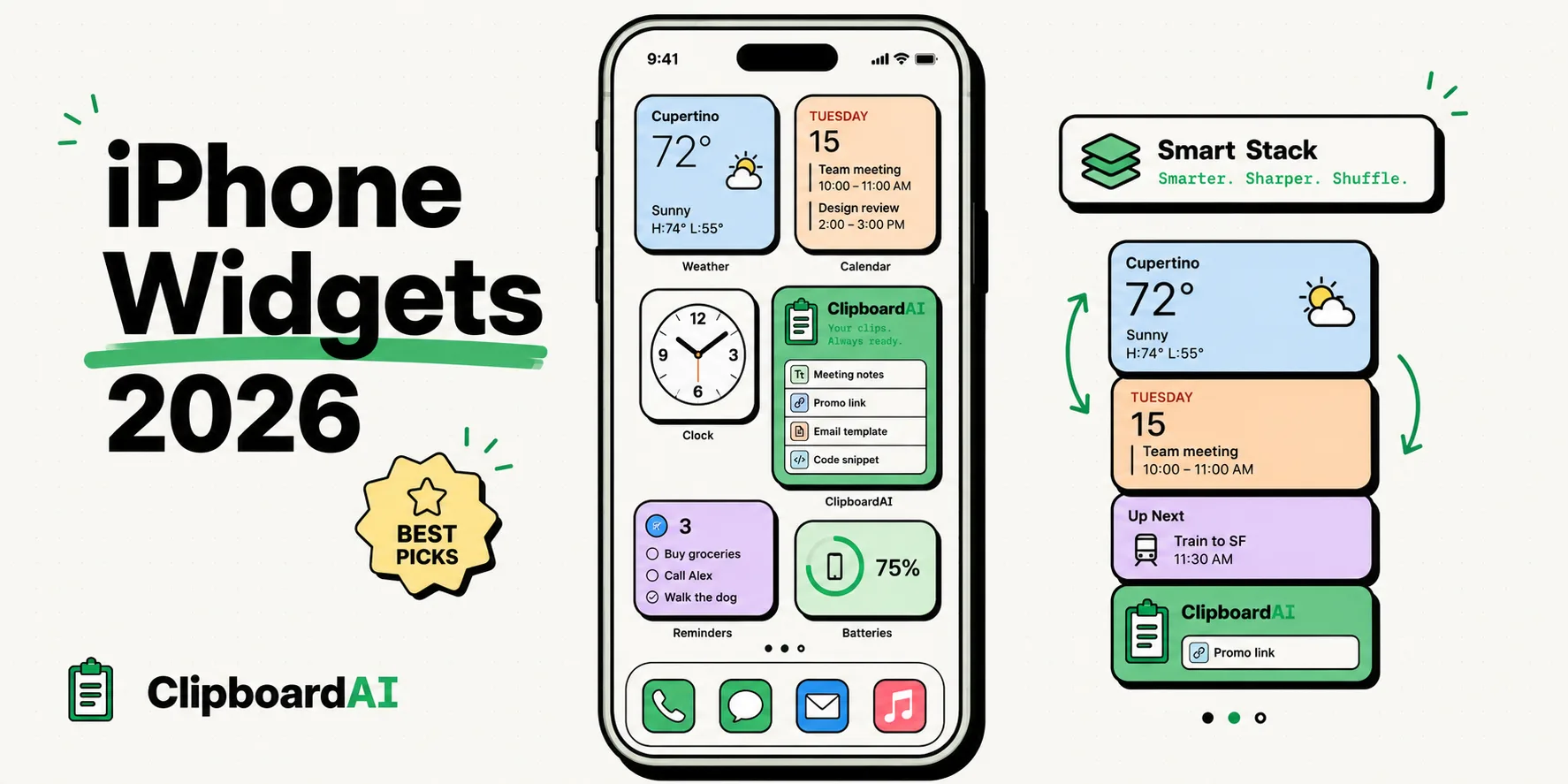
To master iPhone widgets in 2026, you must understand how to utilize interactive widget states, Smart Stacks, and StandBy mode to surface critical data directly on your Home Screen. In iOS 17 and later, widgets are fully interactive, letting you trigger shortcuts, check off tasks, and access your clipboard history log without launching the parent application, turning your home screen into a highly functional control dashboard.
Here is a comprehensive guide to organizing your widgets, customizing interactive stacks, and building a high-efficiency interface.
The Paradigm Shift of Interactive Widgets
When Apple introduced Home Screen widgets in iOS 14, they were strictly read-only. Tapping a widget simply launched the parent application, acting as a oversized app icon.
In recent iOS updates, widgets have evolved into micro-interfaces:
- Direct Action execution: You can check off a reminder, play or pause a podcast, or control smart home appliances directly from the widget container.
- Instant Clipboard Access: Clipboard managers like ClipboardAI now offer widget overlays. You can view your three most recent copies or access a pinned text template straight from your Home Screen with a tap.
- StandBy Optimization: When your phone is placed horizontally on a charger at night, widgets scale into large, high-contrast displays suitable for bedside or desk viewing.
By arranging these interactive blocks strategically, you can reduce the time spent searching inside applications for information.
Required Value Artifact: The Home Screen Widget Configuration Matrix
Use this layout matrix to configure your widgets depending on your primary activity and environment:
| Use Case Profile | Recommended Widget Size | Core Apps to include | Ideal Home Screen Location | StandBy Mode Setup | |
|---|---|---|---|---|---|
| The Professional | Medium Smart Stack | Calendar, Reminders, ClipboardAI History | Top Row (Primary Screen) | Dual Widget View: Calendar & Tasks | |
| The Academic | Large Block Stack | Notion, Anki Flashcards, Document Links | Center (Primary Screen) | Left-hand: To-Do | Right-hand: Clock |
| The Travel Mode | Medium Widget | Apple Wallet, Weather, Translation Shortcuts | Left-hand Today View swipe | Flight status card & Local weather tracker | |
| The Smart Home Controller | Small Grid (2x2) | Home App (Lights, Locks), Spotify Playback | Bottom Row (Secondary Screen) | Large-format thermostat & lighting switches |
How to Build and Configure Smart Stacks
A Smart Stack is a collection of widgets of the same size stacked on top of each other. The operating system uses on-device machine learning to rotate the stack, showing you the most relevant widget based on the time of day, your location, and your activity.
How to Create a Custom Stack:
- Tap and hold any blank area on your Home Screen until the apps begin to jiggle.
- Tap the
+button in the top-left corner to open the widget library. - Select an application, choose a widget size, and drag it onto your screen.
- Go back to the library, select a second app, choose the exact same widget size, and drag it directly on top of the first widget.
- Tap the stack and select Edit Stack. Here you can toggle:
- Smart Rotate: Allows iOS to automatically swap widgets.
- Widget Suggestions: Allows the system to suggest new widgets you haven't added based on your usage habits.
Integrating Your Clipboard with Widgets
One of the most useful applications of interactive widgets is clipboard data management:
- Instant Pinned Paste: Keep a 2x2 widget of your clipboard manager pinned on your Today View (swipe right from your main screen). This displays your top two pinned templates (like your mailing address or company VAT number). Tapping either card copies it to your active system pasteboard instantly.
- Fast History Review: If you are copying multiple items for research, a medium-sized clipboard widget allows you to verify that your copies are logging correctly without leaving your web browser.
Honest Caveats: Battery Drain and Layout Constraints
While widgets can streamline your productivity, they carry several design and performance trade-offs:
- NPU and Battery Consumption: Interactive widgets that update constantly in the background (like live tracking maps, stock charts, or weather updates) require CPU/GPU processing and network handshakes. To prevent battery drain, limit your home screen to a maximum of two active background widgets.
- Refresh Latency: iOS limits how often widgets can refresh to save battery. If you copy a item, a clipboard widget might experience a 5-second delay before updating the text card preview on screen.
- Layout Restrictions: You cannot place widgets freely outside of Apple's grid structure. The system automatically snaps widgets and icons to the top-to-bottom, left-to-right order.
Designing Your High-Efficiency Layout Today
To clean up your phone interface and save time, implement this configuration plan:
- Audit Your Apps: Group all single-use utility apps into the App Library to declutter your home screens.
- Build One Smart Stack: Create a medium stack containing your Calendar, Tasks list, and ClipboardAI pinned templates.
- Set Up Today View: Reserve the swipe-right panel for widgets you only need occasionally, like delivery tracking maps or smart lighting controls.
- Configure Focus Filters: Use iOS Focus modes (Work, Personal, Sleep) to change your Home Screen layouts automatically depending on the time of day.