
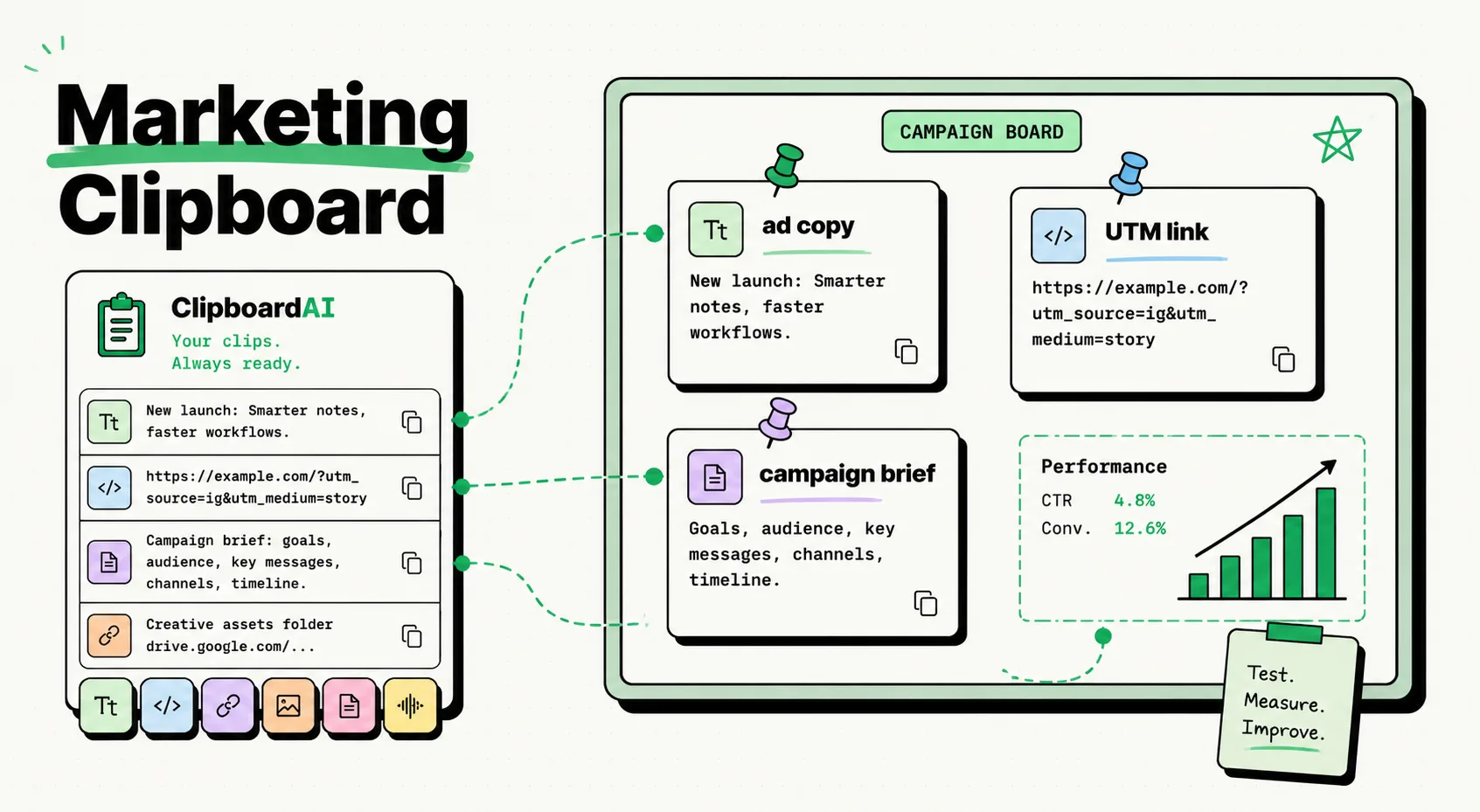
To launch multi-channel campaigns efficiently, marketing managers use clipboard managers like ClipboardAI on iPhone and Mac to store UTM campaign links, ad copy variants, and tracking codes. Since iOS natively limits your clipboard to a single copied item, a dedicated history manager prevents you from losing your tracking parameters and promotional copy when switching between analytics dashboards, spreadsheets, and social media scheduling portals.
Here is a practical guide to optimizing your marketing campaigns, tracking variables cleanly, and speeding up your promotional publishing.
The Friction of Single-Item Clipboard Workflows in Marketing
Marketing managers coordinate complex campaigns across multiple digital storefronts, email clients, social networks, and analytics hubs. A single launch can require pasting different tracking URLs, captions, hashtags, and visual assets into platforms like Buffer, Mailchimp, HubSpot, and Google Sheets.
Without a clipboard manager, the campaign setup process is highly inefficient:
- You copy the base UTM tracking URL:
https://yoursite.com/?utm_source=linkedin&utm_medium=social&utm_campaign=launch - You switch to Buffer and paste it into your post.
- You realize you need the standard compliance disclosure text for the post, so you navigate to your guidelines document and copy the text.
- The UTM tracking link is now erased from your clipboard RAM.
- When you switch to the next social channel (e.g., Twitter/X) to schedule the same post, you must reconstruct the UTM link, navigate back to your link builder spreadsheet, or copy it all over again.
This back-and-forth context switching leads to micro-distractions and administrative overhead. Even worse, manually copying and pasting UTM strings increases the risk of transcription errors. A single mistyped letter in a utm_campaign tag can break your team's analytics tracking, rendering your campaign data useless and skewing your return-on-ad-spend (ROAS) calculations.
Required Value Artifact: The Campaign Marketer's Snippet Kit
Pin these copy-pastable templates and reference guides inside ClipboardAI to streamline your daily campaign execution.
1. The UTM Campaign Link Builder
Keep this structure pinned in your clipboard. You can paste it into any browser bar or editor, swap out the bracketed fields, and deploy it immediately:
[Base Destination URL]
?utm_source=[platform_name]
&utm_medium=[channel_medium: e.g., social, email, ppc]
&utm_campaign=[campaign_name]
&utm_content=[ad_variant_name: e.g., image_blue, text_v2]
2. Social Media Caption Templates with Character Limits
Keep these structure guides pinned to ensure your copy fits within platform layout constraints:
- Twitter/X Caption Blueprint (Under 280 Characters):
  ⚡ [Hook Sentence (100 char max)]

  👉 [CTA Link URL]

#marketing #productivity [Tag 3]- LinkedIn Professional Post Outline:
  [Strong Open/Question]

  🚀 [Value Bullet 1]
  🚀 [Value Bullet 2]
  🚀 [Value Bullet 3]

  Read the full story here: [UTM Link]

  #workspace #remotework #branding
3. CTA (Call to Action) Copy Variations Matrix
Create a quick reference folder of tested CTA copy alternatives so you can swap them into your templates as you schedule posts:
| Target Audience | Primary CTA | Alternative CTA 1 | Alternative CTA 2 | Best Use Case |
|---|---|---|---|---|
| Cold Traffic | "Learn More" | "See How it Works" | "Read the Story" | Blog promotion, initial social ads |
| Warm Leads | "Get Started for Free" | "Try ClipboardAI Free" | "Claim Your Account" | Landing pages, email sign-ups |
| Existing Users | "Access Your Dashboard" | "Sign In" | "Resume Workspace" | Reactivation emails, system notices |
Formatting Integrity: How Clipboard Managers Handle Marketing Assets
Marketing channels require different formatting types. Here is how clipboard data translates across common publishing platforms:
| Data Type | Copied From | Pasted Into | Formatting Result | Recommended Workflow |
|---|---|---|---|---|
| Plain Text | Word Processors | Social Schedulers | Strips all formatting, keeps text clean | Use default plain text paste to avoid hidden formatting bugs. |
| Rich Text (HTML) | Google Docs | HubSpot / Mailchimp | Keeps headers, links, and bold stylings | Paste directly into HTML blocks to preserve internal hyperlinks. |
| Vector Graphics (SVG) | Figma / Sketch | Webflow / Site Editors | Pastes as raw XML vector markup | Copy SVG code to bypass downloading and uploading icon files. |
| Images | Dashboards / Canvas | Slack / Jira / email | Pastes as a local attachment | Use clipboard history to quickly compile screenshot portfolios. |
Optimizing Your Campaign Launch Checklist
By integrating a clipboard manager like ClipboardAI into your team's workflow, you can optimize campaign creation:
1. Sequential Campaign Execution
Instead of switching between your content spreadsheet and social scheduler for every single line of text:
- Go to your campaign spreadsheet.
- Copy the post caption, then the tracking link, then the target hashtag block, then the image asset.
- ClipboardAI registers all four items in your history queue.
- Open your scheduler (e.g., Buffer, Hootsuite, or HubSpot).
- Use the history list to paste the caption, link, and hashtags into the fields without leaving the scheduler tab.
2. UTM Tracking Consistency
Keep your standard UTM campaign names pinned in a folder. When launching a new ad set on Facebook, instead of retyping 2026_q3_product_launch_global in three different browser fields, paste it from your history. This guarantees that your Google Analytics dashboard displays clean, unfragmented traffic sources.
3. Eliminating Styling Mismatches
When copying copywriter notes from a Google Doc, they often carry formatting tags that make text appear massive or colored when pasted into web tools. ClipboardAI automatically strips styling if configured, ensuring your social posts and email campaigns render in the native font settings of the target platform.
Honest Caveats: Operating System & Application Limitations
No utility is without limits, and we want to be completely honest about where clipboard managers encounter challenges:
- iOS Background Constraints: Apple's iOS security sandbox prevents background apps from reading your system clipboard. If you copy a UTM link in Safari on your iPhone, you must launch the ClipboardAI app or open the ClipboardAI keyboard extension to pull that link into your history memory.
- Large Asset Limitations: Copying high-resolution 4K ad banners or video assets to your clipboard writes large amounts of binary data to system RAM. Clipboard managers are optimized for text, links, and lightweight SVGs. Trying to cache massive media assets inside your history tool can cause application lag. We recommend using standard drag-and-drop or export folders for large files.
- Universal Clipboard Lag: If you copy a caption on your Mac and expect it to sync instantly to your iPhone's clipboard via iCloud, you may experience a 2-3 second sync delay. For rapid-fire scheduling workflows, keep your active assets on the device you are publishing from.
Setting Up Your Marketing Clipboard Workspace
To make this workflow part of your daily routine, spend a few minutes setting up your system:
- Install ClipboardAI on your computer and phone.
- Setup Exclusions: Open
Settings > Securityand add your company password vault and personal accounts to the ignore list to ensure secure credentials are never recorded. - Build Campaign Folders: Create folders named
Current Campaign Links,CTA Variants, andHashtag Blocks. - Enable the Keyboard Extension: Activate the ClipboardAI custom keyboard on your mobile phone to insert links and captions with a single tap while scheduling campaigns on the go.